


How to use nested functions in excel?
How to use nested functions in excel
1. Open an excel worksheet, select cell D3, and click the "Insert Function" button in the "Function Library" group under the "Formulas" tab, as shown in Figure 1.
Recommended: "excel tutorial"
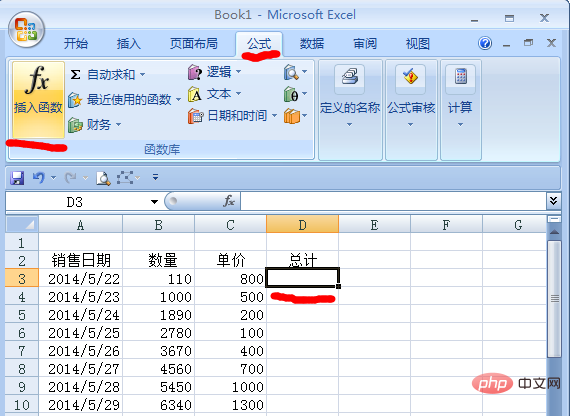
Figure 1
2. In the pop-up "Insert Function" dialog box, select the "Common Functions" option in the "Or Select Category:" drop-down list box, select the SUM function in the "Select Function:" list box, and then click the "OK" button, as shown in Figure 2.
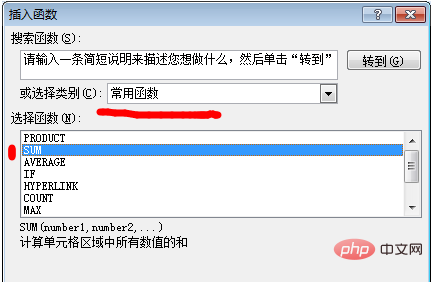
Figure 2
3. In the pop-up "Function Parameters" dialog box, enter "PRODUCT(B3:D3)" in the Number1 text box and so on. , set the Number1 and Number3 parameters respectively, click the "OK" button, as shown in Figure 3.
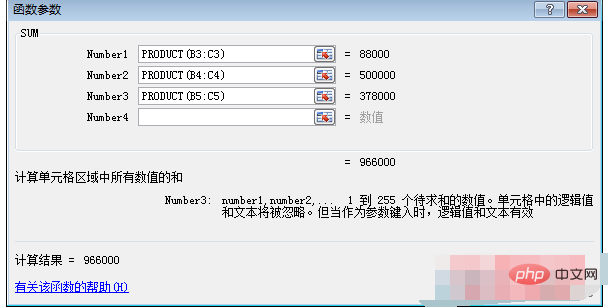
Figure 3
4. Finally return to excel work In the table, we can see the correct calculation result in cell D3, as shown in Figure 4.
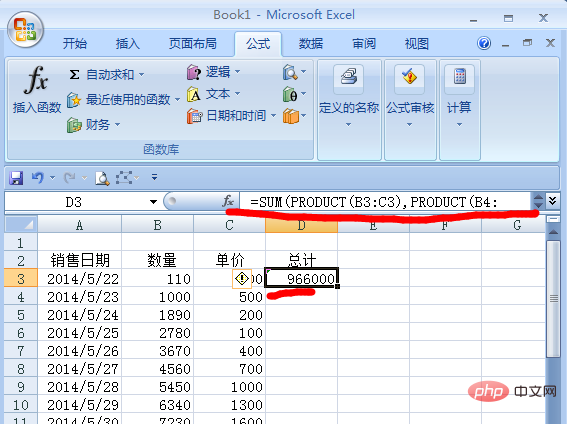
Figure 4
in excel The use of nested functions is often used in functions. Our example in this section is to use nested functions to calculate the sum of Number1 to Number3. Of course, we can also use nested functions to calculate more other calculation methods.
The above is the detailed content of How to use excel nested functions. For more information, please follow other related articles on the PHP Chinese website!
 Compare the similarities and differences between two columns of data in excel
 excel duplicate item filter color
 How to copy an Excel table to make it the same size as the original
 Excel table slash divided into two
 Excel diagonal header is divided into two
 Absolute reference input method
 java export excel
 Excel input value is illegal





















![[Web front-end] Node.js quick start](https://img.php.cn/upload/course/000/000/067/662b5d34ba7c0227.png)



