


How to solve the problem of USB power surge when Windows prompts

If there is a problem with your computer's USB interface and it cannot be used normally, a "power surge on the USB port" prompt often pops up under the Windows 10 system. How can we solve such a problem? Let’s take a look at how to turn off USB interface error prompts.
Windows prompts how to solve the USB surge
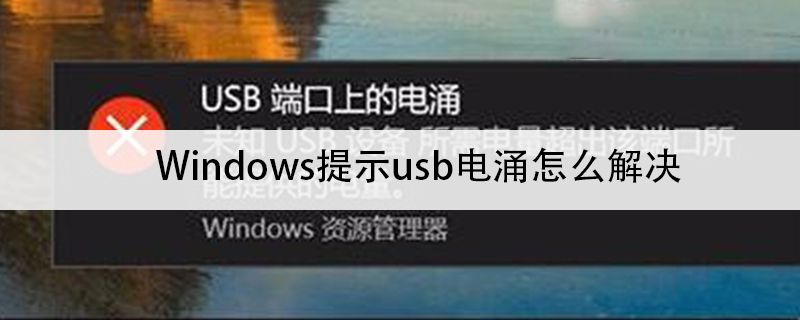
1. If there is a problem with your USB interface, then the right A prompt often pops up in the lower corner: USB port power surge
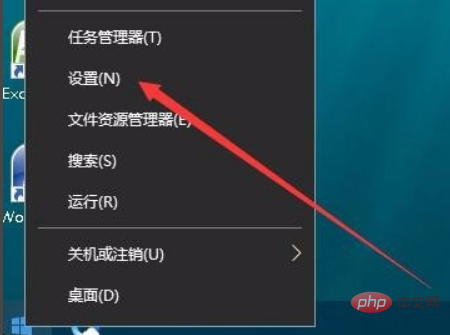
#2. Right-click the Windows 10 start button and select the "Settings" menu item in the pop-up menu
3. In the settings window that opens, we click the device icon in the window
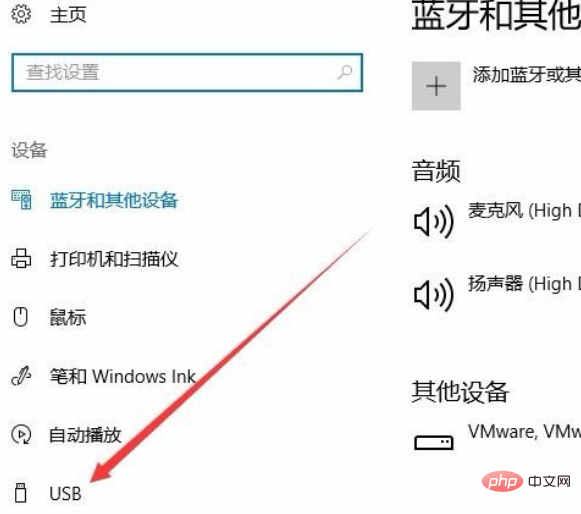
4. In the device In the window, click on the USB menu item at the bottom of the left sidebar
5. In the right window, you can see an item titled "If it appears when connecting to a USB device If there is a problem, please notify me" menu item, uncheck the previous check, and finally click the OK button.
、

For more related tutorials, please follow PHP中文网! !
The above is the detailed content of How to solve the problem of USB power surge when Windows prompts. For more information, please follow other related articles on the PHP Chinese website!

Hot AI Tools

Undress AI Tool
Undress images for free

Undresser.AI Undress
AI-powered app for creating realistic nude photos

AI Clothes Remover
Online AI tool for removing clothes from photos.

Clothoff.io
AI clothes remover

Video Face Swap
Swap faces in any video effortlessly with our completely free AI face swap tool!

Hot Article
Hot Tools

Notepad++7.3.1
Easy-to-use and free code editor

SublimeText3 Chinese version
Chinese version, very easy to use

Zend Studio 13.0.1
Powerful PHP integrated development environment

Dreamweaver CS6
Visual web development tools

SublimeText3 Mac version
God-level code editing software (SublimeText3)


![Windows could not complete the installation [FIXED]](https://img.php.cn/upload/article/001/431/639/175606404166924.jpg?x-oss-process=image/resize,m_fill,h_207,w_330) Windows could not complete the installation [FIXED]
Aug 25, 2025 am 03:34 AM
Windows could not complete the installation [FIXED]
Aug 25, 2025 am 03:34 AM
IfWindowsinstallationfailsorgetsstuck,trythesesteps:1.Disconnectexternaldevices.2.BootintoSafeMode.3.RepairsystemfilesviaCommandPromptusingsfcandDISM.4.ClearTPMandresetBIOS.5.PerformacleaninstallusingabootableUSB.
 How to fix 'The credentials provided are not sufficient to access this printer' in Windows?
Aug 25, 2025 am 09:59 AM
How to fix 'The credentials provided are not sufficient to access this printer' in Windows?
Aug 25, 2025 am 09:59 AM
Updateorre-enterprintercredentialsbyremovingstoredpasswordsandinputtingcorrectonesusingtheformatHOSTNAME\UsernameorDOMAIN\Username.2.OnthehostPC,enablefileandprintersharing,adjustsharingsettings,andsetthenetworkaccessmodeltoClassicorGuestonlyinLocalS
 Fresh Guide: Fix Windows Printer Problems and Spooler Issues
Aug 29, 2025 am 08:12 AM
Fresh Guide: Fix Windows Printer Problems and Spooler Issues
Aug 29, 2025 am 08:12 AM
IfyourWindowsprinterisn'tworking,trythesesteps:1.RestartthePrintSpoolerservice.2.Runthebuilt-inPrinterTroubleshooter.3.Reinstalltheprinterdriver.4.Manuallyclearstuckprintjobs.5.UseCommandPrompttoresetprintingcomponents.
 What is a pass key? How to create it? OEE Exchange's pass key tutorial ((APP/Web)
Aug 29, 2025 pm 03:54 PM
What is a pass key? How to create it? OEE Exchange's pass key tutorial ((APP/Web)
Aug 29, 2025 pm 03:54 PM
What is Pass Key Pass Key is a new type of authentication technology that allows users to access their accounts without manually entering their password when logging into a website or application. Through the pass key, users can complete identity authentication using fingerprint recognition, facial scanning or device unlocking methods (such as PIN code). This technology is based on the encryption key pair mechanism, providing efficient and secure protection capabilities, and effectively resisting cyber threats such as phishing attacks. Advantages of Pass Key 1. Password-free login, which is more convenient to operate: use fingerprints, faces and other biometric methods to log in directly to the account, so as to save the hassle of repeatedly entering passwords and avoid login failures caused by entering the wrong password. 2. Stronger security: Pass keys follow technical standards formulated by the FIDO Alliance and W3C, and use asymmetric encryption algorithms to replace traditional secrets.
 How to use virtual private networks (VPN) on Windows
Aug 26, 2025 am 07:20 AM
How to use virtual private networks (VPN) on Windows
Aug 26, 2025 am 07:20 AM
TosetupanduseaVPNonWindows,firstopenSettings>Network&Internet>VPNandclickAddaVPNconnection;1.SetVPNprovidertoWindows(built-in);2.Enterarecognizableconnectionname;3.Inputtheservernameoraddressprovided;4.SelectthecorrectVPNtype(e.g.,IKEv2,L2T
 How to turn off advertising ID in Windows
Aug 27, 2025 am 06:03 AM
How to turn off advertising ID in Windows
Aug 27, 2025 am 06:03 AM
OpenSettingsviatheStartmenu,thengotoPrivacy&security(orPrivacyonWindows10).2.ClickGeneralintheleftmenuandlocatetheadvertisingIDoption.3.Toggleoff"LetappsuseadvertisingIDtomakeadsmoreinterestingtoyoubasedonyourappactivity"todisableit.Dis
!['Windows can't find one of the files in this theme' [Fixed]](https://img.php.cn/upload/article/001/431/639/175633464156912.jpg?x-oss-process=image/resize,m_fill,h_207,w_330) 'Windows can't find one of the files in this theme' [Fixed]
Aug 28, 2025 am 06:44 AM
'Windows can't find one of the files in this theme' [Fixed]
Aug 28, 2025 am 06:44 AM
First, confirm whether the theme file is complete. 1. Enter the corresponding theme folder of C:\Users\YourName\AppData\Local\Microsoft\Windows\Themes\; 2. Check whether the .theme file exists; 3. Confirm whether the referenced picture is in the Backgrounds subfolder; 4. Verify whether the referenced .msstyles file actually exists; if any file is missing, you need to download the theme package and install it correctly to solve the problem.
 How to find the classic Control Panel items in Windows
Aug 26, 2025 am 07:12 AM
How to find the classic Control Panel items in Windows
Aug 26, 2025 am 07:12 AM
TheclassicControlPanelinWindows10and11canbeaccessedviaStartmenusearch,Runcommand(control),FileExplorer,orright-clickingtheStartbutton.2.ControlPaneloffersthreeviews:Category,Largeicons,andSmallicons,withiconviewsbeingfastestforlocatingspecifictools.3