


Is the vscode editor cross-platform?


Visual Studio Code (referred to as VS Code / VSC) is a free and open source modern lightweight code editor that supports syntax highlighting and intelligent code completion. It has comprehensive, custom hotkeys, bracket matching, code snippets, code comparison Diff, GIT and other features, and is optimized for web development and cloud application development.
The software supports cross-platform Win, Mac and Linux, and runs smoothly. It can be said to be Microsoft's conscience work.
Of course, Microsoft claims that Visual Studio Code is not a full version of Visual Studio. It is just a lightweight code editor, not a heavyweight complete IDE (integrated development environment).
Visual Studio Code download and installation
1. Go to the VSCode official website to download
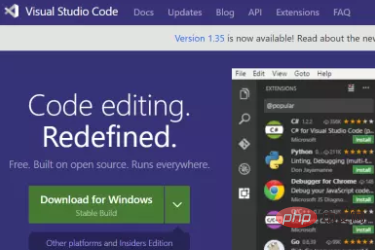
2. Click Download for Windows v to download according to your operating system
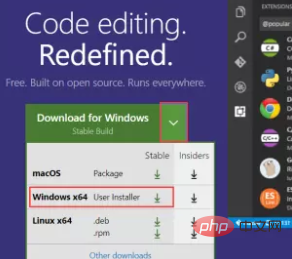
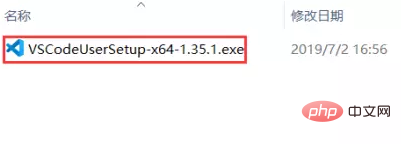
3. Find the downloaded VSCode installation file and double-click to run
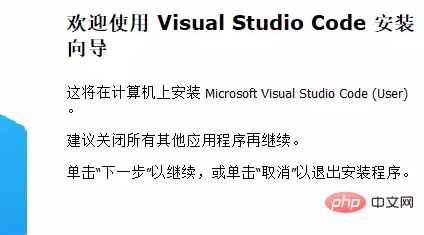
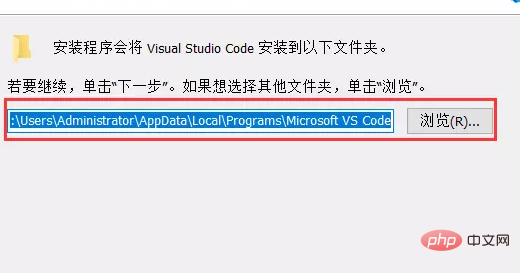
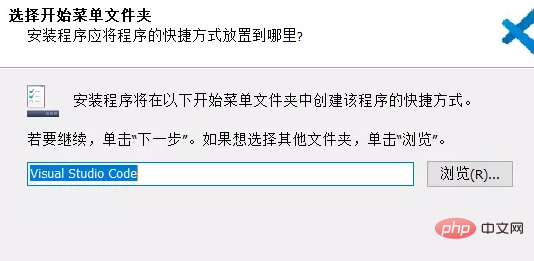
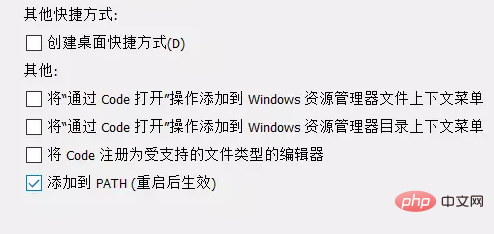
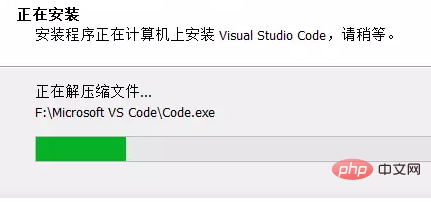
4. Enter the installation wizard interface of VSCode and click Next to start the installation.
The above is the detailed content of Is the vscode editor cross-platform?. For more information, please follow other related articles on the PHP Chinese website!

Hot AI Tools

Undress AI Tool
Undress images for free

Undresser.AI Undress
AI-powered app for creating realistic nude photos

AI Clothes Remover
Online AI tool for removing clothes from photos.

Clothoff.io
AI clothes remover

Video Face Swap
Swap faces in any video effortlessly with our completely free AI face swap tool!

Hot Article
Hot Tools

Notepad++7.3.1
Easy-to-use and free code editor

SublimeText3 Chinese version
Chinese version, very easy to use

Zend Studio 13.0.1
Powerful PHP integrated development environment

Dreamweaver CS6
Visual web development tools

SublimeText3 Mac version
God-level code editing software (SublimeText3)
Hot Topics
 1793
1793
 16
1736
56
1588
29
267
587
16
1736
56
1588
29
267
587

 How to connect to svn with vscode
Apr 16, 2025 am 07:15 AM
How to connect to svn with vscode
Apr 16, 2025 am 07:15 AM
如何使用 VSCode 连接 SVN?安装 Subversion 和 VSCode 插件。 Configure VSCode settings, specify the Subversion executable file path and authentication method. Right-click the project folder in VSCode Explorer and select "SVN > Checkout...". Enter the repository URL and enter the credentials as needed. Click Checkout to check out the project from the repository to the computer.
 Laravel environment construction and basic configuration (Windows/Mac/Linux)
Apr 30, 2025 pm 02:27 PM
Laravel environment construction and basic configuration (Windows/Mac/Linux)
Apr 30, 2025 pm 02:27 PM
The steps to build a Laravel environment on different operating systems are as follows: 1.Windows: Use XAMPP to install PHP and Composer, configure environment variables, and install Laravel. 2.Mac: Use Homebrew to install PHP and Composer and install Laravel. 3.Linux: Use Ubuntu to update the system, install PHP and Composer, and install Laravel. The specific commands and paths of each system are different, but the core steps are consistent to ensure the smooth construction of the Laravel development environment.
 Use VSCode to perform version fallback operation of code
May 15, 2025 pm 09:42 PM
Use VSCode to perform version fallback operation of code
May 15, 2025 pm 09:42 PM
In VSCode, you can use Git for code version fallback. 1. Use gitreset--hardHEAD~1 to fall back to the previous version. 2. Use gitreset--hard to fall back to a specific commit. 3. Use gitrevert to safely fall back without changing history.
 Environment configuration for running Ruby code in VSCode
May 15, 2025 pm 09:30 PM
Environment configuration for running Ruby code in VSCode
May 15, 2025 pm 09:30 PM
Configuring the Ruby development environment in VSCode requires the following steps: 1. Install Ruby: Download and install from the official website or using RubyInstaller. 2. Install the plug-in: Install CodeRunner and Ruby plug-ins in VSCode. 3. Set up the debugging environment: Install the DebuggerforRuby plug-in and create a launch.json file in the .vscode folder for configuration. This way, you can write, run, and debug Ruby code efficiently in VSCode.
 How to manually install plugin packages in VSCode
May 15, 2025 pm 09:33 PM
How to manually install plugin packages in VSCode
May 15, 2025 pm 09:33 PM
The steps to manually install the plug-in package in VSCode are: 1. Download the .vsix file of the plug-in; 2. Open VSCode and press Ctrl Shift P (Windows/Linux) or Cmd Shift P (Mac) to call up the command panel; 3. Enter and select Extensions:InstallfromVSIX..., then select .vsix file and install. Manually installing plug-ins provides a flexible way to install, especially when the network is restricted or the plug-in market is unavailable, but attention needs to be paid to file security and possible dependencies.
 Configure VSCode and GitHub for code synchronization
May 20, 2025 pm 06:33 PM
Configure VSCode and GitHub for code synchronization
May 20, 2025 pm 06:33 PM
Configuring VSCode to synchronize code with GitHub can improve development efficiency and team collaboration. First, install the "GitHubPullRequestsandIssues" and "GitLens" plugins; second, configure the GitHub account; then clone or create a repository; finally, submit and push the code to GitHub.
 Best Practices for Writing JavaScript Code with VSCode
May 15, 2025 pm 09:45 PM
Best Practices for Writing JavaScript Code with VSCode
May 15, 2025 pm 09:45 PM
Best practices for writing JavaScript code in VSCode include: 1) Install Prettier, ESLint, and JavaScript (ES6) codesnippets extensions, 2) Configure launch.json files for debugging, and 3) Use modern JavaScript features and optimization loops to improve performance. With these settings and tricks, you can develop JavaScript code more efficiently in VSCode.
 How to run php code in vscode
Apr 16, 2025 am 06:39 AM
How to run php code in vscode
Apr 16, 2025 am 06:39 AM
You can run PHP code in Visual Studio Code through the following steps: 1) Install PHP extension; 2) Configure the PHP interpreter; 3) Create PHP files; 4) Set up debugging configuration; 5) Run PHP code.
