


How to set indent in notepad


First start the Notepad program.
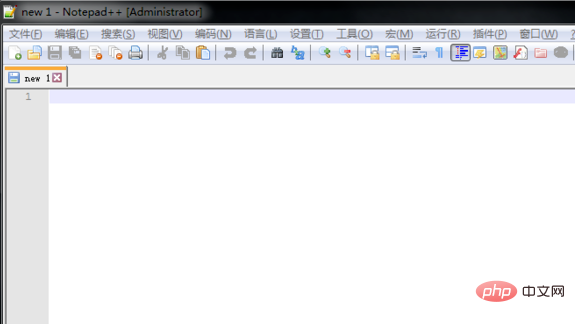
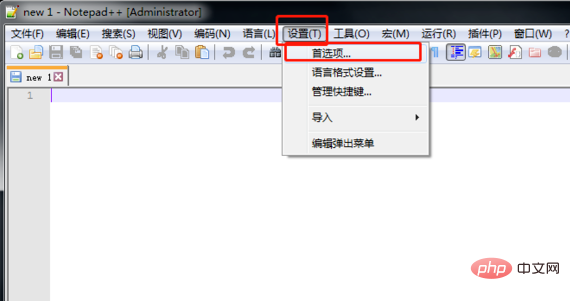
Then select [Settings] - [Preferences].
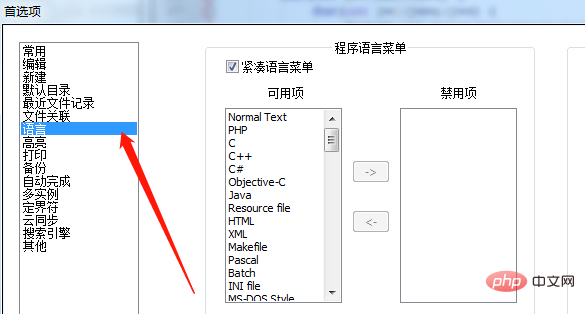
In the pop-up window, select [Language] in the preference column.
Related recommendations: "Notepad using graphic tutorial"
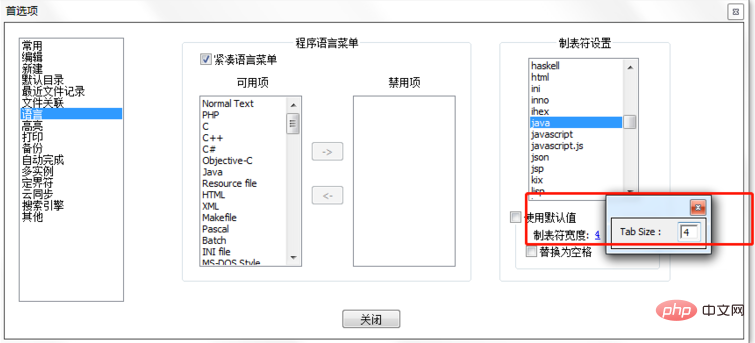
Then set the column with the tab character on the far right, drag Move the scroll bar and find java.
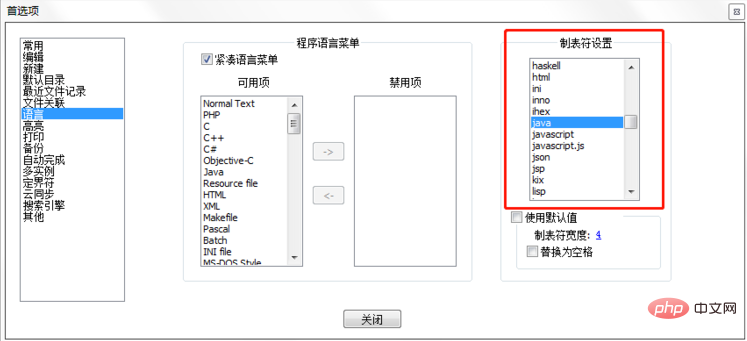
Uncheck the box in front of Use default value, click the blue number, and set the value to 4 in the pop-up window.
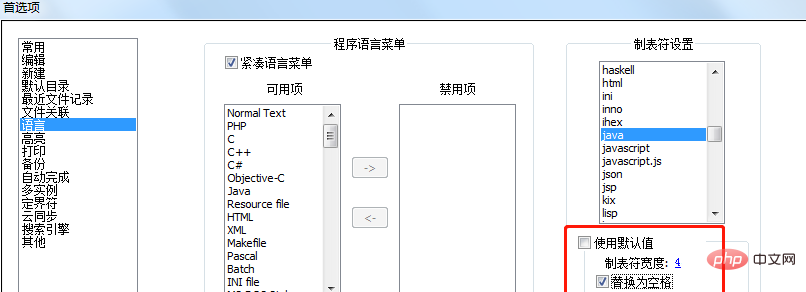
Then check the check box in front of Replace with spaces and close it when finished.
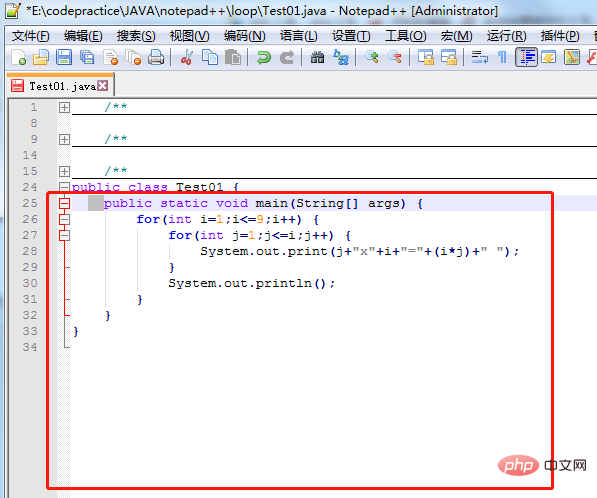
After setting up, create a java program and test it. You can see that the tap indentation has become 4 spaces. You no longer have to worry about code misalignment. Got it!
The above is the detailed content of How to set indent in notepad. For more information, please follow other related articles on the PHP Chinese website!

Hot AI Tools

Undress AI Tool
Undress images for free

Undresser.AI Undress
AI-powered app for creating realistic nude photos

AI Clothes Remover
Online AI tool for removing clothes from photos.

Clothoff.io
AI clothes remover

Video Face Swap
Swap faces in any video effortlessly with our completely free AI face swap tool!

Hot Article
Hot Tools

Notepad++7.3.1
Easy-to-use and free code editor

SublimeText3 Chinese version
Chinese version, very easy to use

Zend Studio 13.0.1
Powerful PHP integrated development environment

Dreamweaver CS6
Visual web development tools

SublimeText3 Mac version
God-level code editing software (SublimeText3)


 How to use notepad
Apr 16, 2025 pm 08:09 PM
How to use notepad
Apr 16, 2025 pm 08:09 PM
Notepad is a free text editor for Windows, which offers a variety of features such as: 1) syntax highlighting, 2) autocomplete, 3) macro recording, 4) plug-in extensions, 5) customizable interfaces and settings.
 How to automatically type notepad
Apr 16, 2025 pm 08:06 PM
How to automatically type notepad
Apr 16, 2025 pm 08:06 PM
Notepad itself does not have automatic layout function. We can use a third-party text editor, such as Sublime Text, to perform the following steps to achieve automatic typography: 1. Install and open the text editor. 2. Open the file that needs to be automatically typed. 3. Find and select the automatic layout function. 4. The editor will automatically type the text. 5. You can customize the layout rules as needed. Automatic typography can save time and ensure text consistency and professionalism.
 How to set important Git configuration global properties
Apr 17, 2025 pm 12:21 PM
How to set important Git configuration global properties
Apr 17, 2025 pm 12:21 PM
There are many ways to customize a development environment, but the global Git configuration file is one that is most likely to be used for custom settings such as usernames, emails, preferred text editors, and remote branches. Here are the key things you need to know about global Git configuration files.
 How to deal with git code conflict
Apr 17, 2025 pm 02:51 PM
How to deal with git code conflict
Apr 17, 2025 pm 02:51 PM
Code conflict refers to a conflict that occurs when multiple developers modify the same piece of code and cause Git to merge without automatically selecting changes. The resolution steps include: Open the conflicting file and find out the conflicting code. Merge the code manually and copy the changes you want to keep into the conflict marker. Delete the conflict mark. Save and submit changes.
 How to compare Debian Notepad with other editors
May 29, 2025 pm 10:42 PM
How to compare Debian Notepad with other editors
May 29, 2025 pm 10:42 PM
Debian Text Editor is a basic text editing tool, mainly used for daily simple text editing work. Compared with other mainstream editors, it has certain limitations in performance and user experience. Here are the advantages and features of several other editors compared to Debian text editors: Notepad Loading large files speed: Notepad can quickly load large files, such as 1GB-sized SQL files in just 8 seconds, which is nearly 47 times faster than standard text editors. Code coloring function: Supports code coloring in about 80 programming languages, which helps improve coding efficiency. Batch operation capability: It has column editing mode, which is convenient for performing batch processing tasks such as financial verification or operation and maintenance logs. Extension plug-in branch
 How to open the xml file according to the requirements
May 16, 2025 am 11:00 AM
How to open the xml file according to the requirements
May 16, 2025 am 11:00 AM
The .xsm file is an XMLSchema file that defines the structure and constraints of an XML file. 1) Use a text editor such as Notepad or VisualStudioCode to open the .xsm file. 2) For advanced features, use OxygenXMLEditor or AltovaXMLSpy for Schema verification and autocomplete. 3) Through Python's lxml library, you can verify whether the XML file complies with Schema, and use streaming processing to optimize the processing performance of large files.
 Solve the encoding problem that occurs when PHPMyAdmin imports data
May 19, 2025 pm 05:51 PM
Solve the encoding problem that occurs when PHPMyAdmin imports data
May 19, 2025 pm 05:51 PM
To solve the encoding problem when importing data by PHPMyAdmin, you need to ensure that the import file and database encoding are consistent. The specific steps include: 1. Use the set_charset method to set the connection character set to utf8mb4; 2. Ensure that the SQL file is encoded in UTF-8 without BOM format; 3. Add SETNAMESutf8mb4 and other statements to set the session character set; 4. Handle the settings of special characters in the SQL file and database default character sets.
 How do I prevent encoding issues when copying and pasting text into Notepad?
Jun 19, 2025 am 12:21 AM
How do I prevent encoding issues when copying and pasting text into Notepad?
Jun 19, 2025 am 12:21 AM
EncodingissuesinNotepadoccurbecauseitdefaultstoANSIencoding,whilecopiedtextmayuseUTF-8orUnicode.1.Tofixthis,manuallyselectthecorrectencodingwhensaving:gotoFile>SaveAsandchooseUTF-8forcross-platformuseorUnicode(UTF-16LE)forWindows-onlyfiles.2.Becau
