


Introduction to the use of JsChart component

What is JsChart? JSChart can generate icons on web pages, which are often used for statistical information. It is a very easy-to-use JS component.
Using JsChart
One. Import jscharts.js
2. Write the jscharts.jsp test page
1. Download the JScharts library. Download the JScharts library from the official website. We use the jscharts.js file in the compressed package. It's about 150KB.
Use JScharts library Include JScharts library in web page files (such as .html or .jsp).
<script type="text/javascript" src="js/jscharts.js"></script>
Define the container To display the image generated by JScharts on the web page file, you need to put the image into the web page container. We usually use the
tag to define this web page container, and it is mandatory to specify a unique ID value for this p element. For example:
<p id="chartcontainer">这里将用来显示图形报表</p>
Note: The content in this p container will be replaced by JScharts images.
Display JScharts image Next, we need to write a small amount of code to display a linear graph. First, we must prepare the data required for the image. We can use JavaScript arrays to provide data. Each element in the array is composed of 2 elements
<script type="text/javascript">
 var myData = new Array([ "商品1", 20 ], [ "商品2", 10 ], [ "商品3", 30 ], [ "商品4", 10 ],
  [ "商品5", 5 ]);
 var myChart = new JSChart('chartcontainer', 'line');
 myChart.setDataArray(myData);
 myChart.draw();
</script>5. Detailed instructions for use
<p id="chartcontainer">这里将用来显示图形报表</p>
统计指定时间段向各个供应商的采购金额
使用selectsupplier.jsp
action:
@Resource
private AccountRecordsService accountRecordsService;
@RequestMapping("/selectSupplier")
@ResponseBody
public Object selectSupplier(String start,String end){
System.out.println("start:"+ start+"||end:"+end);
Map paramMap =new HashMap();
paramMap.put("start", start);
paramMap.put("end", end);
return accountRecordsService.selectSupplier(paramMap);
}
public interface AccountRecordsService extends BaseService {
List> selectSupplier(Map paramMap);
}
@Service("accountRecordsService")
public class AccountRecordsServiceImpl extends BaseServiceImpl
implements AccountRecordsService {
@Override
public List> selectSupplier(Map paramMap) {
// TODO Auto-generated method stub
return accountRecordsMapper.selectSupplier(paramMap);
}
}
public interface AccountRecordsMapper extends BaseMapper {
List> selectSupplier(Map paramMap);
}
select sum(ar_payable) total,sup_name from account_records inner join supplier on account_records.sup_id=supplie Related recommendations:
JSChart lightweight graphical report tool (built-in function Chinese reference)_javascript skills
The above is the detailed content of Introduction to the use of JsChart component. For more information, please follow other related articles on the PHP Chinese website!

Hot AI Tools

Undresser.AI Undress
AI-powered app for creating realistic nude photos

AI Clothes Remover
Online AI tool for removing clothes from photos.

Undress AI Tool
Undress images for free

Clothoff.io
AI clothes remover

AI Hentai Generator
Generate AI Hentai for free.

Hot Article
Hot Tools

Notepad++7.3.1
Easy-to-use and free code editor

SublimeText3 Chinese version
Chinese version, very easy to use

Zend Studio 13.0.1
Powerful PHP integrated development environment

Dreamweaver CS6
Visual web development tools

SublimeText3 Mac version
God-level code editing software (SublimeText3)
Hot Topics
 1381
1381
 52
52

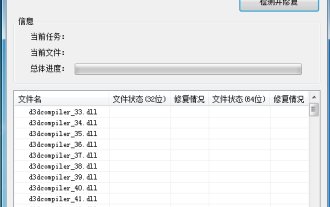 How to use DirectX repair tool? Detailed usage of DirectX repair tool
Mar 15, 2024 am 08:31 AM
How to use DirectX repair tool? Detailed usage of DirectX repair tool
Mar 15, 2024 am 08:31 AM
The DirectX repair tool is a professional system tool. Its main function is to detect the DirectX status of the current system. If an abnormality is found, it can be repaired directly. There may be many users who don’t know how to use the DirectX repair tool. Let’s take a look at the detailed tutorial below. 1. Use repair tool software to perform repair detection. 2. If it prompts that there is an abnormal problem in the C++ component after the repair is completed, please click the Cancel button, and then click the Tools menu bar. 3. Click the Options button, select the extension, and click the Start Extension button. 4. After the expansion is completed, re-detect and repair it. 5. If the problem is still not solved after the repair tool operation is completed, you can try to uninstall and reinstall the program that reported the error.
 Introduction to HTTP 525 status code: explore its definition and application
Feb 18, 2024 pm 10:12 PM
Introduction to HTTP 525 status code: explore its definition and application
Feb 18, 2024 pm 10:12 PM
Introduction to HTTP 525 status code: Understand its definition and usage HTTP (HypertextTransferProtocol) 525 status code means that an error occurred on the server during the SSL handshake, resulting in the inability to establish a secure connection. The server returns this status code when an error occurs during the Transport Layer Security (TLS) handshake. This status code falls into the server error category and usually indicates a server configuration or setup problem. When the client tries to connect to the server via HTTPS, the server has no
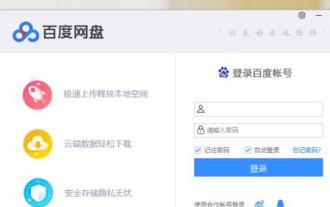 How to use Baidu Netdisk-How to use Baidu Netdisk
Mar 04, 2024 pm 09:28 PM
How to use Baidu Netdisk-How to use Baidu Netdisk
Mar 04, 2024 pm 09:28 PM
Many friends still don’t know how to use Baidu Netdisk, so the editor will explain how to use Baidu Netdisk below. If you are in need, hurry up and take a look. I believe it will be helpful to everyone. Step 1: Log in directly after installing Baidu Netdisk (as shown in the picture); Step 2: Then select "My Sharing" and "Transfer List" according to the page prompts (as shown in the picture); Step 3: In "Friend Sharing", you can share pictures and files directly with friends (as shown in the picture); Step 4: Then select "Share" and then select computer files or network disk files (as shown in the picture); Fifth Step 1: Then you can find friends (as shown in the picture); Step 6: You can also find the functions you need in the "Function Treasure Box" (as shown in the picture). The above is the editor’s opinion
 Learn to copy and paste quickly
Feb 18, 2024 pm 03:25 PM
Learn to copy and paste quickly
Feb 18, 2024 pm 03:25 PM
How to use the copy-paste shortcut keys Copy-paste is an operation we often encounter when using computers every day. In order to improve work efficiency, it is very important to master the copy and paste shortcut keys. This article will introduce some commonly used copy and paste shortcut keys to help readers perform copy and paste operations more conveniently. Copy shortcut key: Ctrl+CCtrl+C is the shortcut key for copying. By holding down the Ctrl key and then pressing the C key, you can copy the selected text, files, pictures, etc. to the clipboard. To use this shortcut key,
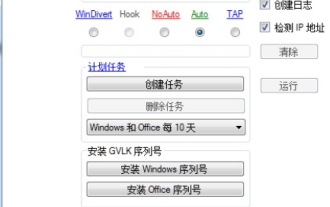 What is the KMS activation tool? How to use the KMS activation tool? How to use KMS activation tool?
Mar 18, 2024 am 11:07 AM
What is the KMS activation tool? How to use the KMS activation tool? How to use KMS activation tool?
Mar 18, 2024 am 11:07 AM
The KMS Activation Tool is a software tool used to activate Microsoft Windows and Office products. KMS is the abbreviation of KeyManagementService, which is key management service. The KMS activation tool simulates the functions of the KMS server so that the computer can connect to the virtual KMS server to activate Windows and Office products. The KMS activation tool is small in size and powerful in function. It can be permanently activated with one click. It can activate any version of the window system and any version of Office software without being connected to the Internet. It is currently the most successful and frequently updated Windows activation tool. Today I will introduce it Let me introduce to you the kms activation work
 How to merge cells using shortcut keys
Feb 26, 2024 am 10:27 AM
How to merge cells using shortcut keys
Feb 26, 2024 am 10:27 AM
How to use the shortcut keys for merging cells In daily work, we often need to edit and format tables. Merging cells is a common operation that can merge multiple adjacent cells into one cell to improve the beauty of the table and the information display effect. In mainstream spreadsheet software such as Microsoft Excel and Google Sheets, the operation of merging cells is very simple and can be achieved through shortcut keys. The following will introduce the shortcut key usage for merging cells in these two software. exist
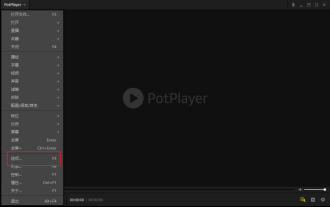 How to use potplayer-How to use potplayer
Mar 04, 2024 pm 06:10 PM
How to use potplayer-How to use potplayer
Mar 04, 2024 pm 06:10 PM
Potplayer is a very powerful media player, but many friends still don’t know how to use potplayer. Today I will introduce how to use potplayer in detail, hoping to help everyone. 1. PotPlayer shortcut keys. The default common shortcut keys for PotPlayer player are as follows: (1) Play/pause: space (2) Volume: mouse wheel, up and down arrow keys (3) forward/backward: left and right arrow keys (4) bookmark: P- Add bookmarks, H-view bookmarks (5) full screen/restore: Enter (6) multiple speeds: C-accelerate, 7) Previous/next frame: D/
 What is PyCharm? Function introduction and detailed explanation of usage
Feb 20, 2024 am 09:21 AM
What is PyCharm? Function introduction and detailed explanation of usage
Feb 20, 2024 am 09:21 AM
PyCharm is a professional Python integrated development environment (IDE) developed by JetBrains. It provides Python developers with powerful functions and tools, making writing Python code more efficient and convenient. PyCharm supports multiple operating systems, including Windows, macOS and Linux, and also supports multiple Python versions, and provides a wealth of plug-ins and extension functions to facilitate developers to customize the IDE environment according to their own needs. P
