


 Computer Tutorials
Computer Knowledge
Change Password on Chromebook | Forgot Chromebook Password - MiniTool
Computer Tutorials
Computer Knowledge
Change Password on Chromebook | Forgot Chromebook Password - MiniTool
Change Password on Chromebook | Forgot Chromebook Password - MiniTool


Do you need to change the password on Chromebook? This post from MiniTool shows you how to change password on Chromebook or without Chromebook. It also tells you what to do if you forgot Chromebook password.
How to Change Password on Chromebook
Chromebook is a web notebook from Google. Many people want to know how to change password on Chromebook. Here is the guide:
- On the Chromebook, open Chrome and go to Google.com.
- Select your profile picture in the upper-right corner.
- Select Manage your Google Account.
- Go to the left pane and select Security.
- Scroll down to the Signing in to Google section.
- Select Password.
- Enter your current password, then select Next.
- If prompted, enter your two-factor authentication code.
- Enter a new password, confirm the new password, then select Change Password.
Note that the Chromebook password and Google password are the same. Therefore, changing your Chromebook password means changing your Google password. After that, you need to use the new password to log in to all your Google services.
How to Free Up Space on Chromebook [Full Guide]
How to Change Chromebook Password Without Chromebook
As mentioned above, the Chromebook password and Google password are the same. Therefore, you can change the Chromebook password on other devices like Windows, macOS, Android, iPhone, etc.
On a Windows PC, you can use Google Chrome to change the password. Here is the guide:
- Go to https://myaccount.google.com. You might need to sign in.
- Under Security, select Signing in to Google.
- Choose Password. You might need to sign in again.
- Enter your new password, then select Change Password.
On Android, you can use any Google app to change the password. Here is the guide:
- Open your device’s Settings app, then Google, and then Manage your Google Account.
- At the top, tap Security.
- Under Signing in to Google, tap Password. You might need to sign in.
- Enter your new password, then tap Change Password.
On iPhone or iPad, you can use Gmail to change the password. Here is the guide:
- Open the Gmail app.
- At the top right, tap your profile picture or initial and then Google Account.
- At the top, tap Personal Info.
- Under Basic info, tap Password.
- Enter your new password, then select Change Password.
How to Format SD Card on Chromebook? [Full Guide]
What to Do If You Forgot Chromebook Password
Like other PCs, Chromebook also requires you to enter a password to log in. However, some people report that they forgot Chromebook password. To solve the problem, you can use the following 2 ways.
Way 1. Recover/Reset the Chromebook Password
- Go to https://accounts.google.com/signin/recovery in any web browser on any device.
- Enter your Google account email or phone number and click Next. You can also click Forgot email if you don’t know your account information.
- Enter the last password that you remember using to log in and click Next. This doesn’t have to be the current password, but it can be any password you’ve ever used to sign into that account. If you don’t remember any past passwords, click Try another way.
- Access your recovery email. It could be another Gmail email or a Yahoo, Outlook, or other email address. If you don’t have the recovery email, you can answer a few questions to prove that the account is yours.
- Enter your new password and click Change password.
How to Run Windows for Chromebook by An Emulator?
Way 2. Reset Chromebook from the Login Screen
On the login screen, press Ctrl Alt Shift r to call out the Chromebook reset window. Then, follow the wizard to reset Chromebook. In this way, you can also reset the Chromebook password.
2 Ways to Play Fortnite on a Chromebook Anywhere and Anytime
Bottom Line
MiniTool Partition Wizard can help you clone the system, manage disks better, and recover data. If you have this need, you can download it from the official website.
The above is the detailed content of Change Password on Chromebook | Forgot Chromebook Password - MiniTool. For more information, please follow other related articles on the PHP Chinese website!

Hot AI Tools

Undresser.AI Undress
AI-powered app for creating realistic nude photos

AI Clothes Remover
Online AI tool for removing clothes from photos.

Undress AI Tool
Undress images for free

Clothoff.io
AI clothes remover

AI Hentai Generator
Generate AI Hentai for free.

Hot Article
Hot Tools

Notepad++7.3.1
Easy-to-use and free code editor

SublimeText3 Chinese version
Chinese version, very easy to use

Zend Studio 13.0.1
Powerful PHP integrated development environment

Dreamweaver CS6
Visual web development tools

SublimeText3 Mac version
God-level code editing software (SublimeText3)
Hot Topics
 1382
1382
 52
52

 Discover How to Fix Drive Health Warning in Windows Settings
Mar 19, 2025 am 11:10 AM
Discover How to Fix Drive Health Warning in Windows Settings
Mar 19, 2025 am 11:10 AM
What does the drive health warning in Windows Settings mean and what should you do when you receive the disk warning? Read this php.cn tutorial to get step-by-step instructions to cope with this situation.
 How do I edit the Registry? (Warning: Use with caution!)
Mar 21, 2025 pm 07:46 PM
How do I edit the Registry? (Warning: Use with caution!)
Mar 21, 2025 pm 07:46 PM
Article discusses editing Windows Registry, precautions, backup methods, and potential issues from incorrect edits. Main issue: risks of system instability and data loss from improper changes.
 How do I manage services in Windows?
Mar 21, 2025 pm 07:52 PM
How do I manage services in Windows?
Mar 21, 2025 pm 07:52 PM
Article discusses managing Windows services for system health, including starting, stopping, restarting services, and best practices for stability.
 How to Fix the Steam Cloud Error? Try These Methods
Apr 04, 2025 am 01:51 AM
How to Fix the Steam Cloud Error? Try These Methods
Apr 04, 2025 am 01:51 AM
The Steam Cloud error can be caused by many reasons. To play a game smoothly, you need to take some measures to remove this error before you launch the game. php.cn Software introduces some best ways as well as more useful information in this post.
 Windows Metadata and Internet Services Problem: How to Fix It?
Apr 02, 2025 pm 03:57 PM
Windows Metadata and Internet Services Problem: How to Fix It?
Apr 02, 2025 pm 03:57 PM
You may see the “A connection to the Windows Metadata and Internet Services (WMIS) could not be established.” error on Event Viewer. This post from php.cn introduces how to remove the Windows Metadata and Internet Services problem.
 How do I change the default app for a file type?
Mar 21, 2025 pm 07:48 PM
How do I change the default app for a file type?
Mar 21, 2025 pm 07:48 PM
Article discusses changing default apps for file types on Windows, including reverting and bulk changes. Main issue: no built-in bulk change option.
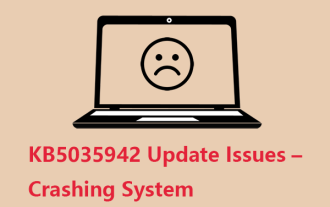 How to Resolve the KB5035942 Update Issues – Crashing System
Apr 02, 2025 pm 04:16 PM
How to Resolve the KB5035942 Update Issues – Crashing System
Apr 02, 2025 pm 04:16 PM
KB5035942 update issues - crashing system commonly happens to users. Inflicted people hope to find a way out of the kind of trouble, such as crashing system, installation, or sound issues. Targeting these situations, this post published by php.cn wil
 How do I use the Group Policy Editor (gpedit.msc)?
Mar 21, 2025 pm 07:48 PM
How do I use the Group Policy Editor (gpedit.msc)?
Mar 21, 2025 pm 07:48 PM
The article explains how to use the Group Policy Editor (gpedit.msc) in Windows for managing system settings, highlighting common configurations and troubleshooting methods. It notes that gpedit.msc is unavailable in Windows Home editions, suggesting
