


Add, edit, use and delete checkboxes in Google Sheets

Google Sheets Checkboxes: A Comprehensive Guide
Google Sheets offers more than just cells; interactive elements like checkboxes enhance data organization. They're ideal for creating dynamic lists, managing task completion, and even data formatting based on their state. This guide covers adding, using, and maximizing checkboxes in Google Sheets.
Inserting Checkboxes
Adding checkboxes is straightforward:
- Select the target cells (e.g., a column).
- Navigate to Insert > Tick box in the menu.

- Checkboxes will appear in each selected cell.


For alternative checkbox styles, use these formulas for static symbols:
- Empty checkbox:
=CHAR(9744) - Filled checkbox:
=CHAR(9745)

These are icons, not interactive checkboxes, useful for specific layout needs.
Multiple Checkboxes in a Cell?
While Google Sheets doesn't support multiple functional checkboxes per cell, visual alternatives exist:
-
Option 1: CHAR Function: Concatenate
CHARfunctions to display multiple checkbox symbols. For example:=CHAR(9745)&" "&CHAR(9746)&" "&CHAR(9744)displays a tick, a cross, and an empty box. These are non-interactive. -
Option 2: Visual Grouping: Use separate cells and visually group them (resize columns, adjust alignment, use white borders) to create the appearance of multiple checkboxes in one cell.
 These are non-interactive.
Copying Checkboxes
To efficiently add checkboxes to new rows, avoid repeatedly inserting them. Instead:
- Copy a checkbox cell (Ctrl C).
- Paste into new cells (Ctrl V).


Alternatively, drag the fill handle (the small square at the bottom right of a selected cell) to copy checkboxes. Double-clicking autofills the entire column. 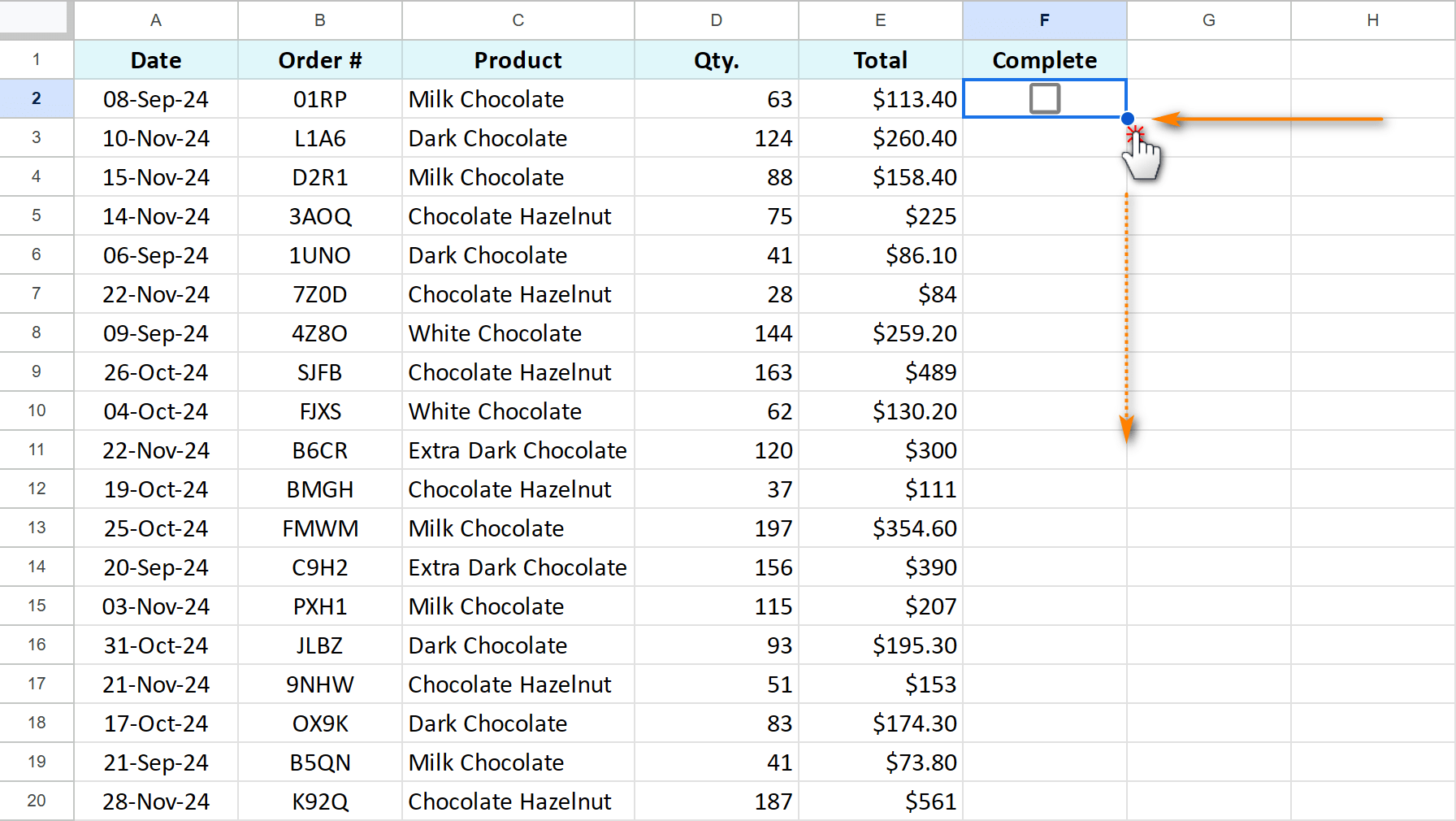
Utilizing Checkboxes in Formulas
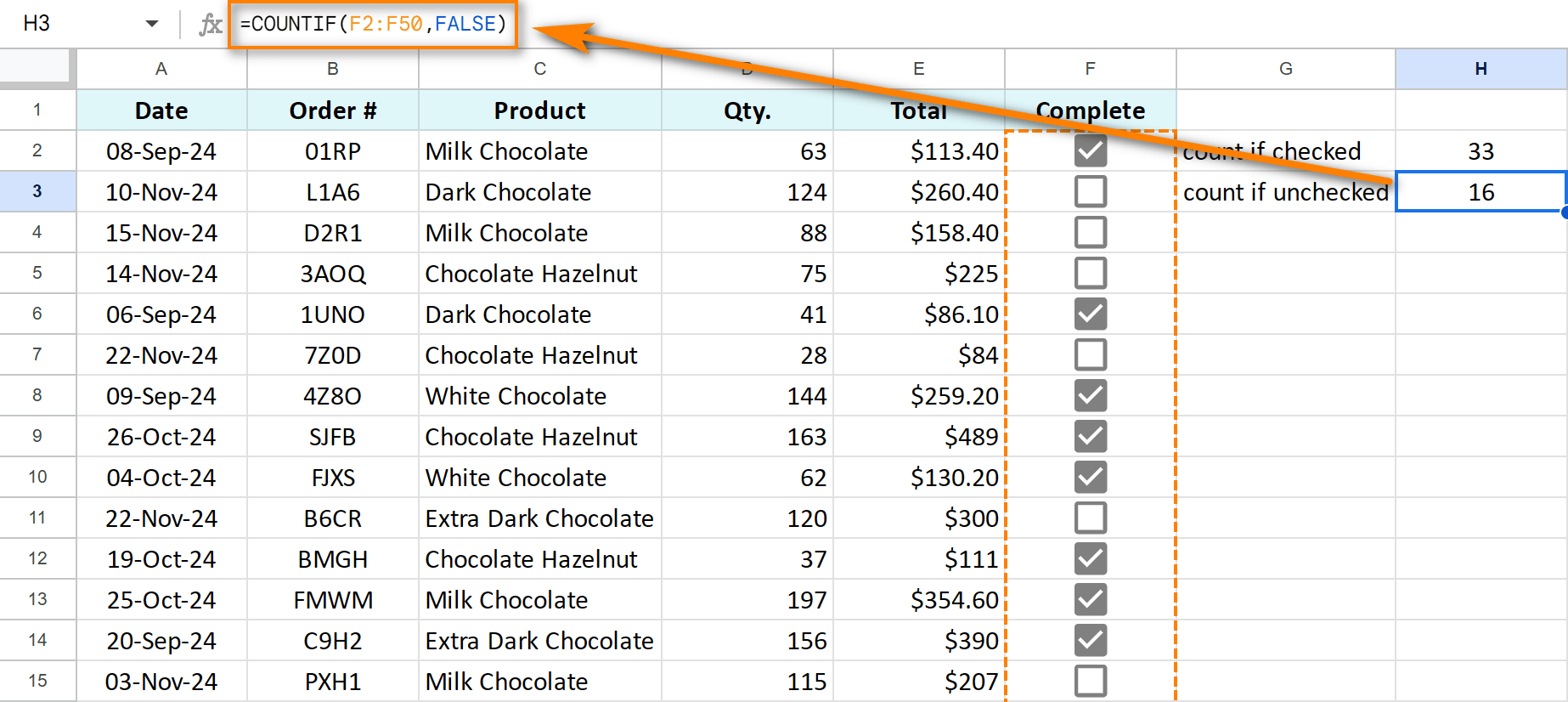
Checkboxes return TRUE (checked) or FALSE (unchecked), making them ideal for formulas.
-
Counting Checked/Unchecked Boxes:
=COUNTIF(F2:F50,TRUE)counts checked boxes; replaceTRUEwithFALSEto count unchecked boxes. -
Summing Based on Checkboxes:
=SUMIF(F2:F50,TRUE,E2:E50)sums values in column E where corresponding checkboxes in column F are checked. UseFALSEto sum for unchecked boxes. -
IF Statements:
=ArrayFormula(IF(F2:F50=FALSE,"Pending",""))displays "Pending" for unchecked boxes and leaves checked boxes blank. -
Conditional Formatting: Use IF statements in conditional formatting to visually represent checkbox states (e.g., changing cell color or adding strikethrough).
-
Timestamp on Check: This requires a custom Apps Script. See detailed instructions and script code within the original article.
-
Check/Uncheck All: Select checkboxes and press the Spacebar to toggle their states.



Removing Checkboxes
For checkboxes inserted via the menu, select and press Delete. For data validation checkboxes, select cells, go to Data > Data validation, delete the rule, and then press Delete to remove the remaining TRUE/FALSE values. 

Master checkboxes and other advanced techniques are also available (see original article for details). With these techniques, you can effectively leverage checkboxes to streamline your Google Sheets workflow.
The above is the detailed content of Add, edit, use and delete checkboxes in Google Sheets. For more information, please follow other related articles on the PHP Chinese website!

Hot AI Tools

Undress AI Tool
Undress images for free

Undresser.AI Undress
AI-powered app for creating realistic nude photos

AI Clothes Remover
Online AI tool for removing clothes from photos.

Clothoff.io
AI clothes remover

Video Face Swap
Swap faces in any video effortlessly with our completely free AI face swap tool!

Hot Article
Hot Tools

Notepad++7.3.1
Easy-to-use and free code editor

SublimeText3 Chinese version
Chinese version, very easy to use

Zend Studio 13.0.1
Powerful PHP integrated development environment

Dreamweaver CS6
Visual web development tools

SublimeText3 Mac version
God-level code editing software (SublimeText3)

