

Course Intermediate 11284
Course Introduction:"Self-study IT Network Linux Load Balancing Video Tutorial" mainly implements Linux load balancing by performing script operations on web, lvs and Linux under nagin.

Course Advanced 17607
Course Introduction:"Shangxuetang MySQL Video Tutorial" introduces you to the process from installing to using the MySQL database, and introduces the specific operations of each link in detail.

Course Advanced 11317
Course Introduction:"Brothers Band Front-end Example Display Video Tutorial" introduces examples of HTML5 and CSS3 technologies to everyone, so that everyone can become more proficient in using HTML5 and CSS3.
System settings loading error reported
2018-10-25 12:16:13 0 1 1355
Create a personalized WooCommerce settings page with dedicated sections
2023-12-12 12:34:55 0 1 504
sublime text 3 does not display Chinese settings
2019-05-27 22:20:11 0 0 1606
Does phpStudy have shortcut key settings?
2018-08-21 13:42:20 0 2 1613

Course Introduction:1. Win11 Slide Show Settings In Windows 11, the steps to set up a slide show are as follows: 1. Open the slide show settings. 2. In the settings window, select the "Slide Show" option. 3. On the slide show settings page, you can make multiple adjustments, such as slide switching methods, automatic playback intervals, etc. 4. After confirming that the settings are completed, click the "Apply" button to save the changes. 5. Close the settings window and hit 1. Open PowerPoint: Open your PowerPoint presentation. 2. Select the Slide Show tab: In the top menu bar, select the Slide Show tab. 3. Set the screening method: In the "Settings" group, you can choose different screening methods, such as "Start from scratch"
2024-01-07 comment 0 1922

Course Introduction:Difference: "User Settings" will apply to all projects opened by the user; "Workspace Settings" only applies to the settings of VS Code in the current directory. Note: "Workspace Settings" will override "User Settings".
2020-08-18 comment 0 10453
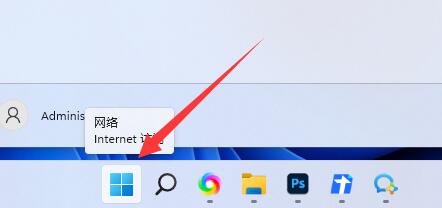
Course Introduction:Some friends want to open the advanced settings of Win11 to modify the configuration file and virtual memory, but they don’t know where the advanced settings of Win11 are. Today I will give you a detailed introduction to the location of the advanced settings of Win11. Friends who need it can take a look. Take a look. 1. Click "Start" in the taskbar below. 2. Then click "Settings" in the menu list to open. 3. In the window interface that opens, click the "About" option. 4. Then click the "Advanced System Settings" option in "Related Links". 5. Finally, in the window that opens, click "Advanced"
2024-09-19 comment 0 325
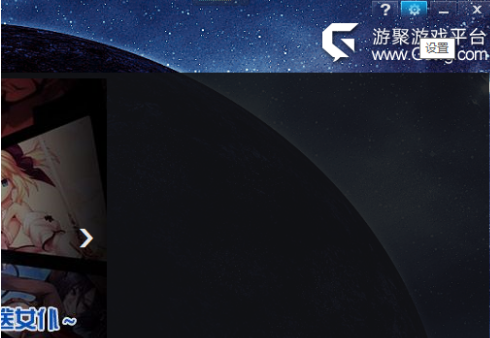
Course Introduction:Recently, many users who have just used Youju are not familiar with how to restore settings on Youju? Next, the editor will bring you the method of restoring the settings of Youju. Interested users can take a look below. How to restore settings on Youju? How to restore settings in Youju. Where are the platform settings: The platform settings are on the gear in the upper right corner. Basically, many platform and game settings are in this place. You can set the picture quality and sound effects of the game. Image quality settings: When you first set up, you can take a screenshot and save it to your computer, so that you know your original settings and can easily restore them. The default settings do not need to be changed: some things are not recommended for everyone to modify, such as sound effects, images that are most suitable for this computer configuration, etc., unless you upgrade the hardware. Different game settings are different
2024-08-15 comment 0 986

Course Introduction:Asus b760bios detailed settings? ASUS b760bios has many detailed settings. First, you need to enter the bios. Generally, you can enter by pressing the del key or the F2 key when booting. After entering the bios, you can see various setting options, including motherboard resource configuration, boot settings, security settings, power management, etc. If you want to know the detailed settings, you can check the ASUS b760 user manual or search on relevant technical forums. In addition, the specific settings of the bios will vary depending on various hardware configurations. It is recommended to make a backup before changing the settings to prevent hardware problems caused by incorrect settings. In short, the detailed settings of ASUS b760bios need to be adjusted by users according to their own needs and hardware configuration.
2024-02-06 comment 0 1380

