


Practical Excel skills sharing: two methods to add background images to tables

In the previous article "Practical Excel Tips Sharing: How to Implement Partial Encryption of Cells", we introduced the method of partial encryption of Excel cells. Today we are going to talk about table background images, and share two tricks to "press the bottom of the box". Learn these two tricks and play with table background images. Come and take a look!

#It is not an easy task to add a picture background to a single table in Excel. Below, Bo Bo introduces two tricks of his own "pressing the bottom of the box". By the way, he also introduces the camera functions that some friends often ask about.
1. Improved background method to add a background image to the table
After making a table, sometimes we will feel that it is relatively monotonous. Just want to add a background to the table.

Directly click "Page Layout" - "Background". After inserting the picture, you will see that the picture is spread across the entire worksheet. This is very unsightly and does not work. There is no way to adjust the size and color of the picture.
Let’s make some improvements.
Click "Insert" - "Shape" - "Rectangle", drag the mouse in the table to draw a rectangle, and adjust it to the required size according to the table (it can be slightly larger than the table).
Select the rectangle, press the CTRL 1 shortcut key, and in the pop-up "Format Shape" dialog box, select "Picture Fill".
Click on the file and select the picture to insert.
Drag the slider to increase transparency. Set to no lines.
You can see the table under the picture at this time, but the picture is above the table and the table cannot be selected. We still need to do a little more work.
Select the picture, press ctrl c to copy the picture, open the Windows Paint plug-in, press ctrl V to paste it in, and save it as a picture file.
Return to excel, delete the previously set rectangle, click "Page Layout" - "Background", and select the picture you just saved to insert.
You can see at this point that there is still a tiled background on the right and bottom of the table. Press ctrl A to select the entire table.
Click "Start" - "Fill" and select white fill.
Select the table area and click "No fill color".
At this point we have completed setting the background of a single table.
Let me introduce you to a simpler method.
2. Add a background image to the table using the camera method
Let’s use the camera function to try the effect.
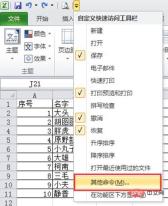
Click the custom tool drop-down menu at the top of the excel page and select "Other Commands".
In the pop-up dialog box, select "Commands not in the ribbon", find the camera, and click "Add".
На этом этапе вы видите, что камера появилась под «Настроить панель быстрого доступа», нажмите «ОК».
#Выберите область стола, куда необходимо вставить фон, а затем нажмите «Камера». В это время вы можете видеть муравьиные линии, появляющиеся вокруг стола.
Затем нажмите на любую пустую ячейку и вы увидите, что таблица «сфотографирована».
Щелкните правой кнопкой мыши по сфотографированному изображению стола и выберите «Форматировать изображение» в раскрывающемся списке.
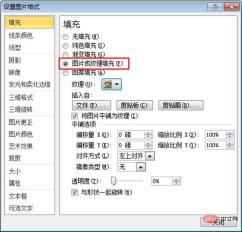
Нажимаем «Заливка» - «Заливка рисунком или текстурой». Ниже вы можете напрямую выбрать текстуру из Excel. Если вам нужно вставить свои любимые изображения, нажмите «Файл» ниже и вставьте изображение. Здесь я вставляю картинку, сохраненную на компьютере.
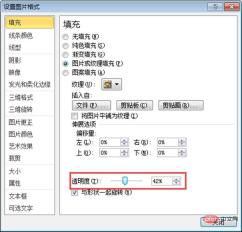
Вы также можете настроить параметр «Прозрачность» ниже, чтобы уменьшить цвет фона, чтобы таблица выделялась лучше. После настройки нажмите «Закрыть».
Вы можете видеть, что изображение используется только в качестве фона формы. Если вам нужно составить отчет о работе, вы можете напрямую скопировать форму с фотографией в Word или PPT.

#Если вам нужно изменить данные в таблице, измените исходную таблицу напрямую, и сфотографированная таблица автоматически изменится.
А как насчет этого? Эти два трюка действительно помогли вам добавить фоновое изображение таблицы, верно? Вот и все на сегодня. Какие навыки вы хотите освоить в Excel? Добро пожаловать, чтобы оставить сообщение!
Сопутствующие рекомендации по обучению: учебник по Excel
The above is the detailed content of Practical Excel skills sharing: two methods to add background images to tables. For more information, please follow other related articles on the PHP Chinese website!

 MEDIAN formula in Excel - practical examplesApr 11, 2025 pm 12:08 PM
This tutorial explains how to calculate the median of numerical data in Excel using the MEDIAN function. The median, a key measure of central tendency, identifies the middle value in a dataset, offering a more robust representation of central tenden
 Google Spreadsheet COUNTIF function with formula examplesApr 11, 2025 pm 12:03 PM
Master Google Sheets COUNTIF: A Comprehensive Guide This guide explores the versatile COUNTIF function in Google Sheets, demonstrating its applications beyond simple cell counting. We'll cover various scenarios, from exact and partial matches to han
 Excel shared workbook: How to share Excel file for multiple usersApr 11, 2025 am 11:58 AM
This tutorial provides a comprehensive guide to sharing Excel workbooks, covering various methods, access control, and conflict resolution. Modern Excel versions (2010, 2013, 2016, and later) simplify collaborative editing, eliminating the need to m
 How to convert Excel to JPG - save .xls or .xlsx as image fileApr 11, 2025 am 11:31 AM
This tutorial explores various methods for converting .xls files to .jpg images, encompassing both built-in Windows tools and free online converters. Need to create a presentation, share spreadsheet data securely, or design a document? Converting yo
 Excel names and named ranges: how to define and use in formulasApr 11, 2025 am 11:13 AM
This tutorial clarifies the function of Excel names and demonstrates how to define names for cells, ranges, constants, or formulas. It also covers editing, filtering, and deleting defined names. Excel names, while incredibly useful, are often overlo
 Standard deviation Excel: functions and formula examplesApr 11, 2025 am 11:01 AM
This tutorial clarifies the distinction between standard deviation and standard error of the mean, guiding you on the optimal Excel functions for standard deviation calculations. In descriptive statistics, the mean and standard deviation are intrinsi
 Square root in Excel: SQRT function and other waysApr 11, 2025 am 10:34 AM
This Excel tutorial demonstrates how to calculate square roots and nth roots. Finding the square root is a common mathematical operation, and Excel offers several methods. Methods for Calculating Square Roots in Excel: Using the SQRT Function: The
 Google Sheets basics: Learn how to work with Google SpreadsheetsApr 11, 2025 am 10:23 AM
Unlock the Power of Google Sheets: A Beginner's Guide This tutorial introduces the fundamentals of Google Sheets, a powerful and versatile alternative to MS Excel. Learn how to effortlessly manage spreadsheets, leverage key features, and collaborate


Hot AI Tools

Undresser.AI Undress
AI-powered app for creating realistic nude photos

AI Clothes Remover
Online AI tool for removing clothes from photos.

Undress AI Tool
Undress images for free

Clothoff.io
AI clothes remover

AI Hentai Generator
Generate AI Hentai for free.

Hot Article
Hot Tools

DVWA
Damn Vulnerable Web App (DVWA) is a PHP/MySQL web application that is very vulnerable. Its main goals are to be an aid for security professionals to test their skills and tools in a legal environment, to help web developers better understand the process of securing web applications, and to help teachers/students teach/learn in a classroom environment Web application security. The goal of DVWA is to practice some of the most common web vulnerabilities through a simple and straightforward interface, with varying degrees of difficulty. Please note that this software

PhpStorm Mac version
The latest (2018.2.1) professional PHP integrated development tool

SublimeText3 English version
Recommended: Win version, supports code prompts!

SecLists
SecLists is the ultimate security tester's companion. It is a collection of various types of lists that are frequently used during security assessments, all in one place. SecLists helps make security testing more efficient and productive by conveniently providing all the lists a security tester might need. List types include usernames, passwords, URLs, fuzzing payloads, sensitive data patterns, web shells, and more. The tester can simply pull this repository onto a new test machine and he will have access to every type of list he needs.

ZendStudio 13.5.1 Mac
Powerful PHP integrated development environment

