



水马制作分两个大的部分:第一部分是水马的制作,用滤镜,调色工具,图层叠加等把实物马转为水马;第二部分是水面特效的制作,用一些水花,喷溅素材给水马增加水花和水纹等动感效果。
最终效果

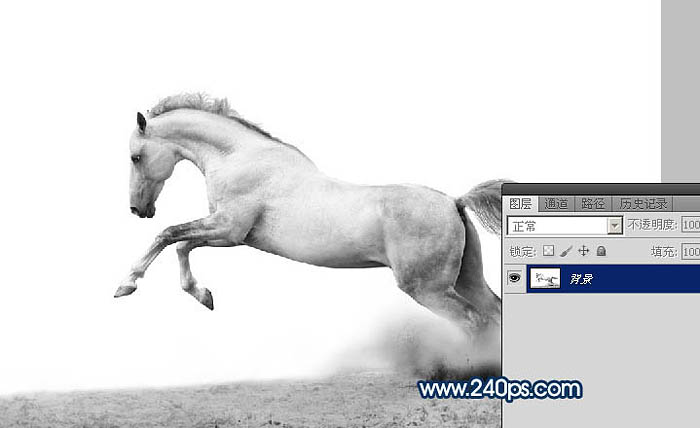
1、点击下图打开马素材大图,然后右键选择“图片另存为”保存到本机,打开PS,再打开保存的马素材图片,如图1。

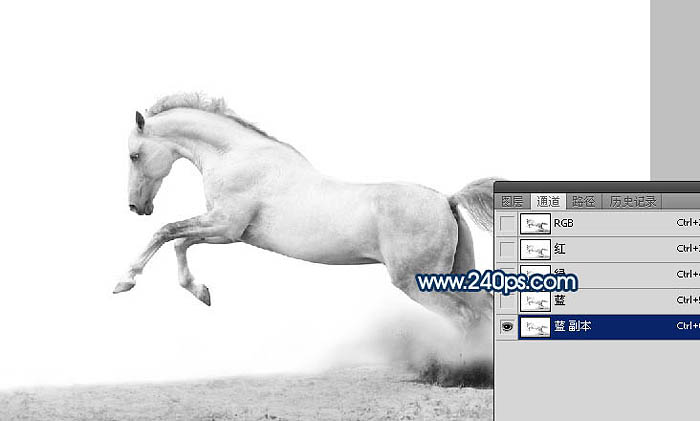
2、进入通道面板,把蓝色通道复制一份,得到蓝副本通道,如下图。
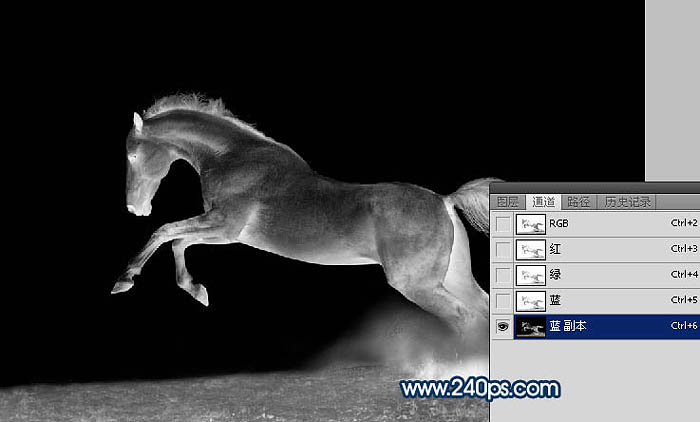
3、按Ctrl + I 把蓝副本通道反相,得到下图所示的效果。
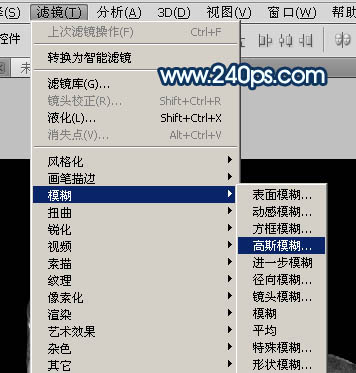
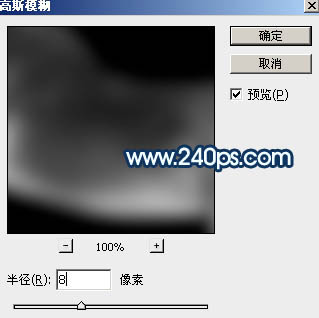
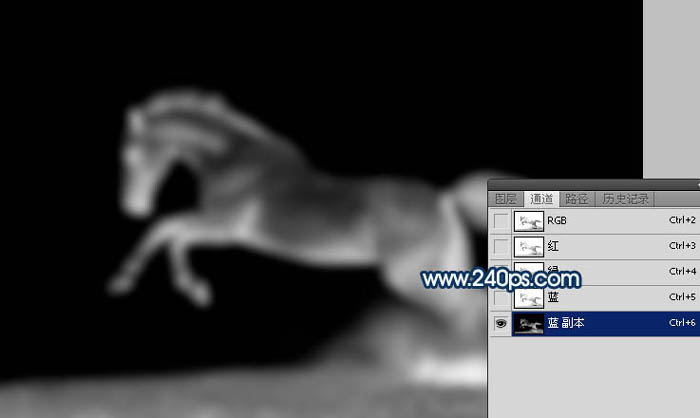
4、选择菜单:滤镜 > 模糊 > 高斯模糊,数值为8,效果如图6。
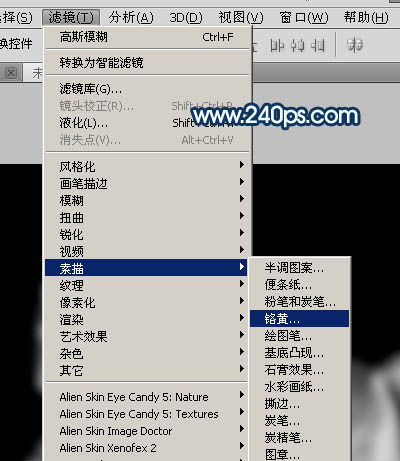
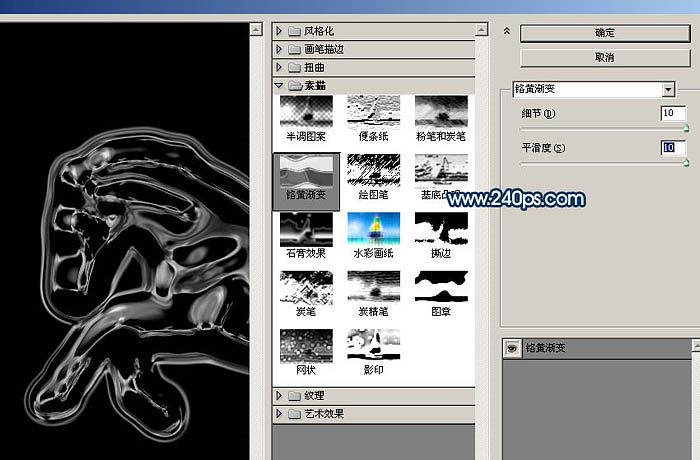
5、选择菜单:滤镜 > 素描 > 铬黄,然后设置参数,把细节和平滑度都设置到最大,如图8,确定后得到图9所示的效果。
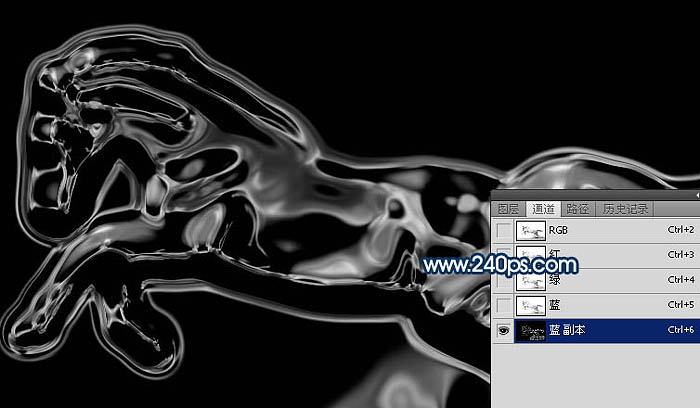
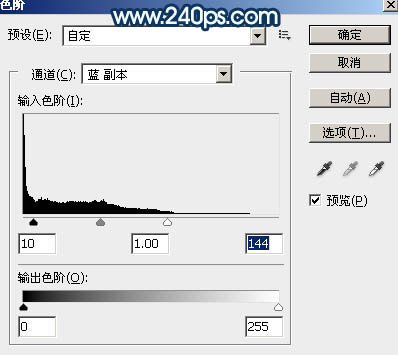
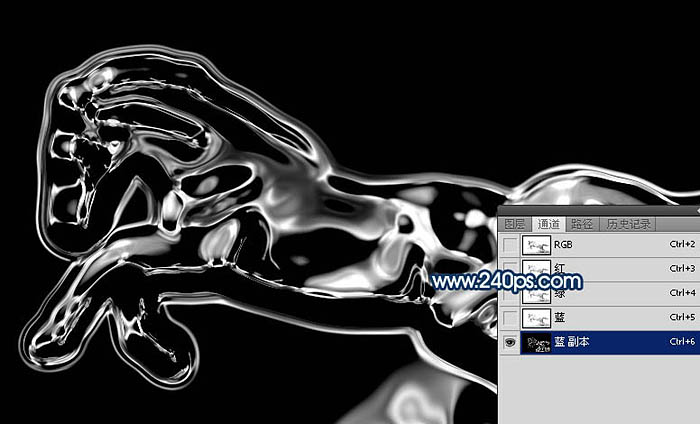
6、按Ctrl + L 调整色阶,把蓝副本通道调亮一点,参数及效果如下图。
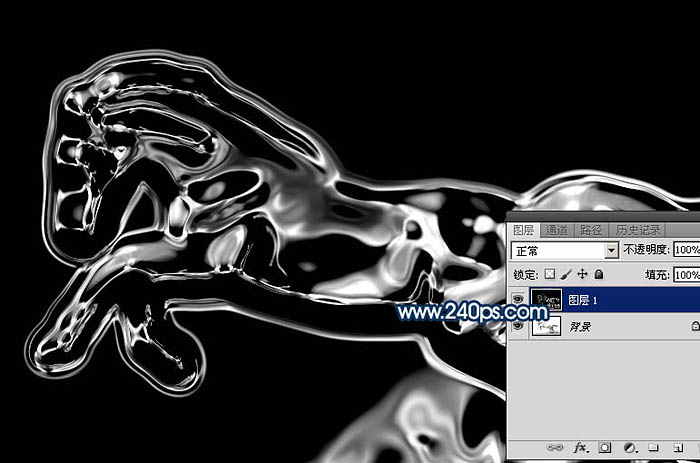
7、按Ctrl + A 把蓝副本通道全选,按Ctrl + C 复制,点RGB通道后,返回图层面板;新建一个图层,按Ctrl + V 把蓝副本通道粘贴进来,效果如下图。
8、把背景图层复制一层,按Ctrl + Shift + ] 置顶,如下图。
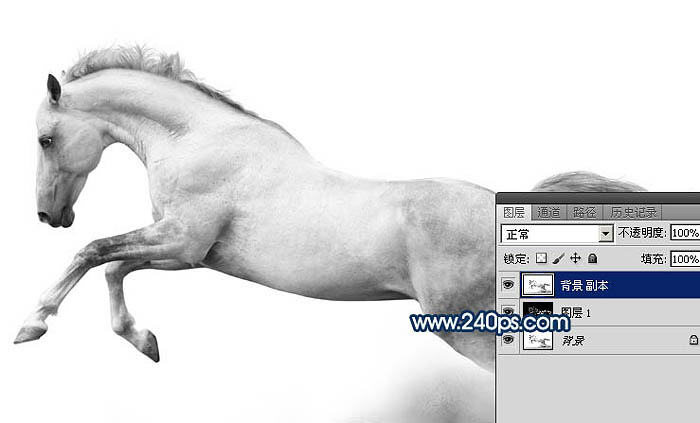
9、按Ctrl + I 把背景副本图层反相,效果如下图。
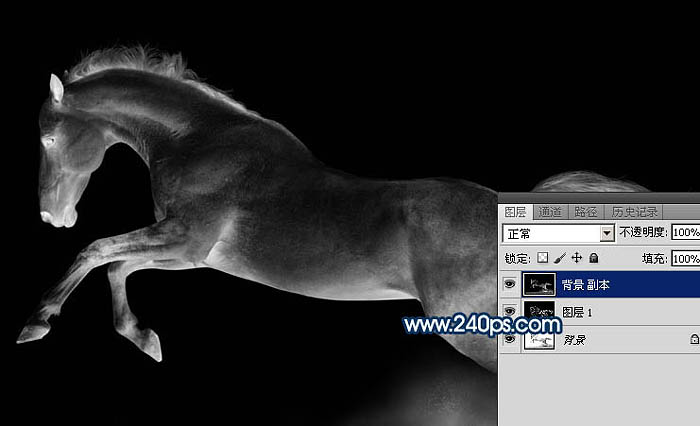
10、把混合模式改为“正片叠底”,效果如下图。
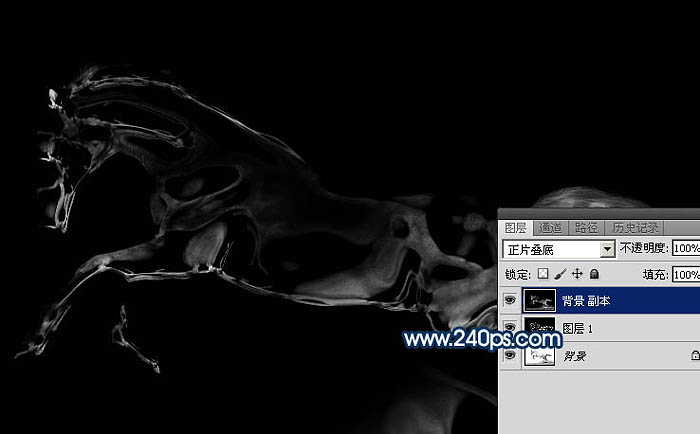
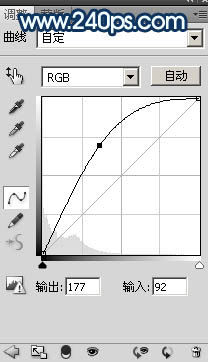
11、创建曲线调整图层,把RGB通道调亮一点,参数及效果如下图。
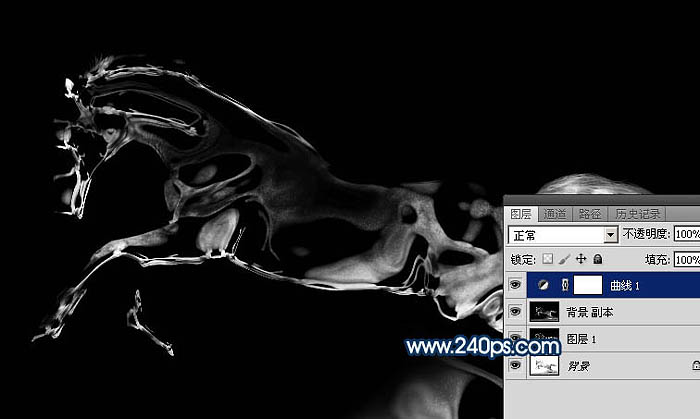
12、新建一个图层,按Ctrl + Alt + Shift + E 盖印图层,如下图。
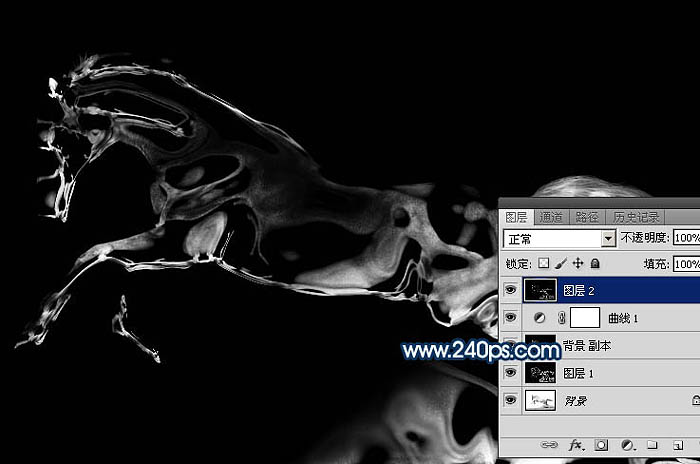
13、把背景图层复制一层,得到背景副本2图层,按Ctrl + Shift + ] 置顶,如下图。
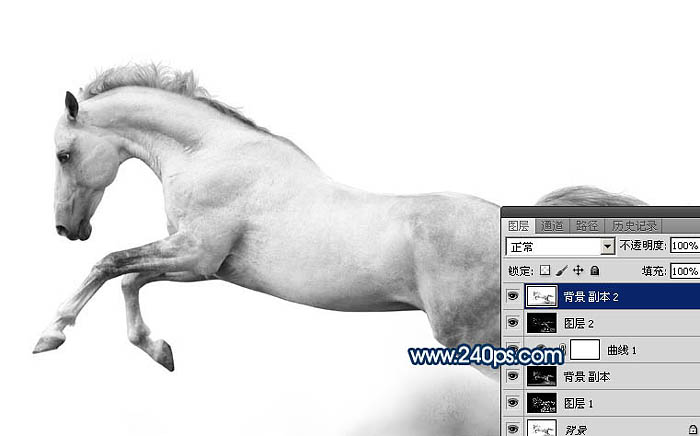
14、进入通道面板,用通道把马抠出来,如下图。然后载入马的选区。
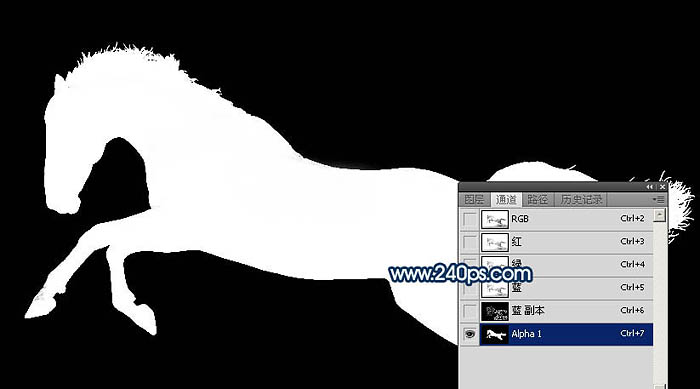
15、回到图层面板,把背景副本2图层隐藏,选择盖印图层,保持选区,按Ctrl + C 复制。
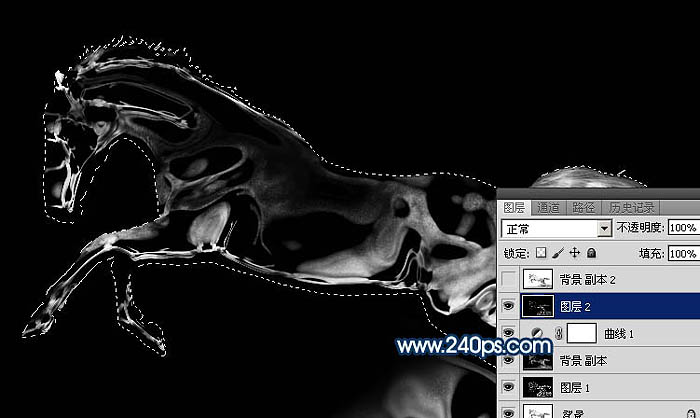
16、点击下图打开背景素材大图,然后右键选择图片另存为,保持到本机,再用PS打开。

17、打开背景素材后,新建一个图层,按Ctrl + V 粘贴,然后把混合模式改为“滤色”。按Ctrl + L 稍微调亮一点,确定后按Ctrl + T 调整一下角度,效果如下图。
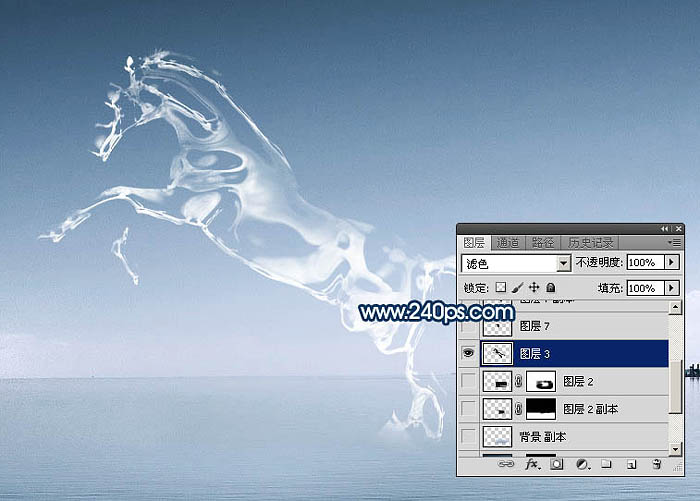
18、打开水花素材大图,保存到本机,用PS打开,按Ctrl + U 去色,再按Ctrl + I 反相,然后用曲线调整一下明暗。 用移动工具把处理好的水花素材拖进来,放到背景图层上面,并调整好大小,如下图。

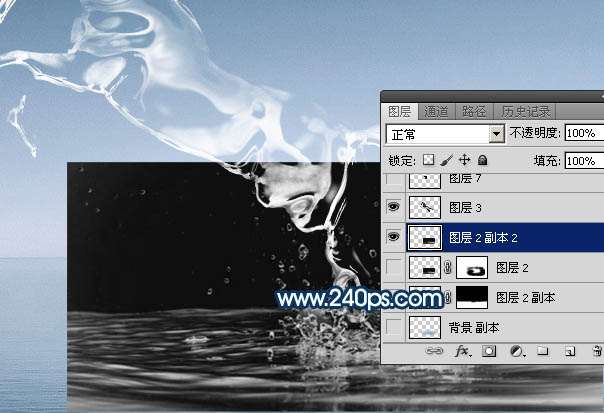
19、给当前图层添加图层蒙版,用柔边黑色画笔擦掉边缘一些不需要的部分,效果如下图。
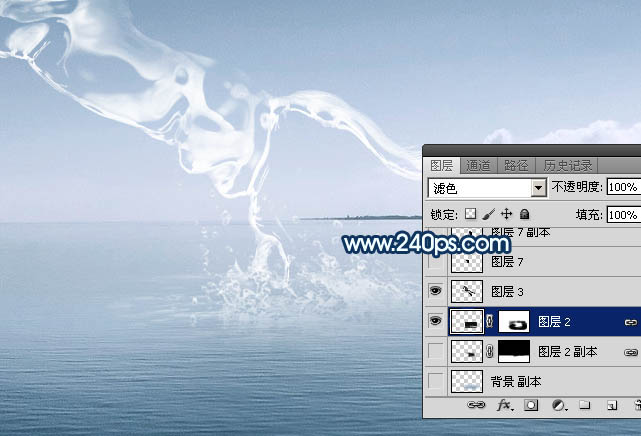
20、把当前图层复制一层,选择原水花图层,混合模式改为“叠加”,然后用黑色画笔在蒙版上擦掉一些过暗的区域,如下图
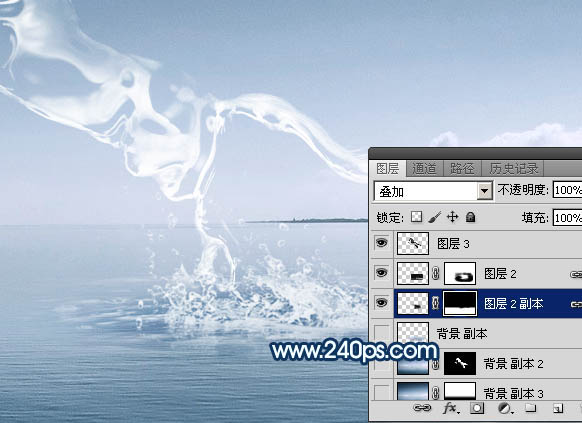
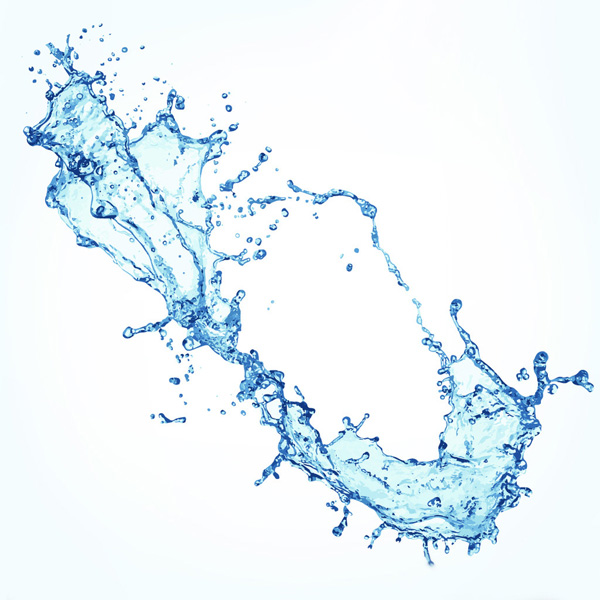
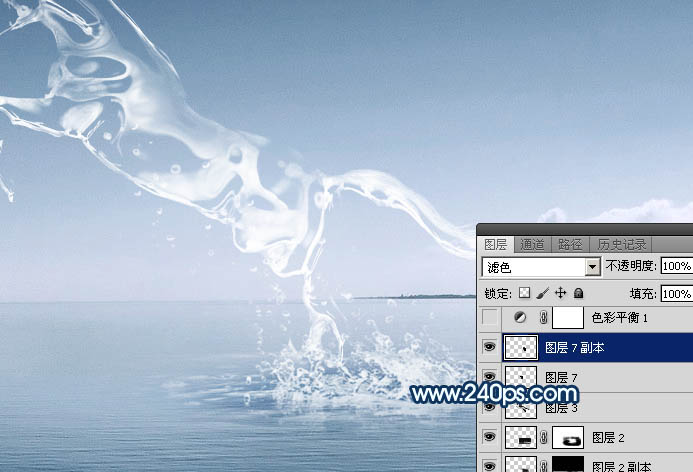
21、打开喷溅水珠素材大图,去色,再反相,然后选取局部复制进来,把混合模式改为“滤色”,效果如图26。
22、把背景图层复制一层,用椭圆选框工具拉出下图所示的椭圆选区。
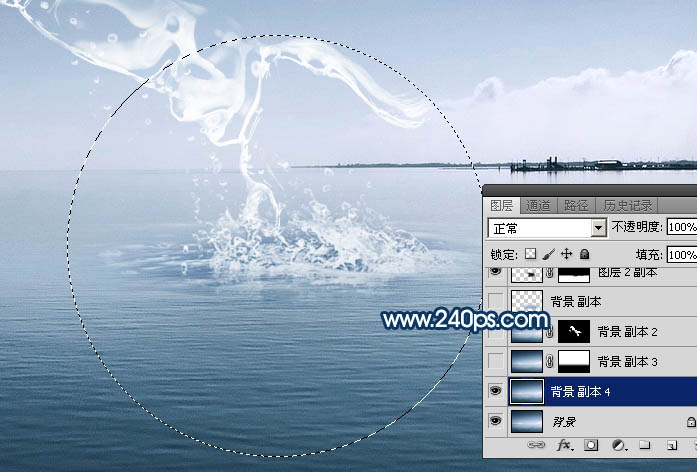
23、Shift + F6把选区羽化45个像素。
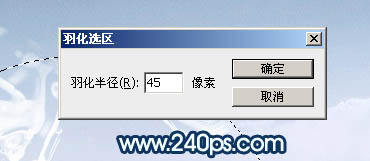
24、保持选区,选择菜单:滤镜 > 扭曲 > 水波,参数设置如图30,然后确定。
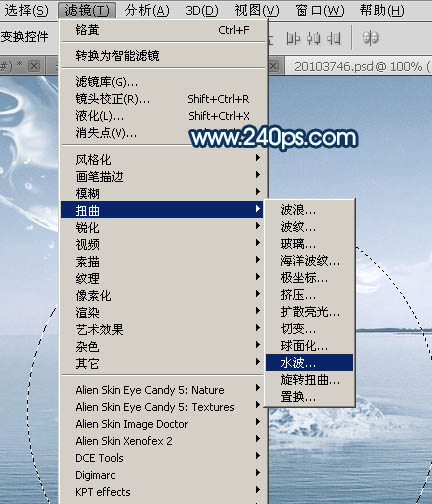
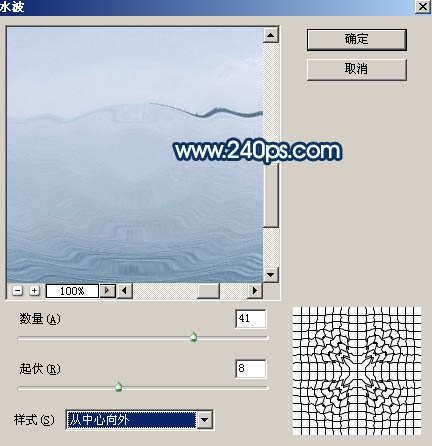
25、保持选区,按Ctrl + J 把做好水波的图像复制到新的图层,按Ctrl + T 稍微压扁一点,确定后添加图层蒙版,用透明度较低的柔边黑色画笔把边缘过渡涂好,效果如图32。
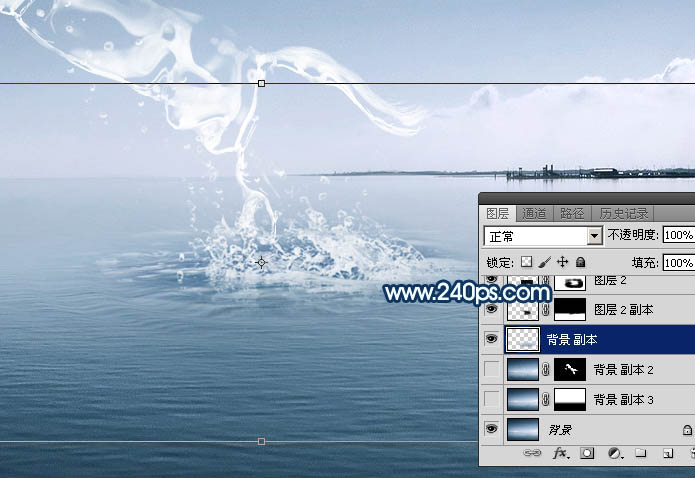

26、基本效果出来了,下面我们来调色。在图层的最上面创建色彩平衡调整图层,对阴影,高光进行调整,参数及效果如下图。
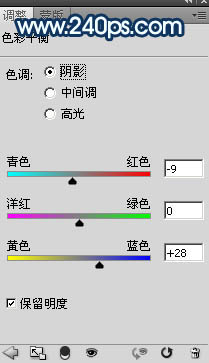
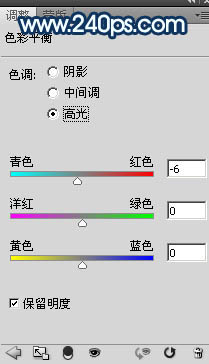
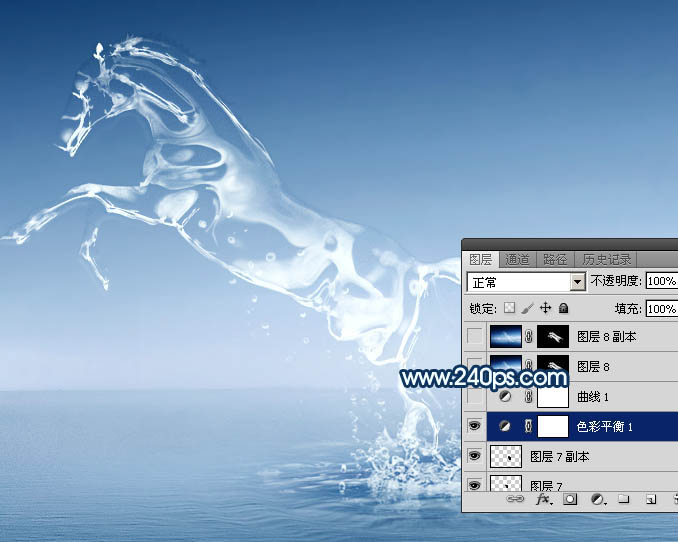
27、创建曲线调整图层,把整体稍微调暗一点,参数及效果如下图。
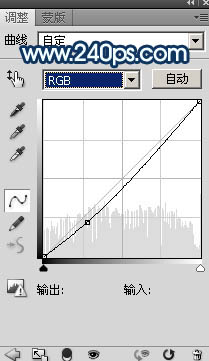
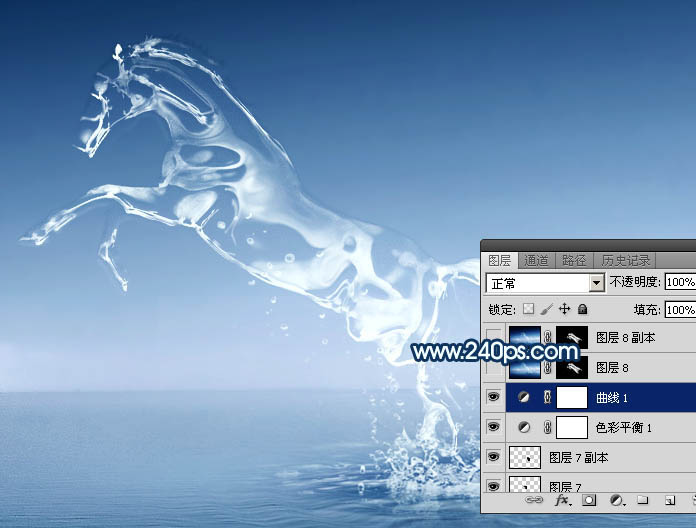
28、新建一个图层,盖印图层。选择菜单:滤镜 > 模糊 > 动感模糊,角度设置为-45度,距离设置为90,确定后把混合模式改为“柔光”,按住ALt键添加图层蒙版,用柔边白色画笔把下图选区部分涂亮一点。
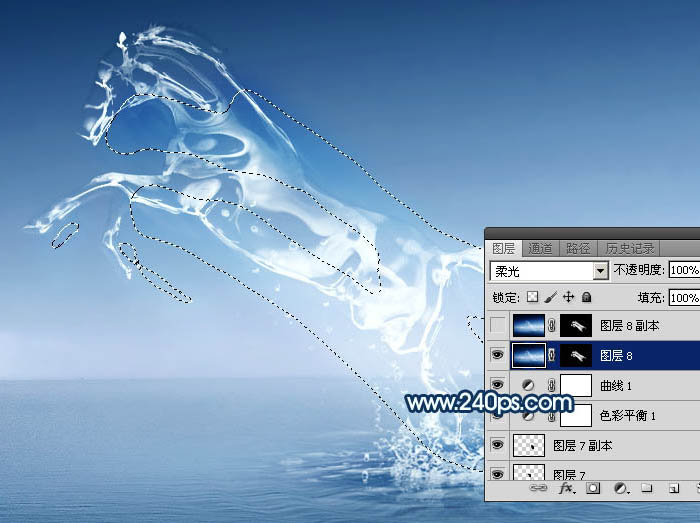
最后用模糊工具把远处的背景模糊处理,再微调一下细节,完成最终效果。


 Advanced Photoshop Tutorial: Master Retouching & CompositingApr 17, 2025 am 12:10 AM
Photoshop's advanced photo editing and synthesis technologies include: 1. Use layers, masks and adjustment layers for basic operations; 2. Use image pixel values to achieve photo editing effects; 3. Use multiple layers and masks for complex synthesis; 4. Use "liquefaction" tools to adjust facial features; 5. Use "frequency separation" technology to perform delicate photo editing, these technologies can improve image processing level and achieve professional-level effects.
 Using Photoshop for Graphic Design: Branding and MoreApr 16, 2025 am 12:02 AM
The steps to using Photoshop for brand design include: 1. Use the Pen tool to draw basic shapes, 2. Add shadows and highlights through layer styles, 3. Adjust colors and details, 4. Use smart objects and actions to automatically generate different versions of the design. Photoshop helps designers create and optimize brand elements with the flexibility of layers and masks, ensuring consistency and professionalism of designs, from simple logos to complex branding guides.
 Photoshop's Subscription Model: What You Get for Your MoneyApr 15, 2025 am 12:17 AM
Photoshop's subscription model is worth buying. 1) Users can access the latest version and use across devices at any time. 2) The subscription fee is low, and continuous updates and technical support are provided. 3) Advanced functions such as neural filters can be used for complex image processing. Despite the high long-term costs, its convenience and feature updates are valuable to professional users.
 Photoshop: Investigating Free Trials and Discount OptionsApr 14, 2025 am 12:06 AM
You can get the access to Photoshop in the most economical way: 1. Experience the software features with a 7-day free trial; 2. Find student or teacher discounts, as well as seasonal promotions; 3. Use coupons on third-party websites; 4. Subscribe to Adobe CreativeCloud's monthly or annual plan.
 Photoshop for Designers: Creating Visual ConceptsApr 13, 2025 am 12:09 AM
Creating visual concepts in Photoshop can be achieved through the following steps: 1. Create a new document, 2. Add a background layer, 3. Use the brush tool to draw basic shapes, 4. Adjust colors and brightness, 5. Add text and graphics, 6. Use masks for local editing, 7. Apply filter effects, these steps help designers build a complete visual work from scratch.
 Is Photoshop Free? Understanding Subscription PlansApr 12, 2025 am 12:11 AM
Photoshop is not free, but there are several ways to use it at low cost or free: 1. The free trial period is 7 days, and you can experience all functions during this period; 2. Student and teacher discounts can cut costs by half, and school proof is required; 3. The CreativeCloud package is suitable for professional users and includes a variety of Adobe tools; 4. PhotoshopElements and Lightroom are low-cost alternatives, with fewer functions but lower prices.
 Photoshop's Value: Weighing the Cost Against Its FeaturesApr 11, 2025 am 12:02 AM
Photoshop is worth the investment because it provides powerful features and a wide range of application scenarios. 1) Core functions include image editing, layer management, special effects production and color adjustment. 2) Suitable for professional designers and photographers, but amateurs may consider alternatives such as GIMP. 3) Subscribe to AdobeCreativeCloud can be used as needed to avoid high one-time spending.
 The Core Purpose of Photoshop: Creative Image DesignApr 10, 2025 am 09:29 AM
Photoshop’s core use in creative image design is its powerful functionality and flexibility. 1) It allows designers to transform creativity into visual reality through layers, masks and filters. 2) Basic usages include cropping, resizing and color correction. 3) Advanced usages such as layer styles, blend modes and smart objects can create complex effects. 4) Common mistakes include improper layer management and excessive use of filters, which can be solved by organizing layers and using filters reasonably. 5) Performance optimization and best practices include rational use of layers, regular saving of files, and using shortcut keys.


Hot AI Tools

Undresser.AI Undress
AI-powered app for creating realistic nude photos

AI Clothes Remover
Online AI tool for removing clothes from photos.

Undress AI Tool
Undress images for free

Clothoff.io
AI clothes remover

AI Hentai Generator
Generate AI Hentai for free.

Hot Article
Hot Tools

EditPlus Chinese cracked version
Small size, syntax highlighting, does not support code prompt function

WebStorm Mac version
Useful JavaScript development tools

Safe Exam Browser
Safe Exam Browser is a secure browser environment for taking online exams securely. This software turns any computer into a secure workstation. It controls access to any utility and prevents students from using unauthorized resources.

SublimeText3 English version
Recommended: Win version, supports code prompts!

Zend Studio 13.0.1
Powerful PHP integrated development environment

