


Fix: Taskbar thumbnail preview disappears too quickly on Windows 11

While taskbar thumbnail preview is a very useful feature, some users have reported issues with it.
In most cases, it is impossible to click on the application icon because the thumbnail preview disappears too quickly.
In this guide, we’ll discuss the expert-recommended methods to fix taskbar preview issues right after explaining the causes.
Why do taskbar thumbnail previews disappear so quickly?
- Corrupted system files or other system file errors
- Outdated Windows versions
- Third-party security software conflicts
- Corrupted user profiles
How to stop taskbar thumbnail previews from disappearing quickly on Windows 11?
Before proceeding with any steps to fix taskbar thumbnail preview not working on Windows 11, please do the following preliminary checks:
- Right-click on desktop > From context Select Refresh from the menu.
- Close unnecessary applications, uninstall or turn off third-party antivirus software, and then restart your computer.
- Press to open Task Manager, right-click Windows Explorer and select Restart. CtrlShiftEsc
- If using a laptop, look for the option to fully charge the battery. Run Disk Cleanup to remove junk files.
- Press to open the settings.
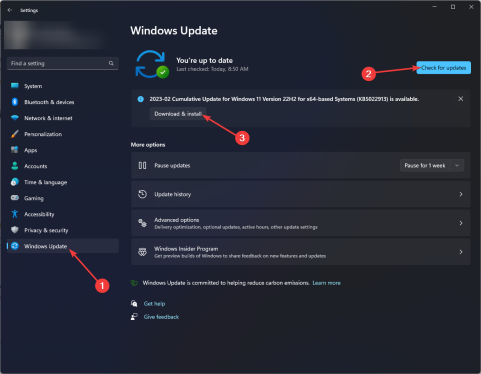
- WindowsI Go to Windows Update and click Check for Updates.
 If available, click Download and Install. Wait for the process to complete.
2. Verify performance options
- Press to open Settings. WindowsI
- Go to System, then About.
- Click Advanced System Settings.
- In the "System Properties" window, under "Performance", click the "Settings" button.
- Make sure "Animate controls and elements within the window", "Enable quick previews" and "Show thumbnails instead of icons" are checked. If not, put a checkmark next to all of them.
- Click OK and then click OK to confirm the changes.


3. Use the System File Checker
- key, type cmd, and then click Run as administrator. Windows
- Copy and paste the following command to repair system files and hit: Enter
<strong>sfc /scannow</strong>
- Wait for the command to execute and then restart your PC. Once the system boots, hover your mouse over any taskbar icon to check if the problem persists.


4. Register and reinstall the ShellExperienceHost application package
- key, type power shell, and then click Run as administrator. Windows
- Type the following command to register and reinstall the ShellExperienceHost app package and press: Enter
<strong>Get-AppxPackage Microsoft.Windows .ShellExperienceHost | foreach {Add-AppxPackage -register "$($_.InstallLocation)\appxmanifest.xml" -DisableDevelopmentMode}</strong>
- Wait for the command to execute and then restart the computer to save Changes.


ShellExperienceHost is an important part of the Windows shell, it is responsible for various user interface elements, including the taskbar, this command restores its normal functionality.
5. Change the hover delay time
- Press to open the "Run" dialog box. WindowsR
- Type regedit and click OK to open the Registry Editor.
- Before making any changes, please create a backup. Go to File and click Export. Save the .reg file in the desired location.
- Now, on the Registry Editor, navigate to the following path:
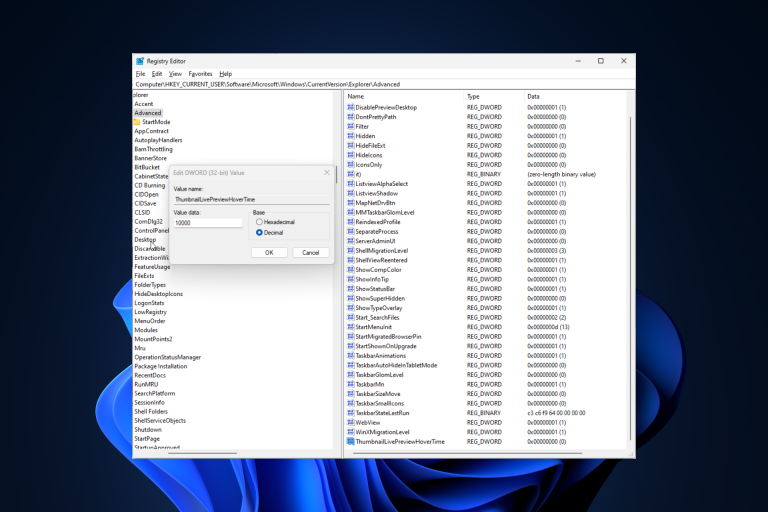
<strong>Computer\HKEY_CURRENT_USER\Software\Microsoft\Windows\CurrentVersion\Explorer\Advanced</strong> - In the right pane, find Thumbnail Live Preview HoverTime. If you can't find it, right-click a blank area, click New, and then click DWORD (32-bit) Value.
- Right-click the DWORD, select "Rename" from the context menu, type "Thumbnail Live Preview Hover Time", and press the key. Enter
- Double click on it to edit it, select "Base" as "Decimal", for "Value Data" enter "Time in milliseconds" )" to increase the delay in thumbnail previews.
- Click OK, close Registry Editor, and then restart your computer for the changes to take effect.


When you hover your mouse over a taskbar icon, it will remain open for the selected time. To reset the default taskbar thumbnail preview delay, select Thumbnail live preview hover time,and press Delete on your keyboard.
You can use the same registry key to change the size of the taskbar on Windows 11; check out this guide for the complete process.
6. Create a new user profile
- Press to open Settings. WindowsI
- Go to "Accounts" and then "Other Users".
- Find Add another user and click Add account.
- Click "I don't have login information for this person" on the Microsoft Account page.
- Now, click Add users without Microsoft account.
- Enter the username and password for the new profile and click Next.
- After creating the user profile, click Change Account Type.
- Select Administrator and click OK.
- Press and select Switch User. Select a new profile, log in and check if the problem persists. CtrlAltDelete


7. Perform system restore
- Press to open " Run " dialog box. WindowsR
- Type rstrui and click OK to open System Restore.
- Select"Choose a different restore point" in the "System Restore" window and click "Next".
- Select a restore point and click Next.
- Click "Finish" to start the process.


Windows will restart and restore your computer to the last known good configuration. If System Restore did not complete successfully, read this guide to find out why.
If these fixes don't help, it's possible that your taskbar isn't working properly. If this is the case, you can disable and enable thumbnail previews and see if it works.
Keep in mind that issues may be caused by misconfigured system settings or outdated Windows, so make sure you apply these fixes first.
The above is the detailed content of Fix: Taskbar thumbnail preview disappears too quickly on Windows 11. For more information, please follow other related articles on the PHP Chinese website!

Hot AI Tools

Undresser.AI Undress
AI-powered app for creating realistic nude photos

AI Clothes Remover
Online AI tool for removing clothes from photos.

Undress AI Tool
Undress images for free

Clothoff.io
AI clothes remover

AI Hentai Generator
Generate AI Hentai for free.

Hot Article
Hot Tools

WebStorm Mac version
Useful JavaScript development tools

Atom editor mac version download
The most popular open source editor

DVWA
Damn Vulnerable Web App (DVWA) is a PHP/MySQL web application that is very vulnerable. Its main goals are to be an aid for security professionals to test their skills and tools in a legal environment, to help web developers better understand the process of securing web applications, and to help teachers/students teach/learn in a classroom environment Web application security. The goal of DVWA is to practice some of the most common web vulnerabilities through a simple and straightforward interface, with varying degrees of difficulty. Please note that this software

SublimeText3 English version
Recommended: Win version, supports code prompts!

SublimeText3 Mac version
God-level code editing software (SublimeText3)

