


Tutorial on how to install win7 system on computer using USB disk

Nowadays, computers rarely have optical drives, and the need for a U disk to install the system is reflected. However, some users rarely use U disks, so they are not familiar with it. Let’s talk to you below. Let’s talk about how to install win7 system from USB disk.
1. Download and open the Kaka installation software, select the U disk to reinstall the system.

#2. Select U disk mode and click "Start Production" to next step.
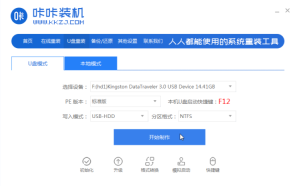
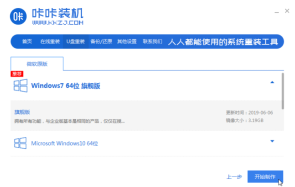
#3. Check the operating system you want to install and click "Start Production".
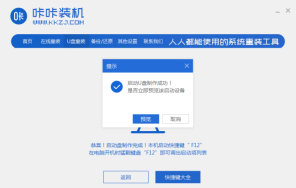
#4. After waiting for the Kaka installation prompt "Start USB disk creation successful", we can click "Preview" first.
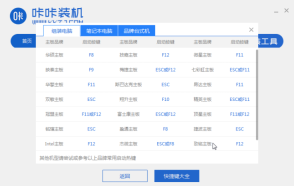
#5. After checking the computer startup shortcut key, directly pull out the USB disk and insert it into the computer where the system needs to be installed.
#6. After plugging in the USB flash drive and booting, use the up and down keys on the keyboard to select and then press the Enter key to enter.

#7. Enter the pe installation system interface and select a system we need to install.
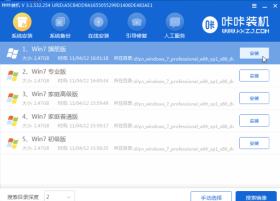
#8. Change the target partition to "Disk C" and click "Start Installation".
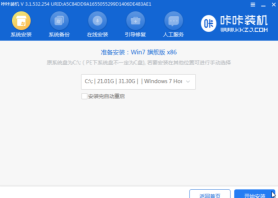
#9. After the system image installation is completed, unplug the USB flash drive and restart the computer to enter the system desktop.
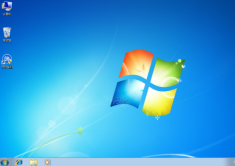
#After completing the above steps, you can finally use the win7 system installed by our USB disk. If this method helps you, don’t forget to share it with everyone.
The above is the detailed content of Tutorial on how to install win7 system on computer using USB disk. For more information, please follow other related articles on the PHP Chinese website!

Hot AI Tools

Undresser.AI Undress
AI-powered app for creating realistic nude photos

AI Clothes Remover
Online AI tool for removing clothes from photos.

Undress AI Tool
Undress images for free

Clothoff.io
AI clothes remover

AI Hentai Generator
Generate AI Hentai for free.

Hot Article
Hot Tools

SublimeText3 Chinese version
Chinese version, very easy to use

SublimeText3 Mac version
God-level code editing software (SublimeText3)

SecLists
SecLists is the ultimate security tester's companion. It is a collection of various types of lists that are frequently used during security assessments, all in one place. SecLists helps make security testing more efficient and productive by conveniently providing all the lists a security tester might need. List types include usernames, passwords, URLs, fuzzing payloads, sensitive data patterns, web shells, and more. The tester can simply pull this repository onto a new test machine and he will have access to every type of list he needs.

Dreamweaver Mac version
Visual web development tools

PhpStorm Mac version
The latest (2018.2.1) professional PHP integrated development tool

