


How to send web pages from one device to another using Google Chrome

In today's era, everyone has many machines. Work laptops, personal laptops, smartphones, tablets, the list goes on. Let's say you're browsing a web page on Google Chrome on one device, and you want the same page to open on another device. Well, apparently, if you are logged into Google Chrome with the same email ID on another device as well, you can go to the recent tab and open it. But why go through all these extra steps when you can just click a button?
In this article, we’ll walk you through some simple steps on how to easily send web pages across devices using Google Chrome. The best part is, this tip is device-independent. That is, if you have Google Chrome installed in both the sending and receiving devices, and if both are logged in with the same email ID, you can send web pages to the receiving device regardless of the operating system of the device, Be it a Windows device or an Android device or an iOS device.
Keep reading to learn how to master this simple trick.
Send a web page from one device to another using Chrome
Step 1: Click the Search icon on the taskbar .

Step 2: In the search column, enter chrome And select the chrome app from the Best matching section.
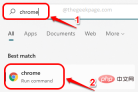
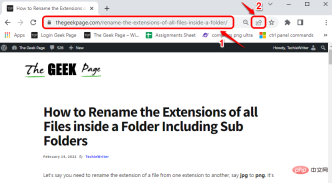
Step 3: When Google Chrome starts opening, Go to the other device you want to send to The device's web page.
Next, click theTransfer icon between the zoom icon and the bookmark icon on the URL bar .
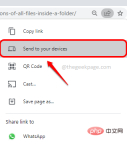
Step 4: Next, click on the Send to your device option.
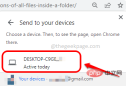
Step 5: In the subsequent menu, you will see all logins Your email ID device.
Click the device you want to send the web page to.
Step 6: Viola! If you look at your receiving device now, you'll see a popup pop up asking you if you want to open the page shared from your sending device. Click the Open in new tab button.
Note: This device can be a Windows device, Android device, or iOS device. What matters is whether your sending and receiving devices are logged into the same email ID on Google Chrome. In the example below, I used 2 Windows laptops.
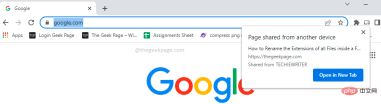
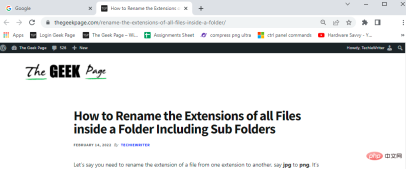
Step 7: That’s it. After pressing the "Open in new tab" button, the shared web page will now open in a new tab on your receiving device. enjoy!
The above is the detailed content of How to send web pages from one device to another using Google Chrome. For more information, please follow other related articles on the PHP Chinese website!

Hot AI Tools

Undresser.AI Undress
AI-powered app for creating realistic nude photos

AI Clothes Remover
Online AI tool for removing clothes from photos.

Undress AI Tool
Undress images for free

Clothoff.io
AI clothes remover

AI Hentai Generator
Generate AI Hentai for free.

Hot Article
Hot Tools

ZendStudio 13.5.1 Mac
Powerful PHP integrated development environment

PhpStorm Mac version
The latest (2018.2.1) professional PHP integrated development tool

SecLists
SecLists is the ultimate security tester's companion. It is a collection of various types of lists that are frequently used during security assessments, all in one place. SecLists helps make security testing more efficient and productive by conveniently providing all the lists a security tester might need. List types include usernames, passwords, URLs, fuzzing payloads, sensitive data patterns, web shells, and more. The tester can simply pull this repository onto a new test machine and he will have access to every type of list he needs.

DVWA
Damn Vulnerable Web App (DVWA) is a PHP/MySQL web application that is very vulnerable. Its main goals are to be an aid for security professionals to test their skills and tools in a legal environment, to help web developers better understand the process of securing web applications, and to help teachers/students teach/learn in a classroom environment Web application security. The goal of DVWA is to practice some of the most common web vulnerabilities through a simple and straightforward interface, with varying degrees of difficulty. Please note that this software

VSCode Windows 64-bit Download
A free and powerful IDE editor launched by Microsoft

