


How to turn recent search history on or off in Windows 11

Microsoft has added a recent search history feature that appears in the Start menu pane. The recent search history feature notifies users of items that have been recently accessed or searched for on their Windows system.
Most users find it convenient because they don't have to remember or recall the files they were looking for recently. However, seeing it when opening the Start menu will irritate some of them.
In this article, we will show you how to make it disappear from the Start Menu. If you are interested in learning more about how to disable it on your PC, read this article.
How to turn recent search history on or off in Windows 11
Let’s see how to disable recent search history on your system with the following simple steps.
1. Press and hold the Windows I key at the same time to open the Settings application on your system.
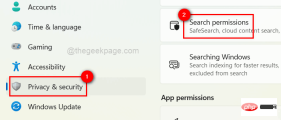
2. Then, click the Privacy and Security option on the left side of the Settings app window.
3. Scroll down the Privacy & Security page on the right and click Search Permissions under Windows Permissions.
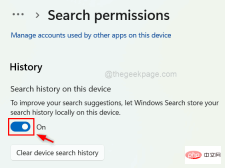
#4. At the bottom of the search permissions page, you will find Search history on this device records in the History section.
5. Click its toggle button to turn it on to enable it as shown in the image below.
6. If you want to disable it, click on it to turn it off as shown below.
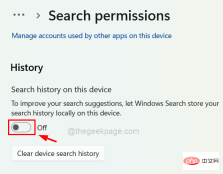
Clear Device Search History.

The above is the detailed content of How to turn recent search history on or off in Windows 11. For more information, please follow other related articles on the PHP Chinese website!

Hot AI Tools

Undresser.AI Undress
AI-powered app for creating realistic nude photos

AI Clothes Remover
Online AI tool for removing clothes from photos.

Undress AI Tool
Undress images for free

Clothoff.io
AI clothes remover

AI Hentai Generator
Generate AI Hentai for free.

Hot Article
Hot Tools

SecLists
SecLists is the ultimate security tester's companion. It is a collection of various types of lists that are frequently used during security assessments, all in one place. SecLists helps make security testing more efficient and productive by conveniently providing all the lists a security tester might need. List types include usernames, passwords, URLs, fuzzing payloads, sensitive data patterns, web shells, and more. The tester can simply pull this repository onto a new test machine and he will have access to every type of list he needs.

WebStorm Mac version
Useful JavaScript development tools

ZendStudio 13.5.1 Mac
Powerful PHP integrated development environment

Safe Exam Browser
Safe Exam Browser is a secure browser environment for taking online exams securely. This software turns any computer into a secure workstation. It controls access to any utility and prevents students from using unauthorized resources.

MinGW - Minimalist GNU for Windows
This project is in the process of being migrated to osdn.net/projects/mingw, you can continue to follow us there. MinGW: A native Windows port of the GNU Compiler Collection (GCC), freely distributable import libraries and header files for building native Windows applications; includes extensions to the MSVC runtime to support C99 functionality. All MinGW software can run on 64-bit Windows platforms.

