



This article brings you relevant knowledge about excel, which mainly introduces some skills about printing settings. The first is to beautify the document as necessary, such as setting the font, font size, Add borders, etc. Let’s take a look at them together. I hope it will be helpful to everyone.

Related learning recommendations: excel tutorial
Today we will talk about how to set up Excel document printing and see how to print from Excel document Become a paper document.
The first step is to beautify the document as necessary, such as setting fonts, font sizes, adding borders, etc. You can freely play with these contents.
The next step is to enter the key steps:
1. Set the paper and page margins
The paper direction is divided into portrait and landscape. If the data table has a large number of columns, then Just select landscape, otherwise use the default portrait.
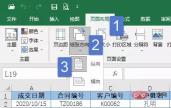
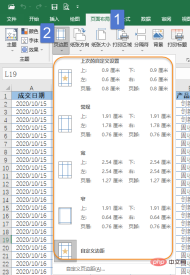
The page margin refers to the distance between the printed content and the outermost edge of the paper. When printing a multi-page table, the page margin can be set slightly narrower.
2. Print only part of the area
There is a lot of data in the worksheet, but what should I do if I only want to print part of it?
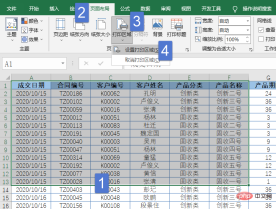
Select the cell area you want and set the [Print Area] under the [Page Layout] tab.
3. Print the same title on multiple pages
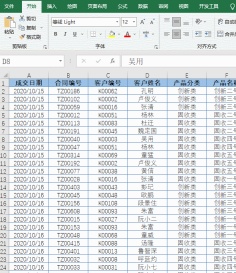
If there are multiple pages of data that need to be printed, you can have the same title line on each page. The tables are beautiful and easy to read.
#4. Quickly adjust the printing ratio
You can reduce or expand the printing ratio by combining the page content and paper size. You can also reduce the width or height to a specified number of pages.
5. Drag the mouse to set the page size
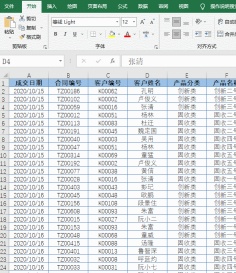
Switch to the "Page Preview" view and drag the blue paging line with the mouse to quickly adjust the page Size:
6. Insert page number
When printing multiple pages, it is a good idea to add page numbers:

7. Add headers and footers
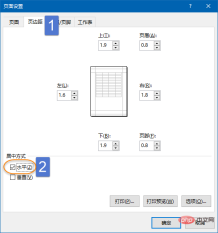
There are many items for users to set in the [Page Settings] dialog box. For example, if horizontal centering is set, the printed content will not be offset on the paper.

Under the [Worksheet] tab of [Page Setup], you can also set grid lines, monochrome printing, draft quality, column and column titles, and comments and error values. Display mode, these options are rarely used in actual work. Interested friends can set it up and then click the [Print Preview] button to see what the effect is.
8. Adjust the page margins in the print preview interface.
Before printing the file, you need to preview the printing effect. In this interface, you can also Appropriately adjust the column width and page margins:
First click the [Show Margins] button in the lower right corner, then move the cursor to the position of the adjustment handle, press the left Just hold down the key and drag.

9. Scale all columns to one page
When printing preview, if a column is displayed alone on another page, you only need to set the scaling at this time. Just scale all columns to fit on one page.
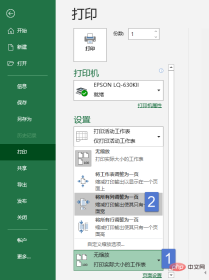
10. Print the entire workbook
If you want to print all worksheets in the entire workbook, you can select "Print the entire workbook" during the print preview. ".
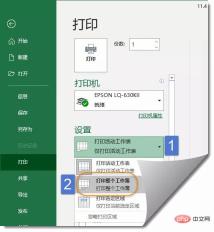
Related learning recommendations: excel tutorial
The above is the detailed content of Summary of Excel print settings skills. For more information, please follow other related articles on the PHP Chinese website!

 MEDIAN formula in Excel - practical examplesApr 11, 2025 pm 12:08 PM
This tutorial explains how to calculate the median of numerical data in Excel using the MEDIAN function. The median, a key measure of central tendency, identifies the middle value in a dataset, offering a more robust representation of central tenden
 Google Spreadsheet COUNTIF function with formula examplesApr 11, 2025 pm 12:03 PM
Master Google Sheets COUNTIF: A Comprehensive Guide This guide explores the versatile COUNTIF function in Google Sheets, demonstrating its applications beyond simple cell counting. We'll cover various scenarios, from exact and partial matches to han
 Excel shared workbook: How to share Excel file for multiple usersApr 11, 2025 am 11:58 AM
This tutorial provides a comprehensive guide to sharing Excel workbooks, covering various methods, access control, and conflict resolution. Modern Excel versions (2010, 2013, 2016, and later) simplify collaborative editing, eliminating the need to m
 How to convert Excel to JPG - save .xls or .xlsx as image fileApr 11, 2025 am 11:31 AM
This tutorial explores various methods for converting .xls files to .jpg images, encompassing both built-in Windows tools and free online converters. Need to create a presentation, share spreadsheet data securely, or design a document? Converting yo
 Excel names and named ranges: how to define and use in formulasApr 11, 2025 am 11:13 AM
This tutorial clarifies the function of Excel names and demonstrates how to define names for cells, ranges, constants, or formulas. It also covers editing, filtering, and deleting defined names. Excel names, while incredibly useful, are often overlo
 Standard deviation Excel: functions and formula examplesApr 11, 2025 am 11:01 AM
This tutorial clarifies the distinction between standard deviation and standard error of the mean, guiding you on the optimal Excel functions for standard deviation calculations. In descriptive statistics, the mean and standard deviation are intrinsi
 Square root in Excel: SQRT function and other waysApr 11, 2025 am 10:34 AM
This Excel tutorial demonstrates how to calculate square roots and nth roots. Finding the square root is a common mathematical operation, and Excel offers several methods. Methods for Calculating Square Roots in Excel: Using the SQRT Function: The
 Google Sheets basics: Learn how to work with Google SpreadsheetsApr 11, 2025 am 10:23 AM
Unlock the Power of Google Sheets: A Beginner's Guide This tutorial introduces the fundamentals of Google Sheets, a powerful and versatile alternative to MS Excel. Learn how to effortlessly manage spreadsheets, leverage key features, and collaborate


Hot AI Tools

Undresser.AI Undress
AI-powered app for creating realistic nude photos

AI Clothes Remover
Online AI tool for removing clothes from photos.

Undress AI Tool
Undress images for free

Clothoff.io
AI clothes remover

AI Hentai Generator
Generate AI Hentai for free.

Hot Article
Hot Tools

SecLists
SecLists is the ultimate security tester's companion. It is a collection of various types of lists that are frequently used during security assessments, all in one place. SecLists helps make security testing more efficient and productive by conveniently providing all the lists a security tester might need. List types include usernames, passwords, URLs, fuzzing payloads, sensitive data patterns, web shells, and more. The tester can simply pull this repository onto a new test machine and he will have access to every type of list he needs.

ZendStudio 13.5.1 Mac
Powerful PHP integrated development environment

Atom editor mac version download
The most popular open source editor

PhpStorm Mac version
The latest (2018.2.1) professional PHP integrated development tool

SublimeText3 Mac version
God-level code editing software (SublimeText3)

