



Method: First open ppt and import the picture; then click "Insert" - "Shape" - "Rectangle" to draw a rectangle; then click the rectangle and click "Picture or Texture Fill" in the settings window on the right - "File", find the picture and insert the picture into the rectangle; finally click on the rectangle and drag the "Transparency" slider in the settings window on the right to change the transparency.

The operating environment of this tutorial: Windows 7 system, Microsoft Office PowerPoint 2016 version, Dell G3 computer.
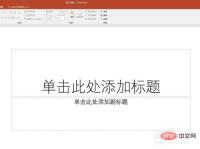
Click [Insert]-[Picture] to insert pictures from your computer.
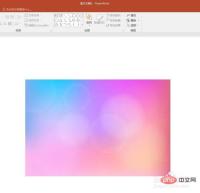
Right-click on the picture and click [Set Picture Format] to open the picture format setting window on the right, but there is no transparency setting option in the window.
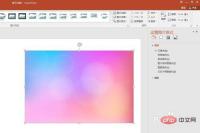
You need to set the transparency according to the shape. Click [Insert]-[Shape]-[Rectangle] to draw a rectangle.
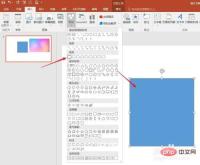
Click the rectangle, in the settings window on the right, click [Image or Texture Fill], and click [File].
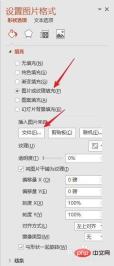
# Find the previously inserted picture, and the picture is inserted into the rectangle.
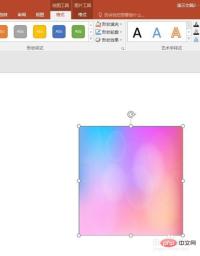
Look at the settings window on the right, you can see the [Transparency] setting slider, drag the slider to change the transparency of the inserted picture .

In this way, the transparency of the image is indirectly changed.

For more related knowledge, please visit the FAQ column!
The above is the detailed content of How to set image transparency in ppt. For more information, please follow other related articles on the PHP Chinese website!

Hot AI Tools

Undresser.AI Undress
AI-powered app for creating realistic nude photos

AI Clothes Remover
Online AI tool for removing clothes from photos.

Undress AI Tool
Undress images for free

Clothoff.io
AI clothes remover

AI Hentai Generator
Generate AI Hentai for free.

Hot Article
Hot Tools

VSCode Windows 64-bit Download
A free and powerful IDE editor launched by Microsoft

DVWA
Damn Vulnerable Web App (DVWA) is a PHP/MySQL web application that is very vulnerable. Its main goals are to be an aid for security professionals to test their skills and tools in a legal environment, to help web developers better understand the process of securing web applications, and to help teachers/students teach/learn in a classroom environment Web application security. The goal of DVWA is to practice some of the most common web vulnerabilities through a simple and straightforward interface, with varying degrees of difficulty. Please note that this software

SublimeText3 Linux new version
SublimeText3 Linux latest version

Dreamweaver CS6
Visual web development tools

MantisBT
Mantis is an easy-to-deploy web-based defect tracking tool designed to aid in product defect tracking. It requires PHP, MySQL and a web server. Check out our demo and hosting services.

