



Method: 1. Turn on the computer. When Win10 starts the logo interface, press and hold the power button to force shutdown; then turn the computer on and force shutdown. Repeat this operation three times to enter the automatic repair interface; then click "Advanced" Options" - "Troubleshooting" - "Advanced Options" - "Startup Settings" - "Restart"; finally press the number 4 key or the F4 key.

The operating environment of this tutorial: Windows 10 system, Dell G3 computer.
Recommended tutorial: "windows tutorial"
Method 1 to enter Win10 safe mode:
If your computer, win10 The system can no longer enter the desktop normally, so it is recommended that you use method one.
We turn on the computer. When Win10 starts the logo interface, press and hold the power button to force shutdown, then turn it on again. When Win10 starts the logo interface, press and hold the power button to force shutdown. Repeat this operation three times. Diagnosing your computer will appear, and the automatic repair interface will appear.
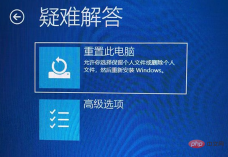
#The computer will then enter the automatic repair interface, and we click "Advanced Options".
Then click the "Troubleshooting" option, as shown in the picture below.
Then click "Advanced Options", as shown in the figure below.
In the advanced options interface, we click "Startup Settings", as shown in the figure below.
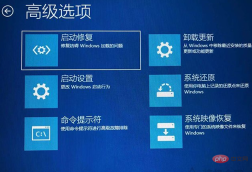
In the startup settings interface, we click "Restart", as shown in the figure below.
Serial numbers 4-6 are all safe modes. We can choose as needed. No network is required. Press the number 4 key or the F4 key to enable safe mode. That's it.
Method 2 to enter Win10 safe mode:
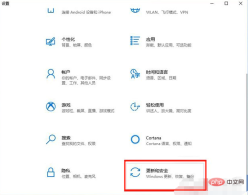
If we can still enter the Windows 10 operating system, we can click the "Start" menu , click "Settings".
In the windows settings interface, we click "Update and Security", as shown in the figure below.
Click Recovery and click "Restart Now" in Advanced Startup.

After the system restarts, enter the advanced startup options, and then select "Troubleshoot"->"Advanced Options"->"Startup Settings"->"Restart" , use the numeric key 4 or F4 to select "Enable safe mode". There are many types of safe modes, including ones that require the use of the network, and safe modes with the network.
Method 3 to enter Win10 safe mode:
Hold down the Shift key on the keyboard and click Restart.

After the system restarts, enter the advanced startup options, and then select "Troubleshoot"->"Advanced Options"->"Startup Settings"->"Restart" , use the numeric key 4 or F4 to select "Enable safe mode". There are many types of safe modes, including ones that require the use of the network, and safe modes with the network.
If you want to read more related articles, please visit PHP Chinese website! !
The above is the detailed content of How to enter safe mode in win10. For more information, please follow other related articles on the PHP Chinese website!

Hot AI Tools

Undresser.AI Undress
AI-powered app for creating realistic nude photos

AI Clothes Remover
Online AI tool for removing clothes from photos.

Undress AI Tool
Undress images for free

Clothoff.io
AI clothes remover

AI Hentai Generator
Generate AI Hentai for free.

Hot Article
Hot Tools

Notepad++7.3.1
Easy-to-use and free code editor

SecLists
SecLists is the ultimate security tester's companion. It is a collection of various types of lists that are frequently used during security assessments, all in one place. SecLists helps make security testing more efficient and productive by conveniently providing all the lists a security tester might need. List types include usernames, passwords, URLs, fuzzing payloads, sensitive data patterns, web shells, and more. The tester can simply pull this repository onto a new test machine and he will have access to every type of list he needs.

Zend Studio 13.0.1
Powerful PHP integrated development environment

DVWA
Damn Vulnerable Web App (DVWA) is a PHP/MySQL web application that is very vulnerable. Its main goals are to be an aid for security professionals to test their skills and tools in a legal environment, to help web developers better understand the process of securing web applications, and to help teachers/students teach/learn in a classroom environment Web application security. The goal of DVWA is to practice some of the most common web vulnerabilities through a simple and straightforward interface, with varying degrees of difficulty. Please note that this software

ZendStudio 13.5.1 Mac
Powerful PHP integrated development environment

