



The methods for force quitting a program on Mac are: 1. Press and hold the [command option shift esc] key combination in the application interface you want to exit; 2. Hold down the option key and right-click the application icon on the dock; 3. , use the terminal kill command.

Environment of this article: MacOS X system, macbook pro.
(Learning video sharing: Programming video)
Specific method:
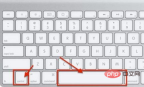
The first method: Force quit the currently responsive Mac application through the keyboard .
Hold down the Command Option Shift Esc key for a second or two until the app is forced to quit. This is the fastest way to exit an application with a foreground interface.

Second method: Bring up the "Force Quit Application" window.
Press the Command Option Esc key, click the name of the application you want to exit in the pop-up "Force Quit Application" window, and click the "Force Quit" button, the application will exit immediately. This can be used as a simplified version of the Activity Monitor, and this set of shortcut keys is also easier to remember.

Third method: Force quit the app from the Dock.
Hold down Option and right-click the application icon on the Dock. The "Force Quit" option will appear in the menu. Click this option to exit the application without popping up any prompts.
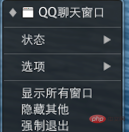
Fourth method: Force quit the app from the Apple menu.
Hold down the Shift key and click the app's menu (top left corner) to bring up "Force Quit [app name]". This method is also very easy to remember, but it is not the most useful method because sometimes when the application becomes unresponsive, its menu will become unusable.
Fifth method: Use Activity Monitor to exit the application.
Press Command and Spacebar to bring up Spotlight, enter Activity Monitor to launch Activity Monitor. Click the name or process ID of the process you want to exit, and then click Kill. Applications that have become unresponsive will usually be displayed in red, and then click the red "Exit Process" button. This is basically the equivalent of Task Manager in Windows, or can be thought of as a full version of the previous Force Quit App window. If the previous methods fail, this method can work in most cases.
The sixth method: Use the terminal kill command.

Related recommendations: macos system
The above is the detailed content of What are the methods to force quit a program on Mac?. For more information, please follow other related articles on the PHP Chinese website!

 macOS Development: Building Native Apps with Swift & XcodeApr 16, 2025 am 12:01 AM
To develop macOS applications, you need to use Swift and Xcode. 1. Install Xcode and create a new project. 2. Use InterfaceBuilder to design the interface. 3. Write logical code in Swift file. 4. Utilize advanced features such as protocols and generic optimization code. 5. Use debugging tools to resolve common errors. 6. Optimize performance through asynchronous processing.
 macOS: The User Experience and DesignApr 14, 2025 am 12:02 AM
The design philosophy of macOS is simplicity, user-centered and highly personalized. 1) The simple user interface allows users to quickly find the functions they need; 2) The user-centric design improves the interactive experience; 3) Personalized settings allow the system to be tailored to users; 4) Excellent performance and stability ensure smooth operation of the system; 5) Hidden functions such as shortcut commands and air-to-air playback improve work efficiency.
 Understanding the Current macOS: A Concise GuideApr 13, 2025 am 12:02 AM
macOSSonoma is the latest operating system version released by Apple in 2023. 1. It enhances the user experience through new features such as desktop widgets. 2. Rely on the SwiftUI framework to implement these functions. 3. The basic usage includes adding widgets. 4. Advanced usage such as using Automator to create workflows. 5. Common error handling includes checking system resources. 6. Performance optimization is recommended to clean the cache regularly.
 How to open macos terminalApr 12, 2025 pm 05:39 PM
Open a file in a macOS terminal: Open the terminal to navigate to the file directory: cd ~/Desktop Use open command: open test.txtOther options: Use the -a option to specify that a specific application uses the -R option to display files only in Finder
 How to take screenshots of macosApr 12, 2025 pm 05:36 PM
There are four screenshot methods on macOS: shortcut keys, touch bars, preview apps, and third-party apps. After the screenshot, the image will be automatically saved to PNG format on the desktop, and you can adjust the format, delay, save position, and floating thumbnail settings through System Preferences.
 How to record macos screenApr 12, 2025 pm 05:33 PM
macOS has a built-in "Screen Recording" application that can be used to record screen videos. Steps: 1. Start the application; 2. Select the recording range (the entire screen or a specific application); 3. Enable/disable the microphone; 4. Click the "Record" button; 5. Click the "Stop" button to complete. Save the recording file in .mov format in the "Movies" folder.
 How to open a terminal for macosApr 12, 2025 pm 05:30 PM
The following five methods can be used to open a macOS terminal: Use Spotlight Search through application folders Use Launchpad to use shortcut keys Command Shift U through terminal menus
 How to view the system name of macosApr 12, 2025 pm 05:24 PM
How to view system name in macOS: 1. Click the Apple menu; 2. Select "About Native"; 3. The "Device Name" field displayed in the "Overview" tab is the system name. System name usage: identify Mac, network settings, command line, backup. To change the system name: 1. Access About Native Machine; 2. Click the "Name" field; 3. Enter a new name; 4. Click "Save".


Hot AI Tools

Undresser.AI Undress
AI-powered app for creating realistic nude photos

AI Clothes Remover
Online AI tool for removing clothes from photos.

Undress AI Tool
Undress images for free

Clothoff.io
AI clothes remover

AI Hentai Generator
Generate AI Hentai for free.

Hot Article
Hot Tools

Atom editor mac version download
The most popular open source editor

Safe Exam Browser
Safe Exam Browser is a secure browser environment for taking online exams securely. This software turns any computer into a secure workstation. It controls access to any utility and prevents students from using unauthorized resources.

Zend Studio 13.0.1
Powerful PHP integrated development environment

SublimeText3 English version
Recommended: Win version, supports code prompts!

Notepad++7.3.1
Easy-to-use and free code editor

