




What to do with ps card?
1. Disable the “Home” screen
Many friends are now using the new version of PS. The new version has a “Home” screen, which consumes a lot of resources. If you are not interested in the new version of the home screen, it is recommended to turn it off directly. The method is: Ctrl K to open the options panel, click "General", and check "Disable 'Home' screen". Of course, if you want, you can also check "Use the old "New Document" interface". Yes! That's what I do.
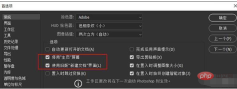
2. Disable uncommon functions
Under the "Tools" tab, there are many functions that are not commonly used, although these functions are not very useful. , but it will obviously slow down the running speed of PS. Just like Windows interface effects, the fewer you open, the faster it runs. Usually I only keep the above four items, which are enough for most applications.

3. Turn off "Background Storage"
The meaning of "Background Storage" is that every once in a while, PS automatically saves the modifications to the current file to avoid interruptions. Power outages or abnormal shutdowns may cause losses to users. However, in many cases, PS stuck is mostly due to its "contribution". Especially when the files you are processing are too complex, the hidden dangers caused by "background storage" are often higher than its positive effects. It is recommended to turn it off!
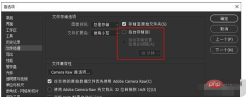
4. Correctly set the scratch disk
When PS finds that the available memory is insufficient, it will automatically call the "scratch disk" to store files. Don’t underestimate the temporary files of PS. A few GB is a small amount of space. If your file resolution is high enough or linked to a large number of smart objects (such as various templates downloaded from the Internet), then more than ten GB will be enough. Not a problem. In this case, the PS's available memory will be quickly exhausted, and a slower hard drive (scratch disk) will be used.
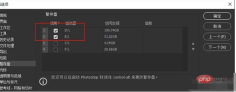
#Usually the temporary disk settings will follow the following principles. After the settings are set up, processing large images will feel smoother.
1) It is best to set it to SSD, you know the reason;
2) Set up multiple temporary disks at the same time. When one disk is full, there is a backup option to avoid the occurrence of temporary disks. Insufficient problem;
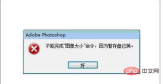
#3) Be sure not to include the C drive. The C drive is the system disk and is frequently read and written. On the other hand, the PS cache will also interact with the virtual memory. Seize space and cause more problems;
5. Graphics processor
If your graphics card is more powerful, you can select "Advanced" here. If the graphics card is average or old, , you should select "Basic" or "Normal". In short, there are no certain rules here. It all depends on your own computer configuration. Whatever suits you best is the best.
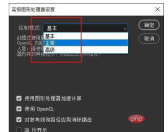
In addition, if you feel that it is still stuck after modifying many PS parameters, you can try turning off "Use Graphics Processor", which will work wonders in many cases.

6. History and cache
Many friends think that the "cache level" and "cache tile size" in the "Performance" tab ”, the larger the value, the faster it is, but this is not the case. The cache here is not as simple as everyone imagines. It is actually closely related to the size and type of images you want to process (for example, the number of layers). For example, if the image you want to process is not large in size but has many layers (such as a design drawing), you should set the cache level to a low level (such as 1 or 2). And if the image has few layers but large pixels (such as photography), you need to increase the cache level. In short, it should be determined based on the nature of your daily work, not higher is better or lower is better.
In addition, PS has built in three default options for us, "WEB/User Interface Design", "Default/Photo", and "Extra Large Pixel Size". Click according to the nature of your work, and you can also get comparisons. Good optimization settings.

7. Layer structure optimization
Layers are the essence of PS, but sometimes the wrong use of layers can greatly increase the size of the picture. For example, adjustment layers have many advantages over copy layers. In addition to enabling lossless adjustments, one of its major benefits is that it hardly increases the document size. Similarly, there are smart objects. Although smart objects have advantages of one kind or another, they are often the "culprit" of sudden increases in image size and lags in PS operation. In fact, after final editing, smart objects should be rasterized as much as possible to reduce the size of the image.
8. Text preview
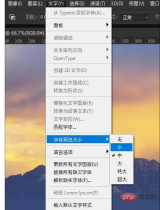
It is inevitable to install a lot of fonts when designing, but when there are too many fonts, the text tool will become stuck. There is a way to solve this problem. Click the "Text" menu → "Font Preview Size" → "Small", which not only retains the font preview function, but also speeds up the loading of fonts.
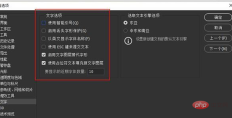
In addition, you can also make some settings for "Text" in the preferences. Personally, I usually only keep "Enable text layer to replace glyphs" and "Use placeholder text fill" The two options "New Text Layer" are not very useful for other purposes, so it is recommended to turn them off.
9. Extension panel
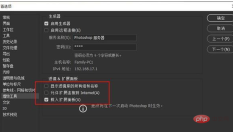
"Allow extensions to connect to the Internet" in "Plug-ins" should also be turned off. This is a common practice in China and everyone knows it. ha!
10. Change the PS version
If all the above settings don't work, you should consider whether it is the PS version. Take PS 2017, for example. The overall optimization of this version is not very good. Many friends experience various lags after using it for a period of time. The solution is to change to other versions, such as PS 2015 or PS 2018, which are both good choices.
Written at the end
The above settings basically cover all aspects of PS optimization. After restarting PS, most of them will have obvious changes. If you still have problems, you should consider your computer configuration and whether the image being processed contains too many layers or links to a large number of smart objects. In short, new versions tend to consume more resources than old versions. If the added new features do not help your work much, then choosing a familiar old version is actually the most appropriate!
The above is the detailed content of What to do with ps card. For more information, please follow other related articles on the PHP Chinese website!

 Photoshop's Subscription Model: What You Get for Your MoneyApr 15, 2025 am 12:17 AM
Photoshop's subscription model is worth buying. 1) Users can access the latest version and use across devices at any time. 2) The subscription fee is low, and continuous updates and technical support are provided. 3) Advanced functions such as neural filters can be used for complex image processing. Despite the high long-term costs, its convenience and feature updates are valuable to professional users.
 Photoshop: Investigating Free Trials and Discount OptionsApr 14, 2025 am 12:06 AM
You can get the access to Photoshop in the most economical way: 1. Experience the software features with a 7-day free trial; 2. Find student or teacher discounts, as well as seasonal promotions; 3. Use coupons on third-party websites; 4. Subscribe to Adobe CreativeCloud's monthly or annual plan.
 Photoshop for Designers: Creating Visual ConceptsApr 13, 2025 am 12:09 AM
Creating visual concepts in Photoshop can be achieved through the following steps: 1. Create a new document, 2. Add a background layer, 3. Use the brush tool to draw basic shapes, 4. Adjust colors and brightness, 5. Add text and graphics, 6. Use masks for local editing, 7. Apply filter effects, these steps help designers build a complete visual work from scratch.
 Is Photoshop Free? Understanding Subscription PlansApr 12, 2025 am 12:11 AM
Photoshop is not free, but there are several ways to use it at low cost or free: 1. The free trial period is 7 days, and you can experience all functions during this period; 2. Student and teacher discounts can cut costs by half, and school proof is required; 3. The CreativeCloud package is suitable for professional users and includes a variety of Adobe tools; 4. PhotoshopElements and Lightroom are low-cost alternatives, with fewer functions but lower prices.
 Photoshop's Value: Weighing the Cost Against Its FeaturesApr 11, 2025 am 12:02 AM
Photoshop is worth the investment because it provides powerful features and a wide range of application scenarios. 1) Core functions include image editing, layer management, special effects production and color adjustment. 2) Suitable for professional designers and photographers, but amateurs may consider alternatives such as GIMP. 3) Subscribe to AdobeCreativeCloud can be used as needed to avoid high one-time spending.
 The Core Purpose of Photoshop: Creative Image DesignApr 10, 2025 am 09:29 AM
Photoshop’s core use in creative image design is its powerful functionality and flexibility. 1) It allows designers to transform creativity into visual reality through layers, masks and filters. 2) Basic usages include cropping, resizing and color correction. 3) Advanced usages such as layer styles, blend modes and smart objects can create complex effects. 4) Common mistakes include improper layer management and excessive use of filters, which can be solved by organizing layers and using filters reasonably. 5) Performance optimization and best practices include rational use of layers, regular saving of files, and using shortcut keys.
 Photoshop for Web Design: Advanced Techniques for UI/UXApr 08, 2025 am 12:19 AM
Photoshop can be used in web design to create high-fidelity prototypes, design UI elements, and simulate user interactions. 1. Use layers, masks and smart objects for basic design. 2. Simulate user interaction through animation and timeline functions. 3. Use scripts to automate the design process and improve efficiency.
 Newbie's article: Use the ps brush to add crack effects to the font (share)Apr 07, 2025 am 06:21 AM
In the previous article "Teaching you step by step to add printing effects to plate images using ps (Favorites)", I introduced a small trick to use ps to add printing effects to plate images using ps. The following article will introduce to you how to use the ps brush to add crack effects to the font. Let’s take a look at how to do it.


Hot AI Tools

Undresser.AI Undress
AI-powered app for creating realistic nude photos

AI Clothes Remover
Online AI tool for removing clothes from photos.

Undress AI Tool
Undress images for free

Clothoff.io
AI clothes remover

AI Hentai Generator
Generate AI Hentai for free.

Hot Article
Hot Tools

SublimeText3 Chinese version
Chinese version, very easy to use

SAP NetWeaver Server Adapter for Eclipse
Integrate Eclipse with SAP NetWeaver application server.

Dreamweaver Mac version
Visual web development tools

Safe Exam Browser
Safe Exam Browser is a secure browser environment for taking online exams securely. This software turns any computer into a secure workstation. It controls access to any utility and prevents students from using unauthorized resources.

MinGW - Minimalist GNU for Windows
This project is in the process of being migrated to osdn.net/projects/mingw, you can continue to follow us there. MinGW: A native Windows port of the GNU Compiler Collection (GCC), freely distributable import libraries and header files for building native Windows applications; includes extensions to the MSVC runtime to support C99 functionality. All MinGW software can run on 64-bit Windows platforms.

