



When I was studying java bytecode files, I wanted to see the hexadecimal encoding of the bytecode files, but the original notepad (notepad that I downloaded and installed) did not display the hexadecimal encoding function. At this time we need to manually install the HEX-Editor plug-in.
Step one: Open notepad’s plug-in manager (recommended learning: notepad )
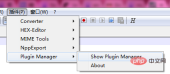
Step 2: Find HEX-Editor, check the box, and install

Step 3: Restart notepad , open the file you want to view, plug-in——>HEX-Editor——>View in HEX. At this time we can use notepad to display the hexadecimal encoding of the text file.
Supplement: Open the installation directory of notepad, and there is an additional HEX-Editor in the plugins sub-file. .dll file, this file is the HEX-Ediotr plug-in.
The above is the detailed content of How to display hexadecimal in notepad++. For more information, please follow other related articles on the PHP Chinese website!

 Notepad : Examining the Free and Open Source NatureApr 17, 2025 am 12:07 AM
Notepad is a free and open source text editor. 1) Free use lowers the entry threshold, 2) Open source features are implemented through the GPLv2 license, allowing the viewing, modifying and distributing source code, promoting community participation and software evolution.
 How to use notepadApr 16, 2025 pm 08:09 PM
Notepad is a free text editor for Windows, which offers a variety of features such as: 1) syntax highlighting, 2) autocomplete, 3) macro recording, 4) plug-in extensions, 5) customizable interfaces and settings.
 How to automatically type notepadApr 16, 2025 pm 08:06 PM
Notepad itself does not have automatic layout function. We can use a third-party text editor, such as Sublime Text, to perform the following steps to achieve automatic typography: 1. Install and open the text editor. 2. Open the file that needs to be automatically typed. 3. Find and select the automatic layout function. 4. The editor will automatically type the text. 5. You can customize the layout rules as needed. Automatic typography can save time and ensure text consistency and professionalism.
 How to compare the similarities and similarities of two documents in notepadApr 16, 2025 pm 08:03 PM
To use Notepad to compare the similarities and differences between two documents, follow these steps: Open both documents at the same time in Notepad. View the documents side by side. Compare the text line by line to find the difference. Highlight or underline the difference. Record the differences found for future reference.
 How to set notepad in ChineseApr 16, 2025 pm 08:00 PM
To set Notepad to the Chinese interface, perform the following steps: 1. Open Notepad; 2. Select "Format" > "Font"; 3. Select "Chinese (Simplified)" or "Chinese (Traditional)"; 4. Click "OK".
 How to format the code in notepadApr 16, 2025 pm 07:57 PM
The method of formatting code using Notepad is as follows: Open the code file and select the code Go to the "Edit" menu and select the "Format" option to customize the settings as needed (optional)
 How to compare two codes consistent with notepadApr 16, 2025 pm 07:54 PM
Notepad can compare the consistency of two code files. The steps are as follows: Open the two code files. Go to the Plug-in menu and select Compare > Compare Two Files in a Folder. Select the comparison type, it is recommended to use the "Advanced" type. Click OK to start the comparison. The difference rows will be highlighted in different colors.
 How to compare two files with notepadApr 16, 2025 pm 07:51 PM
Notepad can compare two files and highlight the differences: open two files; select Compare in the "Plugin" menu; the differences are displayed as: same line: keep unmodified; added line: green background; deleted line: red background; modified line: yellow background, added part green, deleted part red.


Hot AI Tools

Undresser.AI Undress
AI-powered app for creating realistic nude photos

AI Clothes Remover
Online AI tool for removing clothes from photos.

Undress AI Tool
Undress images for free

Clothoff.io
AI clothes remover

AI Hentai Generator
Generate AI Hentai for free.

Hot Article
Hot Tools

Safe Exam Browser
Safe Exam Browser is a secure browser environment for taking online exams securely. This software turns any computer into a secure workstation. It controls access to any utility and prevents students from using unauthorized resources.

Zend Studio 13.0.1
Powerful PHP integrated development environment

MantisBT
Mantis is an easy-to-deploy web-based defect tracking tool designed to aid in product defect tracking. It requires PHP, MySQL and a web server. Check out our demo and hosting services.

VSCode Windows 64-bit Download
A free and powerful IDE editor launched by Microsoft

WebStorm Mac version
Useful JavaScript development tools

