



PS stands for Adobe Photoshop. It is an image processing software developed and distributed by Adobe Systems. It is mainly responsible for processing digital images composed of pixels. Its functions can be divided into image editing, image synthesis, and proofreading. Color production and other parts.

The operating environment of this article: Windows 7 system, Dell G3 computer, Adobe Photoshop CS6.
PS mainly processes digital images composed of pixels, and uses a variety of drawing tools to edit images to create more beautiful effects
Everyone is familiar with PS. In fact, it The full name is Adobe Photoshop. This is a very powerful design software. It mainly includes a large number of tools, but sometimes it is difficult to use. Today, in this article, I will introduce in detail how to create beautiful and eye-catching images through Photoshop. Patterns, etc. I hope this helps.
In order to help you get started quickly with PS, the following article will introduce to you what PS is and the commonly used tools of PS
The meaning of PS
PS stands for Adobe Photoshop. It is an image processing software developed and distributed by Adobe Systems. It is mainly responsible for processing digital images composed of pixels. Its functions can be divided into image editing, image synthesis, color correction and color production. and other parts. Among them, image editing is the basis of image processing. It can perform various transformations on images, such as enlarging, reducing, and rotating; it can also copy, repair, and modify images, etc.
Photoshop has been continuously launching new versions since its release. Adobe Photoshop CS was launched in 2003, and then the latest version Photoshop CC was launched in 2013, with more and more comprehensive functions. And the application fields are also very broad. It can be said that all walks of life are now inseparable from ps
Adobe supports Windows operating system, Android system and Mac OS, but it does not support Linux system. If you are using Linux system If so, you need to run Photoshop through Wine.
Usage of PS
1. Layer tool
Usage: Layers can be used for images, text , brush strokes, background colors, patterns and filters.
Layers can be thought of as templates that are layered on top of each other. They can be used to create the final drawing and each worksheet can be modified independently without affecting the entire project. This can save a lot of time editing individual aspects of the drawing. Element

It has its own module located in the lower right corner of the Photoshop screen, it can also be accessed by clicking "Layers" in the top menu bar
Add or remove layers: From the top menu bar, select Layers > New > Layers
Select layers: Select specific parts of the image to edit, each Layers have an "eye" symbol next to them: click this symbol to turn the eye on and off, thus toggling the visibility of that layer as you work.
Copy layer: Select the layer and drag it to the "Create New Layer" button; right-click the layer to select "Copy Layer" or "Copy Group"
2. Color and Swatch Tool
Purpose: You can use, modify, copy and save custom colors for content
It is located in the upper right corner of the Photoshop screen. own module.
Create your own custom colors: You can adjust it to create your own custom colors by opening the color picker by double-clicking on the top box in the color module or in the menu on the left
If single Click Add to Swatches to add any color you create to the Swatches.

3. Custom brushes and brush tools
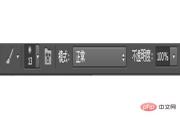
Purpose: Using the brush settings, you can change the size of the brush strokes , shapes and transparency to achieve many different visual effects.
It is located on the left toolbar.
After clicking the "Brush" tool icon, all settings and brush options will pop up at the top of the screen. These settings allow changing brush size, opacity, etc.
4. Selection tool
Select individual elements, the entire graphic, and determine what to copy, cut, and paste into the graphic content.
It is located on the left toolbar.
How to select an image to insert a graphic into:
Open the image you want to use in Photoshop and use the Selection Tool to determine how many images you want to copy. Once an area of the image is selected, simply copy it, then open a tab for the current project and paste it as a new layer, or you can select Free Transform to scale, rotate, move, and flip

5. Eraser
What it does: Change the size and hardness of the eraser tip to achieve various effects, such as blending and fading. Background Eraser uses color differences to help you remove unwanted background areas from your images.
Where it's located: Toolbar on the left.
After clicking the "eraser" icon, all settings will pop up at the top of the screen. These settings can change eraser size, hardness, and other aspects of the tool. It only works on specific selected layers. Before you start erasing, make sure you have the desired layer selected.

6. Cropping tool
Use: Use the "Crop" tool to crop the image, select the area and Just cut it out.
It is located on the left toolbar.
Select the icon indicated in the screenshot from the side menu bar and drag the box over the area you want to crop. To adjust the crop box, simply click and drag the small anchor boxes on the sides and corners of the crop box.

7. Fill Tool
Purpose: Fill any solid area with the selected color "Gradient" in the "Fill" tool Tool allows you to create a beautiful, faded background effect based on a color of your choice.
It's on the top menu bar, select "Layer" > "New Fill Layer"
Fill the solid area with color:
First, select the solid color you want to use Filled layer. Then, select Layers > New Fill Layer > Solid Color from the top menu bar... Then, the New Layer window will pop up and prompt you to name the new color fill layer. Don't worry about picking the color you want at that point - just name the layer and press "OK."

8. Custom fonts and text tools
Purpose: Add custom fonts to the database, you can access advanced Font settings that give your text some serious style.
It is located on the left toolbar, near the bottom.
After clicking the "Text" tool icon, all settings and font options will pop up at the top of the screen. These settings allow you to change characters, font size, and spacing between characters, height, width, color, and style. Please be sure to select the layer of the required text for editing

Summary: The above is the entire content of this article, I hope it will be helpful to everyone learning PS.
【Recommended course: PS Tutorial】
The above is the detailed content of What is PS. For more information, please follow other related articles on the PHP Chinese website!

 Photoshop's Subscription Model: What You Get for Your MoneyApr 15, 2025 am 12:17 AM
Photoshop's subscription model is worth buying. 1) Users can access the latest version and use across devices at any time. 2) The subscription fee is low, and continuous updates and technical support are provided. 3) Advanced functions such as neural filters can be used for complex image processing. Despite the high long-term costs, its convenience and feature updates are valuable to professional users.
 Photoshop: Investigating Free Trials and Discount OptionsApr 14, 2025 am 12:06 AM
You can get the access to Photoshop in the most economical way: 1. Experience the software features with a 7-day free trial; 2. Find student or teacher discounts, as well as seasonal promotions; 3. Use coupons on third-party websites; 4. Subscribe to Adobe CreativeCloud's monthly or annual plan.
 Photoshop for Designers: Creating Visual ConceptsApr 13, 2025 am 12:09 AM
Creating visual concepts in Photoshop can be achieved through the following steps: 1. Create a new document, 2. Add a background layer, 3. Use the brush tool to draw basic shapes, 4. Adjust colors and brightness, 5. Add text and graphics, 6. Use masks for local editing, 7. Apply filter effects, these steps help designers build a complete visual work from scratch.
 Is Photoshop Free? Understanding Subscription PlansApr 12, 2025 am 12:11 AM
Photoshop is not free, but there are several ways to use it at low cost or free: 1. The free trial period is 7 days, and you can experience all functions during this period; 2. Student and teacher discounts can cut costs by half, and school proof is required; 3. The CreativeCloud package is suitable for professional users and includes a variety of Adobe tools; 4. PhotoshopElements and Lightroom are low-cost alternatives, with fewer functions but lower prices.
 Photoshop's Value: Weighing the Cost Against Its FeaturesApr 11, 2025 am 12:02 AM
Photoshop is worth the investment because it provides powerful features and a wide range of application scenarios. 1) Core functions include image editing, layer management, special effects production and color adjustment. 2) Suitable for professional designers and photographers, but amateurs may consider alternatives such as GIMP. 3) Subscribe to AdobeCreativeCloud can be used as needed to avoid high one-time spending.
 The Core Purpose of Photoshop: Creative Image DesignApr 10, 2025 am 09:29 AM
Photoshop’s core use in creative image design is its powerful functionality and flexibility. 1) It allows designers to transform creativity into visual reality through layers, masks and filters. 2) Basic usages include cropping, resizing and color correction. 3) Advanced usages such as layer styles, blend modes and smart objects can create complex effects. 4) Common mistakes include improper layer management and excessive use of filters, which can be solved by organizing layers and using filters reasonably. 5) Performance optimization and best practices include rational use of layers, regular saving of files, and using shortcut keys.
 Photoshop for Web Design: Advanced Techniques for UI/UXApr 08, 2025 am 12:19 AM
Photoshop can be used in web design to create high-fidelity prototypes, design UI elements, and simulate user interactions. 1. Use layers, masks and smart objects for basic design. 2. Simulate user interaction through animation and timeline functions. 3. Use scripts to automate the design process and improve efficiency.
 Newbie's article: Use the ps brush to add crack effects to the font (share)Apr 07, 2025 am 06:21 AM
In the previous article "Teaching you step by step to add printing effects to plate images using ps (Favorites)", I introduced a small trick to use ps to add printing effects to plate images using ps. The following article will introduce to you how to use the ps brush to add crack effects to the font. Let’s take a look at how to do it.


Hot AI Tools

Undresser.AI Undress
AI-powered app for creating realistic nude photos

AI Clothes Remover
Online AI tool for removing clothes from photos.

Undress AI Tool
Undress images for free

Clothoff.io
AI clothes remover

AI Hentai Generator
Generate AI Hentai for free.

Hot Article
Hot Tools

SublimeText3 Linux new version
SublimeText3 Linux latest version

SAP NetWeaver Server Adapter for Eclipse
Integrate Eclipse with SAP NetWeaver application server.

VSCode Windows 64-bit Download
A free and powerful IDE editor launched by Microsoft

Dreamweaver Mac version
Visual web development tools

Atom editor mac version download
The most popular open source editor

