


 Operation and Maintenance
Linux Operation and Maintenance
How to use Systemd to manage Crontab tasks in Linux system
Operation and Maintenance
Linux Operation and Maintenance
How to use Systemd to manage Crontab tasks in Linux system
How to use Systemd to manage Crontab tasks in Linux system

How to use Systemd to manage Crontab tasks in Linux systems
Introduction:
In Linux systems, Crontab is a commonly used scheduled task scheduling tool. It allows users to execute specific commands or scripts at specified times. However, over time, managing a large number of Crontab tasks became more and more complex, and we needed a better way to manage these tasks. Systemd is a tool for managing and starting system services in modern Linux systems. It provides a more flexible and reliable way to manage scheduled tasks. This article will introduce how to use Systemd to manage Crontab tasks and provide specific code examples.
Step 1: Create a Crontab task file
First, we need to create a Crontab task file. This file will contain commands or scripts that we want to execute periodically. For example, we can create a script file called mytask.sh and add some commands to be executed as follows:
#!/bin/bash
echo "Hello, World!" >> /tmp/output.txt
Save and close the file. Make sure the file has execution permissions. You can use the command chmod x mytask.sh to add execution permissions.
Step 2: Create a Systemd service file
Next, we need to create a Systemd service file so that Systemd can manage our Crontab tasks. Create a file named mytask.service in the /etc/systemd/system/ directory and add the following content in it:
[Unit]
Description=MyTask

[Service]
ExecStart=/path/to/mytask.sh

[Install]
WantedBy=multi-user.target
Make sure to add /path/to/mytask.shReplace with the path to the actual script file.
Step Three: Start and Test the Task
After saving and closing the mytask.service file, we can use the following command to start the task:
sudo systemctl start mytask.service
We can use The following command checks the status of the task:
sudo systemctl status mytask.service
If everything is fine, you should see the status of the task as "active (running)".
Step 4: Set the task to start automatically
If you want the task to start automatically when the system starts, you can use the following command to set the task to self-start:
sudo systemctl enable mytask.service
Now, the task will Start automatically when the system starts.
Step 5: Manage Tasks
Using Systemd to manage Crontab tasks has some additional advantages. We can use the systemctl command to start, stop, restart and reload tasks without manually editing the Crontab file. The following are some commonly used command examples:
# 启动任务
sudo systemctl start mytask.service

# 停止任务
sudo systemctl stop mytask.service

# 重启任务
sudo systemctl restart mytask.service

# 重载任务(重新加载配置文件)
sudo systemctl reload mytask.service
By using Systemd, we can manage Crontab tasks more concisely and clearly, and reduce the risk of manually editing Crontab files.
Conclusion:
In this article, we introduced how to use Systemd to manage Crontab tasks. By creating a Systemd service file and using the systemctl command to start, stop, restart and reload tasks, we can manage scheduled tasks more conveniently. This method provides a more flexible and reliable management method and reduces the risk of manually editing Crontab files. I hope this article will be helpful to you when managing Crontab tasks in Linux systems.
The above is the detailed content of How to use Systemd to manage Crontab tasks in Linux system. For more information, please follow other related articles on the PHP Chinese website!

Hot AI Tools

Undress AI Tool
Undress images for free

AI Clothes Remover
Online AI tool for removing clothes from photos.

Undresser.AI Undress
AI-powered app for creating realistic nude photos

ArtGPT
AI image generator for creative art from text prompts.

Stock Market GPT
AI powered investment research for smarter decisions

Hot Article
Popular tool

Notepad++7.3.1
Easy-to-use and free code editor

SublimeText3 Chinese version
Chinese version, very easy to use

Zend Studio 13.0.1
Powerful PHP integrated development environment

Dreamweaver CS6
Visual web development tools

SublimeText3 Mac version
God-level code editing software (SublimeText3)
Hot Topics
 20516
20516
 7
13629
4
7
13629
4

 Using Task Manager in Linux
Aug 15, 2024 am 07:30 AM
Using Task Manager in Linux
Aug 15, 2024 am 07:30 AM
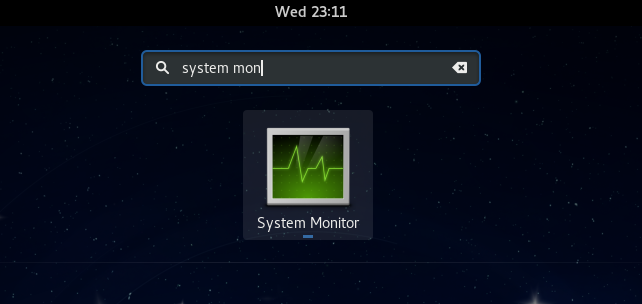
There are many questions that Linux beginners often ask, "Does Linux have a Task Manager?", "How to open the Task Manager on Linux?" Users from Windows know that the Task Manager is very useful. You can open the Task Manager by pressing Ctrl+Alt+Del in Windows. This task manager shows you all the running processes and the memory they consume, and you can select and kill a process from the task manager program. When you first use Linux, you will also look for something that is equivalent to a task manager in Linux. A Linux expert prefers to use the command line to find processes, memory consumption, etc., but you don't have to
 7 ways to help you check the registration date of Linux users
Aug 24, 2024 am 07:31 AM
7 ways to help you check the registration date of Linux users
Aug 24, 2024 am 07:31 AM
Did you know, how to check the creation date of an account on a Linux system? If you know, what can you do? Did you succeed? If yes, how to do it? Basically Linux systems don't track this information, so what are the alternative ways to get this information? You may ask why am I checking this? Yes, there are situations where you may need to review this information and it will be helpful to you at that time. You can use the following 7 methods to verify. Use /var/log/secure Use aureport tool Use .bash_logout Use chage command Use useradd command Use passwd command Use last command Method 1: Use /var/l
 How to hide your Linux command line history
Aug 17, 2024 am 07:34 AM
How to hide your Linux command line history
Aug 17, 2024 am 07:34 AM
If you are a Linux command line user, sometimes you may not want certain commands to be recorded in your command line history. There could be many reasons, for example, you hold a certain position in a company and you have certain privileges that you don't want others to abuse. Or maybe there are some particularly important commands that you don't want to execute by mistake while browsing the history list. However, is there a way to control which commands go into the history list and which don't? Or in other words, can we enable incognito mode like a browser in a Linux terminal? The answer is yes, and depending on the specific goals you want, there are many ways to achieve it. In this article, we’ll discuss some proven methods. Note: All commands appearing in this article have been tested under Ubuntu. different
 Compare and sync files in Ubuntu with FreeFileSync
Aug 19, 2024 pm 07:39 PM
Compare and sync files in Ubuntu with FreeFileSync
Aug 19, 2024 pm 07:39 PM
FreeFileSync is a free, open source, and cross-platform folder comparison and synchronization software that can help you synchronize files and folders in Linux, Windows, and MacOS. It is portable and can be installed on a local system, is feature-rich and is designed to save time setting up and performing backup operations, while having an attractive graphical interface. FreeFileSync Features Here are its main features: It can synchronize network shares and local disks. It can synchronize MTP devices (Android, iPhone, tablets, digital cameras). It can also be synced via SFTP (SSH File Transfer Protocol). It can identify moved and renamed files and files
 Zabbix 3.4 Source code compilation installation
Sep 04, 2024 am 07:32 AM
Zabbix 3.4 Source code compilation installation
Sep 04, 2024 am 07:32 AM
1. Installation environment (Hyper-V virtual machine): $hostnamectlStatichostname:localhost.localdomainIconname:computer-vmChassis:vmMachineID:renwoles1d8743989a40cb81db696400BootID:renwoles272f4aa59935dcdd0d456501Virtualization:microsoftOperatingSystem:CentOS Linux7(Core)CPEOSName:cpe:
 Detailed explanation: Shell script variable judgment parameter command
Sep 02, 2024 pm 03:25 PM
Detailed explanation: Shell script variable judgment parameter command
Sep 02, 2024 pm 03:25 PM
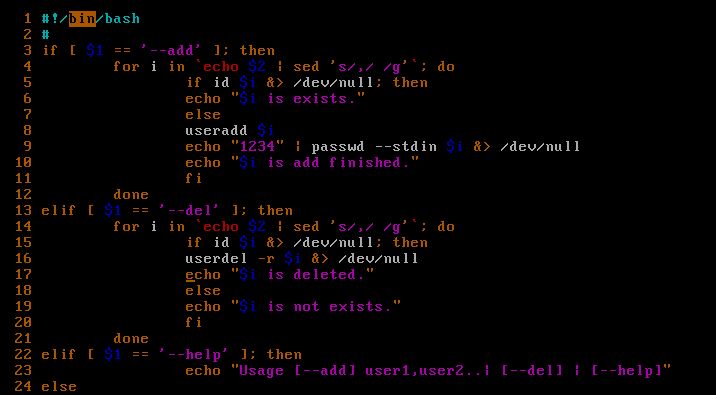
The system variable $n is the parameter passed to the script or function. n is a number indicating the number of parameters. For example, the first parameter is $1, and the second parameter is $2$? The exit status of the previous command, or the return value of the function. Returns 0 on success, 1 on failure $#Number of parameters passed to the script or function $* All these parameters are enclosed in double quotes. If a script receives two parameters, $* is equal to $1$2$0The name of the command being executed. For shell scripts, this is the path to the activated command. When $@ is enclosed in double quotes (""), it is slightly different from $*. If a script receives two parameters, $@ is equivalent to $1$2$$the process number of the current shell. For a shell script, this is the process I when it is executing
 Linux Operations: File System, Processes, and More
May 05, 2025 am 12:16 AM
Linux Operations: File System, Processes, and More
May 05, 2025 am 12:16 AM
The core operations of Linux file system and process management include file system management and process control. 1) File system operations include creating, deleting, copying and moving files or directories, using commands such as mkdir, rmdir, cp and mv. 2) Process management involves starting, monitoring and killing processes, using commands such as ./my_script.sh&, top and kill.
 How to install MySQL on Linux system
Apr 29, 2025 pm 03:57 PM
How to install MySQL on Linux system
Apr 29, 2025 pm 03:57 PM
Installing MySQL on Linux can be done through the package manager. The specific steps are as follows: 1. On Ubuntu, use apt to update the package list and install the MySQL server; 2. On CentOS, use yum to install the MySQL community version and start the service. After installation, basic configuration needs to be performed, such as setting the root password and creating database and users.
