


Display scaling guide on Windows 11

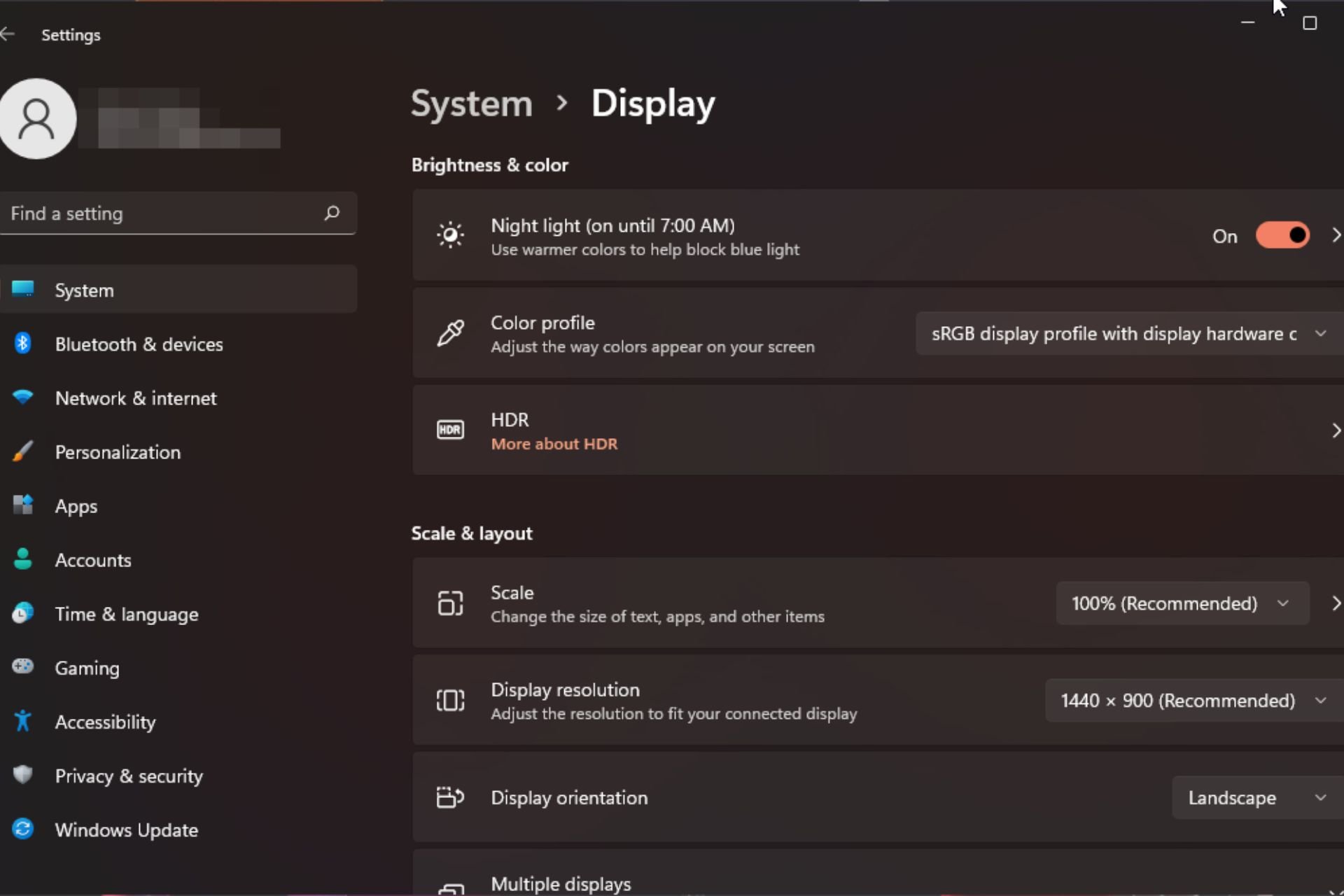
We all have different preferences when it comes to display scaling on Windows 11. Some people like big icons, some like small icons. However, we all agree that having the right scaling is important.
Poor font scaling or over-scaling of images can be a real productivity killer when working, so you need to know how to customize it to get the most out of your system's capabilities.
Advantages of Custom Zoom:
- This is a useful feature for people who have difficulty reading text on the screen.
- It helps you see more on the screen at one time.
- You can create custom extension profiles that apply only to certain monitors and applications.
- Can help improve the performance of low-end hardware.
- It gives you more control over what's on your screen.
How to change the scaling in Windows 11?
1. Use the Settings app
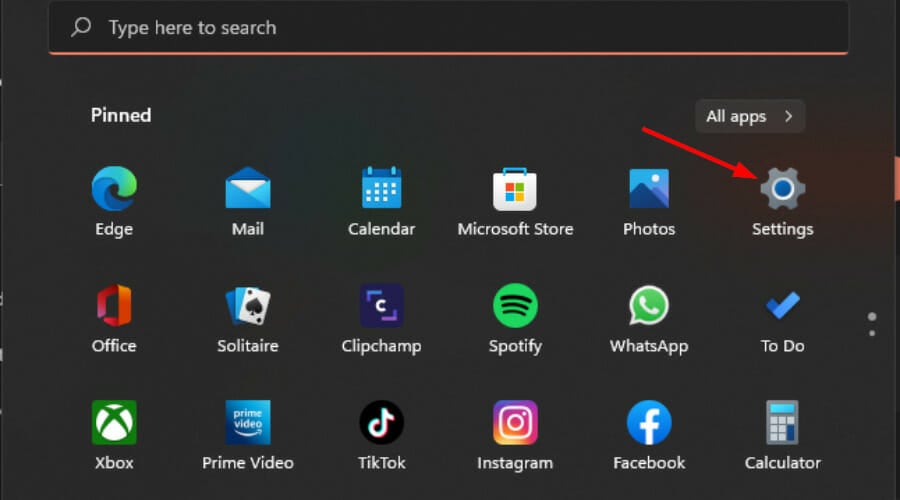
- button and select Settings. Windows

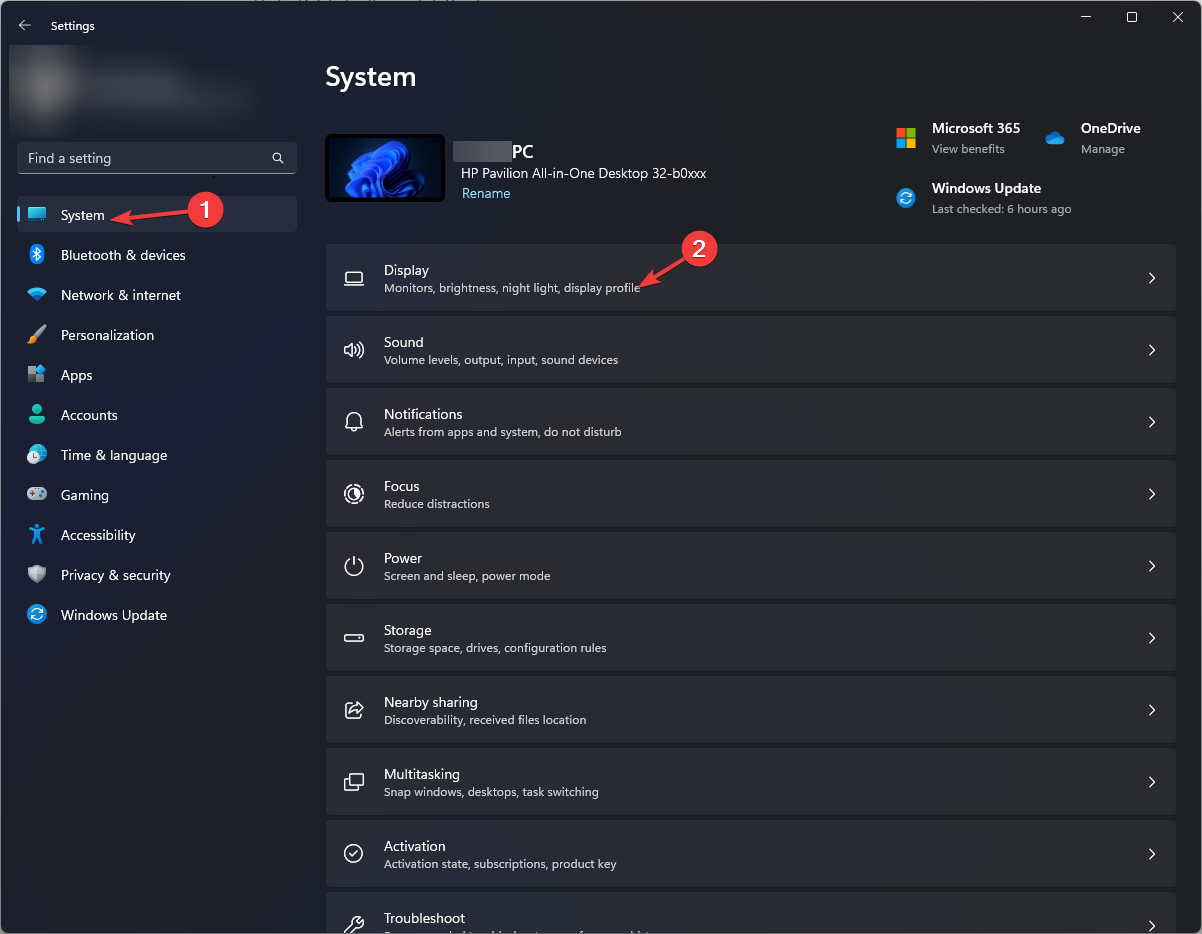
- Select System and click Show.
- Under Scale and Layout, click the Scale option, click the drop-down menu, and select the Scale that best meets your needs. <strong></strong>For custom scaling options, go back to Scale and enter a value between 100 and 500.
-
Restart the computer.
- Please note that custom display scaling below 100 does not work in later versions of Windows, but this should not be an issue as the default settings are usually best.
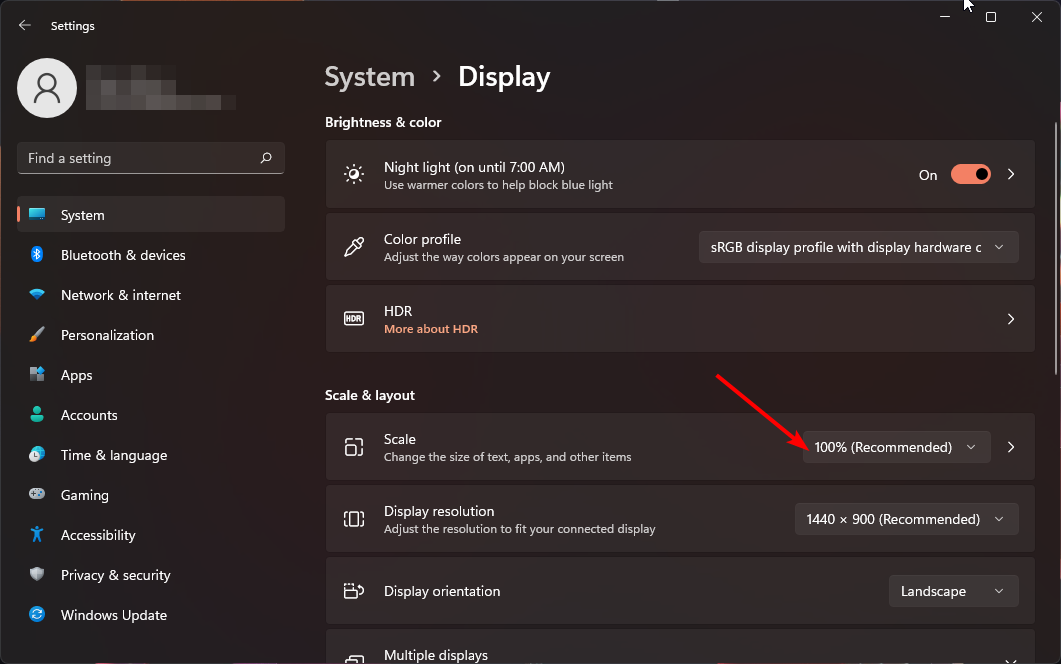 For custom scaling options, go back to Scale and enter a value between 100 and 500.
 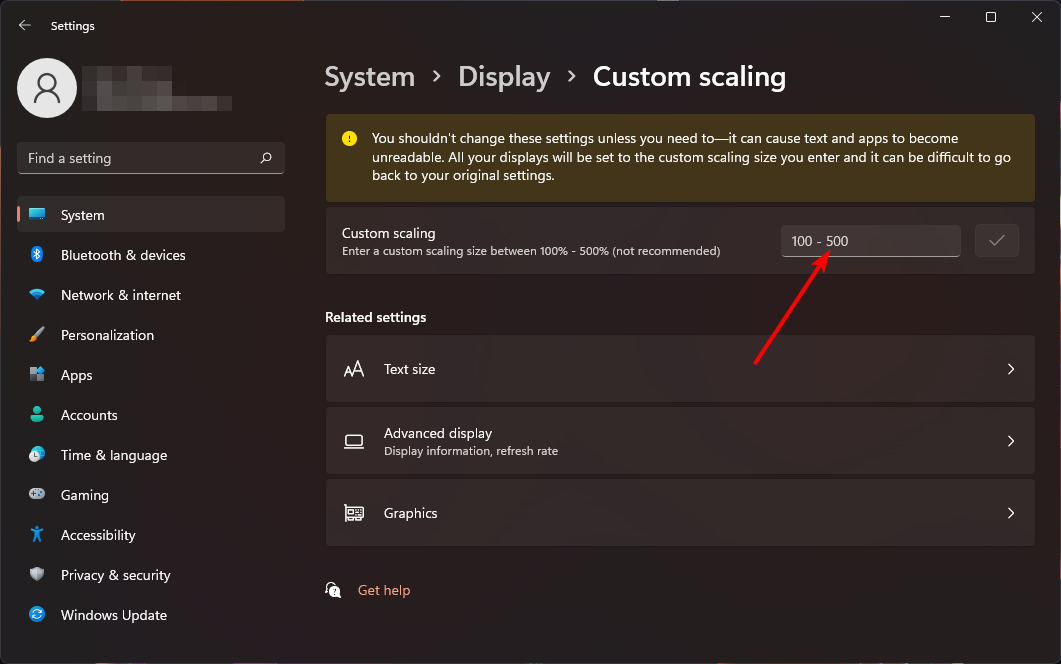 Restart the computer.
 2. Use the registry editor
and hit the key to open the run command.- Windows
- RType Registry Editor
- in the dialog box and click.Enter Navigate to the following location:
- HKEY_CURRENT_USER\Control Panel\Desktop
<strong></strong>Find the LogPixel key on the right, but if it is not available, right-click on the blank space area, select New>DWORD (32-bit) Value - and name it "New" DWORD. <strong></strong>Double-click it and under Value Data, enter a number from the table below.
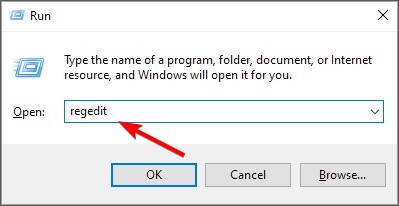 Navigate to the following location:
 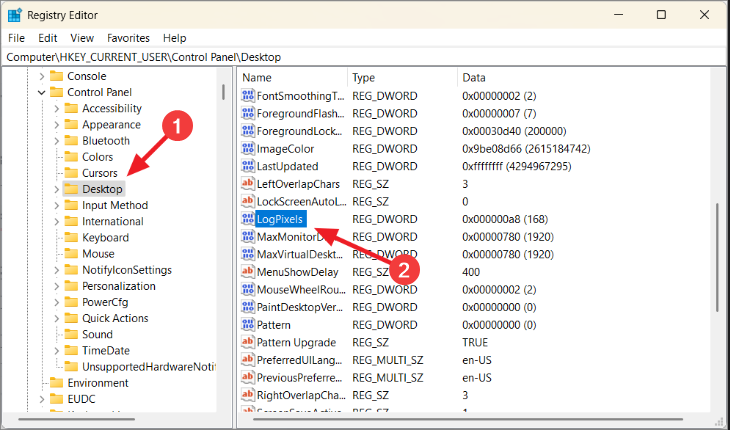 Double-click it and under Value Data, enter a number from the table below.
 | <strong></strong> | Value data<strong></strong> |
| 96 | |
| 120 | |
| 144 | ##200% |
| ##250% | |
| 300% | |
| 400% | |
| 500% | |
Please keep in mind that manual editing of the registry is discouraged as it can lead to disastrous results in case any issues arise. If you must, make sure to create a restore point so you have a safe point to return to. Why are my zoom settings grayed out in Windows 11?
It goes without saying that the ideal display size will depend on your preferences and needs. If one doesn't work for you and you're having some scaling issues, try the other one. There’s no shame in mixing things up. |
The above is the detailed content of Display scaling guide on Windows 11. For more information, please follow other related articles on the PHP Chinese website!

Hot AI Tools

Undress AI Tool
Undress images for free

AI Clothes Remover
Online AI tool for removing clothes from photos.

Undresser.AI Undress
AI-powered app for creating realistic nude photos

ArtGPT
AI image generator for creative art from text prompts.

Stock Market GPT
AI powered investment research for smarter decisions

Hot Article
Popular tool

Notepad++7.3.1
Easy-to-use and free code editor

SublimeText3 Chinese version
Chinese version, very easy to use

Zend Studio 13.0.1
Powerful PHP integrated development environment

Dreamweaver CS6
Visual web development tools

SublimeText3 Mac version
God-level code editing software (SublimeText3)
Hot Topics
 20564
20564
 7
13666
4
7
13666
4

![How to enable smooth rendering of system fonts in Win11 Win11 optimizes ClearType display effect [Steps]](https://img.php.cn/upload/article/202602/09/2026020906300830234.jpg) How to enable smooth rendering of system fonts in Win11 Win11 optimizes ClearType display effect [Steps]
Feb 09, 2026 am 06:30 AM
How to enable smooth rendering of system fonts in Win11 Win11 optimizes ClearType display effect [Steps]
Feb 09, 2026 am 06:30 AM
ClearType should be enabled and calibrated, the registry should be modified to force advanced fine-tuning, set to native resolution and integer DPI scaling, disable automatic DPI repair, and configure high DPI compatibility separately for old programs.
 How to set the mouse pointer color and size in Win11_Windows 11 accessibility mouse pointer
Jan 31, 2026 am 11:48 AM
How to set the mouse pointer color and size in Win11_Windows 11 accessibility mouse pointer
Jan 31, 2026 am 11:48 AM
Windows 11 provides four ways to customize the mouse pointer: 1. Adjust the color and size in settings; 2. Switch the entire solution in the control panel; 3. Import custom .cur/.ani files for specific states; 4. Enable pointer tracks to enhance visibility.
![Win11 sound card driver works normally but no sound Win11 has speaker icon but no sound [Tutorial]](https://img.php.cn/upload/article/202601/01/2026010108360590689.jpg) Win11 sound card driver works normally but no sound Win11 has speaker icon but no sound [Tutorial]
Jan 01, 2026 am 08:36 AM
Win11 sound card driver works normally but no sound Win11 has speaker icon but no sound [Tutorial]
Jan 01, 2026 am 08:36 AM
When the Windows 11 sound icon is normal but there is no output, you need to check in sequence: 1. The system and application mute status; 2. Whether the default playback device is set correctly; 3. Enable and restart the Windows Audio and Endpoint Builder services; 4. Completely uninstall and reinstall the sound card driver; 5. Run the system audio troubleshooter.
 How to manage color profiles (ICC) in Windows? (Monitor color calibration)
Dec 25, 2025 pm 01:45 PM
How to manage color profiles (ICC) in Windows? (Monitor color calibration)
Dec 25, 2025 pm 01:45 PM
Adjusting monitor colors in Windows requires ICC profile management: 1. Use colorcpl to add and set as default; 2. Associate the profile in display settings; 3. Manually replace the system sRGB file and restart the service; 4. Use the ColorCmd command line to batch import and bind.
 AMD Ryzen 5 2600: A cost-effective choice for gamers
Jan 01, 2026 pm 09:54 PM
AMD Ryzen 5 2600: A cost-effective choice for gamers
Jan 01, 2026 pm 09:54 PM
In the world of DIY computers, choosing the right CPU is crucial. It not only determines the computing speed of your computer, but also directly affects the smoothness of gaming experience, video editing and daily use. For players and content creators who pursue cost-effectiveness, AMD Ryzen 52600 is undoubtedly a processor that has attracted much attention. With its outstanding performance, this six-core and twelve-thread CPU
 ChatGPT official web version access portal ChatGPT online use address
Jan 21, 2026 pm 10:36 PM
ChatGPT official web version access portal ChatGPT online use address
Jan 21, 2026 pm 10:36 PM
The access portal to the official web version of ChatGPT is https://chat.openai.com, which supports multi-device adaptation, multiple login methods, image upload, Markdown rendering and 27 languages (including deeply localized Chinese).
 How to fix Win11 cannot adjust brightness_Windows11 universal PnP monitor driver
Jan 15, 2026 pm 03:33 PM
How to fix Win11 cannot adjust brightness_Windows11 universal PnP monitor driver
Jan 15, 2026 pm 03:33 PM
The reason why Windows 11 brightness cannot be adjusted is because the universal PnP monitor driver is not enabled. You need to force an update to "Universal Plug and Play Monitor" through the Device Manager, disable re-enumeration of the conflicting graphics card driver, manually uninstall and rescan the monitor device, and finally lock the monitor.inf driver version to prevent rollback.
 Tomato Novel Online Reading Platform_Free Novel Library Official Access Portal
Jan 20, 2026 am 06:33 AM
Tomato Novel Online Reading Platform_Free Novel Library Official Access Portal
Jan 20, 2026 am 06:33 AM
The official entrance to Tomato Novels is https://fanqienovel.com/; the platform has more than 3 million copies of original novels, covering more than 20 main categories and hundreds of subdivided tags, with 1,800 new signed works added every day. It supports full-resolution adaptive typesetting, night/eye protection mode, cross-device progress synchronization, and smart bookmarks.