


 Operation and Maintenance
Linux Operation and Maintenance
The Ultimate Guide to Linux Server Security: Use These Commands
Operation and Maintenance
Linux Operation and Maintenance
The Ultimate Guide to Linux Server Security: Use These Commands
The Ultimate Guide to Linux Server Security: Use These Commands


Linux server is a very common server operating system in a network environment. Due to its open source code and high customizability, it is favored by many enterprises and individual users. However, because of its widespread use, Linux servers have also become the target of hacker attacks and security threats. In order to protect the security of Linux servers, it is very important to use some commands. This article will introduce some commonly used commands to help you improve the security of your Linux server.
The first thing is to update and upgrade the software. To prevent known vulnerabilities and security vulnerabilities from being exploited, it is crucial to keep the software on your server updated and upgraded. Fortunately, Linux provides some commands to upgrade and update software. The most commonly used commands are the following:
-
apt-get update- This command will update the software source list to include the latest software package information. -
apt-get upgrade- This command will upgrade installed packages on the server. -
apt-get dist-upgrade- This command will upgrade installed packages on the server and resolve all dependencies.
In addition to updating and upgrading software, you also need to monitor your server’s network connections and activity. Here are some commonly used commands to monitor a server's network connections and related activities:
-
netstat- This command will display the current network connections. -
nmap- This command scans open ports on the server. -
tcpdump- This command captures network traffic packets on the server.
Next, let’s talk about access control and permission management. To ensure that only authorized users can access the server, we need to set up appropriate access control and permission management. Here are some commonly used commands:
-
chmod- This command is used to change the permissions of a file or directory. -
chown- This command is used to change the owner of a file or directory. -
chgrp- This command is used to change the group of a file or directory.
Setting strong passwords on Linux servers is also a core task. Here are some useful commands to set and manage user passwords:
-
passwd- This command is used to change user passwords. -
chpasswd- This command can batch change user passwords by inputting files.
In addition, there are some additional commands that can help you further improve the security of your Linux server. For example:
-
sudo- This command allows a specific user to run commands with root privileges. -
ufw- This command is used to configure firewall rules. -
fail2ban- This command automatically detects and blocks brute force attempts.
Last but not least, back up your server data regularly. Backups are key to recovering your data and systems, whether data is lost due to a security threat, hardware failure, or other reasons. Here are some commonly used commands to backup server data:
-
rsync- This command can synchronize and backup files between remote servers. -
tar- This command can package files and directories into .tar files.
In short, by using these commands correctly, you can help improve the security of your Linux server. However, it should be noted that these commands only provide some basic security strategies and methods and cannot guarantee 100% security. Therefore, it is crucial to continually learn and understand the latest security technologies and best practices.
The above is the detailed content of The Ultimate Guide to Linux Server Security: Use These Commands. For more information, please follow other related articles on the PHP Chinese website!

Hot AI Tools

Undress AI Tool
Undress images for free

AI Clothes Remover
Online AI tool for removing clothes from photos.

Undresser.AI Undress
AI-powered app for creating realistic nude photos

ArtGPT
AI image generator for creative art from text prompts.

Stock Market GPT
AI powered investment research for smarter decisions

Hot Article
Popular tool

Notepad++7.3.1
Easy-to-use and free code editor

SublimeText3 Chinese version
Chinese version, very easy to use

Zend Studio 13.0.1
Powerful PHP integrated development environment

Dreamweaver CS6
Visual web development tools

SublimeText3 Mac version
God-level code editing software (SublimeText3)
Hot Topics
 20516
20516
 7
13631
4
7
13631
4

 How to configure Nginx proxy server to protect user authentication information for web services?
Sep 05, 2023 pm 12:40 PM
How to configure Nginx proxy server to protect user authentication information for web services?
Sep 05, 2023 pm 12:40 PM
How to configure Nginx proxy server to protect user authentication information for web services? Introduction: In today’s Internet world, protecting users’ authentication information is crucial. Nginx is a powerful proxy server that can help us protect authentication information. This article will describe how to configure an Nginx proxy server to protect user authentication information for web services and provide some code examples. 1. Install Nginx First, we need to install Nginx. On most Linux
 Win7 system firewall setting method process
Mar 26, 2024 pm 07:40 PM
Win7 system firewall setting method process
Mar 26, 2024 pm 07:40 PM
1. Open the device and select the [Control Panel] option; as shown in the figure: 2. Find [View Network Status and Tasks] in the network and Internet list and open it; as shown in the figure: 3. Then, click on the lower left [Firewall] in the corner; as shown in the figure: 4. Finally, click on the options in the left sidebar to complete the adjustment. as the picture shows:
 Golang development: Implementing JWT-based user authentication
Sep 20, 2023 am 08:31 AM
Golang development: Implementing JWT-based user authentication
Sep 20, 2023 am 08:31 AM
Golang development: Implementing JWT-based user authentication With the rapid development of the Internet, user authentication has become a crucial part of web applications. The traditional cookie-based authentication method has gradually been replaced by the JWT (JSONWebToken)-based authentication method. JWT is a lightweight authentication standard that allows the server to generate an encrypted token and send the token to the client. The client puts the token into Authori when sending a request.
 How to set up Weibo comment firewall_How to set up Weibo comment firewall
Mar 29, 2024 pm 06:57 PM
How to set up Weibo comment firewall_How to set up Weibo comment firewall
Mar 29, 2024 pm 06:57 PM
1. First log in to Sina Weibo on your mobile phone and click Settings in the upper right corner. 2. Then enter the settings page and click Privacy Settings. 3. Finally, enter the privacy settings page, find the comment firewall, and click to turn it on.
 How to disable cdr networking in Win10? Tutorial on completely disabling cdr networking in Win10
Jul 14, 2023 pm 01:25 PM
How to disable cdr networking in Win10? Tutorial on completely disabling cdr networking in Win10
Jul 14, 2023 pm 01:25 PM
How to disable cdr from connecting to the Internet in Win10? When we use cdr software, sometimes we need to completely disable cdr networking during the control process. How should we set it up when encountering this situation? Today we will use Win10 system software as an example to introduce the operation process of completely prohibiting cdr networking! Tutorial on completely disabling cdr networking in Win10 1. First, we turn on the computer = press the win+PauseBreak keyboard shortcut, find the system properties dialog box, and click the operation panel. 2. As shown in the figure below, open the operation panel page and click "System and Security". 3. As shown in the figure below, we open the "System Software and Security" option, and then select "Windows Def
 How to add firewall device in win7 system
Jun 29, 2023 pm 12:48 PM
How to add firewall device in win7 system
Jun 29, 2023 pm 12:48 PM
How to add firewall device in win7 system? When using a computer, in order to use it more safely, we can set up a firewall. In this way, when encountering dangerous programs, the computer will automatically defend itself. So how to set up this firewall? Many friends don’t know how to operate it in detail. The editor has compiled the firewall setting method of win7 system below. If you are interested, follow the editor to take a look below! How to set up the firewall in Windows 7 system 1. Open the Control Panel, click View Network Status and Tasks under Network and Internet. 2. Click Windows Defender Firewall below. 3. Select the content you need to set. 4. Open the permission
 How to set up win10 firewall
Dec 29, 2023 pm 05:55 PM
How to set up win10 firewall
Dec 29, 2023 pm 05:55 PM
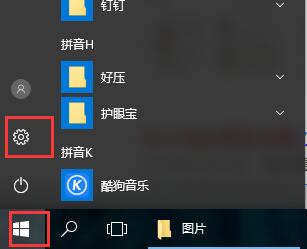
When many users use computers, the firewall in the computer is a very annoying thing, but how to set up this firewall? Today, this site will introduce the detailed steps to the majority of users~ Where to set up the win10 firewall: 1. First In the menu on the lower right side of the desktop, click "Settings." 2. Then in the window that opens, select "Network and Internet". 3. Then in this window, click the "Ethernet" option. 4. Then in Ethernet, click "Windows Firewall". 5. Then in the options, select "Turn Windows Firewall on or off." 6. Then you can turn off and on the firewall, etc., and then click OK.
 Where is the firewall set up?
Mar 03, 2024 pm 09:13 PM
Where is the firewall set up?
Mar 03, 2024 pm 09:13 PM
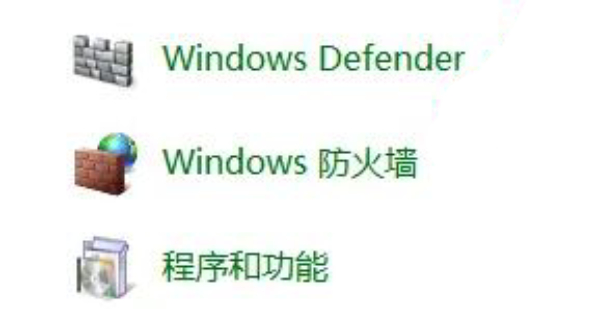
In the computer, users can use the firewall that comes with the system. Many users don't know where to set up their computer's firewall. They can enter the firewall settings in the network status of the control panel and complete the modifications. Next is the editor’s introduction to how to set up computer firewalls. Interested users should come and take a look! Where to set up the firewall? Answer: Enter the firewall settings in the network status of the control panel. After completing the modification, you can introduce the details: 1. Right-click [Computer] and select [Properties] below. 2. Click [Control Panel] in the address. 3. Select [View network status and tasks] under Network and Internet. 4. Click [Windows Defentder Firewall] in the lower left corner. 5. Select the left
