


How to add a border to a video in premiere
To add a border to a video in Adobe Premiere, shrink the video using Crop or Scale, then place it over a colored background or adjustment layer. Use masks or solid colors to create and customize the border appearance.

To add a border to a video in Adobe Premiere, you can use effects and adjustment layers. Here are the steps to achieve this:
The operating environment of this tutorial: Dell XPS 15, Windows 11
1. Use the Crop Effect with Background
This method uses the Crop effect to shrink the video frame, creating space for a colored border by placing the video over a solid background.
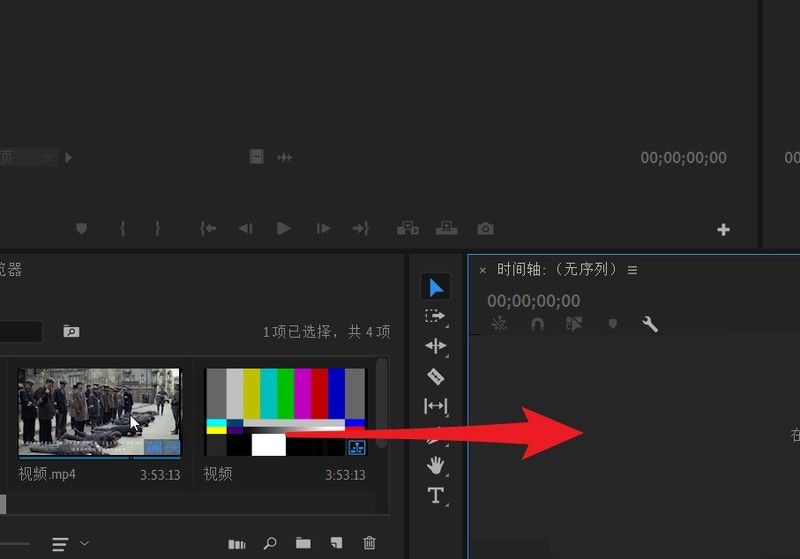
- Drag your video clip to the timeline
- Navigate to the Effects panel and search for "Crop"
- Apply the Crop effect to your video clip
- In the Effect Controls panel, increase the values for Left, Right, Top, and Bottom to reduce the video size on screen
- Create a new Adjustment Layer below your clip and set its color to your desired border color using the Set Matte effect or place a solid color behind it
2. Create a Border Using an Adjustment Layer and Masks
This technique involves masking the video to reveal a colored border around its edges using an adjustment layer.
- Add an Adjustment Layer above your video track and match its duration to the clip
- Apply the Fill effect to the adjustment layer and choose your border color
- Use the Rectangle Mask tool to draw a mask around the video area where you want the border visible
- Expand the mask slightly beyond the video frame, then set mask mode to Subtract so only the outer edge shows the fill color
- Adjust mask feathering and expansion to fine-tune the border appearance
3. Use Motion Scaling and a Colored Background
Scale down the video within the frame and place it over a solid-colored base to form a uniform border.
- Place your video on the timeline
- Right-click on the background area in the Program Monitor and choose Add Color to Project to create a background color
- Drag the color beneath your video clip to serve as the border color
- Select the video clip and go to the Effect Controls panel
- Reduce the Scale value slightly (e.g., 90–95%) and reposition if needed to center the video
- The exposed background now acts as a clean border around the video
The above is the detailed content of How to add a border to a video in premiere. For more information, please follow other related articles on the PHP Chinese website!

Hot AI Tools

Undress AI Tool
Undress images for free

AI Clothes Remover
Online AI tool for removing clothes from photos.

Undresser.AI Undress
AI-powered app for creating realistic nude photos

ArtGPT
AI image generator for creative art from text prompts.

Stock Market GPT
AI powered investment research for smarter decisions

Hot Article
Popular tool

Notepad++7.3.1
Easy-to-use and free code editor

SublimeText3 Chinese version
Chinese version, very easy to use

Zend Studio 13.0.1
Powerful PHP integrated development environment

Dreamweaver CS6
Visual web development tools

SublimeText3 Mac version
God-level code editing software (SublimeText3)
Hot Topics
 20518
20518
 7
13631
4
7
13631
4

 How to make dynamic watermark in Premiere_How to make dynamic watermark in Premiere
Apr 29, 2024 pm 04:30 PM
How to make dynamic watermark in Premiere_How to make dynamic watermark in Premiere
Apr 29, 2024 pm 04:30 PM
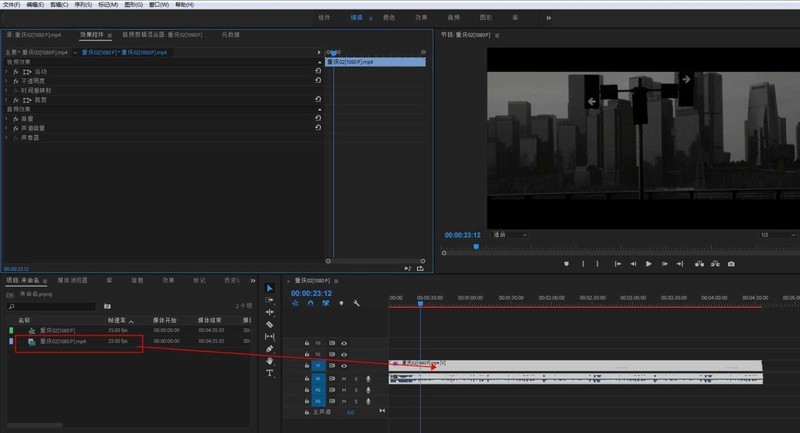
1. Open the PR software, create a new project, import the video material and put it on the track. 2. Use the text tool to add watermark text. I used XXX instead. You can also put a pre-made watermark LOGO picture. 3. In the opacity, lower the parameters appropriately so that the watermark is not too eye-catching. 4. Add key frames to the position. From the beginning to the end, move the watermark position every once in a while. The parameters are arbitrary and key frames are created every time. 5. Click play and you can see the dynamic watermark moving around the screen.
 What is the solution to jitter and shaking in video editing? Why is the screen shaking?
May 02, 2024 am 11:37 AM
What is the solution to jitter and shaking in video editing? Why is the screen shaking?
May 02, 2024 am 11:37 AM
Video editing has become a very important industry. During the video editing process, screen jitter and shaking are a common problem, which has a great impact on the quality of the video. So, what is the solution to screen jitter and shaking? 1. What is the solution to jitter and shaking in video editing? 1. Use a stabilizer. A stabilizer is an important piece of equipment during video shooting. It can effectively reduce the shake and shaking of the picture. During the video editing process, if the original video image is jittery and shaking, you can use a stabilizer to process the image to make it more stable. Use a stabilizer to make the picture more stable. 2. Stabilization function in video editing software Nowadays, most video editing software has the function of stabilizing the picture.
 How to blur video edges in Premiere_How to set feathered video edges in Premiere
May 08, 2024 pm 02:16 PM
How to blur video edges in Premiere_How to set feathered video edges in Premiere
May 08, 2024 pm 02:16 PM
1. First, let’s import a piece of material for demonstration. 2. Drag the material into the timeline panel. 3. Let’s take a look at the material. We can find that the edges of the fallen leaves in the lower half are stiff, which is not ideal for blending into such a scene. So I'm going to blur the edges of it. 4. Find it in the effects panel and double-click the feather edge to add the effect. 5. Adjust the blur amount so that the edges can achieve a blurred effect. 6. Take a look at the effect after processing. You can find that the edges of the fallen leaves have been blurred. Similarly, this method can be used in different scenarios. Friends can use this example to draw inferences. 7. Finally, let’s take a look at the finished animation effect.
 How to create text disappearing effect in Premiere PR text disappearing animation
May 08, 2024 pm 02:49 PM
How to create text disappearing effect in Premiere PR text disappearing animation
May 08, 2024 pm 02:49 PM
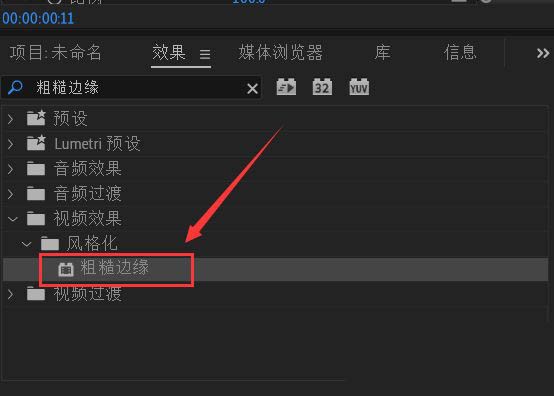
First add a rough edge effect to the text. Then set the keyframes to create a text dissolve effect. Import particle dissipation material. Place the particle dispersion material on the track above the text. Set the blending mode to [Screen]. Adjust the size and position of the material. Adjust the time when the material appears and disappears. In this way, the text dissipation effect is created.
 How to make text dissolve in Premiere. How to realize the animation of gradually dissolving subtitles in Premiere.
May 08, 2024 pm 01:52 PM
How to make text dissolve in Premiere. How to realize the animation of gradually dissolving subtitles in Premiere.
May 08, 2024 pm 01:52 PM
Start by placing the background image into a track. Enter text. Adjust the format of the text. Search for [rough edges] in the effect. Add it to the text. Set the border to 0 and keyframe it. Move the timeline back and set the border value until the text is completely invisible. In this way, the effect of the text gradually dissolving is created.
 How to mirror flip pr2020 video_How to mirror flip pr2020 video
Apr 29, 2024 pm 03:00 PM
How to mirror flip pr2020 video_How to mirror flip pr2020 video
Apr 29, 2024 pm 03:00 PM
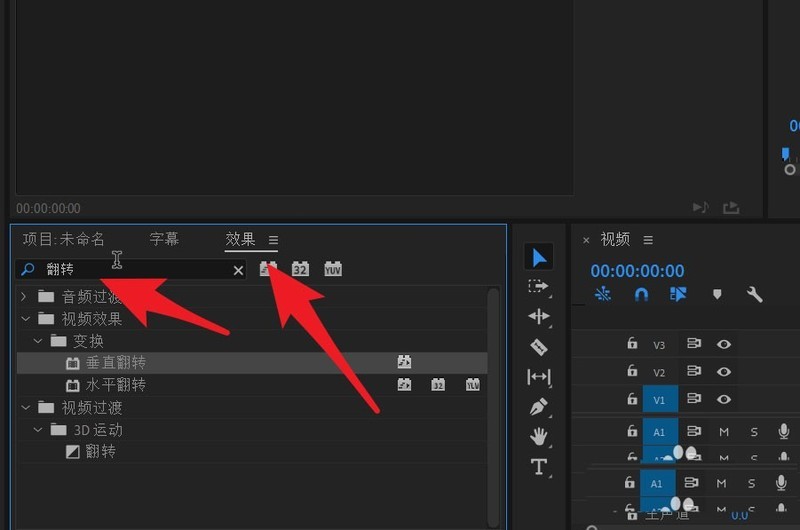
Start by searching for the Flip effect in the Effects panel. You can see vertical flipping and horizontal flipping in the picture below. The horizontal flip can realize the left and right swap of the video. The character in the original video is on the right side of the video. Then hold down the left mouse button and drag to the video track for horizontal flip effect. At this point you can see that the video has been flipped left and right. The person in the video appears on the left. The flipped video can have objects within it masked.
 How to mute audio in PR_Steps to mute audio in Premiere
Apr 29, 2024 pm 02:19 PM
How to mute audio in PR_Steps to mute audio in Premiere
Apr 29, 2024 pm 02:19 PM
First find the video that needs to be processed in the project panel and drag it to the timeline panel. At this time, the video is placed on the audio track and video track respectively. A1 is the audio track. Then click the audio track, select the audio track on the video, and then click the mute track button pointed by the arrow. The mute track button now turns green. The video will be in silent mode when played again. At this time, select the required audio in the Project Panel and drag it to the Glazed Timeline Panel. The audio is then processed so that it is fully synchronized with the video. Save after processing is complete.
 How can I avoid shaking when taking a video while walking? Why does the video shake?
May 06, 2024 am 09:49 AM
How can I avoid shaking when taking a video while walking? Why does the video shake?
May 06, 2024 am 09:49 AM
More and more people like to take pictures while walking and record every bit of life. When shooting videos while walking, image jitter is a common problem, which has a great impact on the quality and look and feel of the videos. So, how can you avoid screen shake when taking videos while walking? 1. How to take videos while walking without shaking? 1. Use a stabilizer. Using a stabilizer is the most direct and effective way to avoid shaking when shooting videos while walking. Stabilizers can hold your phone or camera in place to prevent shaking during exercise. There are many portable stabilizers on the market, such as selfie sticks, gimbals, etc. They are not only light and easy to carry, but also simple to use, which can greatly improve the stability of video shooting. 2. Practice correct shooting posture Correct shooting posture can also reduce shake to a certain extent. When shooting, keep
