


How to cut and trim video in Premiere Pro?

Use Razor Tool (C) to split clips at playhead position, then delete unwanted parts with Selection Tool (V). 2. Trim clip edges by dragging start/end points. 3. Apply Ripple Edit (B) to close gaps or Rolling Edit (N) to adjust edit points without changing sequence length. 4. Open Trim Monitor for frame-accurate adjustments.

To cut and trim video in Adobe Premiere Pro, you don't need advanced skills—just a few basic tools and techniques. The process revolves around the Timeline panel, where you arrange and edit your clips. Here’s how to do it efficiently.
Use the Selection and Razor Tools for Cutting
The most straightforward way to cut a video is using the Selection Tool (shortcut: V) and the Razor Tool (shortcut: C).
• Position the playhead where you want to make a cut by clicking on the timeline or scrubbing through the clip.• Select the Razor Tool (C), then click on the clip at the playhead position to split it into two parts.
• You can make multiple cuts to remove middle sections. After cutting, use the Selection Tool to highlight and press Delete to remove unwanted segments.
Trim Clips Directly on the Timeline
Trimming adjusts the start or end of a clip without splitting it.
• Move your mouse to the beginning or end of a clip in the timeline until the cursor changes to a bracket with a left or right arrow.• Click and drag inward to shorten the clip. This removes frames from the head (start) or tail (end).
• To maintain smooth spacing, enable Trim Mode (press T) or use Ripple Edit to automatically close gaps when trimming.
Use Ripple Edit and Rolling Edit for Precision
For more control over timing and flow:
• Select the Ripple Edit Tool (shortcut: B) to adjust a clip’s edge and automatically shift the following clips, eliminating gaps.• Use the Rolling Edit Tool (shortcut: N) to change the edit point between two adjacent clips while keeping the overall sequence duration the same—useful for fine-tuning transitions.
Perform Advanced Trimming in the Trim Monitor
Double-click a cut point between two clips to open the Trim Monitor. This lets you view both sides of the edit and make frame-accurate adjustments using keyboard shortcuts like Shift Left/Right Arrow to nudge the edit point.
Basically, cutting and trimming in Premiere Pro comes down to using the right tool for the job—whether it’s splitting with the Razor, adjusting edges manually, or using Ripple and Rolling edits for tighter control. With a little practice, it becomes second nature.
The above is the detailed content of How to cut and trim video in Premiere Pro?. For more information, please follow other related articles on the PHP Chinese website!

Hot AI Tools

Undress AI Tool
Undress images for free

AI Clothes Remover
Online AI tool for removing clothes from photos.

Undresser.AI Undress
AI-powered app for creating realistic nude photos

ArtGPT
AI image generator for creative art from text prompts.

Stock Market GPT
AI powered investment research for smarter decisions

Hot Article
Popular tool

Notepad++7.3.1
Easy-to-use and free code editor

SublimeText3 Chinese version
Chinese version, very easy to use

Zend Studio 13.0.1
Powerful PHP integrated development environment

Dreamweaver CS6
Visual web development tools

SublimeText3 Mac version
God-level code editing software (SublimeText3)
Hot Topics
 20518
20518
 7
13631
4
7
13631
4

 What are the fcpx shortcut keys?
Mar 17, 2023 am 10:21 AM
What are the fcpx shortcut keys?
Mar 17, 2023 am 10:21 AM
The fcpx shortcut keys are: 1. "Command-H" shortcut key, used to hide applications; 2. "Option-Command-H" shortcut key, used to hide other applications; 3. "Option-Command-K" shortcut key key for keyboard customization; 4. "Command-M" shortcut key for minimizing; 5. "Command-O" shortcut key for opening resource library, etc.
 Tips for editing video clips using Golang and FFmpeg
Sep 27, 2023 pm 06:33 PM
Tips for editing video clips using Golang and FFmpeg
Sep 27, 2023 pm 06:33 PM
Tips for implementing video clip editing using Golang and FFmpeg Introduction: In the era of modern social networks and multimedia platforms, the demand for video editing is increasing. Whether you are making short videos, movie clips or video tutorials, you need to edit video clips. This article will introduce how to implement video clip editing techniques by using the Golang programming language and the FFmpeg tool, with specific code examples. 1. Install FFmpeg Before starting, we need to install the FFmpeg tool first.
 How to merge videos on iPhone
Jun 03, 2023 am 11:06 AM
How to merge videos on iPhone
Jun 03, 2023 am 11:06 AM
How to combine videos on iPhone with iMovie If you have multiple videos on your iPhone that you want to merge into one, you don't need any third-party apps or software. You can combine videos easily and quickly using the built-in iMovie app. iMovie is a free video editing application that comes preinstalled on most iPhones. This is a great choice for combining videos because it's easy to use and has a variety of features. To merge videos using iMovie, follow these steps: Open iMovie. Click the New button. Choose a movie. Click the Import Media button. Select the videos you want to merge. Click the Add button. The video will be added to the timeline. Drag videos to desired order
 Teach you how to use Python to connect to Huawei Cloud interface to implement video editing and transcoding functions
Jul 05, 2023 pm 11:33 PM
Teach you how to use Python to connect to Huawei Cloud interface to implement video editing and transcoding functions
Jul 05, 2023 pm 11:33 PM
Teach you how to use Python to connect to the Huawei Cloud interface to implement video editing and transcoding functions. Huawei Cloud is a world-leading cloud service provider that provides a wealth of cloud computing products and services. In terms of cloud video processing, Huawei Cloud provides powerful video editing and transcoding functions, providing developers with a very convenient interface. This article will introduce how to use Python to connect to Huawei Cloud interface to implement video editing and transcoding functions. First, we need to create a video editing and transcoding task on Huawei Cloud. In the Huawei Cloud console, select
 Is the full name of am Alight Motion?
Aug 18, 2022 pm 04:46 PM
Is the full name of am Alight Motion?
Aug 18, 2022 pm 04:46 PM
The full name of am is Alight Motion, which is a comprehensive video editing and processing application software; this software has functions such as taking photos and videos, as well as video editing, video splicing, video editing and other functions. Users can edit video length and content, and can also perform simple processing on videos. A variety of exquisite materials are provided to everyone for free to help users create more perfect videos.
 China Unicom releases large image and text AI model that can generate images and video clips from text
Jun 29, 2023 am 09:26 AM
China Unicom releases large image and text AI model that can generate images and video clips from text
Jun 29, 2023 am 09:26 AM
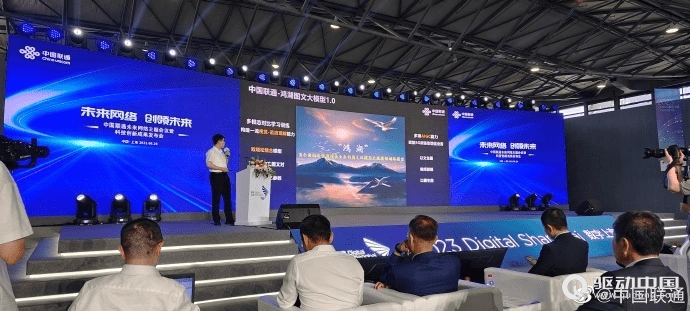
Driving China News on June 28, 2023, today during the Mobile World Congress in Shanghai, China Unicom released the graphic model "Honghu Graphic Model 1.0". China Unicom said that the Honghu graphic model is the first large model for operators' value-added services. China Business News reporter learned that Honghu’s graphic model currently has two versions of 800 million training parameters and 2 billion training parameters, which can realize functions such as text-based pictures, video editing, and pictures-based pictures. In addition, China Unicom Chairman Liu Liehong also said in today's keynote speech that generative AI is ushering in a singularity of development, and 50% of jobs will be profoundly affected by artificial intelligence in the next two years.
 How to edit videos on iQiyi_Notes on iQiyi video interception
Jan 11, 2024 pm 11:27 PM
How to edit videos on iQiyi_Notes on iQiyi video interception
Jan 11, 2024 pm 11:27 PM
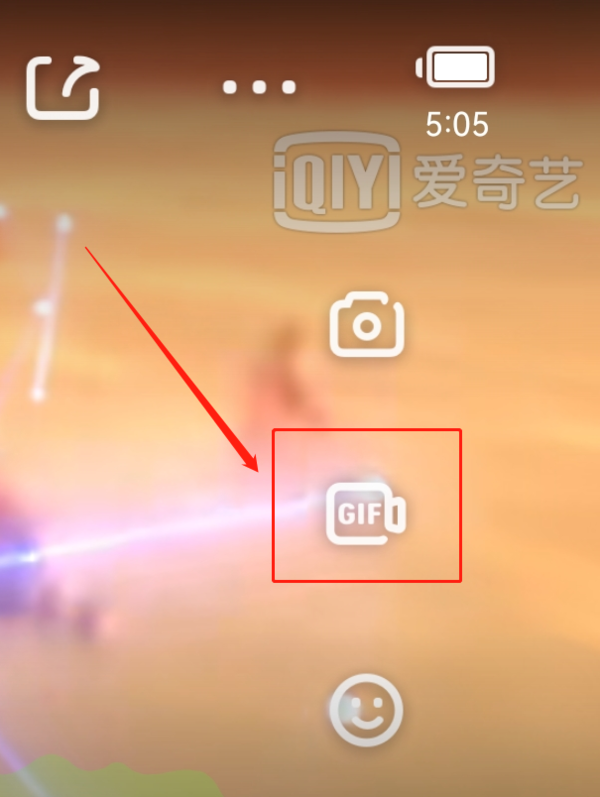
When it comes to iQiyi videos, everyone should be familiar with it. As one of the most popular video playback software in China, it is an essential tool for many friends to watch TV series. What should you do if you see some interesting clips while watching a movie or TV series using iQiyi Video and want to edit them? Next, I will introduce to you how to edit videos on iQiyi Video. I hope it can be helpful to friends in need. How to edit videos on iQiyi? Open the iQiyi video app on your phone and log in to your account. After logging in, find the video you want to edit and click play. After entering the video playback interface, click on the screen, and the options icon will appear on the left. Select the video interception icon in the middle and you will enter the video interception interface. In the video interception interface, you can
 How to use Python to connect to the cloud interface to achieve video transcoding and editing
Jul 06, 2023 am 08:48 AM
How to use Python to connect to the cloud interface to achieve video transcoding and editing
Jul 06, 2023 am 08:48 AM
How to use Python to connect to Youpaiyun interface to achieve video transcoding and editing Summary: Youpaiyun is a powerful cloud storage platform that provides rich multimedia processing functions. This article will introduce how to use Python to connect to Youpaiyun's API interface to implement video transcoding and editing functions. Specific contents include setting API keys, uploading video files, initiating transcoding tasks, querying task status, downloading transcoded video files, etc. Set the API key. Before using Youpaiyun’s API interface, we need to register on Youpaiyun’s official website.
