


How to add search to a Bootstrap dropdown

Use the Bootstrap Select plug-in to quickly implement the drop-down menu with search function. You need to introduce CSS and JS files of Bootstrap, jQuery and Bootstrap Select, create a select element with data-live-search="true" attribute and initialize the plug-in; 2. Custom implementations implement the search function by adding a search input box in the Bootstrap drop-down menu and using JavaScript to listen to the dynamic filtering options of input events. It is recommended to use Bootstrap Select to obtain richer functional support, and the custom solution is more suitable for lightweight and high-customized demand scenarios. Both methods are compatible with Bootstrap 5 and need to ensure that the script is executed after the DOM is loaded.

Adding a search feature to a Bootstrap dropdown improves usability when the dropdown contains many options. While Bootstrap doesn't include this functionality by default, you can achieve it easily using a third-party plugin like Bootstrap Select or with a bit of custom JavaScript and CSS. Below are two practical approaches.

1. Using Bootstrap Select (Recommended)
Bootstrap Select is a popular jQuery plugin that enhances Bootstrap dropdowns with search, filtering, and more.
Step-by-step:
-
Include the required files

Add Bootstrap, jQuery, and Bootstrap Select assets in your HTML:
 <!-- Bootstrap CSS -->
<link href="https://cdn.jsdelivr.net/npm/bootstrap@5.3.0/dist/css/bootstrap.min.css" rel="stylesheet">

<!-- Bootstrap Select CSS -->
<link rel="stylesheet" href="https://cdn.jsdelivr.net/npm/bootstrap-select@1.14.0-beta3/dist/css/bootstrap-select.min.css">

<!-- jQuery (required) -->
<script src="https://code.jquery.com/jquery-3.6.0.min.js"></script>

<!-- Bootstrap JS -->
<script src="https://cdn.jsdelivr.net/npm/bootstrap@5.3.0/dist/js/bootstrap.bundle.min.js"></script>

<!-- Bootstrap Select JS -->
<script src="https://cdn.jsdelivr.net/npm/bootstrap-select@1.14.0-beta3/dist/js/bootstrap-select.min.js"></script>
Create the dropdown with
data-live-search="true"<select class="selectpicker w-100" data-live-search="true"> <option value="1">Apple</option> <option value="2">Banana</option> <option value="3">Cherry</option> <option value="4">Mango</option> <option value="5">Orange</option> </select>
Initialize the plugin (optional, usually auto-initialized)
If needed, initialize manually:
$('.selectpicker').selectpicker();


That's it. You now have a searchable dropdown with a clean interface.
2. Custom Implementation (No Plugin)
If you prefer not to use a plugin, you can build a searchable dropdown using Bootstrap's dropdown component and a little JavaScript.
HTML Structure:
 <div class="dropdown w-100">
  <button class="btn btn-secondary dropdown-toggle" type="button" id="dropdownMenuButton" data-bs-toggle="dropdown" aria-expanded="false">
    Select an option
  </button>
  <ul class="dropdown-menu w-100" aria-labelledby="dropdownMenuButton">
    <li>
      <input class="form-control form-control-sm mx-2 my-1" type="text" id="searchDropdown" placeholder="Search...">
    </li>
    <li><a class="dropdown-item" href="#">Apple</a></li>
    <li><a class="dropdown-item" href="#">Banana</a></li>
    <li><a class="dropdown-item" href="#">Cherry</a></li>
    <li><a class="dropdown-item" href="#">Mango</a></li>
    <li><a class="dropdown-item" href="#">Orange</a></li>
  </ul>
</div>
JavaScript for Search Functionality:
 document.getElementById('searchDropdown').addEventListener('keyup', function () {
  const filter = this.value.toLowerCase();
  const dropdownItems = document.querySelectorAll('.dropdown-item');

  dropdownItems.forEach(item => {
    const text = item.textContent.toLowerCase();
    item.style.display = text.includes(filter) ? '' : 'none';
  });
});
Notes:
- The search input is placed inside the dropdown menu.
- On each keystroke, it filters the items by hiding non-matching ones.
- You can improve UX by showing a "No results" message when all are hidden.
Which Approach to Choose?
- Bootstrap Select : Best for quick implementation, supports advanced features (multiple selection, live search, AJAX, etc.).
- Custom solution : Better for lightweight needs and full control over styling and behavior.
Both work well with Bootstrap 5. Just make sure your JavaScript runs after the DOM is loaded.
Basically, it's not built-in, but adding search is straightforward with the right tools or a few lines of code.
The above is the detailed content of How to add search to a Bootstrap dropdown. For more information, please follow other related articles on the PHP Chinese website!

Hot AI Tools

Undress AI Tool
Undress images for free

AI Clothes Remover
Online AI tool for removing clothes from photos.

Undresser.AI Undress
AI-powered app for creating realistic nude photos

ArtGPT
AI image generator for creative art from text prompts.

Stock Market GPT
AI powered investment research for smarter decisions

Hot Article
Popular tool

Notepad++7.3.1
Easy-to-use and free code editor

SublimeText3 Chinese version
Chinese version, very easy to use

Zend Studio 13.0.1
Powerful PHP integrated development environment

Dreamweaver CS6
Visual web development tools

SublimeText3 Mac version
God-level code editing software (SublimeText3)
Hot Topics
 20524
20524
 7
13634
4
7
13634
4

 How to remove news and trending content from Windows 11 Search
Oct 16, 2023 pm 08:13 PM
How to remove news and trending content from Windows 11 Search
Oct 16, 2023 pm 08:13 PM
When you click the search field in Windows 11, the search interface automatically expands. It displays a list of recent programs on the left and web content on the right. Microsoft displays news and trending content there. Today's check promotes Bing's new DALL-E3 image generation feature, the "Chat Dragons with Bing" offer, more information about dragons, top news from the Web section, game recommendations, and the Trending Search section. The entire list of items is independent of your activity on your computer. While some users may appreciate the ability to view news, all of this is abundantly available elsewhere. Others may directly or indirectly classify it as promotion or even advertising. Microsoft uses interfaces to promote its own content,
 How to use Baidu advanced search
Feb 22, 2024 am 11:09 AM
How to use Baidu advanced search
Feb 22, 2024 am 11:09 AM
How to use Baidu Advanced Search Baidu search engine is currently one of the most commonly used search engines in China. It provides a wealth of search functions, one of which is advanced search. Advanced search can help users search for the information they need more accurately and improve search efficiency. So, how to use Baidu advanced search? The first step is to open the Baidu search engine homepage. First, we need to open Baidu’s official website, which is www.baidu.com. This is the entrance to Baidu search. In the second step, click the Advanced Search button. On the right side of the Baidu search box, there is
 How to search for users in Xianyu
Feb 24, 2024 am 11:25 AM
How to search for users in Xianyu
Feb 24, 2024 am 11:25 AM
How does Xianyu search for users? In the software Xianyu, we can directly find the users we want to communicate with in the software. But I don’t know how to search for users. Just view it among the users after searching. Next is the introduction that the editor brings to users about how to search for users. If you are interested, come and take a look! How to search for users in Xianyu? Answer: View details among the searched users. Introduction: 1. Enter the software and click on the search box. 2. Enter the user name and click Search. 3. Select [User] under the search box to find the corresponding user.
 WPS table cannot find the data you are searching for, please check the search option location
Mar 19, 2024 pm 10:13 PM
WPS table cannot find the data you are searching for, please check the search option location
Mar 19, 2024 pm 10:13 PM
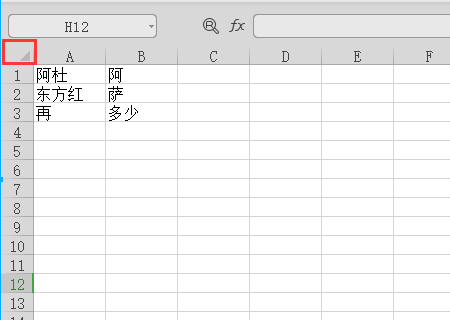
In the era dominated by intelligence, office software has also become popular, and Wps forms are adopted by the majority of office workers due to their flexibility. At work, we are required not only to learn simple form making and text entry, but also to master more operational skills in order to complete the tasks in actual work. Reports with data and using forms are more convenient, clear and accurate. The lesson we bring to you today is: The WPS table cannot find the data you are searching for. Why please check the search option location? 1. First select the Excel table and double-click to open it. Then in this interface, select all cells. 2. Then in this interface, click the "Edit" option in "File" in the top toolbar. 3. Secondly, in this interface, click "
 How to search for stores on mobile Taobao How to search for store names
Mar 13, 2024 am 11:00 AM
How to search for stores on mobile Taobao How to search for store names
Mar 13, 2024 am 11:00 AM
The mobile Taobao app software provides a lot of good products. You can buy them anytime and anywhere, and everything is genuine. The price tag of each product is clear. There are no complicated operations at all, making you enjoy more convenient shopping. . You can search and purchase freely as you like. The product sections of different categories are all open. Add your personal delivery address and contact number to facilitate the courier company to contact you, and check the latest logistics trends in real time. Then some new users are using it for the first time. If you don’t know how to search for products, of course you only need to enter keywords in the search bar to find all the product results. You can’t stop shopping freely. Now the editor will provide detailed online methods for mobile Taobao users to search for store names. 1. First open the Taobao app on your mobile phone,
 How to search a directory with a specific file extension in Java?
Aug 31, 2023 am 08:13 AM
How to search a directory with a specific file extension in Java?
Aug 31, 2023 am 08:13 AM
The following example prints files in a directory based on their extension - Example importjava.io.IOException;importjava.nio.file.Files;importjava.nio.file.Path;importjava.nio.file.Paths;importjava.util.stream.Stream; publicclassDemo{ publicstaticvoidmain(String[]args)throwsIOException{ 
 How to remove application search bar in Outlook?
Feb 19, 2024 am 10:39 AM
How to remove application search bar in Outlook?
Feb 19, 2024 am 10:39 AM
Outlook navigation can be customized to the user's preferences. The latest update adds an application search bar above the mailing list, which may conflict with the settings reading pane. If you want to remove the application search bar in Outlook, the following will guide you through this step. How to Remove App Search Bar in Outlook There are two ways to remove App Search Bar from Outlook: Set Reading Pane to Bottom or Turn off Restore Office M365 Click-to-Run Installation Before you begin, make sure your Office installation is updated . 1] Set Reading Pane to Bottom or Off To remove the app search bar, click View Reading Pane and select Bottom or Off. 2]Restore O
 How to search other people's resources on Alibaba Cloud Disk
Mar 30, 2024 am 10:31 AM
How to search other people's resources on Alibaba Cloud Disk
Mar 30, 2024 am 10:31 AM
Alibaba Cloud Disk, this popular storage tool, not only helps us manage personal resources efficiently, but also provides many convenient functions. So many users may not be able to find cloud disk resources when searching, so they want to search all resources in the entire disk. So below, the editor of this site will answer this question in detail and share the specific search method. Users who want to know, please come and follow this article to learn more! How to search other people's resources in Alibaba Cloud Disk 1. First, search the specific path of the resource file in the folder directory of Alibaba Cloud Disk to find the corresponding folder. 2. Then use the file search function and enter the keywords you want to find to find the relevant file content. 3. Then we share the link with others to directly locate and download
