


 Software Tutorial
Computer Software
How to add files to vscode workspace How to add files to vscode workspace
Software Tutorial
Computer Software
How to add files to vscode workspace How to add files to vscode workspace
How to add files to vscode workspace How to add files to vscode workspace

Visual Studio Code (VSCode for short) is a lightweight and powerful code editor that is deeply loved by developers. You can easily add files to your workspace in VSCode, but some of you may not be familiar with how. PHP editor Zimo has compiled detailed steps for adding VSCode files to the workspace. I hope it will be helpful to you. Continue reading below to learn how to add files quickly and easily.
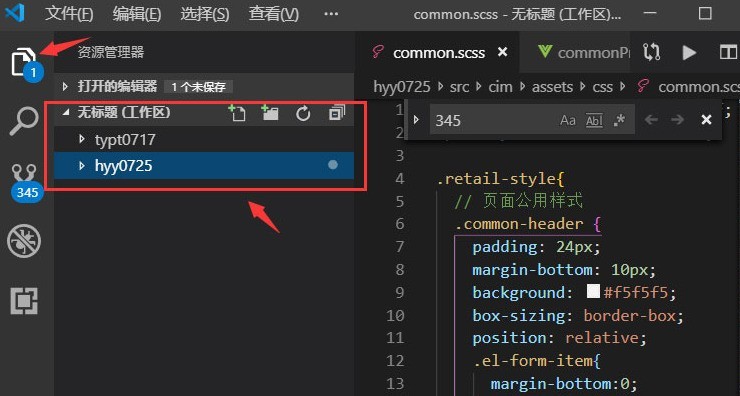
1. First, open the vscode software, click the resource manager icon, and find the workspace window
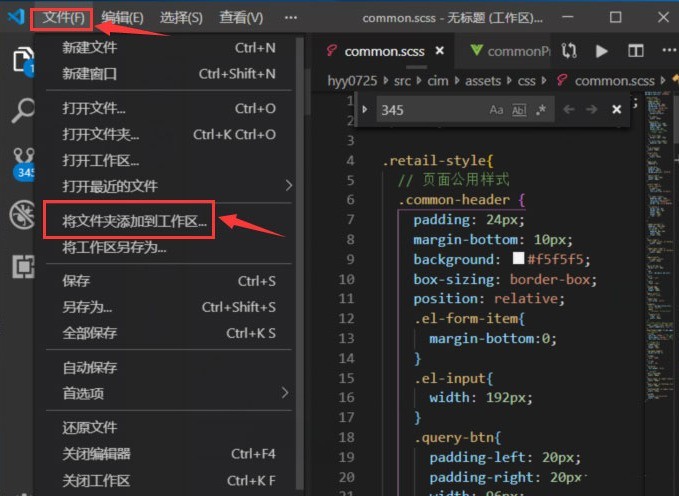
2. Then, click the file menu in the upper left corner and find the file Add folder to workspace option
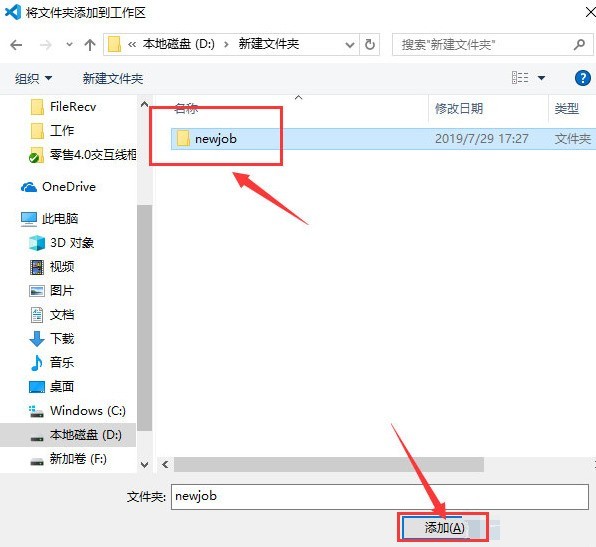
3. Finally, find the folder location on the local disk and click the Add button
The above is the detailed content of How to add files to vscode workspace How to add files to vscode workspace. For more information, please follow other related articles on the PHP Chinese website!

Hot AI Tools

Undresser.AI Undress
AI-powered app for creating realistic nude photos

AI Clothes Remover
Online AI tool for removing clothes from photos.

Undress AI Tool
Undress images for free

Clothoff.io
AI clothes remover

AI Hentai Generator
Generate AI Hentai for free.

Hot Article
Hot Tools

Notepad++7.3.1
Easy-to-use and free code editor

SublimeText3 Chinese version
Chinese version, very easy to use

Zend Studio 13.0.1
Powerful PHP integrated development environment

Dreamweaver CS6
Visual web development tools

SublimeText3 Mac version
God-level code editing software (SublimeText3)
Hot Topics
 1378
1378
 52
52

 How to define header files for vscode
Apr 15, 2025 pm 09:09 PM
How to define header files for vscode
Apr 15, 2025 pm 09:09 PM
How to define header files using Visual Studio Code? Create a header file and declare symbols in the header file using the .h or .hpp suffix name (such as classes, functions, variables) Compile the program using the #include directive to include the header file in the source file. The header file will be included and the declared symbols are available.
 What computer configuration is required for vscode
Apr 15, 2025 pm 09:48 PM
What computer configuration is required for vscode
Apr 15, 2025 pm 09:48 PM
VS Code system requirements: Operating system: Windows 10 and above, macOS 10.12 and above, Linux distribution processor: minimum 1.6 GHz, recommended 2.0 GHz and above memory: minimum 512 MB, recommended 4 GB and above storage space: minimum 250 MB, recommended 1 GB and above other requirements: stable network connection, Xorg/Wayland (Linux)
 vscode start front-end project command
Apr 15, 2025 pm 10:00 PM
vscode start front-end project command
Apr 15, 2025 pm 10:00 PM
The command to start a front-end project in VSCode is code. The specific steps include: Open the project folder. Start VSCode. Open the project. Enter the startup command code. in the terminal panel. Press Enter to start the project.
 How to set vscode
Apr 15, 2025 pm 10:45 PM
How to set vscode
Apr 15, 2025 pm 10:45 PM
To enable and set VSCode, follow these steps: Install and start VSCode. Custom preferences including themes, fonts, spaces, and code formatting. Install extensions to enhance features such as plugins, themes, and tools. Create a project or open an existing project. Use IntelliSense to get code prompts and completions. Debug the code to step through the code, set breakpoints, and check variables. Connect the version control system to manage changes and commit code.
 vscode running task shortcut key
Apr 15, 2025 pm 09:39 PM
vscode running task shortcut key
Apr 15, 2025 pm 09:39 PM
Run tasks in VSCode: Create tasks.json file, specify version and task list; configure the label, command, args, and type of the task; save and reload the task; run the task using the shortcut key Ctrl Shift B (macOS for Cmd Shift B).
 What language is vscode used
Apr 15, 2025 pm 11:03 PM
What language is vscode used
Apr 15, 2025 pm 11:03 PM
Visual Studio Code (VSCode) is developed by Microsoft, built using the Electron framework, and is mainly written in JavaScript. It supports a wide range of programming languages, including JavaScript, Python, C, Java, HTML, CSS, etc., and can add support for other languages through extensions.
 What language is written in vscode
Apr 15, 2025 pm 11:51 PM
What language is written in vscode
Apr 15, 2025 pm 11:51 PM
VSCode is written in TypeScript and JavaScript. First, its core code base is written in TypeScript, an open source programming language that extends JavaScript and adds type checking capabilities. Secondly, some extensions and plug-ins of VSCode are written in JavaScript. This combination makes VSCode a flexible and extensible code editor.
 vscode terminal usage tutorial
Apr 15, 2025 pm 10:09 PM
vscode terminal usage tutorial
Apr 15, 2025 pm 10:09 PM
vscode built-in terminal is a development tool that allows running commands and scripts within the editor to simplify the development process. How to use vscode terminal: Open the terminal with the shortcut key (Ctrl/Cmd). Enter a command or run the script. Use hotkeys (such as Ctrl L to clear the terminal). Change the working directory (such as the cd command). Advanced features include debug mode, automatic code snippet completion, and interactive command history.
