


 System Tutorial
Windows Series
How to disable background applications in Windows 11_Windows 11 tutorial to disable background applications
System Tutorial
Windows Series
How to disable background applications in Windows 11_Windows 11 tutorial to disable background applications
How to disable background applications in Windows 11_Windows 11 tutorial to disable background applications

When using Windows 11, have you noticed that some apps run in the background even when not open, taking up system resources and draining your battery? Don’t worry, PHP editor Baicao has brought you a solution! This article will detail how to disable background apps in Windows 11 to help you improve system performance and extend battery life. Continue reading below for step-by-step guidance and helpful tips.
1. Open settings in Windows 11. You can use Win I shortcut or any other method.
2. Go to the Apps section and click Apps & Features.
3. Find the application you want to prevent from running in the background. Click the three-dot button and select Advanced Options.
4. Find the [Background Application Permissions] section and select the required value. By default, Windows 11 sets power optimization mode. It allows Windows to manage how applications work in the background. For example, once you enable battery saver mode to preserve battery, the system will automatically close all apps.
5. Select [Never] to prevent the application from running in the background. Note that if you notice that a program is not sending you notifications, failing to update data, etc., you can switch from Power Optimization to Always.
6. Repeat the above steps for other applications.
Unfortunately, Windows 11 does not include an option in settings to turn off background work for all apps, just a kill switch. However, although the GUI option is not present, this can still be accomplished through a registry tweak.
Prevent all applications from running in the background of the registry at the same time
1. Open the Registry Editor; to do this, press Win R and type regedit, then press Enter.
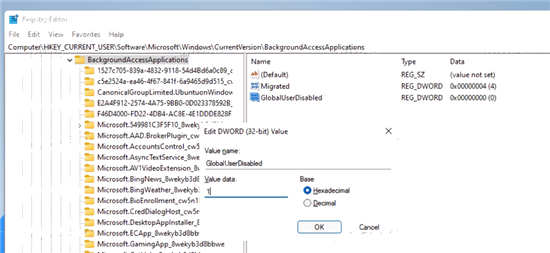
2. Open the following registry branch: HKEYU CURRENTU USERSoftwareMicrosoftWindowsCurrentVersionBackgroundAccessApplications.
3. On the right, modify or create a new 32-bit DWORD value GlobalUserDisabled.
4. Set its value data to 1 to prevent all applications from running in the background.
5. Log out of your user account to apply the changes, then log in again.
To undo changes later, change the GlobalUserDisabled value to 0, or delete it from the registry.
Download Registration File
To save time, you can download a ready-to-use registry file that allows or blocks applications from running in the background with just one click.
1. Download the ZIP archive with the REG file from this link.
2. Unzip the two REG files to any folder.
3. Double-click [Disable background applications] in the Windows 11.reg file to stop all applications running in the background.
4. Confirm the operation and log out of your user account to apply the changes.
You have successfully stopped all Windows 11 apps from running in the background. Undo the tweak named Enable background apps in Windows 11.reg. It is also included in the ZIP archive you download.
In addition to the above options, you can also disable background apps using Group Policy options. This will also prevent all users from using them. However, the gpedit.msc tool is not available in the Home edition of Windows 11, so you should apply a REG tweak instead, which will be covered in the next chapter.
Use Group Policy to disable Windows 11 background applications for all users
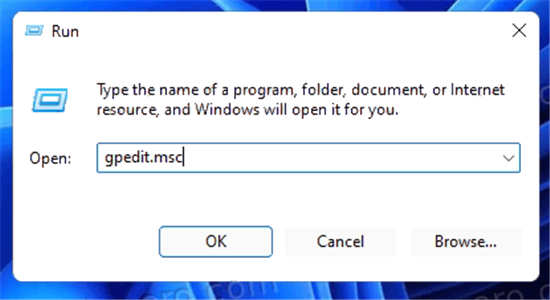
1. Open the local Group Policy Editor; press Win R and enter gpedit.msc in the Run text box.

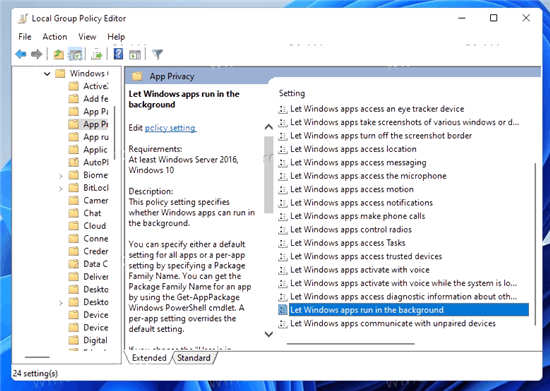
2. Expand the left pane to open the Computer Configuration Management Templates Windows Components Application Privacy folder.
3. On the right side, double-click the [Let Windows applications run in the background] policy and set it to [Enabled].
4. Now, in the default drop-down menu for all apps, select Force Deny.
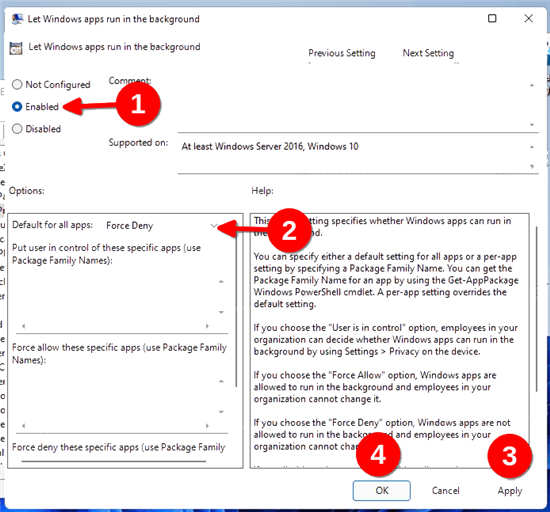
This will disable all background applications.
The above is the detailed content of How to disable background applications in Windows 11_Windows 11 tutorial to disable background applications. For more information, please follow other related articles on the PHP Chinese website!

Hot AI Tools

Undresser.AI Undress
AI-powered app for creating realistic nude photos

AI Clothes Remover
Online AI tool for removing clothes from photos.

Undress AI Tool
Undress images for free

Clothoff.io
AI clothes remover

Video Face Swap
Swap faces in any video effortlessly with our completely free AI face swap tool!

Hot Article
Hot Tools

Notepad++7.3.1
Easy-to-use and free code editor

SublimeText3 Chinese version
Chinese version, very easy to use

Zend Studio 13.0.1
Powerful PHP integrated development environment

Dreamweaver CS6
Visual web development tools

SublimeText3 Mac version
God-level code editing software (SublimeText3)
Hot Topics
 1389
1389
 52
52

 What are the benefits of multithreading in c#?
Apr 03, 2025 pm 02:51 PM
What are the benefits of multithreading in c#?
Apr 03, 2025 pm 02:51 PM
The advantage of multithreading is that it can improve performance and resource utilization, especially for processing large amounts of data or performing time-consuming operations. It allows multiple tasks to be performed simultaneously, improving efficiency. However, too many threads can lead to performance degradation, so you need to carefully select the number of threads based on the number of CPU cores and task characteristics. In addition, multi-threaded programming involves challenges such as deadlock and race conditions, which need to be solved using synchronization mechanisms, and requires solid knowledge of concurrent programming, weighing the pros and cons and using them with caution.
 How to avoid third-party interfaces returning 403 errors in Node environment?
Apr 01, 2025 pm 02:03 PM
How to avoid third-party interfaces returning 403 errors in Node environment?
Apr 01, 2025 pm 02:03 PM
How to avoid the third-party interface returning 403 error in the Node environment. When calling the third-party website interface using Node.js, you sometimes encounter the problem of returning 403 error. �...
 Unable to log in to mysql as root
Apr 08, 2025 pm 04:54 PM
Unable to log in to mysql as root
Apr 08, 2025 pm 04:54 PM
The main reasons why you cannot log in to MySQL as root are permission problems, configuration file errors, password inconsistent, socket file problems, or firewall interception. The solution includes: check whether the bind-address parameter in the configuration file is configured correctly. Check whether the root user permissions have been modified or deleted and reset. Verify that the password is accurate, including case and special characters. Check socket file permission settings and paths. Check that the firewall blocks connections to the MySQL server.
 How to use sql if statement
Apr 09, 2025 pm 06:12 PM
How to use sql if statement
Apr 09, 2025 pm 06:12 PM
SQL IF statements are used to conditionally execute SQL statements, with the syntax as: IF (condition) THEN {statement} ELSE {statement} END IF;. The condition can be any valid SQL expression, and if the condition is true, execute the THEN clause; if the condition is false, execute the ELSE clause. IF statements can be nested, allowing for more complex conditional checks.
 How to solve the 'Network Error' caused by Vue Axios across domains
Apr 07, 2025 pm 10:27 PM
How to solve the 'Network Error' caused by Vue Axios across domains
Apr 07, 2025 pm 10:27 PM
Methods to solve the cross-domain problem of Vue Axios include: Configuring the CORS header on the server side using the Axios proxy using JSONP using WebSocket using the CORS plug-in
 How to efficiently obtain component_verify_ticket in EasyWechat 5.5?
Apr 01, 2025 pm 12:42 PM
How to efficiently obtain component_verify_ticket in EasyWechat 5.5?
Apr 01, 2025 pm 12:42 PM
Get ComponentVerify in EasyWechat5.5...
 How to use Debian Apache logs to improve website performance
Apr 12, 2025 pm 11:36 PM
How to use Debian Apache logs to improve website performance
Apr 12, 2025 pm 11:36 PM
This article will explain how to improve website performance by analyzing Apache logs under the Debian system. 1. Log Analysis Basics Apache log records the detailed information of all HTTP requests, including IP address, timestamp, request URL, HTTP method and response code. In Debian systems, these logs are usually located in the /var/log/apache2/access.log and /var/log/apache2/error.log directories. Understanding the log structure is the first step in effective analysis. 2. Log analysis tool You can use a variety of tools to analyze Apache logs: Command line tools: grep, awk, sed and other command line tools.
 Is there a mac version of mysql
Apr 08, 2025 pm 02:30 PM
Is there a mac version of mysql
Apr 08, 2025 pm 02:30 PM
Question: Can MySQL run on macOS? Answer: Yes. Specific instructions: It can be installed through the official MySQL installer. You can use Homebrew to install, providing command-line-driven installation methods and dependency management. Create databases and tables using the MySQL command line client. Optimize query performance and understand indexing, query cache and database standardization. Avoid conflicting version issues and use a single installation method. Ensure secure configuration, use strong passwords and access controls.
