


 Software Tutorial
Computer Software
How to draw a flow chart with vscode_How to draw a flow chart with visual_studio code
Software Tutorial
Computer Software
How to draw a flow chart with vscode_How to draw a flow chart with visual_studio code
How to draw a flow chart with vscode_How to draw a flow chart with visual_studio code

Visual Studio Code is a code editor loved by developers. It is powerful and scalable. For users who need to draw flowcharts, Visual Studio Code also provides a wealth of extensions to create and edit flowcharts easily and quickly. This article will explain in detail how to use Visual Studio Code to draw flowcharts, including how to install extensions, create flowchart files, add elements and connection lines, etc. Through the guidance of this article, users can easily master the method of drawing flow charts in Visual Studio Code and improve work efficiency and communication effects.
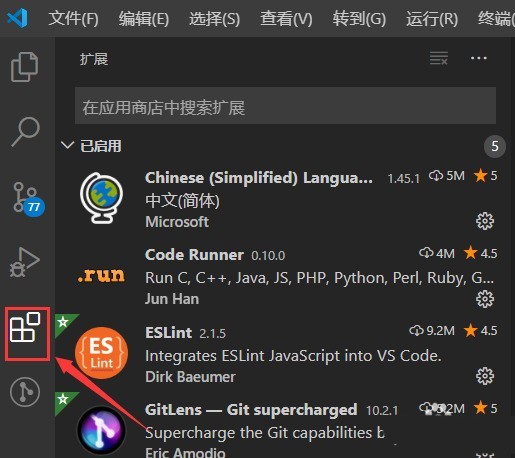
First, open visual studio code on your computer, click on the four square buttons on the left
Then enter draw.io query plug-in in the search box, and click Install
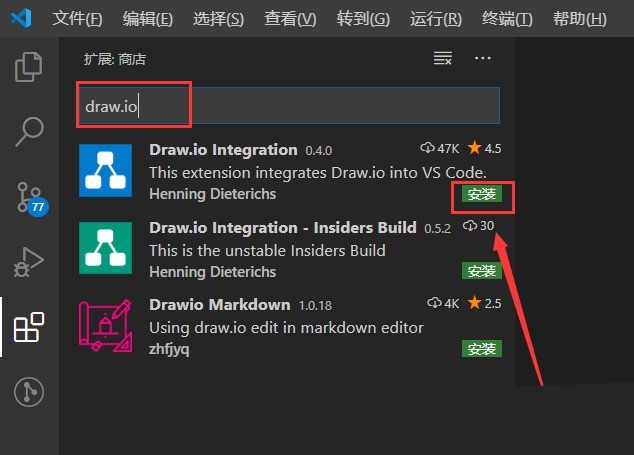
After installation, create a new test.drawio file

Then select the test.drawio file and enter the editing mode
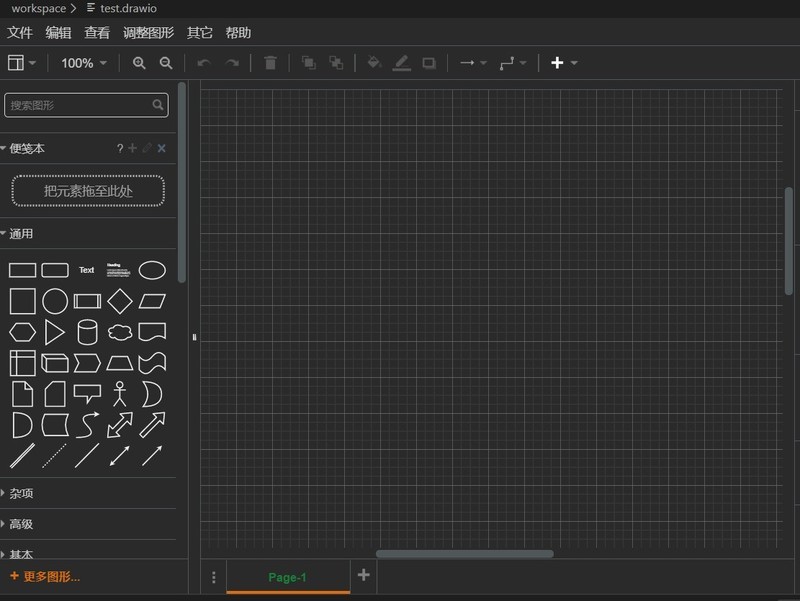
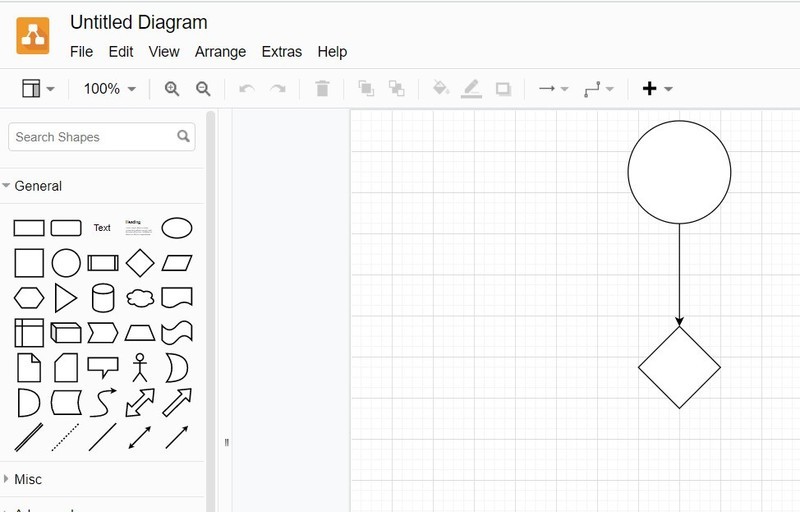
There are various graphics on the left side. You can draw the flow chart by selecting it at will.
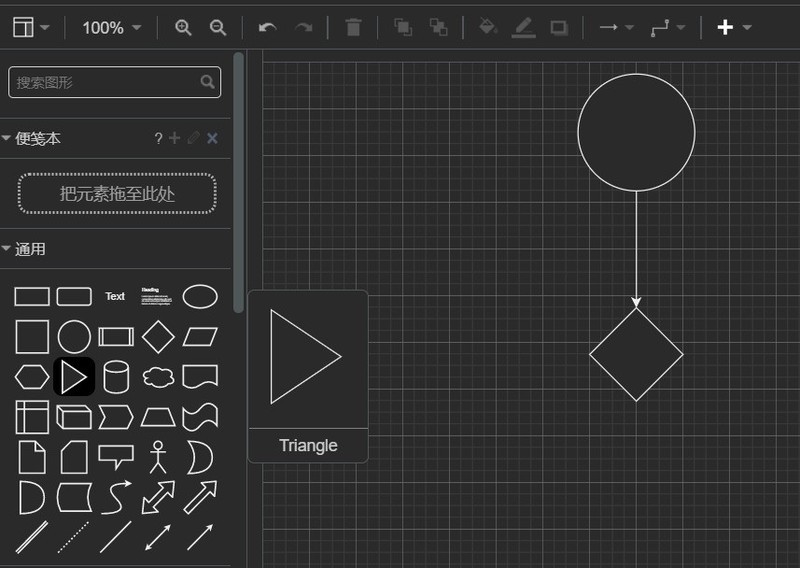
After drawing, click File→Embed→svg
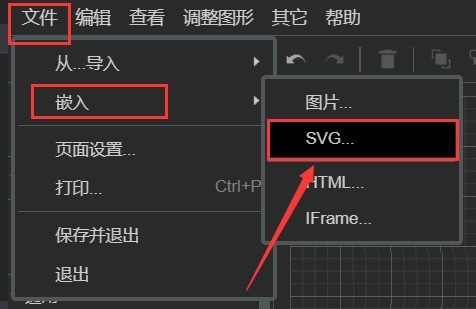
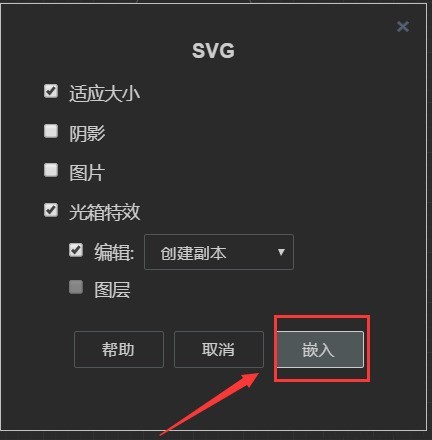
Choose to embed below
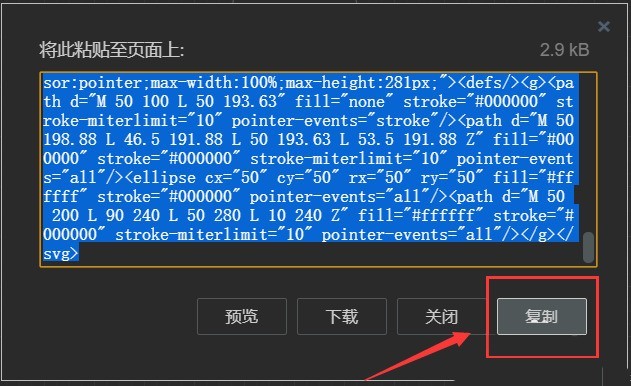
Copy the svg code
Paste the copied svg code into the html code
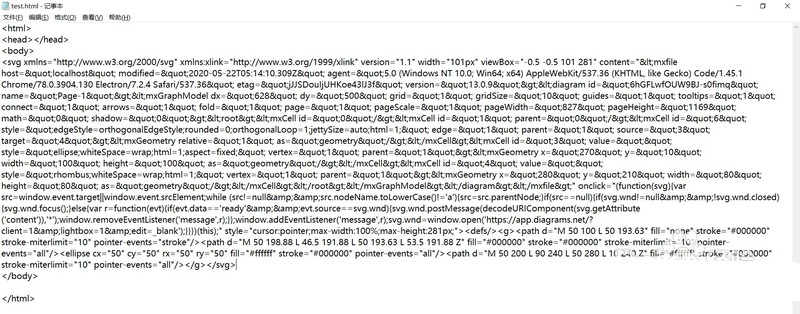
Open the html web page and you can see the drawn flow chart
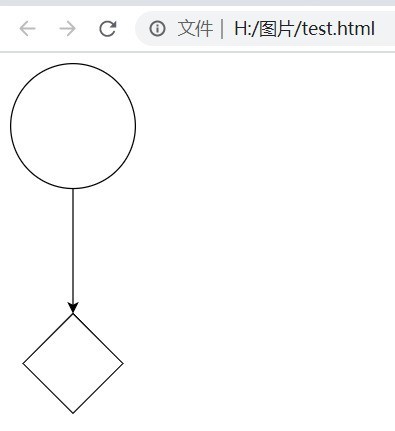
Click on the picture on the web page to jump to the page
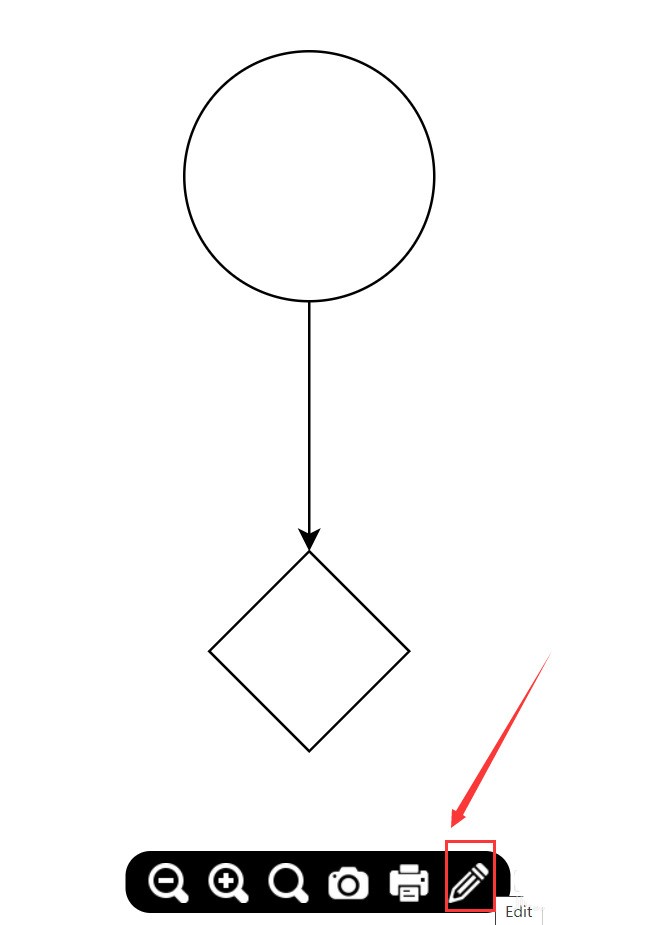
You can zoom in and out of the flowchart on this page
Here, we choose to click on the pencil icon in the lower right corner to jump to the web page editing page
On the web page editing page, you can Re-edit the flow chart
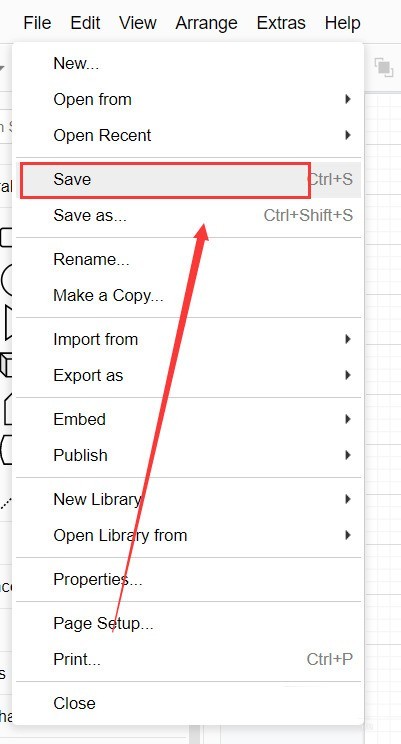
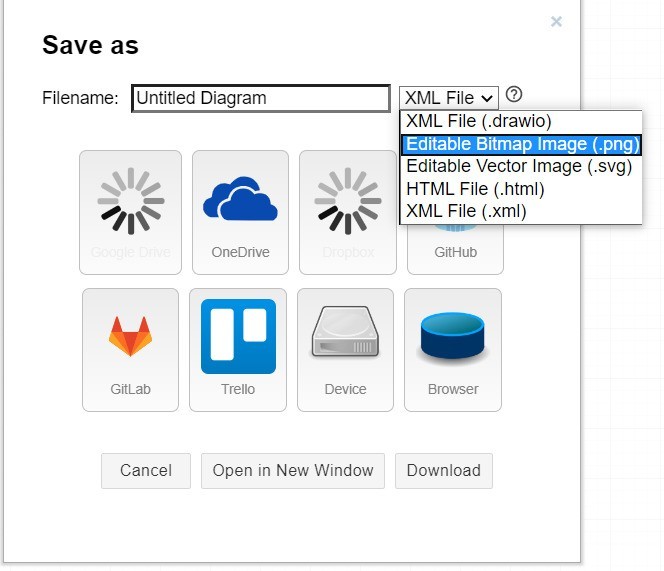
Here you can select File→Save, and finally select the png format image to save
The above is the detailed content of How to draw a flow chart with vscode_How to draw a flow chart with visual_studio code. For more information, please follow other related articles on the PHP Chinese website!

Hot AI Tools

Undresser.AI Undress
AI-powered app for creating realistic nude photos

AI Clothes Remover
Online AI tool for removing clothes from photos.

Undress AI Tool
Undress images for free

Clothoff.io
AI clothes remover

AI Hentai Generator
Generate AI Hentai for free.

Hot Article
Hot Tools

Notepad++7.3.1
Easy-to-use and free code editor

SublimeText3 Chinese version
Chinese version, very easy to use

Zend Studio 13.0.1
Powerful PHP integrated development environment

Dreamweaver CS6
Visual web development tools

SublimeText3 Mac version
God-level code editing software (SublimeText3)
Hot Topics
 1385
1385
 52
52

 What computer configuration is required for vscode
Apr 15, 2025 pm 09:48 PM
What computer configuration is required for vscode
Apr 15, 2025 pm 09:48 PM
VS Code system requirements: Operating system: Windows 10 and above, macOS 10.12 and above, Linux distribution processor: minimum 1.6 GHz, recommended 2.0 GHz and above memory: minimum 512 MB, recommended 4 GB and above storage space: minimum 250 MB, recommended 1 GB and above other requirements: stable network connection, Xorg/Wayland (Linux)
 How to define header files for vscode
Apr 15, 2025 pm 09:09 PM
How to define header files for vscode
Apr 15, 2025 pm 09:09 PM
How to define header files using Visual Studio Code? Create a header file and declare symbols in the header file using the .h or .hpp suffix name (such as classes, functions, variables) Compile the program using the #include directive to include the header file in the source file. The header file will be included and the declared symbols are available.
 How to switch Chinese mode with vscode
Apr 15, 2025 pm 11:39 PM
How to switch Chinese mode with vscode
Apr 15, 2025 pm 11:39 PM
VS Code To switch Chinese mode: Open the settings interface (Windows/Linux: Ctrl, macOS: Cmd,) Search for "Editor: Language" settings Select "Chinese" in the drop-down menu Save settings and restart VS Code
 vscode Previous Next Shortcut Key
Apr 15, 2025 pm 10:51 PM
vscode Previous Next Shortcut Key
Apr 15, 2025 pm 10:51 PM
VS Code One-step/Next step shortcut key usage: One-step (backward): Windows/Linux: Ctrl ←; macOS: Cmd ←Next step (forward): Windows/Linux: Ctrl →; macOS: Cmd →
 How to set vscode in Chinese
Apr 15, 2025 pm 09:27 PM
How to set vscode in Chinese
Apr 15, 2025 pm 09:27 PM
There are two ways to set up a Chinese language in Visual Studio Code: 1. Install the Chinese language package; 2. Modify the "locale" settings in the configuration file. Make sure Visual Studio Code version is 1.17 or higher.
 Common commands for vscode terminal
Apr 15, 2025 pm 10:06 PM
Common commands for vscode terminal
Apr 15, 2025 pm 10:06 PM
Common commands for VS Code terminals include: Clear the terminal screen (clear), list the current directory file (ls), change the current working directory (cd), print the current working directory path (pwd), create a new directory (mkdir), delete empty directory (rmdir), create a new file (touch) delete a file or directory (rm), copy a file or directory (cp), move or rename a file or directory (mv) display file content (cat) view file content and scroll (less) view file content only scroll down (more) display the first few lines of the file (head)
 How to set vscode
Apr 15, 2025 pm 10:45 PM
How to set vscode
Apr 15, 2025 pm 10:45 PM
To enable and set VSCode, follow these steps: Install and start VSCode. Custom preferences including themes, fonts, spaces, and code formatting. Install extensions to enhance features such as plugins, themes, and tools. Create a project or open an existing project. Use IntelliSense to get code prompts and completions. Debug the code to step through the code, set breakpoints, and check variables. Connect the version control system to manage changes and commit code.
 vscode setting Chinese tutorial
Apr 15, 2025 pm 11:45 PM
vscode setting Chinese tutorial
Apr 15, 2025 pm 11:45 PM
VS Code supports Chinese settings, which can be completed by following the steps: Open the settings panel and search for "locale". Set "locale.language" to "zh-CN" (Simplified Chinese) or "zh-TW" (Traditional Chinese). Save settings and restart VS Code. The settings menu, toolbar, code prompts, and documents will be displayed in Chinese. Other language settings can also be customized, such as file tag format, entry description, and diagnostic process language.
