


 Computer Tutorials
Computer Knowledge
Move photos from old Photos to the new Photos app in Windows 11
Computer Tutorials
Computer Knowledge
Move photos from old Photos to the new Photos app in Windows 11
Move photos from old Photos to the new Photos app in Windows 11

This article will guide you on how to migrate photos from Photos Legacy to the new Photos app in Windows 11. Microsoft has introduced a revamped Photos app in Windows 11, giving users a simpler and more feature-rich experience. The new Photos app sorts photos differently than the past Photos Legacy app. It organizes photos into folders like other Windows files instead of creating albums. However, users still using the Photos Legacy app can easily migrate their photos to the new version of Microsoft Photos.
What is the Photos Legacy app?
Photos Legacy app is one of the first apps launched in Windows 11. It has a similar interface and functionality to the new version of the Photos app. As the new Photos app replaces it, the Photos Legacy app remains available for performing some common actions:
- Collect photos from their PCs, mobile phones and other devices.
- Easily edit, compare and create albums/movies of their special memories.
- Use the Filmstrip to jump to other photos and videos at that location.
Why is the new Photos app better than Photos Legacy?
The new version of Photos application has a more refined interface design, better library management and seamless integration with OneDrive. In addition, it provides more powerful photo management and editing functions, allowing users to view all photos and videos in the same window. Users can easily use the app to automatically generate slideshows with music and themes to review precious moments in a whole new way.
How to move photos from Photos Legacy to the new Photos app in Windows 11?
To transfer photos from Photos Legacy to the new Photos app:
Open the Photos Legacy app, navigate to the photo album, and create a new album.
Add all the photos you want to move to the newly created album to the album.
When finished, open the created album and click Save in OneDrive at the top. This will back up the complete photo album to your personal OneDrive account.
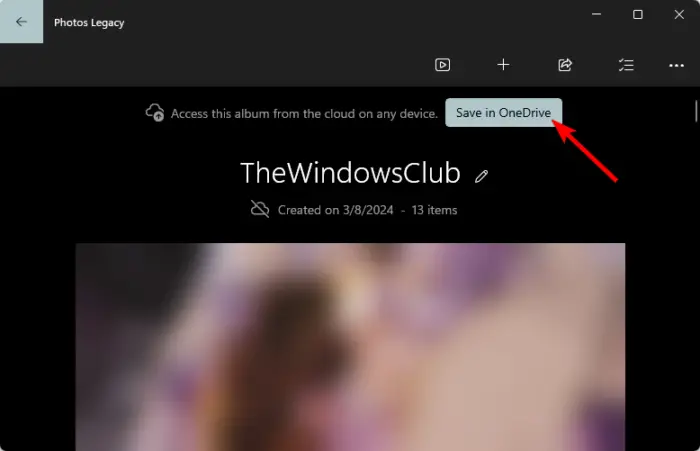
After uploading the album to OneDrive, close Photos Legacy and open the new Photos app.
Click your OneDrive account in the left pane and select Memory.
Under OneDrive Albums you will find the album imported from the Photos Legacy app along with all your photos.
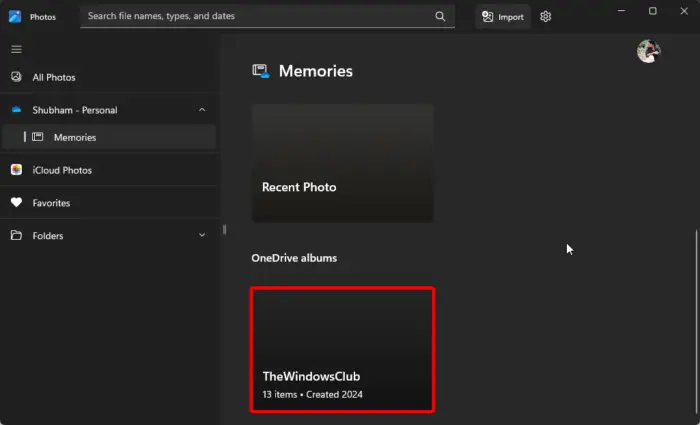
Your photos will be transferred from Photos Legacy to the new Photos app.
Read: Hide or show slideshows in Windows’ Photos app
I hope this article can be helpful to you.
Is Microsoft Photos Legacy still available?
Yes, the Photos Legacy app is still available in the Microsoft Store. However, you can also install it using the new Photos app. To do this, open the Photos app, navigate to Settings, scroll down, and tap Get Photo Legacy.
How to import photos into Windows Photos app?
To import photos to the Windows Photos app, connect your device to your PC using a USB cable and open the Photos app. Click Import and select your device from the list of connected devices. When finished, select the photos you want to import, choose a location, and select Confirm.
Read: Unable to Save Changes Photos app error in Windows.
The above is the detailed content of Move photos from old Photos to the new Photos app in Windows 11. For more information, please follow other related articles on the PHP Chinese website!

Hot AI Tools

Undresser.AI Undress
AI-powered app for creating realistic nude photos

AI Clothes Remover
Online AI tool for removing clothes from photos.

Undress AI Tool
Undress images for free

Clothoff.io
AI clothes remover

AI Hentai Generator
Generate AI Hentai for free.

Hot Article
Hot Tools

Notepad++7.3.1
Easy-to-use and free code editor

SublimeText3 Chinese version
Chinese version, very easy to use

Zend Studio 13.0.1
Powerful PHP integrated development environment

Dreamweaver CS6
Visual web development tools

SublimeText3 Mac version
God-level code editing software (SublimeText3)
Hot Topics
 1378
1378
 52
52

 Can I install mysql on Windows 7
Apr 08, 2025 pm 03:21 PM
Can I install mysql on Windows 7
Apr 08, 2025 pm 03:21 PM
Yes, MySQL can be installed on Windows 7, and although Microsoft has stopped supporting Windows 7, MySQL is still compatible with it. However, the following points should be noted during the installation process: Download the MySQL installer for Windows. Select the appropriate version of MySQL (community or enterprise). Select the appropriate installation directory and character set during the installation process. Set the root user password and keep it properly. Connect to the database for testing. Note the compatibility and security issues on Windows 7, and it is recommended to upgrade to a supported operating system.
 How to speed up the loading speed of PS?
Apr 06, 2025 pm 06:27 PM
How to speed up the loading speed of PS?
Apr 06, 2025 pm 06:27 PM
Solving the problem of slow Photoshop startup requires a multi-pronged approach, including: upgrading hardware (memory, solid-state drive, CPU); uninstalling outdated or incompatible plug-ins; cleaning up system garbage and excessive background programs regularly; closing irrelevant programs with caution; avoiding opening a large number of files during startup.
 In front-end development, how to use CSS and JavaScript to achieve searchlight effects similar to Windows 10 settings interface?
Apr 05, 2025 pm 10:21 PM
In front-end development, how to use CSS and JavaScript to achieve searchlight effects similar to Windows 10 settings interface?
Apr 05, 2025 pm 10:21 PM
How to implement Windows-like in front-end development...
 How to distinguish between closing a browser tab and closing the entire browser using JavaScript?
Apr 04, 2025 pm 10:21 PM
How to distinguish between closing a browser tab and closing the entire browser using JavaScript?
Apr 04, 2025 pm 10:21 PM
How to distinguish between closing tabs and closing entire browser using JavaScript on your browser? During the daily use of the browser, users may...
 How to pull the vertical reference line of PS
Apr 06, 2025 pm 08:18 PM
How to pull the vertical reference line of PS
Apr 06, 2025 pm 08:18 PM
Pull vertical guides in Photoshop: Enable ruler view (View > ruler). Hover the mouse over the vertical edge of the ruler, and then the cursor becomes a vertical line with double arrows and hold and drag the mouse to pull out the reference line. Click Delete by dragging the guide, or hovering it into a cross.
 Solutions to the errors reported by MySQL on a specific system version
Apr 08, 2025 am 11:54 AM
Solutions to the errors reported by MySQL on a specific system version
Apr 08, 2025 am 11:54 AM
The solution to MySQL installation error is: 1. Carefully check the system environment to ensure that the MySQL dependency library requirements are met. Different operating systems and version requirements are different; 2. Carefully read the error message and take corresponding measures according to prompts (such as missing library files or insufficient permissions), such as installing dependencies or using sudo commands; 3. If necessary, try to install the source code and carefully check the compilation log, but this requires a certain amount of Linux knowledge and experience. The key to ultimately solving the problem is to carefully check the system environment and error information, and refer to the official documents.
 MySQL can't be installed after downloading
Apr 08, 2025 am 11:24 AM
MySQL can't be installed after downloading
Apr 08, 2025 am 11:24 AM
The main reasons for MySQL installation failure are: 1. Permission issues, you need to run as an administrator or use the sudo command; 2. Dependencies are missing, and you need to install relevant development packages; 3. Port conflicts, you need to close the program that occupies port 3306 or modify the configuration file; 4. The installation package is corrupt, you need to download and verify the integrity; 5. The environment variable is incorrectly configured, and the environment variables must be correctly configured according to the operating system. Solve these problems and carefully check each step to successfully install MySQL.
 Unable to access mysql from terminal
Apr 08, 2025 pm 04:57 PM
Unable to access mysql from terminal
Apr 08, 2025 pm 04:57 PM
Unable to access MySQL from the terminal may be due to: MySQL service not running; connection command error; insufficient permissions; firewall blocks connection; MySQL configuration file error.
