


3 ways to use the Linux inxi command

I stumbled upon inxi when I was looking for information about desktop computer memory. It is a command line system information tool that provides a wealth of information about your Linux computer, whether it is a laptop, desktop, or server.
The inxi command is licensed under the GPLv3 license github.com, which is included with many Linux distributions. According to its Git repository: "inxi strives to support the widest range of operating systems and hardware, from the simplest consumer desktops to the most advanced professional hardware and servers."
The documentation is very complete, and the project maintains a complete manual page online at smxi.org. After installation, you can use the man inxi command to access the man pages on your system.
Install inxi on Linux
Normally, you can install inxi from the distribution's software repository or application center. For example, on Fedora, CentOS, Mageia or similar distributions:
$ sudo dnf install inxi
On Debian, Elementary, Linux Mint or similar distributions:
$ sudo apt install inxi
You can find more information about Linux distribution installation options here smxi.org.
3 ways to use inxi on Linux
Once you have inxi installed, you can explore all of its options. There are many options to help you learn more about your system. The most basic commands provide a basic overview of the system:
$ inxi -b
System:
  Host: pop-os Kernel: 5.19.0-76051900-generic x86_64 bits: 64
        Desktop: GNOME 42.3.1 Distro: Pop!_OS 22.04 LTS
Machine:
  Type: Laptop System: HP product: Dev One Notebook PC v: N/A
        serial:
  Mobo: HP model: 8A78 v: KBC Version 01.03 serial:
        UEFI: Insyde v: F.05 date: 06/14/2022
Battery:
  ID-1: BATT charge: 50.6 Wh (96.9%) condition: 52.2/53.2 Wh (98.0%)
CPU:
  Info: 8-core AMD Ryzen 7 PRO 5850U with Radeon Graphics [MT MCP]
        speed (MHz): avg: 915 min/max: 400/4507
Graphics:
  Device-1: AMD Cezanne driver: amdgpu v: kernel
  Device-2: Quanta HP HD Camera type: USB driver: uvcvideo
  Display: x11 server: X.Org v: 1.21.1.3 driver: X: loaded: amdgpu,ati
        unloaded: fbdev,modesetting,radeon,vesa gpu: amdgpu
        resolution: 1920x1080~60Hz
  OpenGL:
        renderer: AMD RENOIR (LLVM 13.0.1 DRM 3.47 5.19.0-76051900-generic)
        v: 4.6 Mesa 22.0.5
Network:
  Device-1: Realtek RTL8822CE 802.11ac PCIe Wireless Network Adapter
        driver: rtw_8822ce
Drives:
  Local Storage: total: 953.87 GiB used: 75.44 GiB (7.9%)
Info:
  Processes: 347 Uptime: 15m Memory: 14.96 GiB used: 2.91 GiB (19.4%)
  Shell: Bash inxi: 3.3.13
1. Display battery status
You can check battery health using the -B option. The results show the system battery ID, charging status, and other information:
$ inxi -B
Battery:
ID-1: BATT charge: 44.3 Wh (85.2%) condition: 52.0/53.2 Wh (97.7%)
2. Display CPU information
Use the -C option to learn more about the CPU:
$ inxi -C
CPU:
  Info: 8-core model: AMD Ryzen 7 PRO 5850U with Radeon Graphics bits: 64
 type: MT MCP cache: L2: 4 MiB
  Speed (MHz): avg: 400 min/max: 400/4507 cores: 1: 400 2: 400 3: 400
 4: 400 5: 400 6: 400 7: 400 8: 400 9: 400 10: 400 11: 400 12: 400 13: 400
 14: 400 15: 400 16: 400
Inxi's output uses colored text by default. You can use the Color Switch to change it if needed to improve readability.
The command options are -c followed by any number between 0 and 42 to suit your preferences.
$ inxi -c 42
Here are examples of a few different options using colorways 5 and 7:
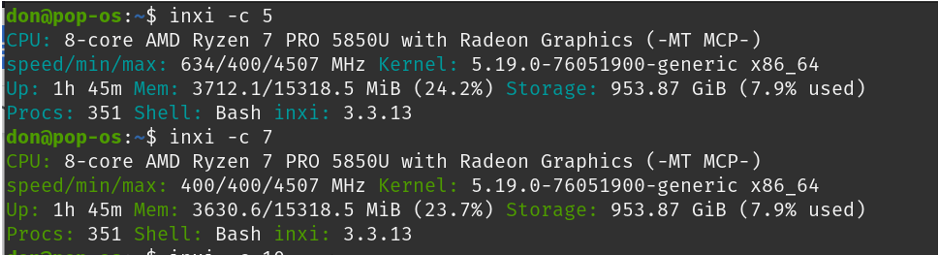
inxi -c 5 command
This software can use sensors in your Linux system to display hardware temperature, fan speed and other information about the system. Enter inxi -s and read the following results:

inxi -s
3. Combination options
If supported, you can combine inxi's options to obtain complex output. For example, inxi -S provides system information and -v provides verbose output. Combining the two gives the following result:
$ inxi -S
System:
  Host: pop-os Kernel: 5.19.0-76051900-generic x86_64 bits: 64
        Desktop: GNOME 42.3.1 Distro: Pop!_OS 22.04 LTS
$ inxi -Sv
CPU: 8-core AMD Ryzen 7 PRO 5850U with Radeon Graphics (-MT MCP-)
speed/min/max: 634/400/4507 MHz Kernel: 5.19.0-76051900-generic x86_64
Up: 20m Mem: 3084.2/15318.5 MiB (20.1%) Storage: 953.87 GiB (7.9% used)
Procs: 346 Shell: Bash inxi: 3.3.13
Extra features: Check the weather
inxi Your computer isn’t the only information that can be collected. Using the -w option, you can also get weather information for your area:
$ inxi -w
Weather:
  Report: temperature: 14 C (57 F) conditions: Clear sky
  Locale: Wellington, G2, NZL
        current time: Tue 30 Aug 2022 16:28:14 (Pacific/Auckland)
        Source: WeatherBit.io
You can get weather information for other parts of the world by specifying the city and country you want and -W:
$ inxi -W rome,italy
Weather:
  Report: temperature: 20 C (68 F) conditions: Clear sky
  Locale: Rome, Italy current time: Tue 30 Aug 2022 06:29:52
        Source: WeatherBit.io
Summarize
There are many great tools for gathering information about your computer. I use different tools depending on the machine, desktop, or my mood. What is your favorite system information tool?
The above is the detailed content of 3 ways to use the Linux inxi command. For more information, please follow other related articles on the PHP Chinese website!

Hot AI Tools

Undresser.AI Undress
AI-powered app for creating realistic nude photos

AI Clothes Remover
Online AI tool for removing clothes from photos.

Undress AI Tool
Undress images for free

Clothoff.io
AI clothes remover

Video Face Swap
Swap faces in any video effortlessly with our completely free AI face swap tool!

Hot Article
Hot Tools

Notepad++7.3.1
Easy-to-use and free code editor

SublimeText3 Chinese version
Chinese version, very easy to use

Zend Studio 13.0.1
Powerful PHP integrated development environment

Dreamweaver CS6
Visual web development tools

SublimeText3 Mac version
God-level code editing software (SublimeText3)
Hot Topics
 1386
1386
 52
52

 How to use docker desktop
Apr 15, 2025 am 11:45 AM
How to use docker desktop
Apr 15, 2025 am 11:45 AM
How to use Docker Desktop? Docker Desktop is a tool for running Docker containers on local machines. The steps to use include: 1. Install Docker Desktop; 2. Start Docker Desktop; 3. Create Docker image (using Dockerfile); 4. Build Docker image (using docker build); 5. Run Docker container (using docker run).
 Difference between centos and ubuntu
Apr 14, 2025 pm 09:09 PM
Difference between centos and ubuntu
Apr 14, 2025 pm 09:09 PM
The key differences between CentOS and Ubuntu are: origin (CentOS originates from Red Hat, for enterprises; Ubuntu originates from Debian, for individuals), package management (CentOS uses yum, focusing on stability; Ubuntu uses apt, for high update frequency), support cycle (CentOS provides 10 years of support, Ubuntu provides 5 years of LTS support), community support (CentOS focuses on stability, Ubuntu provides a wide range of tutorials and documents), uses (CentOS is biased towards servers, Ubuntu is suitable for servers and desktops), other differences include installation simplicity (CentOS is thin)
 What to do if the docker image fails
Apr 15, 2025 am 11:21 AM
What to do if the docker image fails
Apr 15, 2025 am 11:21 AM
Troubleshooting steps for failed Docker image build: Check Dockerfile syntax and dependency version. Check if the build context contains the required source code and dependencies. View the build log for error details. Use the --target option to build a hierarchical phase to identify failure points. Make sure to use the latest version of Docker engine. Build the image with --t [image-name]:debug mode to debug the problem. Check disk space and make sure it is sufficient. Disable SELinux to prevent interference with the build process. Ask community platforms for help, provide Dockerfiles and build log descriptions for more specific suggestions.
 How to view the docker process
Apr 15, 2025 am 11:48 AM
How to view the docker process
Apr 15, 2025 am 11:48 AM
Docker process viewing method: 1. Docker CLI command: docker ps; 2. Systemd CLI command: systemctl status docker; 3. Docker Compose CLI command: docker-compose ps; 4. Process Explorer (Windows); 5. /proc directory (Linux).
 Detailed explanation of docker principle
Apr 14, 2025 pm 11:57 PM
Detailed explanation of docker principle
Apr 14, 2025 pm 11:57 PM
Docker uses Linux kernel features to provide an efficient and isolated application running environment. Its working principle is as follows: 1. The mirror is used as a read-only template, which contains everything you need to run the application; 2. The Union File System (UnionFS) stacks multiple file systems, only storing the differences, saving space and speeding up; 3. The daemon manages the mirrors and containers, and the client uses them for interaction; 4. Namespaces and cgroups implement container isolation and resource limitations; 5. Multiple network modes support container interconnection. Only by understanding these core concepts can you better utilize Docker.
 What computer configuration is required for vscode
Apr 15, 2025 pm 09:48 PM
What computer configuration is required for vscode
Apr 15, 2025 pm 09:48 PM
VS Code system requirements: Operating system: Windows 10 and above, macOS 10.12 and above, Linux distribution processor: minimum 1.6 GHz, recommended 2.0 GHz and above memory: minimum 512 MB, recommended 4 GB and above storage space: minimum 250 MB, recommended 1 GB and above other requirements: stable network connection, Xorg/Wayland (Linux)
 How to switch Chinese mode with vscode
Apr 15, 2025 pm 11:39 PM
How to switch Chinese mode with vscode
Apr 15, 2025 pm 11:39 PM
VS Code To switch Chinese mode: Open the settings interface (Windows/Linux: Ctrl, macOS: Cmd,) Search for "Editor: Language" settings Select "Chinese" in the drop-down menu Save settings and restart VS Code
 What is vscode What is vscode for?
Apr 15, 2025 pm 06:45 PM
What is vscode What is vscode for?
Apr 15, 2025 pm 06:45 PM
VS Code is the full name Visual Studio Code, which is a free and open source cross-platform code editor and development environment developed by Microsoft. It supports a wide range of programming languages and provides syntax highlighting, code automatic completion, code snippets and smart prompts to improve development efficiency. Through a rich extension ecosystem, users can add extensions to specific needs and languages, such as debuggers, code formatting tools, and Git integrations. VS Code also includes an intuitive debugger that helps quickly find and resolve bugs in your code.
