


 Operation and Maintenance
Linux Operation and Maintenance
How to solve the problem when one computer is always unable to connect when connecting to ssh in linux
Operation and Maintenance
Linux Operation and Maintenance
How to solve the problem when one computer is always unable to connect when connecting to ssh in linux
How to solve the problem when one computer is always unable to connect when connecting to ssh in linux

The solutions to the problem that Linux cannot connect to a machine when connecting to SSH are: 1. Check whether the IP address, network configuration and firewall settings of the target host are correct; 2. Confirm whether the SSH service on the target host is running; 3. Check the firewall settings on the target host; 4. Check whether the SSH configuration file on the target host is correct; 5. If using an SSH key for authentication, ensure that the public key has been correctly added to the target host; 6. Try adding -v Parameters to start an SSH connection to view detailed connection debugging information.

The operating system of this tutorial: Linux5.18.14 system, Dell G3 computer.
When you encounter a situation where a computer cannot be connected when connecting to Linux SSH, you can try the following steps to solve the problem:
1. Network connection check:
Make sure that the target Linux host and your computer are in the same network, and the network connection is normal. Check that the target host's IP address, network configuration, and firewall settings are correct.
2. SSH service status:
Confirm whether the SSH service on the target Linux host is running. You can use the following command to check the SSH service status:
service ssh status
If the SSH service is not running, you can use the following command to start the SSH service (root permissions are required):
service ssh start
3. Target host firewall :
Check the firewall settings on the target host to ensure that the port for the SSH service (default is 22) is not blocked. You can try turning off the firewall or adding corresponding rules to allow SSH connections.
4. SSH configuration file:
Check the SSH configuration file on the target host to confirm whether the relevant configuration of the SSH service is correct. The configuration file is usually located at /etc/ssh/sshd_config. You can use a text editor to open and check related configuration items.
5. SSH key authentication:
If you use SSH key for authentication, please make sure that your public key has been correctly added to the target host’s ~/. ssh/authorized_keys file. You can use the following command to add the public key to the authorized_keys file of the target host:
ssh-copy-id username@target_host
Replace username with your username and target_host with the IP address or domain name of the target host.
6. SSH parameter debugging:
Try to start the SSH connection by adding the -v parameter to view detailed connection debugging information. For example:
ssh -v username@target_host
This will output detailed information during the connection process, which can help you determine the specific reason for the connection failure.
If you still cannot solve the connection problem, it is recommended to check the system log of the target host (such as /var/log/messages or /var/log/auth.log) for more error information. Also, if possible, try an SSH connection from another computer to verify if the issue is with a specific computer.
The above is the detailed content of How to solve the problem when one computer is always unable to connect when connecting to ssh in linux. For more information, please follow other related articles on the PHP Chinese website!

Hot AI Tools

Undress AI Tool
Undress images for free

Undresser.AI Undress
AI-powered app for creating realistic nude photos

AI Clothes Remover
Online AI tool for removing clothes from photos.

Clothoff.io
AI clothes remover

Video Face Swap
Swap faces in any video effortlessly with our completely free AI face swap tool!

Hot Article
Hot Tools

Notepad++7.3.1
Easy-to-use and free code editor

SublimeText3 Chinese version
Chinese version, very easy to use

Zend Studio 13.0.1
Powerful PHP integrated development environment

Dreamweaver CS6
Visual web development tools

SublimeText3 Mac version
God-level code editing software (SublimeText3)
Hot Topics


 Postman Integrated Application on CentOS
May 19, 2025 pm 08:00 PM
Postman Integrated Application on CentOS
May 19, 2025 pm 08:00 PM
Integrating Postman applications on CentOS can be achieved through a variety of methods. The following are the detailed steps and suggestions: Install Postman by downloading the installation package to download Postman's Linux version installation package: Visit Postman's official website and select the version suitable for Linux to download. Unzip the installation package: Use the following command to unzip the installation package to the specified directory, for example /opt: sudotar-xzfpostman-linux-x64-xx.xx.xx.tar.gz-C/opt Please note that "postman-linux-x64-xx.xx.xx.tar.gz" is replaced by the file name you actually downloaded. Create symbols
 Detailed introduction to each directory of Linux and each directory (reprinted)
May 22, 2025 pm 07:54 PM
Detailed introduction to each directory of Linux and each directory (reprinted)
May 22, 2025 pm 07:54 PM
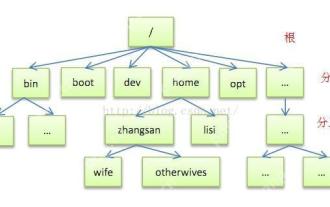
[Common Directory Description] Directory/bin stores binary executable files (ls, cat, mkdir, etc.), and common commands are generally here. /etc stores system management and configuration files/home stores all user files. The root directory of the user's home directory is the basis of the user's home directory. For example, the home directory of the user user is /home/user. You can use ~user to represent /usr to store system applications. The more important directory /usr/local Local system administrator software installation directory (install system-level applications). This is the largest directory, and almost all the applications and files to be used are in this directory. /usr/x11r6 Directory for storing x window/usr/bin Many
 Where is the pycharm interpreter?
May 23, 2025 pm 10:09 PM
Where is the pycharm interpreter?
May 23, 2025 pm 10:09 PM
Setting the location of the interpreter in PyCharm can be achieved through the following steps: 1. Open PyCharm, click the "File" menu, and select "Settings" or "Preferences". 2. Find and click "Project:[Your Project Name]" and select "PythonInterpreter". 3. Click "AddInterpreter", select "SystemInterpreter", browse to the Python installation directory, select the Python executable file, and click "OK". When setting up the interpreter, you need to pay attention to path correctness, version compatibility and the use of the virtual environment to ensure the smooth operation of the project.
 After installing Nginx, the configuration file path and initial settings
May 16, 2025 pm 10:54 PM
After installing Nginx, the configuration file path and initial settings
May 16, 2025 pm 10:54 PM
Understanding Nginx's configuration file path and initial settings is very important because it is the first step in optimizing and managing a web server. 1) The configuration file path is usually /etc/nginx/nginx.conf. The syntax can be found and tested using the nginx-t command. 2) The initial settings include global settings (such as user, worker_processes) and HTTP settings (such as include, log_format). These settings allow customization and extension according to requirements. Incorrect configuration may lead to performance issues and security vulnerabilities.
 The difference between programming in Java and other languages Analysis of the advantages of cross-platform features of Java
May 20, 2025 pm 08:21 PM
The difference between programming in Java and other languages Analysis of the advantages of cross-platform features of Java
May 20, 2025 pm 08:21 PM
The main difference between Java and other programming languages is its cross-platform feature of "writing at once, running everywhere". 1. The syntax of Java is close to C, but it removes pointer operations that are prone to errors, making it suitable for large enterprise applications. 2. Compared with Python, Java has more advantages in performance and large-scale data processing. The cross-platform advantage of Java stems from the Java virtual machine (JVM), which can run the same bytecode on different platforms, simplifying development and deployment, but be careful to avoid using platform-specific APIs to maintain cross-platformity.
 MySQL installation tutorial teach you step by step the detailed steps for installing and configuration of mySQL step by step
May 23, 2025 am 06:09 AM
MySQL installation tutorial teach you step by step the detailed steps for installing and configuration of mySQL step by step
May 23, 2025 am 06:09 AM
The installation and configuration of MySQL can be completed through the following steps: 1. Download the installation package suitable for the operating system from the official website. 2. Run the installer, select the "Developer Default" option and set the root user password. 3. After installation, configure environment variables to ensure that the bin directory of MySQL is in PATH. 4. When creating a user, follow the principle of minimum permissions and set a strong password. 5. Adjust the innodb_buffer_pool_size and max_connections parameters when optimizing performance. 6. Back up the database regularly and optimize query statements to improve performance.
 Experience in participating in VSCode offline technology exchange activities
May 29, 2025 pm 10:00 PM
Experience in participating in VSCode offline technology exchange activities
May 29, 2025 pm 10:00 PM
I have a lot of experience in participating in VSCode offline technology exchange activities, and my main gains include sharing of plug-in development, practical demonstrations and communication with other developers. 1. Sharing of plug-in development: I learned how to use VSCode's plug-in API to improve development efficiency, such as automatic formatting and static analysis plug-ins. 2. Practical demonstration: I learned how to use VSCode for remote development and realized its flexibility and scalability. 3. Communicate with developers: I have obtained skills to optimize VSCode startup speed, such as reducing the number of plug-ins loaded at startup and managing the plug-in loading order. In short, this event has benefited me a lot and I highly recommend those who are interested in VSCode to participate.
 Comparison between Informix and MySQL on Linux
May 29, 2025 pm 11:21 PM
Comparison between Informix and MySQL on Linux
May 29, 2025 pm 11:21 PM
Informix and MySQL are both popular relational database management systems. They perform well in Linux environments and are widely used. The following is a comparison and analysis of the two on the Linux platform: Installing and configuring Informix: Deploying Informix on Linux requires downloading the corresponding installation files, and then completing the installation and configuration process according to the official documentation. MySQL: The installation process of MySQL is relatively simple, and can be easily installed through system package management tools (such as apt or yum), and there are a large number of tutorials and community support on the network for reference. Performance Informix: Informix has excellent performance and
