- Click to enter:ChatGPT tool plug-in navigation list
Find and delete download history in Edge
Same as other browsers, Edge has aDownloadssection that you can access by doing the following:
- Launch theMicrosoft Edge browseron your PC or Mac.
- Click theSettings and morebutton (three dots) in the upper right corner of the browser, then clickDownloadsin the menu.

- The "Download"icon will appear on the right side, and the recent downloads and currently downloaded files will be listed.

- From theDownloadlist, you can choose to open the folder containing the item (you can download it from the folder deleted). You can open files directly or click the trash icon to delete files from yourDownloadhistory one file at a time.

Note:Deleting file history does not actually delete the files from your Downloads folder. It just removes it from the history list.
Delete Download History in Edge
If you don’t want to delete files individually, you can clear your download history in one fell swoop. To clear your entire history:
- Launch Edge and click theSettings and morebutton (three dots) in the upper right corner of the screen, then clickdownload. Or use the keyboard shortcutCtrl J.
- Next, click theMore Optionsbutton (three dots) in the upper right corner of theDownloadlist.
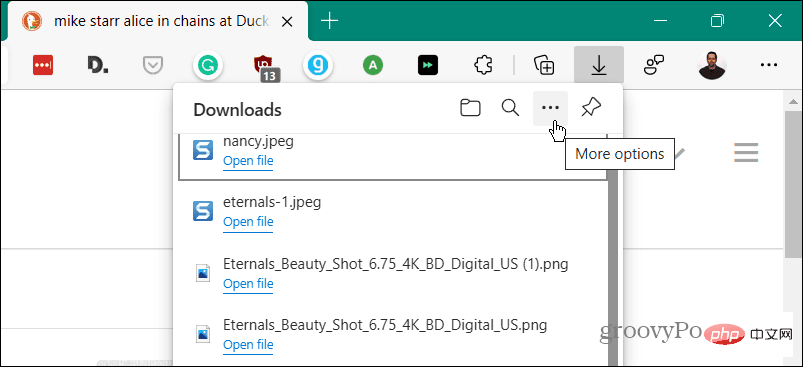
- From the menu that appears, clickClear All Download Historyin the list of options.

- When the "Delete all download history"warning message appears, click "Delete all"button.

- After deleting all history, if you or someone else opens theDownloadslist, it will be empty.

Find and delete downloaded files
Clearing download history in Edge is a way to protect local privacy, but it won't delete it The actual downloaded file. To delete the file, do the following:
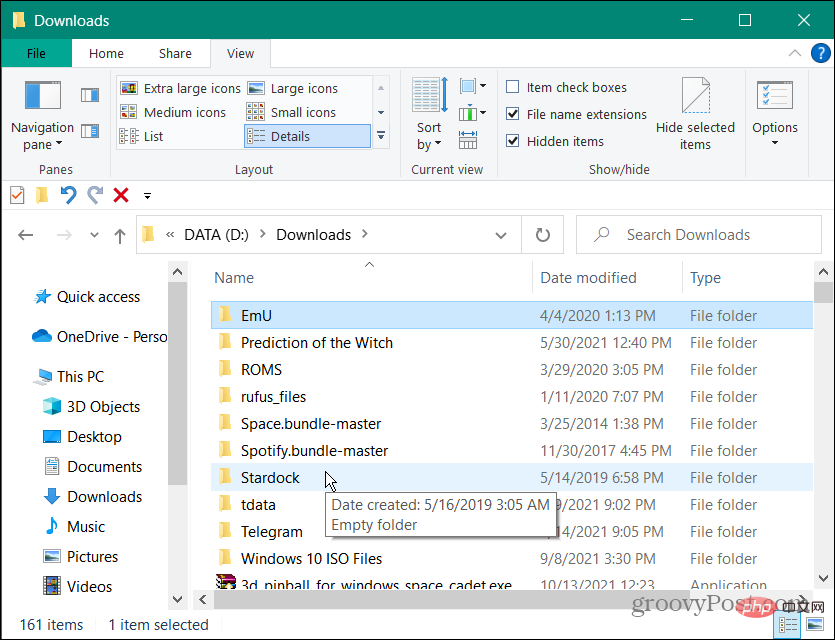
- If you don't already know theDownloadlocation, you will need to find it. Click theSettings and More(three dots) buttons and then click Download. Alternatively, use the keyboard shortcutCtrl J.
- Click theMore Optionsbutton (three dots) and then clickDownload Settingsfrom the menu.

- This will open theMicrosoft Edge Download Settingspage to find the location of the download folder. For example, here we set it up as the second drive on our computer. However, by default it will look likeC:\Users\
\Downloads
. Click theChangebutton to use a different drive or location.

#Open the Downloads folder where you can start purging old downloads that you no longer need. Or move them to an external drive for long-term storage.
#Deleting your download history in Edge is a great way to protect your privacy locally on your computer. It prevents someone using your computer from easily opening the Downloads list to see what you've downloaded.
The above is the detailed content of How to clear the download history of Microsoft Edge browser?. For more information, please follow other related articles on the PHP Chinese website!



 Is the success rate of railway 12306 standby ticket high?
 PathFileExists usage
 excel duplicate item filter color
 What happens when software crashes?
 What are the common management systems?
 update statement usage
 What language is generally used to write vscode?
 Why is my phone not turned off but when someone calls me it prompts me to turn it off?




















![[Web front-end] Node.js quick start](https://img.php.cn/upload/course/000/000/067/662b5d34ba7c0227.png)



