


 Operation and Maintenance
Linux Operation and Maintenance
Which Linux partition is the primary partition?
Operation and Maintenance
Linux Operation and Maintenance
Which Linux partition is the primary partition?
Which Linux partition is the primary partition?

The number "hda1-4" in Linux is the primary partition; the primary partition is mainly used to start the operating system. It mainly stores the startup or boot program of the operating system. The "/boot" partition It is best to put it on the main partition.

#The operating environment of this tutorial: linux5.9.8 system, Dell G3 computer.
Which is the primary partition in Linux?
linux system disk management (primary partition and logical partition)
Summary: Linux system disk management primary partition and logical partition
1. Common sense you should know about Linux system partition
- Hard disk partition is essentially the A format of the hard disk before the hard disk can be used to save various information. When creating a partition, the physical parameters of the hard disk have been set and the hard disk master boot record (Master Boot Record, generally referred to as MBR) has been specified. and the storage location of the boot record backup.
- MBR Overview: The full name is Master Boot Record, which is the master boot record of the hard disk; it is a boot section located at the front of the disk. (Loader) code. It is responsible for determining the legality of partitions and locating partition boot information when the disk operating system (DOS) reads and writes the disk. It is generated by the disk operating system (DOS) when initializing the hard disk.
-The master boot program is the master boot record (MBR) (occupies 446 bytes)
can be found in the FDISK program. It is used to transfer system control to the user-specified file when the hard disk starts and is stored in the partition table. A registered operating system.
-Disk partition table entry (DPT, Disk Partition Table)
consists of four partition table entries (16 bytes each).
is responsible for describing the partition situation on the disk. Its content is determined by the disk media and the user when using FDISK to define the partition. (Details omitted)
-End mark (occupies 2 bytes) (magic number)
The value is AA55. When stored, the low byte is first and the high byte is last, that is, it looks like 55AA (hexadecimal ).
- Partition number: primary partition 1-4, logical partition 5...
## LINUX regulations: Logical partitions must be built on extended partitions, not on primary partitions
##Partition functions:Note: Use the partition tool fdisk to operate, partition and format the disk (key points)①Primary partition: Mainly It is used to start the operating system. It mainly stores the startup or boot program of the operating system. The /boot partition is best placed on the main partition;
- ② The extended partition cannot be used, it is only used as a container for logical partitions If it exists, first create an extended partition and create a logical partition on top of the extended partition;
③ What we actually store data is the primary partition and the logical partition, and a large amount of data is placed in the logical partition.
Note:
The primary partition can only have a maximum of 4 extended partitions.fdisk: Linux partition table operation tool softwareThe extended partition can be 0, and the maximum is 1.
2. Disk management command
The extended partition cannot be used directly. The extended partition must first be created as a logical partition before it can be used.
The logical partition can be 0 and 1 more
n: Add a new partitionp : View partition information
3. View disk command
w: Save and exit
q: Exit without saving
d: Delete partition
t: Change partition type
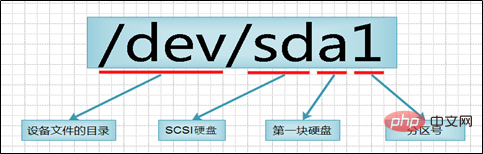
ls /dev/sd* #查看磁盘Among them: a-z represents the serial number of the device, such as sda represents the first scsi hard disk, sdb is the second one...
n represents the disk partition number divided on each diskThe working environment is the English environment, which is convenient for everyone to read and demonstrate in the Mandarin environment4. Create a primary partition demonstration:
#第一步:添加磁盘创建主分区

╭─root@localhost.localdomain ~
╰─➤  ls /dev/sd*     #查看磁盘
/dev/sda  /dev/sda1  /dev/sda2  /dev/sdb  /dev/sdc  /dev/sdd  /dev/sde
╭─root@localhost.localdomain ~
╰─➤  fdisk /dev/sdb     #管理分区
欢迎使用 fdisk (util-linux 2.23.2)。

更改将停留在内存中,直到您决定将更改写入磁盘。
使用写入命令前请三思。

Device does not contain a recognized partition table
使用磁盘标识符 0x9fccbf7c 创建新的 DOS 磁盘标签。

命令(输入 m 获取帮助):n   #新建分区
Partition type:       #分区类型
   p   primary (0 primary, 0 extended, 4 free)     #p--->主分区
   e   extended       #e  --->   扩展分区
Select (default p): p     #选择主分区
分区号 (1-4,默认 1):
起始 扇区 (2048-41943039,默认为 2048): #分区磁盘的起始位,默认值,回车就好!
将使用默认值 2048
Last 扇区, +扇区 or +size{K,M,G} (2048-41943039,默认为 41943039):+5G   #磁盘大小选择,加号不能省略,回车即可
分区 1 已设置为 Linux 类型,大小设为 5 GiB

命令(输入 m 获取帮助):P   #查询分区是否创建成功

磁盘 /dev/sdb:21.5 GB, 21474836480 字节,41943040 个扇区
Units = 扇区 of 1 * 512 = 512 bytes
扇区大小(逻辑/物理):512 字节 / 512 字节
I/O 大小(最小/最佳):512 字节 / 512 字节
磁盘标签类型:dos
磁盘标识符:0x9fccbf7c

   设备 Boot        Start         End      Blocks   Id  System
/dev/sdb1            2048    10487807     5242880   83  Linux    #sdb1

命令(输入 m 获取帮助):w    #保存退出
The partition table has been altered!

Calling ioctl() to re-read partition table.
正在同步磁盘。

#第二步:查看磁盘

╭─root@localhost.localdomain ~
╰─➤  ls /dev/sd*
/dev/sda  /dev/sda1  /dev/sda2  /dev/sdb  /dev/sdb1  /dev/sdc  /dev/sdd  /dev/sde

#第三步:格式化成xfs文件系统

╭─root@localhost.localdomain ~
╰─➤  mkfs.xfs /dev/sdb1
meta-data=/dev/sdb1              isize=512    agcount=4, agsize=327680 blks
         =                       sectsz=512   attr=2, projid32bit=1
         =                       crc=1        finobt=0, sparse=0
data     =                       bsize=4096   blocks=1310720, imaxpct=25
         =                       sunit=0      swidth=0 blks
naming   =version 2              bsize=4096   ascii-ci=0 ftype=1
log      =internal log           bsize=4096   blocks=2560, version=2
         =                       sectsz=512   sunit=0 blks, lazy-count=1
realtime =none                   extsz=4096   blocks=0, rtextents=0

#第四步:挂载至本地目录

╭─root@localhost.localdomain ~
╰─➤  mkdir /xfs_du   #创建本地目录
╭─root@localhost.localdomain ~
╰─➤  mount /dev/sdb1 /xfs_du   #使用mount挂载   mount 磁盘 目录

#第五步:查看挂载信息

╭─root@localhost.localdomain ~
╰─➤  df -h
文件系统             容量  已用  可用 已用% 挂载点
/dev/mapper/cl-root   17G  4.7G   13G   28% /
devtmpfs             473M     0  473M    0% /dev
tmpfs                489M   88K  489M    1% /dev/shm
tmpfs                489M  7.1M  482M    2% /run
tmpfs                489M     0  489M    0% /sys/fs/cgroup
/dev/sda1           1014M  173M  842M   18% /boot
tmpfs                 98M  8.0K   98M    1% /run/user/0
/dev/sr0             4.1G  4.1G     0  100% /run/media/root/CentOS 7 x86_64
/dev/sdb1            5.0G   33M  5.0G    1% /xfs_du

#第六步:开机自动挂载

╭─root@localhost.localdomain ~
╰─➤  echo "/dev/sdb1/xfs_du xfs defaults 0 0" >> /etc/fstab

#开机自动挂载方法2:

echo “mount /dev/sdb1 /xfs_du” >> /etc/rc.local
chmod +x /etc/rc.d/rc.local   #给个执行权限


# /etc/rc.local
   是使用者自订开机启动程序的文件,把需要开机自动运行的程序写在这个脚本里
fdisk Partition Demonstration – Creating Logical Partitions
# 第一步:fdisk添加扩展分区

╭─root@du ~
╰─➤ fdisk /dev/sdb
Welcome to fdisk (util-linux 2.23.2).

Changes will remain in memory only, until you decide to write them.
Be careful before using the write command.

Command (m for help): n    #添加新分区
Partition type:
p primary (1 primary, 0 extended, 3 free)
e extended
Select (default p): e     #选择扩展分区
Partition number (2-4, default 2):
First sector (10487808-41943039, default 10487808):
Using default value 10487808
Last sector, +sectors or +size{K,M,G} (10487808-41943039, default 41943039): +5G    #5G大小
Partition 2 of type Extended and of size 5 GiB is set

Command (m for help): P   #查看分区

Disk /dev/sdb: 21.5 GB, 21474836480 bytes, 41943040 sectors
Units = sectors of 1 * 512 = 512 bytes
Sector size (logical/physical): 512 bytes / 512 bytes
I/O size (minimum/optimal): 512 bytes / 512 bytes
Disk label type: dos
Disk identifier: 0xe140b235

Device Boot Start End Blocks Id System
/dev/sdb1 2048 10487807 5242880 83 Linux
/dev/sdb2 10487808 20973567 5242880 5 Extended

Command (m for help): w   #保存退出
The partition table has been altered!

Calling ioctl() to re-read partition table.
Syncing disks.

#第二步:创建逻辑分区

╭─root@du ~
╰─➤ fdisk /dev/sdb
Welcome to fdisk (util-linux 2.23.2).

Changes will remain in memory only, until you decide to write them.
Be careful before using the write command.

Command (m for help): n
Partition type:
p primary (1 primary, 1 extended, 2 free)
l logical (numbered from 5)
Select (default p): l    #创建逻辑分区
Adding logical partition 5
First sector (10489856-20973567, default 10489856):
Using default value 10489856
Last sector, +sectors or +size{K,M,G} (10489856-20973567, default 20973567): +10G   #逻辑分区大小不能超过扩展分区大小
Value out of range.
Last sector, +sectors or +size{K,M,G} (10489856-20973567, default 20973567): +2g
Unsupported suffix: ‘g’.
Supported: 10^N: KB (KiloByte), MB (MegaByte), GB (GigaByte)
2^N: K (KibiByte), M (MebiByte), G (GibiByte)
Last sector, +sectors or +size{K,M,G} (10489856-20973567, default 20973567): +2G
Partition 5 of type Linux and of size 2 GiB is set

Command (m for help): P

Disk /dev/sdb: 21.5 GB, 21474836480 bytes, 41943040 sectors
Units = sectors of 1 * 512 = 512 bytes
Sector size (logical/physical): 512 bytes / 512 bytes
I/O size (minimum/optimal): 512 bytes / 512 bytes
Disk label type: dos
Disk identifier: 0xe140b235

Device Boot Start End Blocks Id System
/dev/sdb1 2048 10487807 5242880 83 Linux
/dev/sdb2 10487808 20973567 5242880 5 Extended
/dev/sdb5 10489856 14684159 2097152 83 Linux

Command (m for help): W
The partition table has been altered!

Calling ioctl() to re-read partition table.
Syncing disks.

#第三步:创建文件系统

╭─root@du ~
╰─➤ ls /dev/sd*
/dev/sda /dev/sda1 /dev/sda2 /dev/sdb /dev/sdb1 /dev/sdb2 /dev/sdb5
╭─root@du ~
╰─➤ mkfs.xfs /dev/sdb5
meta-data=/dev/sdb5 isize=512 agcount=4, agsize=131072 blks
= sectsz=512 attr=2, projid32bit=1
= crc=1 finobt=0, sparse=0
data = bsize=4096 blocks=524288, imaxpct=25
= sunit=0 swidth=0 blks
naming =version 2 bsize=4096 ascii-ci=0 ftype=1
log =internal log bsize=4096 blocks=2560, version=2
= sectsz=512 sunit=0 blks, lazy-count=1
realtime =none extsz=4096 blocks=0, rtextents=0

#第四步:开机自动挂载

╭─root@du ~
╰─➤ echo “mount /dev/sdb5 /xfs_du” >> /etc/rc.local
Local Directory Creating Swap Partition
Step 1: Create Directory
mkdir /swap
Step 2: Create an empty file
dd if=/dev/zero of=/swap/swap bs=2M count=2014
Step 3: Format to swap format
mkswap /swap/swap
Step 4: Write the file /etc/fstab and boot Automatically mount
echo "/swap/swap swap swap defaults 0 0" >> /etc/fstab
Step 5: Modify permissions and mount
chmod 0600 /swap/swap

mount -a
Step 6: Enable swap
swapon -a
[root@node1 ~]# free -h
              total        used        free      shared  buff/cache   available
Mem:           976M        321M         60M        9.5M        594M        466M
Swap:          5.9G        221M        5.7G
Finally: Close swap
swapoff -a
Related recommendations: "
Linux Video TutorialThe above is the detailed content of Which Linux partition is the primary partition?. For more information, please follow other related articles on the PHP Chinese website!

Hot AI Tools

Undress AI Tool
Undress images for free

Undresser.AI Undress
AI-powered app for creating realistic nude photos

AI Clothes Remover
Online AI tool for removing clothes from photos.

Clothoff.io
AI clothes remover

Video Face Swap
Swap faces in any video effortlessly with our completely free AI face swap tool!

Hot Article
Hot Tools

Notepad++7.3.1
Easy-to-use and free code editor

SublimeText3 Chinese version
Chinese version, very easy to use

Zend Studio 13.0.1
Powerful PHP integrated development environment

Dreamweaver CS6
Visual web development tools

SublimeText3 Mac version
God-level code editing software (SublimeText3)
Hot Topics


 Postman Integrated Application on CentOS
May 19, 2025 pm 08:00 PM
Postman Integrated Application on CentOS
May 19, 2025 pm 08:00 PM
Integrating Postman applications on CentOS can be achieved through a variety of methods. The following are the detailed steps and suggestions: Install Postman by downloading the installation package to download Postman's Linux version installation package: Visit Postman's official website and select the version suitable for Linux to download. Unzip the installation package: Use the following command to unzip the installation package to the specified directory, for example /opt: sudotar-xzfpostman-linux-x64-xx.xx.xx.tar.gz-C/opt Please note that "postman-linux-x64-xx.xx.xx.tar.gz" is replaced by the file name you actually downloaded. Create symbols
 Detailed introduction to each directory of Linux and each directory (reprinted)
May 22, 2025 pm 07:54 PM
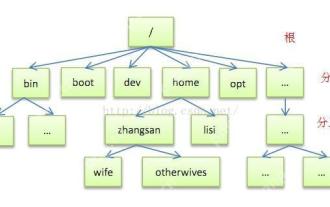
Detailed introduction to each directory of Linux and each directory (reprinted)
May 22, 2025 pm 07:54 PM
[Common Directory Description] Directory/bin stores binary executable files (ls, cat, mkdir, etc.), and common commands are generally here. /etc stores system management and configuration files/home stores all user files. The root directory of the user's home directory is the basis of the user's home directory. For example, the home directory of the user user is /home/user. You can use ~user to represent /usr to store system applications. The more important directory /usr/local Local system administrator software installation directory (install system-level applications). This is the largest directory, and almost all the applications and files to be used are in this directory. /usr/x11r6 Directory for storing x window/usr/bin Many
 Where is the pycharm interpreter?
May 23, 2025 pm 10:09 PM
Where is the pycharm interpreter?
May 23, 2025 pm 10:09 PM
Setting the location of the interpreter in PyCharm can be achieved through the following steps: 1. Open PyCharm, click the "File" menu, and select "Settings" or "Preferences". 2. Find and click "Project:[Your Project Name]" and select "PythonInterpreter". 3. Click "AddInterpreter", select "SystemInterpreter", browse to the Python installation directory, select the Python executable file, and click "OK". When setting up the interpreter, you need to pay attention to path correctness, version compatibility and the use of the virtual environment to ensure the smooth operation of the project.
 The difference between programming in Java and other languages Analysis of the advantages of cross-platform features of Java
May 20, 2025 pm 08:21 PM
The difference between programming in Java and other languages Analysis of the advantages of cross-platform features of Java
May 20, 2025 pm 08:21 PM
The main difference between Java and other programming languages is its cross-platform feature of "writing at once, running everywhere". 1. The syntax of Java is close to C, but it removes pointer operations that are prone to errors, making it suitable for large enterprise applications. 2. Compared with Python, Java has more advantages in performance and large-scale data processing. The cross-platform advantage of Java stems from the Java virtual machine (JVM), which can run the same bytecode on different platforms, simplifying development and deployment, but be careful to avoid using platform-specific APIs to maintain cross-platformity.
 After installing Nginx, the configuration file path and initial settings
May 16, 2025 pm 10:54 PM
After installing Nginx, the configuration file path and initial settings
May 16, 2025 pm 10:54 PM
Understanding Nginx's configuration file path and initial settings is very important because it is the first step in optimizing and managing a web server. 1) The configuration file path is usually /etc/nginx/nginx.conf. The syntax can be found and tested using the nginx-t command. 2) The initial settings include global settings (such as user, worker_processes) and HTTP settings (such as include, log_format). These settings allow customization and extension according to requirements. Incorrect configuration may lead to performance issues and security vulnerabilities.
 MySQL installation tutorial teach you step by step the detailed steps for installing and configuration of mySQL step by step
May 23, 2025 am 06:09 AM
MySQL installation tutorial teach you step by step the detailed steps for installing and configuration of mySQL step by step
May 23, 2025 am 06:09 AM
The installation and configuration of MySQL can be completed through the following steps: 1. Download the installation package suitable for the operating system from the official website. 2. Run the installer, select the "Developer Default" option and set the root user password. 3. After installation, configure environment variables to ensure that the bin directory of MySQL is in PATH. 4. When creating a user, follow the principle of minimum permissions and set a strong password. 5. Adjust the innodb_buffer_pool_size and max_connections parameters when optimizing performance. 6. Back up the database regularly and optimize query statements to improve performance.
 Experience in participating in VSCode offline technology exchange activities
May 29, 2025 pm 10:00 PM
Experience in participating in VSCode offline technology exchange activities
May 29, 2025 pm 10:00 PM
I have a lot of experience in participating in VSCode offline technology exchange activities, and my main gains include sharing of plug-in development, practical demonstrations and communication with other developers. 1. Sharing of plug-in development: I learned how to use VSCode's plug-in API to improve development efficiency, such as automatic formatting and static analysis plug-ins. 2. Practical demonstration: I learned how to use VSCode for remote development and realized its flexibility and scalability. 3. Communicate with developers: I have obtained skills to optimize VSCode startup speed, such as reducing the number of plug-ins loaded at startup and managing the plug-in loading order. In short, this event has benefited me a lot and I highly recommend those who are interested in VSCode to participate.
 Comparison between Informix and MySQL on Linux
May 29, 2025 pm 11:21 PM
Comparison between Informix and MySQL on Linux
May 29, 2025 pm 11:21 PM
Informix and MySQL are both popular relational database management systems. They perform well in Linux environments and are widely used. The following is a comparison and analysis of the two on the Linux platform: Installing and configuring Informix: Deploying Informix on Linux requires downloading the corresponding installation files, and then completing the installation and configuration process according to the official documentation. MySQL: The installation process of MySQL is relatively simple, and can be easily installed through system package management tools (such as apt or yum), and there are a large number of tutorials and community support on the network for reference. Performance Informix: Informix has excellent performance and
