


 Operation and Maintenance
Linux Operation and Maintenance
Let me summarize for you how to check the status of memory, disk, CPU and network in Linux
Operation and Maintenance
Linux Operation and Maintenance
Let me summarize for you how to check the status of memory, disk, CPU and network in Linux
Let me summarize for you how to check the status of memory, disk, CPU and network in Linux

This article brings you relevant knowledge about how to check the memory, disk, cpu and network io in Linux. I hope it will be helpful to you.

Today’s focus:
① Learn to check various statuses of Linux, including: network IO, disk, CPU, memory, etc.;
② Learn to understand the meaning of commands and quickly discover problems in the cluster.
1. Core commands
linux monitors network IO, disk, CPU, memory:
- CPU: vmstat, sar –u, top
- Disk IO: iostat –xd, sar –d, top
- Network IO: iftop -n, ifstat, dstat –nt, sar -n DEV 2 3
- Disk capacity: df –h
- Memory usage: free –m, top
2. Commonly used commands
(1) Memory : number of strips, size of each strip, whether the memory is DDR4 or DDR3, memory Is the frequency 2666MT/S or 1600MT/s
number of entries: dmidecode|grep -A5 'Memory Device'|grep Size | grep -v Installed |wc -l
Size of each item: dmidecode|grep -A5 'Memory Device'|grep Size | grep -v Installed |uniq
Memory type: dmidecode | grep -A16 "Memory Device" | grep 'Type:' | grep -v Unknown | uniq
Memory frequency: dmidecode | grep -A16 "Memory Device" | grep 'Speed' | grep -v Unknown |uniq
(2) Hard disk: number of blocks, size
fdisk -l | grep "Disk /dev/sd"
(3) Check what process occupies the port
netstat -antp | fgrep
(4) Check the process resources
- jps -l # Get the process id
- jmap -heap 21046
(5) Number of CPUs
cat / proc/cpuinfo| grep "physical id"| sort| uniq| wc -l
(6)CPU core number
cat /proc/cpuinfo| grep "cpu cores"| uniq
(7) CPU frequency
cat /proc/cpuinfo| grep "model name"| uniq
3. Detailed explanation of core commands
3.1. ps aux
ps command is used to view the process status in the system
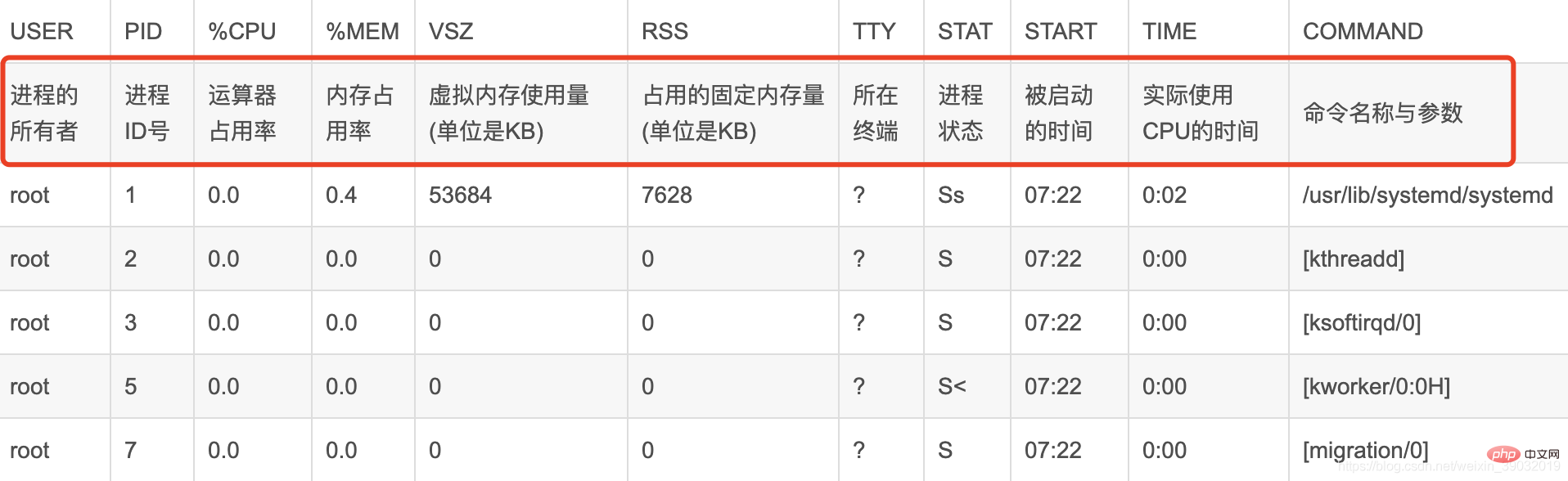
USER PID %CPU %MEM VSZ RSS TTY STAT START TIME COMMAND
● USER, the user name of the process owner.
● PID, process number, can uniquely identify the process.
● %CPU, the CPU time occupied by the process since the last refresh and the percentage of the total time.
● %MEM, the percentage of memory used by the process.
● VSZ, the virtual memory size used by the process, in K.
● RSS, the total amount of physical memory occupied by the process, in K.
● TTY, process-related terminal name.
● STAT, process status, used (R--running or ready to run; S--sleep state; I--idle; Z--frozen; D--uninterrupted sleep; W-process has no resident pages; T stop or track.) these letters to represent.
● START, the time when the process starts running.
● TIME, the total CPU time used by the process.
● COMMAND, the command line to be executed.
3.2. Top
#The top command is a commonly used performance analysis tool under Linux, which can display the resource usage of each process in the system in real time, similar to Windows Task Manager.
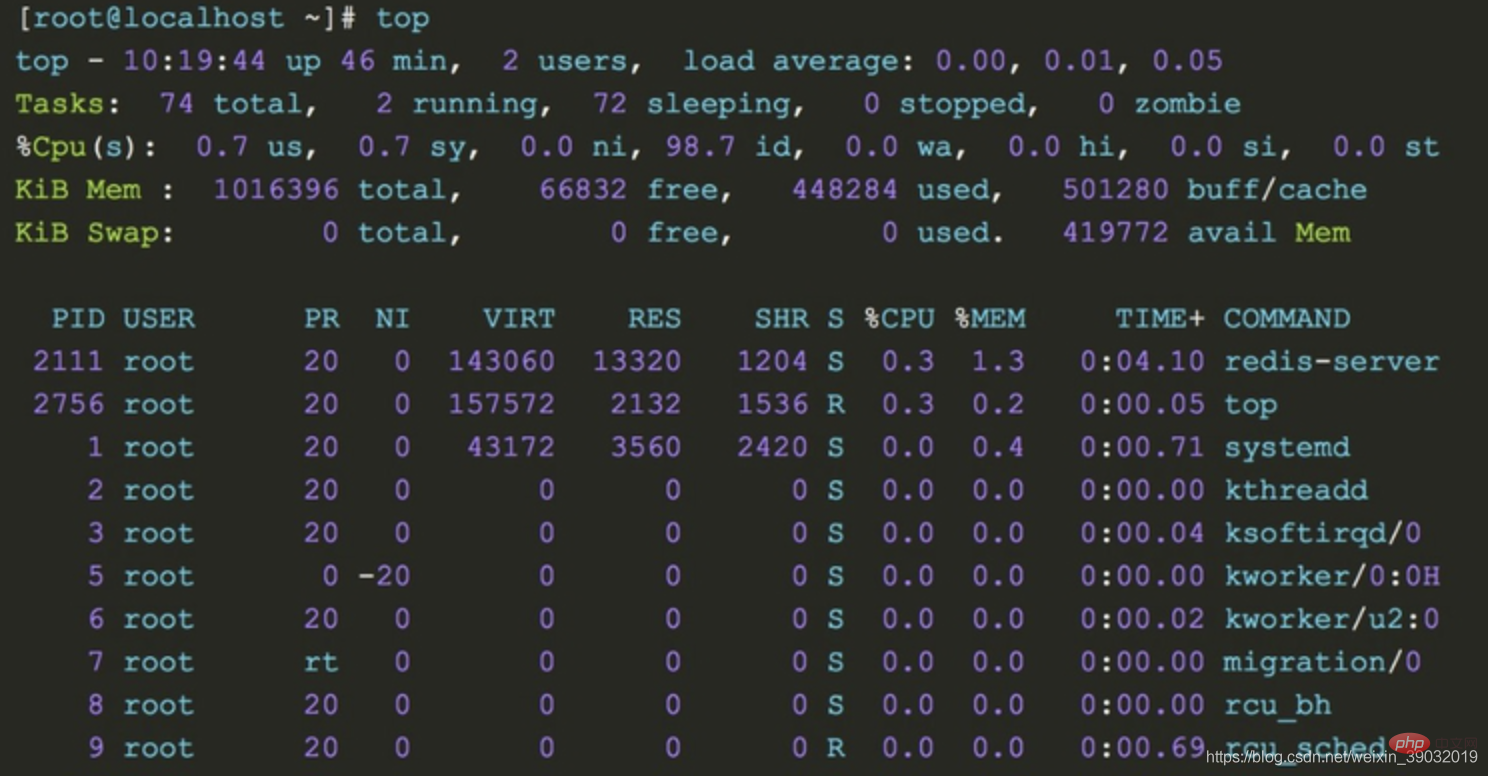
1. The upper part shows the overall system load:
- top row: From left to right are the current system time, system running time, and the average load value of the system’s CPU in the previous 1min, 5min, and 15min
- Tasks line: This line gives the overall statistical information of the process, including the total number of processes within the statistical period, the number of running processes, the number of dormant state processes, the number of stopped state processes and the number of zombie state processes
- Cpu(s) line: Overall cpu statistical information, including the ratio of cpu time occupied by processes in user mode and system mode. Processes with a nice value greater than 0 occupy the cpu time ratio in user mode. The cpu is in The time ratio of idle state, wait state, and the time ratio of processing hard interrupt and soft interrupt
- Mem line: This line provides memory statistics, including total physical memory, used Memory, free memory and the amount of memory used as buffer
- Swap line: Virtual memory statistics, including total amount of swap space, used swap area size, free swap area size and used The size of the swap space for caching
2. The lower part shows the running status of each process:
- PID : Process pid
- USER: The user who started the process
- PR: The column value plus 100 is the process priority, if the priority is less than 100, then the process is a real-time process, otherwise it is a normal process. The real-time process has a higher priority and is easier to obtain CPU scheduling. In the above output, the java process priority is 120, which is a normal process. Process, the priority of the had process is 2, which is a real-time process. The priority RT of the migration process corresponds to 0, which is the highest priority.
- NI: The nice priority value of the process, this column , the nice value of the real-time process is 0, and the nice value of the ordinary process ranges from -20~19
- VIRT: The size of the virtual memory occupied by the process (default unit kB)
- RES: The size of the physical memory occupied by the process (default unit kB)
- SHR: The size of the shared memory occupied by the process (default unit kB)
- S: The running status of the process
- %CPU: The percentage of CPU occupied by the process during the sampling period
- %MEM: Percentage of memory occupied by the process during the sampling period
- TIME : Total cpu time used by the process
- COMMAND: Command to pull up the process
【Message from Tomatoes】
1. Don’t panic when you encounter problems. Based on experience, you can then use commands to troubleshoot memory, disk, network, and CPU. The problems are just in these categories. You must not make changes in a hurry to complicate simple problems.
2. According to the above command, set the monitoring warning in advance. Monitoring and early warning can allow you to discover system performance information in time, such as the disk is almost full or the memory is overloaded. We can make adjustments in advance.
Related recommendations: "Linux Video Tutorial"
The above is the detailed content of Let me summarize for you how to check the status of memory, disk, CPU and network in Linux. For more information, please follow other related articles on the PHP Chinese website!

Hot AI Tools

Undresser.AI Undress
AI-powered app for creating realistic nude photos

AI Clothes Remover
Online AI tool for removing clothes from photos.

Undress AI Tool
Undress images for free

Clothoff.io
AI clothes remover

AI Hentai Generator
Generate AI Hentai for free.

Hot Article
Hot Tools

Notepad++7.3.1
Easy-to-use and free code editor

SublimeText3 Chinese version
Chinese version, very easy to use

Zend Studio 13.0.1
Powerful PHP integrated development environment

Dreamweaver CS6
Visual web development tools

SublimeText3 Mac version
God-level code editing software (SublimeText3)
Hot Topics
 1382
1382
 52
52

 Difference between centos and ubuntu
Apr 14, 2025 pm 09:09 PM
Difference between centos and ubuntu
Apr 14, 2025 pm 09:09 PM
The key differences between CentOS and Ubuntu are: origin (CentOS originates from Red Hat, for enterprises; Ubuntu originates from Debian, for individuals), package management (CentOS uses yum, focusing on stability; Ubuntu uses apt, for high update frequency), support cycle (CentOS provides 10 years of support, Ubuntu provides 5 years of LTS support), community support (CentOS focuses on stability, Ubuntu provides a wide range of tutorials and documents), uses (CentOS is biased towards servers, Ubuntu is suitable for servers and desktops), other differences include installation simplicity (CentOS is thin)
 How to install centos
Apr 14, 2025 pm 09:03 PM
How to install centos
Apr 14, 2025 pm 09:03 PM
CentOS installation steps: Download the ISO image and burn bootable media; boot and select the installation source; select the language and keyboard layout; configure the network; partition the hard disk; set the system clock; create the root user; select the software package; start the installation; restart and boot from the hard disk after the installation is completed.
 Centos options after stopping maintenance
Apr 14, 2025 pm 08:51 PM
Centos options after stopping maintenance
Apr 14, 2025 pm 08:51 PM
CentOS has been discontinued, alternatives include: 1. Rocky Linux (best compatibility); 2. AlmaLinux (compatible with CentOS); 3. Ubuntu Server (configuration required); 4. Red Hat Enterprise Linux (commercial version, paid license); 5. Oracle Linux (compatible with CentOS and RHEL). When migrating, considerations are: compatibility, availability, support, cost, and community support.
 How to use docker desktop
Apr 15, 2025 am 11:45 AM
How to use docker desktop
Apr 15, 2025 am 11:45 AM
How to use Docker Desktop? Docker Desktop is a tool for running Docker containers on local machines. The steps to use include: 1. Install Docker Desktop; 2. Start Docker Desktop; 3. Create Docker image (using Dockerfile); 4. Build Docker image (using docker build); 5. Run Docker container (using docker run).
 Detailed explanation of docker principle
Apr 14, 2025 pm 11:57 PM
Detailed explanation of docker principle
Apr 14, 2025 pm 11:57 PM
Docker uses Linux kernel features to provide an efficient and isolated application running environment. Its working principle is as follows: 1. The mirror is used as a read-only template, which contains everything you need to run the application; 2. The Union File System (UnionFS) stacks multiple file systems, only storing the differences, saving space and speeding up; 3. The daemon manages the mirrors and containers, and the client uses them for interaction; 4. Namespaces and cgroups implement container isolation and resource limitations; 5. Multiple network modes support container interconnection. Only by understanding these core concepts can you better utilize Docker.
 What to do after centos stops maintenance
Apr 14, 2025 pm 08:48 PM
What to do after centos stops maintenance
Apr 14, 2025 pm 08:48 PM
After CentOS is stopped, users can take the following measures to deal with it: Select a compatible distribution: such as AlmaLinux, Rocky Linux, and CentOS Stream. Migrate to commercial distributions: such as Red Hat Enterprise Linux, Oracle Linux. Upgrade to CentOS 9 Stream: Rolling distribution, providing the latest technology. Select other Linux distributions: such as Ubuntu, Debian. Evaluate other options such as containers, virtual machines, or cloud platforms.
 What to do if the docker image fails
Apr 15, 2025 am 11:21 AM
What to do if the docker image fails
Apr 15, 2025 am 11:21 AM
Troubleshooting steps for failed Docker image build: Check Dockerfile syntax and dependency version. Check if the build context contains the required source code and dependencies. View the build log for error details. Use the --target option to build a hierarchical phase to identify failure points. Make sure to use the latest version of Docker engine. Build the image with --t [image-name]:debug mode to debug the problem. Check disk space and make sure it is sufficient. Disable SELinux to prevent interference with the build process. Ask community platforms for help, provide Dockerfiles and build log descriptions for more specific suggestions.
 What computer configuration is required for vscode
Apr 15, 2025 pm 09:48 PM
What computer configuration is required for vscode
Apr 15, 2025 pm 09:48 PM
VS Code system requirements: Operating system: Windows 10 and above, macOS 10.12 and above, Linux distribution processor: minimum 1.6 GHz, recommended 2.0 GHz and above memory: minimum 512 MB, recommended 4 GB and above storage space: minimum 250 MB, recommended 1 GB and above other requirements: stable network connection, Xorg/Wayland (Linux)
