


 Operation and Maintenance
Linux Operation and Maintenance
Step-by-step tutorial on installing a linux virtual machine
Operation and Maintenance
Linux Operation and Maintenance
Step-by-step tutorial on installing a linux virtual machine
Step-by-step tutorial on installing a linux virtual machine


1. First, download the installation package of the virtual machine
2. Download the Ubuntu image
3. Virtual machine hardware configuration
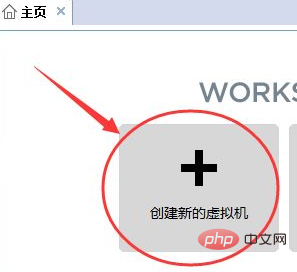
1. After the virtual machine is installed, the interface is as shown below:
Click the red circle icon in the picture to start creating a new virtual machine.
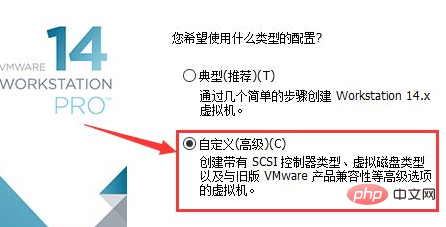
2. Select Custom in the pop-up dialog box, and then click Next
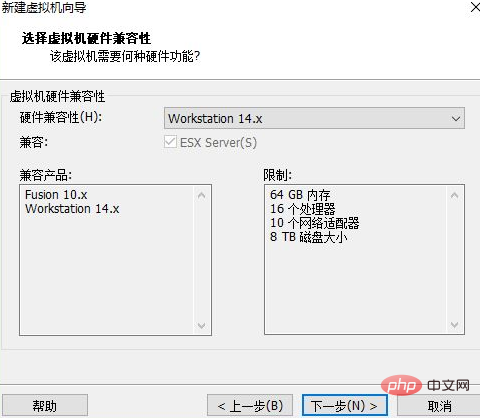
3. In " Just select the default in "Virtual Machine Hardware Compatibility" and go directly to the next step
Free video tutorial sharing:linux video tutorial
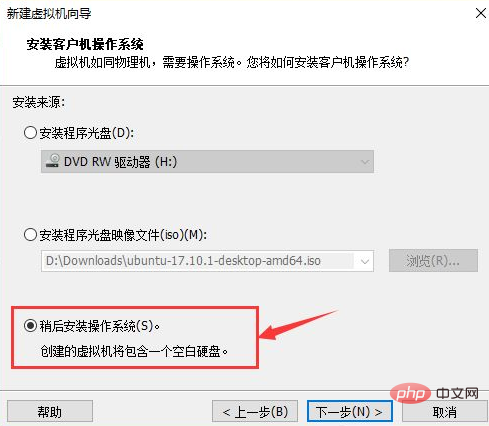
4. Select "Install the operating system later" in "Install Guest Operating System", and then click Next
5. Still select the default and go to the next step.
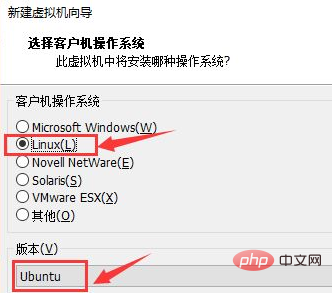
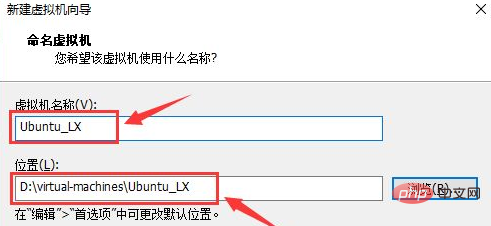
#6. In this step "Name the virtual machine", give your virtual machine a name, such as Ubuntu_LX, and then select the location where you want to install it. The files generated by the virtual machine are relatively large, so it is best to select a disk with a larger remaining space
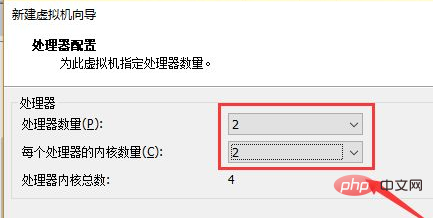
7. Select 2 for the number of virtual machine processors and cores. It's enough for development. Even if it is not enough, this parameter can be modified
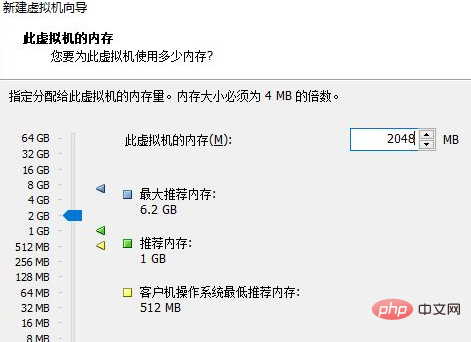
#8. Select 2048M for virtual machine memory, which is 2G. It is best to choose 1G, 2G, 4G, 8G. Do not Choose 3G. This parameter can also be modified later
9. You can directly "next step" in the following steps. If 20G of disk space is not enough, you can choose 40G. This is dynamic. , that is, it does not occupy 40G of your disk at once, but takes up as much as you use
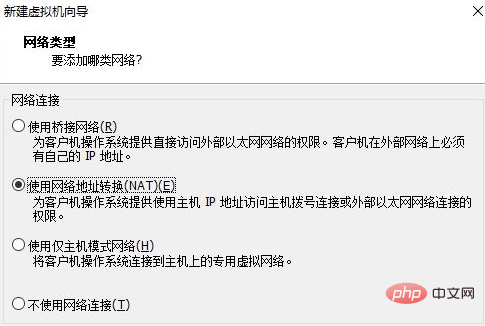
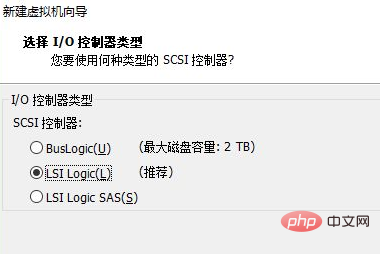
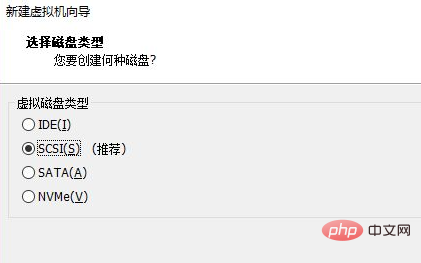
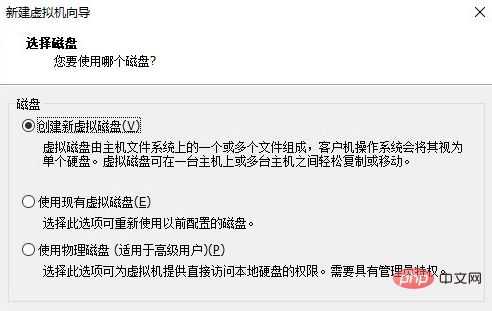
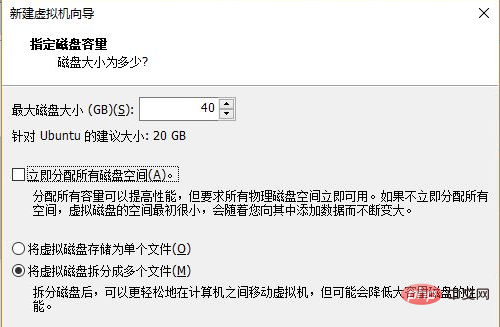
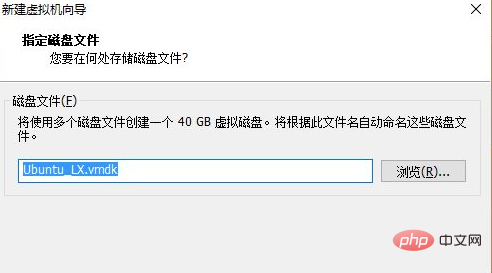
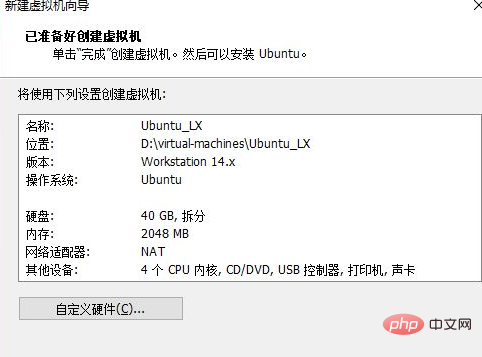
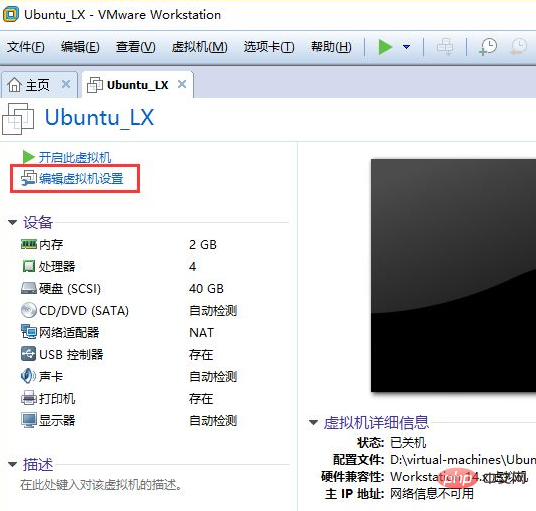
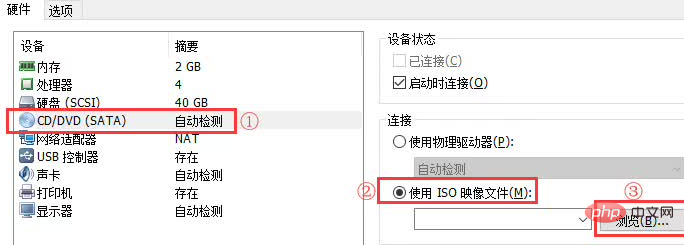
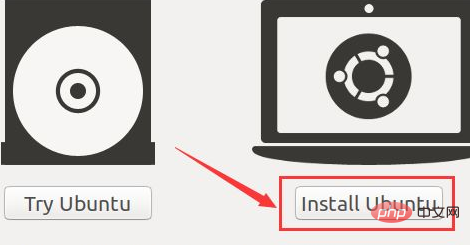
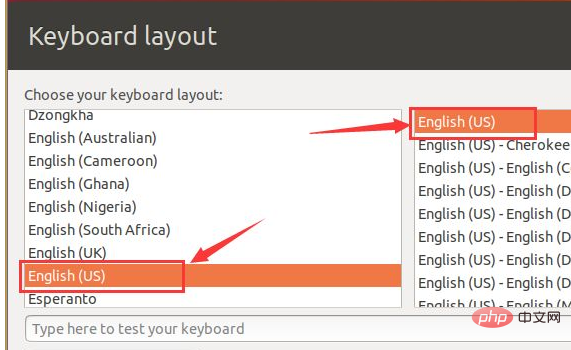
5. The next step is to select the keyboard layout. The layout we use here is the American standard, so we choose English(US)
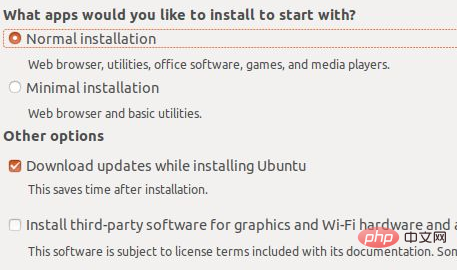
6. The next step is to default directly:
7. It is also the default in "Installation Type". Just click "Install Now" and click "continue" in the subsequent pop-up window
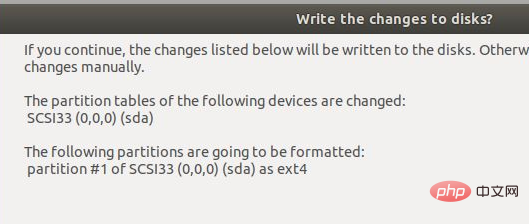
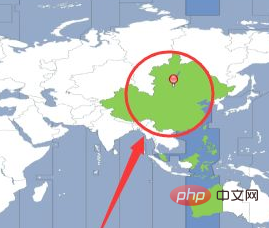
8. Click on Greater China in the "Where Are You?" map, and then click "continue"
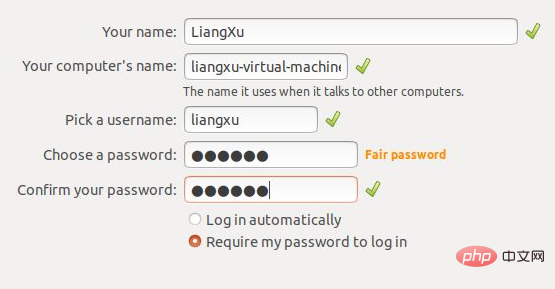
9. Fill in the personal information in "Who Are You?" Basic information, then click "continue", and then enter the download and installation process
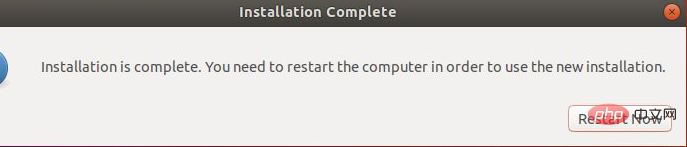
10. After the installation is completed, select "restart now" to restart the virtual machine. At this point, the virtual machine and Linux system have been installed
Complete!
Recommended related articles and tutorials: linux tutorial
The above is the detailed content of Step-by-step tutorial on installing a linux virtual machine. For more information, please follow other related articles on the PHP Chinese website!

Hot AI Tools

Undresser.AI Undress
AI-powered app for creating realistic nude photos

AI Clothes Remover
Online AI tool for removing clothes from photos.

Undress AI Tool
Undress images for free

Clothoff.io
AI clothes remover

AI Hentai Generator
Generate AI Hentai for free.

Hot Article
Hot Tools

Notepad++7.3.1
Easy-to-use and free code editor

SublimeText3 Chinese version
Chinese version, very easy to use

Zend Studio 13.0.1
Powerful PHP integrated development environment

Dreamweaver CS6
Visual web development tools

SublimeText3 Mac version
God-level code editing software (SublimeText3)
Hot Topics
 1377
1377
 52
52

 The 5 Pillars of Linux: Understanding Their Roles
Apr 11, 2025 am 12:07 AM
The 5 Pillars of Linux: Understanding Their Roles
Apr 11, 2025 am 12:07 AM
The five pillars of the Linux system are: 1. Kernel, 2. System library, 3. Shell, 4. File system, 5. System tools. The kernel manages hardware resources and provides basic services; the system library provides precompiled functions for applications; the shell is the interface for users to interact with the system; the file system organizes and stores data; and system tools are used for system management and maintenance.
 How to view instance name of oracle
Apr 11, 2025 pm 08:18 PM
How to view instance name of oracle
Apr 11, 2025 pm 08:18 PM
There are three ways to view instance names in Oracle: use the "sqlplus" and "select instance_name from v$instance;" commands on the command line. Use the "show instance_name;" command in SQL*Plus. Check environment variables (ORACLE_SID on Linux) through the operating system's Task Manager, Oracle Enterprise Manager, or through the operating system.
 What is Linux actually good for?
Apr 12, 2025 am 12:20 AM
What is Linux actually good for?
Apr 12, 2025 am 12:20 AM
Linux is suitable for servers, development environments, and embedded systems. 1. As a server operating system, Linux is stable and efficient, and is often used to deploy high-concurrency applications. 2. As a development environment, Linux provides efficient command line tools and package management systems to improve development efficiency. 3. In embedded systems, Linux is lightweight and customizable, suitable for environments with limited resources.
 Oracle database uninstall tutorial
Apr 11, 2025 pm 06:24 PM
Oracle database uninstall tutorial
Apr 11, 2025 pm 06:24 PM
To uninstall an Oracle database: stop the Oracle service, remove the Oracle instance, delete the Oracle home directory, clear the registry key (Windows only), and delete the environment variables (Windows only). Please back up the data before uninstalling.
 Using Docker with Linux: A Comprehensive Guide
Apr 12, 2025 am 12:07 AM
Using Docker with Linux: A Comprehensive Guide
Apr 12, 2025 am 12:07 AM
Using Docker on Linux can improve development and deployment efficiency. 1. Install Docker: Use scripts to install Docker on Ubuntu. 2. Verify the installation: Run sudodockerrunhello-world. 3. Basic usage: Create an Nginx container dockerrun-namemy-nginx-p8080:80-dnginx. 4. Advanced usage: Create a custom image, build and run using Dockerfile. 5. Optimization and Best Practices: Follow best practices for writing Dockerfiles using multi-stage builds and DockerCompose.
 How to use oracle after installation
Apr 11, 2025 pm 07:51 PM
How to use oracle after installation
Apr 11, 2025 pm 07:51 PM
After Oracle is installed, you can use the following steps: Create a database instance. Connect to the database. Create a user. Create a table. Insert data. Query data. Export data. Import data.
 What to do if the apache80 port is occupied
Apr 13, 2025 pm 01:24 PM
What to do if the apache80 port is occupied
Apr 13, 2025 pm 01:24 PM
When the Apache 80 port is occupied, the solution is as follows: find out the process that occupies the port and close it. Check the firewall settings to make sure Apache is not blocked. If the above method does not work, please reconfigure Apache to use a different port. Restart the Apache service.
 How to start apache
Apr 13, 2025 pm 01:06 PM
How to start apache
Apr 13, 2025 pm 01:06 PM
The steps to start Apache are as follows: Install Apache (command: sudo apt-get install apache2 or download it from the official website) Start Apache (Linux: sudo systemctl start apache2; Windows: Right-click the "Apache2.4" service and select "Start") Check whether it has been started (Linux: sudo systemctl status apache2; Windows: Check the status of the "Apache2.4" service in the service manager) Enable boot automatically (optional, Linux: sudo systemctl
