



Sometimes users will modify the environment variables of Windows 10 Professional Edition system, and they can’t remember what they were after the change. If they want to change it back, they have to go to another computer to check it. , here the editor will share the default initial values of the environment variables of Win10 Professional Edition and teach you how to restore them manually.
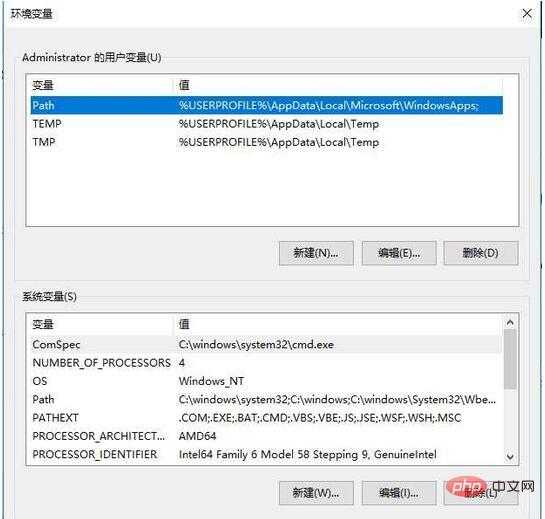
User variables
Path: %USERPROFILE%AppDataLocalMicrosoftWindowsApps;
TEMP: %USERPROFILE%AppDataLocalTemp
TMP: %USERPROFILE%AppDataLocalTemp
System Variables
ComSpec: %SystemRoot% system32cmd.exe
NUMBER_OF_PROCESSORS: 4
OS: Windows_NT
#PATH:
%SystemRoot%system32
%SystemRoot%
%SystemRoot%System32Wbem
%SYSTEMROOT%System32WindowsPowerShellv1.0
PATHEXT: .COM;.EXE;.BAT;.CMD;.VBS;.VBE;.JS;. JSE;.WSF;.WSH;.MSC
PROCESSOR_ARCHITECTURE: AMD64
PROCESSOR_IDENTIFIER: Intel64 Family 6 Model 58 Stepping 9, GenuineIntel
PROCESSOR_LEVEL: 6
PROCESSOR_REVISION: 3a09
PSModulePath:
%ProgramFiles%WindowsPowerShellModules
%SystemRoot%system32WindowsPowerShellv1.0Modules
TEMP: %SystemRoot%TEMP
TMP: %SystemRoot%TEMP
USERNAME: SYSTEM
windir: %SystemRoot%
With environment variables After the default initial value, just replace with in the environment variable!
For more technical articles related to frequently asked questions, please visit FAQ Tutorial column to study!
The above is the detailed content of Manually restore win10path default value. For more information, please follow other related articles on the PHP Chinese website!
 win10 bluetooth switch is missing
 Why do all the icons in the lower right corner of win10 show up?
 The difference between win10 sleep and hibernation
 Win10 pauses updates
 What to do if the Bluetooth switch is missing in Windows 10
 win10 connect to shared printer
 Clean up junk in win10
 How to share printer in win10





















![[Web front-end] Node.js quick start](https://img.php.cn/upload/course/000/000/067/662b5d34ba7c0227.png)



