


 Web Front-end
JS Tutorial
Share the example code that uses node-images to implement the image server function
Web Front-end
JS Tutorial
Share the example code that uses node-images to implement the image server function
Share the example code that uses node-images to implement the image server function

This article mainly introduces the detailed explanation of using node-images to create a simple image server. The editor thinks it is quite good, so I will share it with you now and give it as a reference. Let’s follow the editor to take a look.
Edit:2016-5-11 Fixed some obvious errors in the code and published it in the ajaxjs library. The source code is here.
Edit:2016-5-24 Add HEAD request to detect image size. If it is less than 80kb, no compression is required and a 302 redirect will be returned.
node HEAD request
var http = require('http');
var url = require('url');
var siteUrl = url.parse('http://img1.gtimg.com/view/pics/hv1/42/80/2065/134297067.jpg');

request = http.request({
  method : 'HEAD',
  port: siteUrl.port || 80,
  host: siteUrl.host,
  path : siteUrl.pathname
});
request.on('response', function (response) {
  response.setEncoding('utf8');
  console.log(response.headers['content-length']);
});
request.end();You must first like the Chinese npm library work: node-images (github.com/zhangyuanwei/node-images), which encapsulates cross-platform C++ logic , forming the nodejs API for us novices to use happily. I have used GraphicsMagick for nodejs before, which is the most powerful, but the package size is relatively large and highly dependent. It seems that vulnerabilities have been reported recently. Compared with GM, node-images is mainly more lightweight and does not require the installation of any image processing libraries.
Install node-images:
npm install images
The npm package is relatively large. There is a node-images.tar.gz compressed package in node_modules. You can delete it after downloading, but there are some leftovers. 11mb.
Image server, the current requirement is: a static server that supports returning jpg/png/gif; supports HTTP caching; supports specified image resolution; supports remote image loading . To load remote images, you can limit the image file size by setting maxLength.
During the implementation process, Step.js was used to participate in asynchronous operations, which is relatively simple.
Server related configuration:
// 配置对象。
var staticFileServer_CONFIG = {
  'host': '127.0.0.1',      // 服务器地址
  'port': 3000,        // 端口
  'site_base': 'C:/project/bigfoot',   // 根目录,虚拟目录的根目录
  'file_expiry_time': 480,    // 缓存期限 HTTP cache expiry time, minutes
  'directory_listing': true    // 是否打开 文件 列表
};Request example:
localhost:3001/asset/coming_soon.jpg?w=300
localhost :3001/asset/coming_soon.jpg?h=150
localhost:3001/asset/coming_soon.jpg?w=300&h=150
localhost:3001/?url=http://s0.hao123img.com/ res/img/logo/logonew.png
Complete source code:
const
  HTTP = require('http'), PATH = require('path'), fs = require('fs'), CRYPTO = require('crypto'),
  url = require("url"), querystring = require("querystring"),
  Step = require('./step'), images = require("images");

// 配置对象。
var staticFileServer_CONFIG = {
  'host': '127.0.0.1',      // 服务器地址
  'port': 3001,            // 端口
  'site_base': 'C:/project/bigfoot',     // 根目录,虚拟目录的根目录
  'file_expiry_time': 480,    // 缓存期限 HTTP cache expiry time, minutes
  'directory_listing': true    // 是否打开 文件 列表
};

const server = HTTP.createServer((req, res) => {
  init(req, res, staticFileServer_CONFIG);
});

server.listen(staticFileServer_CONFIG.port, staticFileServer_CONFIG.host, () => {
  console.log(`Image Server running at http://${staticFileServer_CONFIG.host}:${staticFileServer_CONFIG.port}/`);
});

// 当前支持的 文件类型,你可以不断扩充。
var MIME_TYPES = {
  '.txt': 'text/plain',
  '.md': 'text/plain',
  '': 'text/plain',
  '.html': 'text/html',
  '.css': 'text/css',
  '.js': 'application/javascript',
  '.json': 'application/json',
  '.jpg': 'image/jpeg',
  '.png': 'image/png',
  '.gif': 'image/gif'
};

MIME_TYPES['.htm'] = MIME_TYPES['.html'];

var httpEntity = {
  contentType: null,
  data: null,
  getHeaders: function (EXPIRY_TIME) {
    // 返回 HTTP Meta 的 Etag。可以了解 md5 加密方法
    var hash = CRYPTO.createHash('md5');
    //hash.update(this.data);
    //var etag = hash.digest('hex');

    return {
      'Content-Type': this.contentType,
      'Content-Length': this.data.length,
      //'Cache-Control': 'max-age=' + EXPIRY_TIME,
      //'ETag': etag
    };
  }
};

function init(request, response) {
  var args = url.parse(request.url).query,     //arg => name=a&id=5
    params = querystring.parse(args);

  if (params.url) {
    getRemoteImg(request, response, params);
  } else {
    load_local_img(request, response, params);
  }
}

// 加载远程图片
function getRemoteImg(request, response, params) {
  var imgData = ""; // 字符串
  var size = 0;
  var chunks = [];

  Step(function () {
      HTTP.get(params.url, this);
    },
    function (res) {
      var maxLength = 10; // 10mb
      var imgData = "";
      if (res.headers['content-length'] > maxLength * 1024 * 1024) {
        server500(response, new Error('Image too large.'));
      } else if (!~[200, 304].indexOf(res.statusCode)) {
        server500(response, new Error('Received an invalid status code.'));
      } else if (!res.headers['content-type'].match(/image/)) {
        server500(response, new Error('Not an image.'));
      } else {
        // res.setEncoding("binary"); //一定要设置response的编码为binary否则会下载下来的图片打不开
        res.on("data", function (chunk) {
          // imgData+=chunk;
          size += chunk.length;
          chunks.push(chunk);
        });

        res.on("end", this);
      }

    },
    function () {
      imgData = Buffer.concat(chunks, size);

      var _httpEntity = Object.create(httpEntity);
      _httpEntity.contentType = MIME_TYPES['.png'];
      _httpEntity.data = imgData;
      // console.log('imgData.length:::' + imgData.length)
      // 缓存过期时限
      var EXPIRY_TIME = (staticFileServer_CONFIG.file_expiry_time * 60).toString();
      response.writeHead(200);
      response.end(_httpEntity.data);
    }
  );

}

// 获取本地图片
function load_local_img(request, response, params) {
  if (PATH.extname(request.url) === '') {
    // connect.directory('C:/project/bigfoot')(request, response, function(){});
    // 如果 url 只是 目录 的,则列出目录
    console.log('如果 url 只是 目录 的,则列出目录');
    server500(response, '如果 url 只是 目录 的,则列出目录@todo');
  } else {
    var pathname = require('url').parse(request.url).pathname;
    // 如果 url 是 目录 + 文件名 的,则返回那个文件
    var path = staticFileServer_CONFIG.site_base + pathname;

    Step(function () {
      console.log('请求 url :' + request.url + ', path : ' + pathname);
      fs.exists(path, this);
    }, function (path_exists, err) {
      if (err) {
        server500(response, '查找文件失败!');
        return;
      }
      if (path_exists) {
        fs.readFile(path, this);
      } else {
        response.writeHead(404, { 'Content-Type': 'text/plain;charset=utf-8' });
        response.end('找不到 ' + path + '\n');
      }
    }, function (err, data) {
      if (err) {
        server500(response, '读取文件失败!');
        return;
      }
      var extName = '.' + path.split('.').pop();
      var extName = MIME_TYPES[extName] || 'text/plain';

      var _httpEntity = Object.create(httpEntity);
      _httpEntity.contentType = extName;
      var buData = new Buffer(data);
      //images(buData).height(100);

      var newImage;

      if (params.w && params.h) {
        newImage = images(buData).resize(Number(params.w), Number(params.h)).encode("jpg", { operation: 50 });
      } else if (params.w) {
        newImage = images(buData).resize(Number(params.w)).encode("jpg", { operation: 50 });
      } else if (params.h) {
        newImage = images(buData).resize(null, Number(params.h)).encode("jpg", { operation: 50 });
      } else {
        newImage = buData; // 原图
      }

      _httpEntity.data = newImage;

      // 命中缓存,Not Modified返回 304
      if (request.headers.hasOwnProperty('if-none-match') && request.headers['if-none-match'] === _httpEntity.ETag) {
        response.writeHead(304);
        response.end();
      } else {
        // 缓存过期时限
        var EXPIRY_TIME = (staticFileServer_CONFIG.file_expiry_time * 60).toString();

        response.writeHead(200, _httpEntity.getHeaders(EXPIRY_TIME));
        response.end(_httpEntity.data);
      }
    });
  }
}
function server500(response, msg) {
  console.log(msg);
  response.writeHead(404, { 'Content-Type': 'text/plain;charset=utf-8' });
  response.end(msg + '\n');
}
加水印也是可以的。例子如下。
var images = require('images');
var path = require('path');
var watermarkImg = images(path.join(dirname, 'path/to/watermark.ext'));
var sourceImg = images(path.join(dirname, 'path/to/sourceImg.ext'));
var savePath = path.join(dirname, 'path/to/saveImg.jpg');

// 比如放置在右下角,先获取原图的尺寸和水印图片尺寸
var sWidth = sourceImg.width();
var sHeight = sourceImg.height();
var wmWidth = watermarkImg.width();
var wmWidth = watermarkImg.height();

images(sourceImg)
 // 设置绘制的坐标位置,右下角距离 10px
 .draw(watermarkImg, sWidth - wmWidth - 10, sHeight - wmHeight - 10)
 // 保存格式会自动识别
.save(savePath);[Related recommendations]
1. Free js online video tutorial
2. JavaScript Chinese Reference Manual
3. php.cn Dugu Jiujian (3) - JavaScript Video Tutorial
The above is the detailed content of Share the example code that uses node-images to implement the image server function. For more information, please follow other related articles on the PHP Chinese website!

Hot AI Tools

Undresser.AI Undress
AI-powered app for creating realistic nude photos

AI Clothes Remover
Online AI tool for removing clothes from photos.

Undress AI Tool
Undress images for free

Clothoff.io
AI clothes remover

AI Hentai Generator
Generate AI Hentai for free.

Hot Article
Hot Tools

Notepad++7.3.1
Easy-to-use and free code editor

SublimeText3 Chinese version
Chinese version, very easy to use

Zend Studio 13.0.1
Powerful PHP integrated development environment

Dreamweaver CS6
Visual web development tools

SublimeText3 Mac version
God-level code editing software (SublimeText3)
Hot Topics
 1386
1386
 52
52

 How to solve the problem of automatically saving pictures when publishing on Xiaohongshu? Where is the automatically saved image when posting?
Mar 22, 2024 am 08:06 AM
How to solve the problem of automatically saving pictures when publishing on Xiaohongshu? Where is the automatically saved image when posting?
Mar 22, 2024 am 08:06 AM
With the continuous development of social media, Xiaohongshu has become a platform for more and more young people to share their lives and discover beautiful things. Many users are troubled by auto-save issues when posting images. So, how to solve this problem? 1. How to solve the problem of automatically saving pictures when publishing on Xiaohongshu? 1. Clear the cache First, we can try to clear the cache data of Xiaohongshu. The steps are as follows: (1) Open Xiaohongshu and click the "My" button in the lower right corner; (2) On the personal center page, find "Settings" and click it; (3) Scroll down and find the "Clear Cache" option. Click OK. After clearing the cache, re-enter Xiaohongshu and try to post pictures to see if the automatic saving problem is solved. 2. Update the Xiaohongshu version to ensure that your Xiaohongshu
 How to post pictures in TikTok comments? Where is the entrance to the pictures in the comment area?
Mar 21, 2024 pm 09:12 PM
How to post pictures in TikTok comments? Where is the entrance to the pictures in the comment area?
Mar 21, 2024 pm 09:12 PM
With the popularity of Douyin short videos, user interactions in the comment area have become more colorful. Some users wish to share images in comments to better express their opinions or emotions. So, how to post pictures in TikTok comments? This article will answer this question in detail and provide you with some related tips and precautions. 1. How to post pictures in Douyin comments? 1. Open Douyin: First, you need to open Douyin APP and log in to your account. 2. Find the comment area: When browsing or posting a short video, find the place where you want to comment and click the "Comment" button. 3. Enter your comment content: Enter your comment content in the comment area. 4. Choose to send a picture: In the interface for entering comment content, you will see a "picture" button or a "+" button, click
 6 Ways to Make Pictures Sharper on iPhone
Mar 04, 2024 pm 06:25 PM
6 Ways to Make Pictures Sharper on iPhone
Mar 04, 2024 pm 06:25 PM
Apple's recent iPhones capture memories with crisp detail, saturation and brightness. But sometimes, you may encounter some issues that may cause the image to look less clear. While autofocus on iPhone cameras has come a long way, allowing you to take photos quickly, the camera can mistakenly focus on the wrong subject in certain situations, making the photo blurry in unwanted areas. If your photos on your iPhone look out of focus or lack sharpness overall, the following post should help you make them sharper. How to Make Pictures Clearer on iPhone [6 Methods] You can try using the native Photos app to clean up your photos. If you want more features and options
 How to make ppt pictures appear one by one
Mar 25, 2024 pm 04:00 PM
How to make ppt pictures appear one by one
Mar 25, 2024 pm 04:00 PM
In PowerPoint, it is a common technique to display pictures one by one, which can be achieved by setting animation effects. This guide details the steps to implement this technique, including basic setup, image insertion, adding animation, and adjusting animation order and timing. Additionally, advanced settings and adjustments are provided, such as using triggers, adjusting animation speed and order, and previewing animation effects. By following these steps and tips, users can easily set up pictures to appear one after another in PowerPoint, thereby enhancing the visual impact of the presentation and grabbing the attention of the audience.
 What should I do if the images on the webpage cannot be loaded? 6 solutions
Mar 15, 2024 am 10:30 AM
What should I do if the images on the webpage cannot be loaded? 6 solutions
Mar 15, 2024 am 10:30 AM
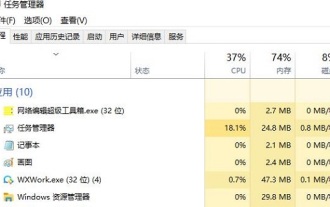
Some netizens found that when they opened the browser web page, the pictures on the web page could not be loaded for a long time. What happened? I checked that the network is normal, so where is the problem? The editor below will introduce to you six solutions to the problem that web page images cannot be loaded. Web page images cannot be loaded: 1. Internet speed problem The web page cannot display images. It may be because the computer's Internet speed is relatively slow and there are more softwares opened on the computer. And the images we access are relatively large, which may be due to loading timeout. As a result, the picture cannot be displayed. You can turn off the software that consumes more network speed. You can go to the task manager to check. 2. Too many visitors. If the webpage cannot display pictures, it may be because the webpages we visited were visited at the same time.
 How to convert pdf documents into jpg images with Foxit PDF Reader - How to convert pdf documents into jpg images with Foxit PDF Reader
Mar 04, 2024 pm 05:49 PM
How to convert pdf documents into jpg images with Foxit PDF Reader - How to convert pdf documents into jpg images with Foxit PDF Reader
Mar 04, 2024 pm 05:49 PM
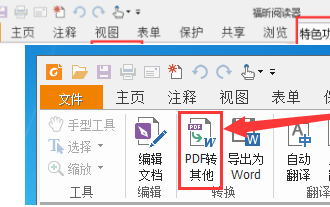
Are you also using Foxit PDF Reader software? So do you know how Foxit PDF Reader converts pdf documents into jpg images? The following article brings you how Foxit PDF Reader converts pdf documents into jpg images. For those who are interested in the method of converting jpg images, please come and take a look below. First start Foxit PDF Reader, then find "Features" on the top toolbar, and then select the "PDF to Others" function. Next, open a web page called "Foxit PDF Online Conversion". Click the "Login" button on the upper right side of the page to log in, and then turn on the "PDF to Image" function. Then click the upload button and add the pdf file you want to convert into an image. After adding it, click "Start Conversion"
 How to configure Dnsmasq as a DHCP relay server
Mar 21, 2024 am 08:50 AM
How to configure Dnsmasq as a DHCP relay server
Mar 21, 2024 am 08:50 AM
The role of a DHCP relay is to forward received DHCP packets to another DHCP server on the network, even if the two servers are on different subnets. By using a DHCP relay, you can deploy a centralized DHCP server in the network center and use it to dynamically assign IP addresses to all network subnets/VLANs. Dnsmasq is a commonly used DNS and DHCP protocol server that can be configured as a DHCP relay server to help manage dynamic host configurations in the network. In this article, we will show you how to configure dnsmasq as a DHCP relay server. Content Topics: Network Topology Configuring Static IP Addresses on a DHCP Relay D on a Centralized DHCP Server
 How to arrange two pictures side by side in wps document
Mar 20, 2024 pm 04:00 PM
How to arrange two pictures side by side in wps document
Mar 20, 2024 pm 04:00 PM
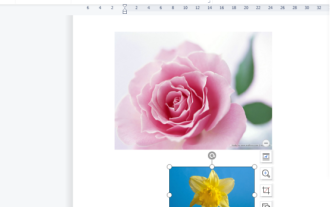
When using WPS office software, we found that not only one form is used, tables and pictures can be added to the text, pictures can also be added to the table, etc. These are all used together to make the content of the entire document look richer. , if you need to insert two pictures into the document and they need to be arranged side by side. Our next course can solve this problem: how to place two pictures side by side in a wps document. 1. First, you need to open the WPS software and find the picture you want to adjust. Left-click the picture and a menu bar will pop up, select "Page Layout". 2. Select "Tight wrapping" in text wrapping. 3. After all the pictures you need are confirmed to be set to "Tight text wrapping", you can drag the pictures to the appropriate position and click on the first picture.
