


How to make Excel worksheet very hidden and unhide it

This tutorial explains the difference between hidden and very hidden Excel worksheets, how to create very hidden sheets, and how to unhide them. Ever lost a worksheet referenced in a formula? It might be very hidden.
- Understanding Very Hidden Worksheets
- Creating Very Hidden Worksheets
- Unhiding Very Hidden Worksheets
What are Very Hidden Worksheets?
Excel sheets can be visible, hidden, or very hidden. Normally hidden sheets are easily unhidden via the right-click context menu. Very hidden sheets are different; they don't appear in the "Unhide" dialog. If a workbook contains only very hidden sheets, the "Unhide" option is even disabled.
Excel distinguishes these states using the sheet's "Visible" property:
-
xlSheetVisible(or TRUE): Visible -
xlSheetHidden(or FALSE): Hidden -
xlSheetVeryHidden: Very hidden
While users can easily hide and unhide sheets, xlSheetVeryHidden can only be set using Visual Basic for Applications (VBA). This makes very hidden sheets much harder to access, ideal for protecting sensitive data or intermediate calculations.
Creating Very Hidden Worksheets
You must use the VBA editor to create very hidden sheets. Here are several methods:
Method 1: Manually Changing the Visible Property
For one or two sheets:
- Open the VBA editor (Alt F11 or Developer tab > Visual Basic).
- Open the Properties window (F4 or View > Properties).
- Select the sheet in the Project Explorer.
- Set the "Visible" property to
2 - xlSheetVeryHidden.

The sheet tab will disappear. Repeat for other sheets.
Method 2: VBA Macro for the Active Sheet
This macro hides the currently active sheet:
Sub VeryHiddenActiveSheet()
  On Error GoTo ErrorHandler
  ActiveSheet.Visible = xlSheetVeryHidden
  Exit Sub
ErrorHandler:
  MsgBox "At least one sheet must remain visible.", vbOKOnly, "Error"
End Sub
This improved version handles the error of trying to hide the last visible sheet.
Method 3: VBA Macro for Multiple Selected Sheets
This macro hides all selected sheets:
Sub VeryHiddenSelectedSheets()
  Dim wks As Worksheet
  On Error GoTo ErrorHandler
  For Each wks In ActiveWindow.SelectedSheets
    wks.Visible = xlSheetVeryHidden
  Next
  Exit Sub
ErrorHandler:
  MsgBox "At least one sheet must remain visible.", vbOKOnly, "Error"
End Sub
This also includes error handling.
Unhiding Very Hidden Worksheets
To unhide, reverse the process:
Method 1: Manually Changing the Visible Property
- Open the VBA editor.
- Select the sheet.
- Set the "Visible" property to
-1 - xlSheetVisible.
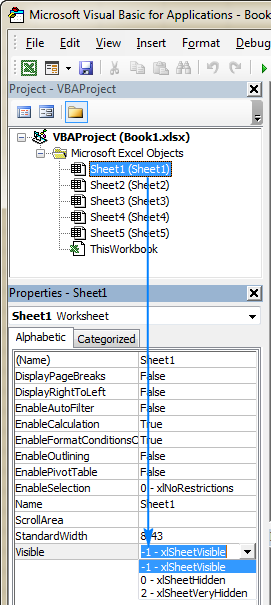
Method 2: VBA Macro to Unhide All Very Hidden Sheets
This macro unhides all very hidden sheets:
Sub UnhideVeryHiddenSheets()
  Dim wks As Worksheet
  For Each wks In Worksheets
    If wks.Visible = xlSheetVeryHidden Then
      wks.Visible = xlSheetVisible
    End If
  Next
End Sub
Method 3: VBA Macro to Unhide All Hidden Sheets
This unhides all hidden sheets (both hidden and very hidden):
Sub UnhideAllSheets()
  Dim wks As Worksheet
  For Each wks In ActiveWorkbook.Worksheets
    wks.Visible = xlSheetVisible
  Next wks
End Sub
Using the Macros
- Open your workbook.
- Open the VBA editor (Alt F11).
- Insert a module (right-click ThisWorkbook > Insert > Module).
- Paste the code.
- Run the macro (F5).
Save as a macro-enabled workbook (.xlsm).
Downloadable Sample Workbook
A sample workbook with all these macros is available for download. [Link to sample workbook would go here]
This tutorial provides a comprehensive guide to working with very hidden sheets in Excel. Remember to save your workbooks appropriately!
The above is the detailed content of How to make Excel worksheet very hidden and unhide it. For more information, please follow other related articles on the PHP Chinese website!

Hot AI Tools

Undress AI Tool
Undress images for free

Undresser.AI Undress
AI-powered app for creating realistic nude photos

AI Clothes Remover
Online AI tool for removing clothes from photos.

Clothoff.io
AI clothes remover

Video Face Swap
Swap faces in any video effortlessly with our completely free AI face swap tool!

Hot Article
Hot Tools

Notepad++7.3.1
Easy-to-use and free code editor

SublimeText3 Chinese version
Chinese version, very easy to use

Zend Studio 13.0.1
Powerful PHP integrated development environment

Dreamweaver CS6
Visual web development tools

SublimeText3 Mac version
God-level code editing software (SublimeText3)

