


Streamlit is a powerful open-source framework that allows you to create web applications for data science and machine learning with just a few lines of Python code.
It is simple, intuitive, and requires no frontend experience, making it a great tool for both beginners and experienced developers who want to quickly deploy machine learning models.
In this blog, I’ll guide you through a step-by-step process to build a basic Streamlit app and a machine learning project using the Iris dataset with a RandomForestClassifier.
Before we jump into the project, let's walk through some basic Streamlit functionality to get comfortable with the framework. You can install Streamlit using the following command:
pip install streamlit
Once installed, you can start your first Streamlit app by creating a Python file, say app.py, and running it using:
streamlit run app.py
Now, let’s explore the core features of Streamlit:
1. Writing Titles and Displaying Text
import streamlit as st

# Writing a title
st.title("Hello World")

# Display simple text
st.write("Displaying a simple text")

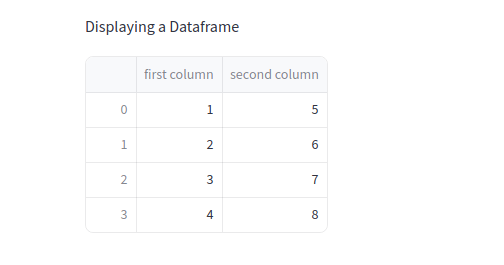
2. Displaying DataFrames
import pandas as pd

# Creating a DataFrame
df = pd.DataFrame({
    "first column": [1, 2, 3, 4],
    "second column": [5, 6, 7, 8]
})

# Display the DataFrame
st.write("Displaying a DataFrame")
st.write(df)
3. Visualizing Data with Charts
import numpy as np

# Generating random data
chart_data = pd.DataFrame(
    np.random.randn(20, 4), columns=['a', 'b', 'c', 'd']
)

# Display the line chart
st.line_chart(chart_data)

4. User Interaction: Text Input, Sliders, and Select Boxes
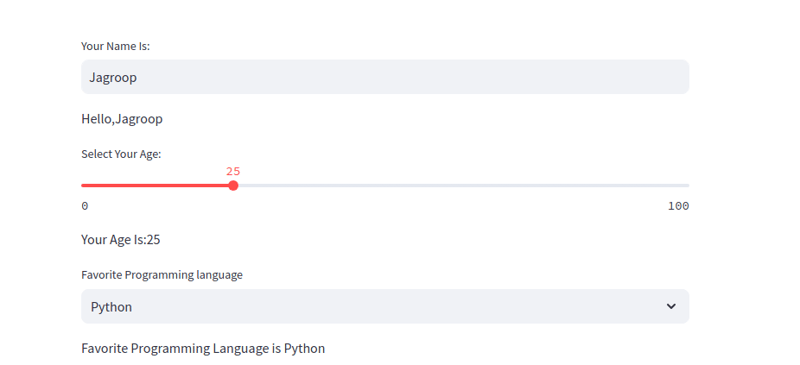
Streamlit enables interactive widgets like text inputs, sliders, and select boxes that update dynamically based on user input.
# Text input
name = st.text_input("Your Name Is:")
if name:
    st.write(f'Hello, {name}')

# Slider
age = st.slider("Select Your Age:", 0, 100, 25)
if age:
    st.write(f'Your Age Is: {age}')

# Select Box
choices = ["Python", "Java", "Javascript"]
lang = st.selectbox('Favorite Programming Language', choices)
if lang:
    st.write(f'Favorite Programming Language is {lang}')
5. File Upload
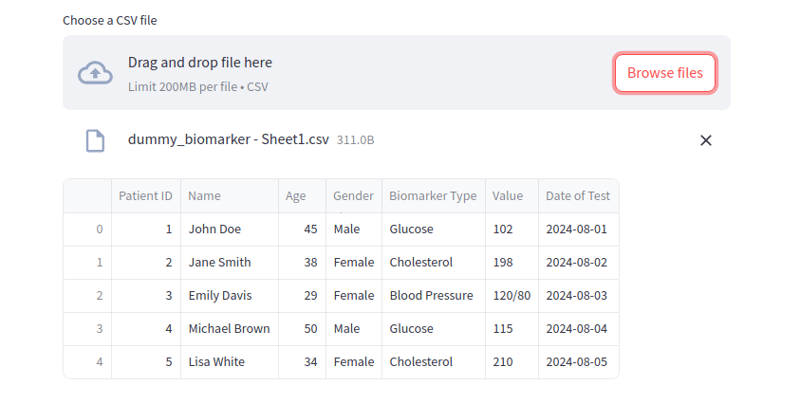
You can allow users to upload files and display their contents dynamically in your Streamlit app:
# File uploader for CSV files
file = st.file_uploader('Choose a CSV file', 'csv')

if file:
    data = pd.read_csv(file)
    st.write(data)
Now that you’re familiar with the basics, let's dive into creating a machine learning project. We will use the famous Iris dataset and build a simple classification model using RandomForestClassifier from scikit-learn.
Project Structure :
1. Install necessary dependencies
First, let’s install the necessary libraries:
pip install streamlit scikit-learn numpy pandas
2. Import Libraries and Load Data
Let’s import the necessary libraries and load the Iris dataset:
import streamlit as st
import pandas as pd
from sklearn.datasets import load_iris
from sklearn.ensemble import RandomForestClassifier

# Cache data for efficient loading
@st.cache_data
def load_data():
    iris = load_iris()
    df = pd.DataFrame(iris.data, columns=iris.feature_names)
    df["species"] = iris.target
    return df, iris.target_names

df, target_name = load_data()
3. Train the Machine Learning Model
Once we have the data, we will train a RandomForestClassifier to predict the species of a flower based on its features:
# Train RandomForestClassifier
model = RandomForestClassifier()
model.fit(df.iloc[:, :-1], df["species"])
4. Creating the Input Interface
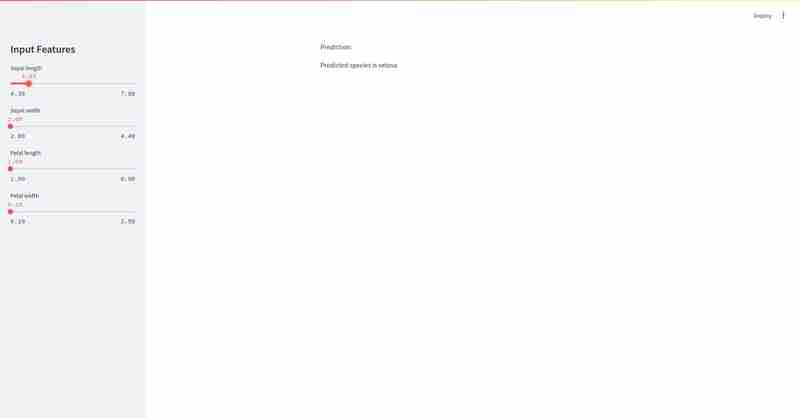
Now, we’ll create sliders in the sidebar to allow users to input features for making predictions:
# Sidebar for user input
st.sidebar.title("Input Features")
sepal_length = st.sidebar.slider("Sepal length", float(df['sepal length (cm)'].min()), float(df['sepal length (cm)'].max()))
sepal_width = st.sidebar.slider("Sepal width", float(df['sepal width (cm)'].min()), float(df['sepal width (cm)'].max()))
petal_length = st.sidebar.slider("Petal length", float(df['petal length (cm)'].min()), float(df['petal length (cm)'].max()))
petal_width = st.sidebar.slider("Petal width", float(df['petal width (cm)'].min()), float(df['petal width (cm)'].max()))
5. Predicting the Species
After getting the user inputs, we will make a prediction using the trained model:
# Prepare the input data
input_data = [[sepal_length, sepal_width, petal_length, petal_width]]

# Prediction
prediction = model.predict(input_data)
prediction_species = target_name[prediction[0]]

# Display the prediction
st.write("Prediction:")
st.write(f'Predicted species is {prediction_species}')
This will looks like:

Finally,Streamlit makes it incredibly easy to create and deploy machine learning web interface with minimal effort. ? In just a few lines of code, we built an interactive app ? that allows users to input features and predict the species of a flower ? using a machine learning model. ??
Happy coding! ?
The above is the detailed content of Streamlit: The Magic Wand for ML App Creation. For more information, please follow other related articles on the PHP Chinese website!





























![[Web front-end] Node.js quick start](https://img.php.cn/upload/course/000/000/067/662b5d34ba7c0227.png)



