


 System Tutorial
Windows Series
How to add encryption function to win10 right-click menu How to add encryption option to win10 right-click menu
System Tutorial
Windows Series
How to add encryption function to win10 right-click menu How to add encryption option to win10 right-click menu
How to add encryption function to win10 right-click menu How to add encryption option to win10 right-click menu

How to quickly add encryption function to Win10 right-click menu? If you need to encrypt files frequently in Windows 10, following the setup path each time can be cumbersome. This tutorial will show you how to add a convenient encryption option to the right-click menu through registry settings, making encrypting files faster. PHP editor Xiaoxin has compiled the following detailed steps for you. Reading this article will help you achieve this goal easily.
How to add encryption options by right-clicking on win10:
1. "Win+R" shortcut key to start running, enter "regedit" and press Enter to open.
2. After entering the registry editor interface, click "HKEY_CURRENT_USERSoftwareMicrosoftWindowsCurrentVersionExplorerAdvanced" in the left column.

3. Right-click the blank space on the right and select "New" a "DWORD Value".

4. Name it "EncryptionContextMenu", then double-click to open it. In the window that opens, change the "numeric data" to "1" and change the "base "Select "Hex", and finally click OK to save.

5. The encryption option will appear in the right-click menu.

The above is the detailed content of How to add encryption function to win10 right-click menu How to add encryption option to win10 right-click menu. For more information, please follow other related articles on the PHP Chinese website!

Hot AI Tools

Undresser.AI Undress
AI-powered app for creating realistic nude photos

AI Clothes Remover
Online AI tool for removing clothes from photos.

Undress AI Tool
Undress images for free

Clothoff.io
AI clothes remover

AI Hentai Generator
Generate AI Hentai for free.

Hot Article
Hot Tools

Notepad++7.3.1
Easy-to-use and free code editor

SublimeText3 Chinese version
Chinese version, very easy to use

Zend Studio 13.0.1
Powerful PHP integrated development environment

Dreamweaver CS6
Visual web development tools

SublimeText3 Mac version
God-level code editing software (SublimeText3)
Hot Topics
 1384
1384
 52
52

 win11 activation key permanent 2025
Mar 18, 2025 pm 05:57 PM
win11 activation key permanent 2025
Mar 18, 2025 pm 05:57 PM
Article discusses sources for a permanent Windows 11 key valid until 2025, legal issues, and risks of using unofficial keys. Advises caution and legality.
 win11 activation key permanent 2024
Mar 18, 2025 pm 05:56 PM
win11 activation key permanent 2024
Mar 18, 2025 pm 05:56 PM
Article discusses reliable sources for permanent Windows 11 activation keys in 2024, legal implications of third-party keys, and risks of using unofficial keys.
 Acer PD163Q Dual Portable Monitor Review: I Really Wanted to Love This
Mar 18, 2025 am 03:04 AM
Acer PD163Q Dual Portable Monitor Review: I Really Wanted to Love This
Mar 18, 2025 am 03:04 AM
The Acer PD163Q Dual Portable Monitor: A Connectivity Nightmare I had high hopes for the Acer PD163Q. The concept of dual portable displays, conveniently connecting via a single cable, was incredibly appealing. Unfortunately, this alluring idea quic
 ReactOS, the Open-Source Windows, Just Got an Update
Mar 25, 2025 am 03:02 AM
ReactOS, the Open-Source Windows, Just Got an Update
Mar 25, 2025 am 03:02 AM
ReactOS 0.4.15 includes new storage drivers, which should help with overall stability and UDB drive compatibility, as well as new drivers for networking. There are also many updates to fonts support, the desktop shell, Windows APIs, themes, and file
 How to Create a Dynamic Table of Contents in Excel
Mar 24, 2025 am 08:01 AM
How to Create a Dynamic Table of Contents in Excel
Mar 24, 2025 am 08:01 AM
A table of contents is a total game-changer when working with large files – it keeps everything organized and easy to navigate. Unfortunately, unlike Word, Microsoft Excel doesn’t have a simple “Table of Contents” button that adds t
 Shopping for a New Monitor? 8 Mistakes to Avoid
Mar 18, 2025 am 03:01 AM
Shopping for a New Monitor? 8 Mistakes to Avoid
Mar 18, 2025 am 03:01 AM
Buying a new monitor isn't a frequent occurrence. It's a long-term investment that often moves between computers. However, upgrading is inevitable, and the latest screen technology is tempting. But making the wrong choices can leave you with regret
 How to Use Voice Access in Windows 11
Mar 18, 2025 pm 08:01 PM
How to Use Voice Access in Windows 11
Mar 18, 2025 pm 08:01 PM
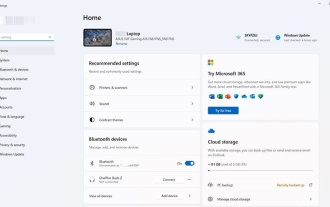
Detailed explanation of the voice access function of Windows 11: Free your hands and control your computer with voice! Windows 11 provides numerous auxiliary functions to help users with various needs to use the device easily. One of them is the voice access function, which allows you to control your computer completely through voice. From opening applications and files to entering text with voice, everything is at your fingertips, but first you need to set up and learn key commands. This guide will provide details on how to use voice access in Windows 11. Windows 11 Voice Access Function Settings First, let's take a look at how to enable this feature and configure Windows 11 voice access for the best results. Step 1: Open the Settings menu
 New to Multi-Monitors? Don't Make These Mistakes
Mar 25, 2025 am 03:12 AM
New to Multi-Monitors? Don't Make These Mistakes
Mar 25, 2025 am 03:12 AM
Multi-monitor setups boost your productivity and deliver a more immersive experience. However, it's easy for a novice to stumble while assembling the setup and make mistakes. Here are some of the most common ones and how to avoid them.
