iCloud Not Syncing? How to Solve iCloud Sync Issues

Fortunately, there are many fixes you can try to get your macOS, iPadOS, and iOS apps to sync with Apple's servers. Don't be afraid to try them all if the first few don't work out.
1. Restart and Wait
iCloud can take some time to kick in when you make a change. According to some reports, this can be up to 10 minutes.
You might find that your problem resolves itself with a bit of patience, but while you're at it, you can also try restarting all affected devices. You may also want to plug your device in—sometimes, photos won't sync to iCloud until your iPhone charges. You should also disable Low Power Mode if it's on because it turns off some battery-draining features.
On a Mac, iCloud not syncing might be because you have disabled Power Nap, which allows your device to check for iCloud updates while asleep. To enable it, open the Terminal app on your Mac and enter the following command:
<code class="hljs ">sudo pmset powernap 1</code>
2. Check You're Using the Right Account

It might sound obvious, but if you're not using the same iCloud account on both devices, then they'll never sync correctly. This might be the reason why iCloud on your Mac isn't syncing with your iPhone. Head to Settings > [Your Name] on iOS or Apple menu > System Settings > Apple ID on macOS and check which account is currently associated with the device.
You can only have one iCloud account signed in at a time, so make sure they match up. If they don't, you will need to sign out of the incorrect account and log in with the correct details.
3. Make Sure iCloud Is Working Properly
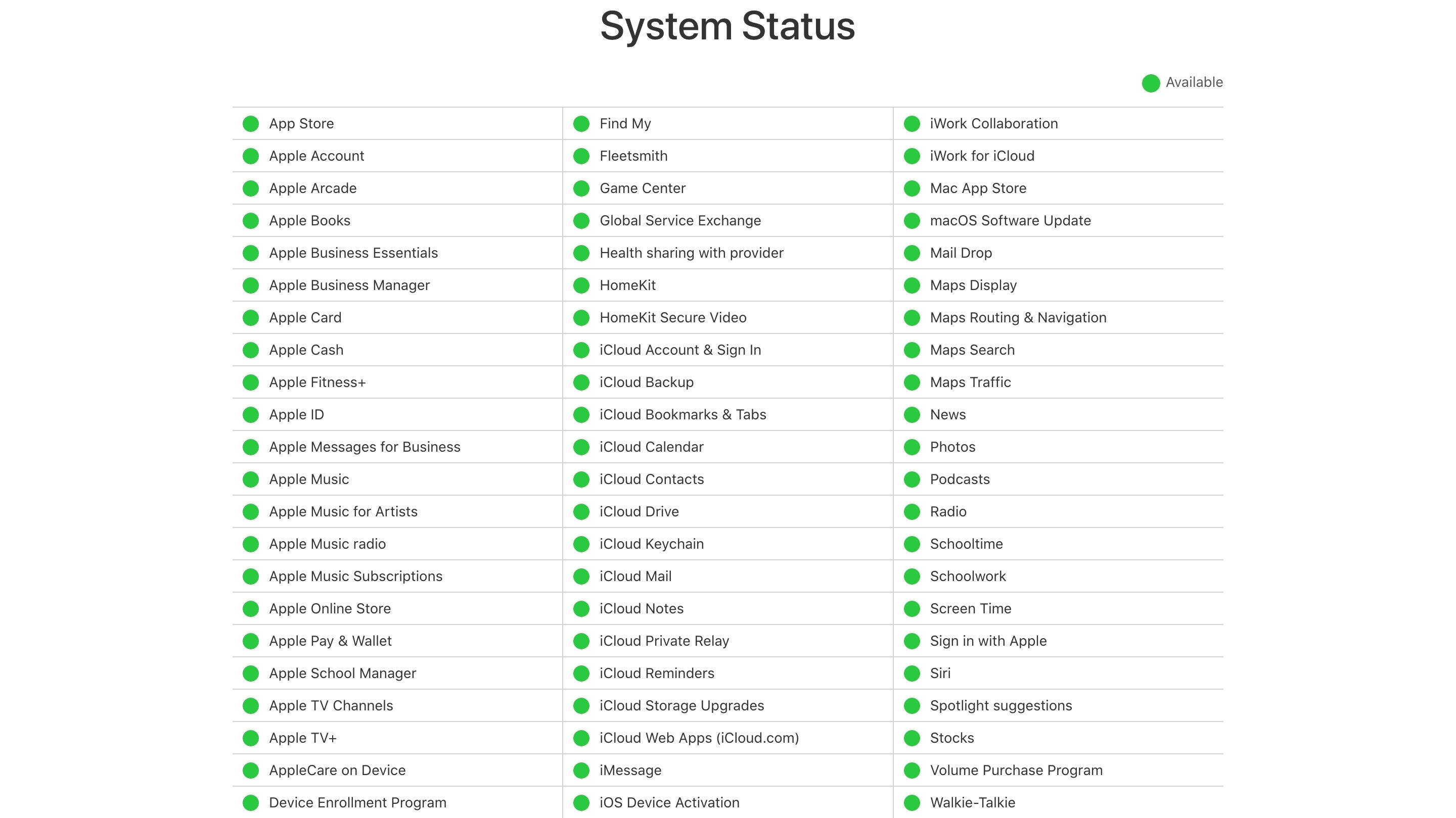
Every service experiences downtime at some point. While most planned outages occur at night, when you're asleep, catastrophic failure or human error can sometimes bring even the most reliable services down.
To check Apple's current iCloud status, head to Apple's System Status page and look for the green dots next to iCloud services. Any ongoing issues should appear at the bottom of the screen.
4. Ensure You've Enabled iCloud for Your App
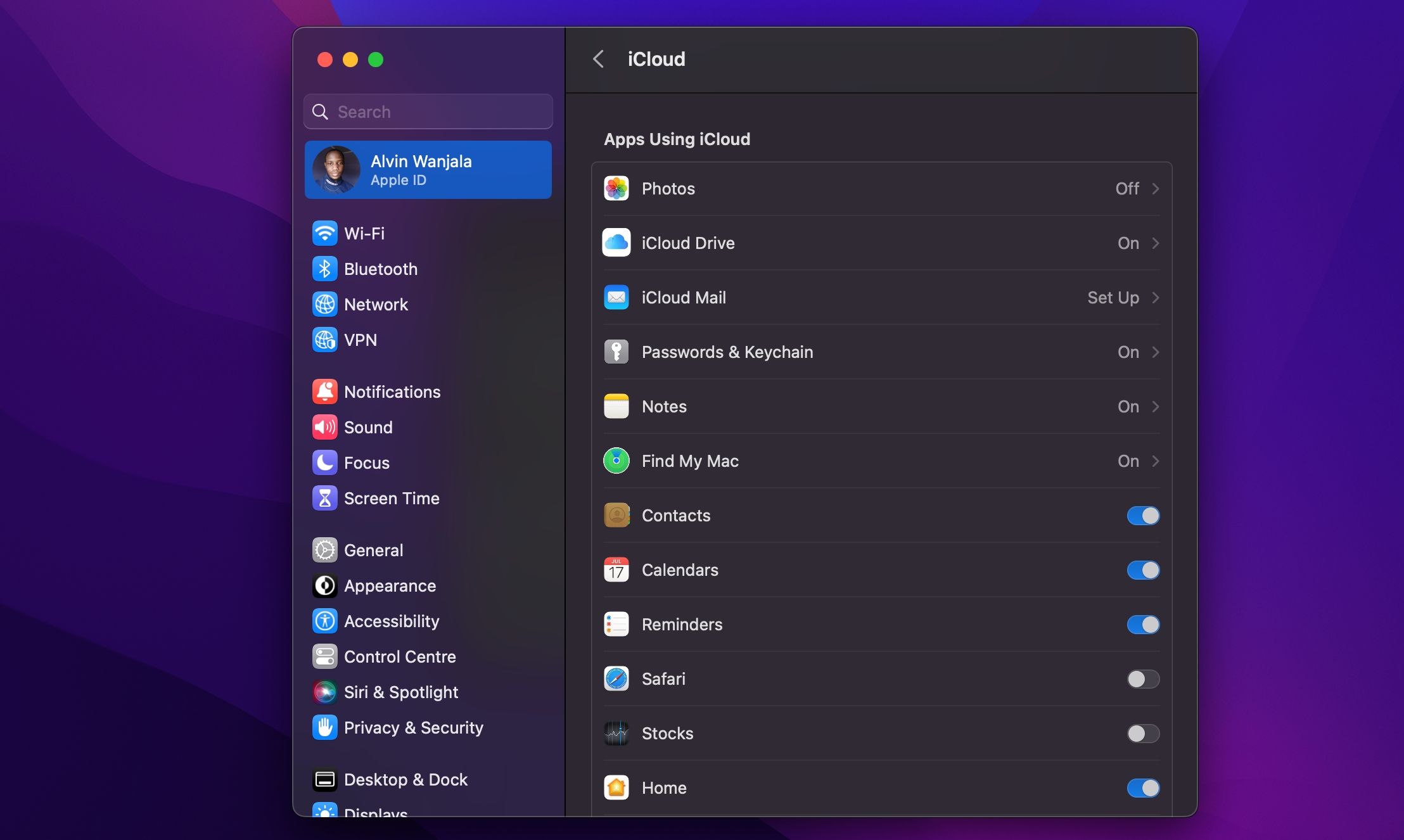
There are some elements you can change in your Settings (iOS) or System Settings (macOS) in order to remedy apps that won't sync.
On your iPhone, head to Settings > [Your Name] > iCloud and tap Show All under Apps Using iCloud. Make sure the app you want to sync is listed and enabled. You can also try toggling this off and back on to force iCloud to sync.
Apps that have access to iCloud on your Mac will appear under Apple Menu > System Settings > Apple ID > iCloud under the Apps Using iCloud section. Click Show All to see the full list.
5. Check That Apps Have Cellular Access
Do you have trouble syncing to iCloud while on mobile data but not on Wi-Fi? You may have disabled cellular access for some apps.
Head to Settings > Cellular or Mobile Data and scroll down to find a list of apps on your phone. Any apps that have their slider turned off will only work on Wi-Fi. Try enabling data access for any apps you want to sync all the time, but note this may increase your data usage.
At the bottom of the screen, you may also want to enable iCloud Drive.
6. Rule Out Date and Time Discrepancies

You can run into a lot of problems when your iPhone's date and time aren't current. Many apps will simply refuse to connect to the internet at all. In order to avoid these problems, you can set the time to automatically update, which will keep your devices in sync and avoid these issues.
On your iPhone, head to Settings > General > Date & Time and toggle on Set Automatically. On a Mac, you can do this from System Settings > General > Date & Time and toggle on Set time and date automatically. After that, also check the box to Set time zone automatically using your current location.
7. Check That You're Syncing the Right Folder
For apps that allow you to customize which folder you use to store data, ensure that the paths match up in both instances. You should make sure that your various iOS and macOS apps are looking for data in the same location, if applicable.
8. Reset and Restore Your Device
If none of the above has helped, and your device won't access or sync iCloud data at all, you might want to take a stronger step and erase your iPhone to clear up any lingering issues. Before you proceed, make sure you back up your phone to avoid losing any data.
To reset and restore your iPhone, go to Settings > General > Transfer or Reset iPhone and select Erase All Content and Settings at the bottom.
You can restore your iPhone from a backup you made when you set up the phone afresh. Wait for the Apps & Data screen to load, tap Restore from iCloud Backup, then sign in with your Apple ID. Once you're finished, your device will be near-identical to how you started, except you'll need to add or authorize your various accounts again.
Hopefully, this will clear up whatever issue you had with iCloud Drive. If it still doesn't work, check out some of the most common iCloud issues and how to fix them.
9. Look Into App-Specific Support
If you've got an app that uses data syncing to transfer between different platforms, there's a good chance the developer offers help documentation to help you overcome your issues. Most of the time, developers can pinpoint the exact files and folders you should delete in order to solve your issue.
A few apps that include specific guides to solving iCloud issues include Day One, 1Password, and Ulysses. Search online for specific help if your issue lies with another app.
10. Use an iCloud Alternative
Many applications give you a choice of whether or not to use iCloud. If you can avoid using it, you'll sidestep many of the issues that have plagued the service.
For example, apps like Day One and 1Password both allow you to use Dropbox. Plus, iCloud alternatives often provide you with more space and less hassle. And don't worry; you can still use other iCloud features like Find My and iCloud email accounts.
Some of the best cloud storage alternatives include Dropbox, Google Drive, and OneDrive.
Sync Your iCloud Data Without Issues
Hopefully, these tips helped you clear up your iCloud Drive issues; most users have reported that one of these tips helped to get them back on track. While iCloud isn't perfect, its integration with Apple platforms makes it the de facto choice for many users. Now, you can enjoy it as Apple intended.
The above is the detailed content of iCloud Not Syncing? How to Solve iCloud Sync Issues. For more information, please follow other related articles on the PHP Chinese website!

Hot AI Tools

Undresser.AI Undress
AI-powered app for creating realistic nude photos

AI Clothes Remover
Online AI tool for removing clothes from photos.

Undress AI Tool
Undress images for free

Clothoff.io
AI clothes remover

Video Face Swap
Swap faces in any video effortlessly with our completely free AI face swap tool!

Hot Article
Hot Tools

Notepad++7.3.1
Easy-to-use and free code editor

SublimeText3 Chinese version
Chinese version, very easy to use

Zend Studio 13.0.1
Powerful PHP integrated development environment

Dreamweaver CS6
Visual web development tools

SublimeText3 Mac version
God-level code editing software (SublimeText3)
Hot Topics
 1389
1389
 52
52

 The full list of all macOS versions until 2025
Mar 23, 2025 am 10:08 AM
The full list of all macOS versions until 2025
Mar 23, 2025 am 10:08 AM
macOS version history macOS 15 Sequoia, September 16, 2024macOS 14 Sonoma,September 26, 2023 macOS 13 Ventura,October 25, 2022
 Floating screen recording: how to capture a specific app window on a Mac
Mar 28, 2025 am 09:16 AM
Floating screen recording: how to capture a specific app window on a Mac
Mar 28, 2025 am 09:16 AM
Mac Screen Recording: Easily capture windows, areas and drop-down menus The screenshot tool (Command Shift 5) that comes with Mac systems can record full screen or selected areas, but cannot record specific application windows separately. At this time, more powerful tools are needed to complete the task. This article will introduce several ways to help you record your Mac windows as easily as a professional. Record the application window separately Record a single window to avoid cluttered desktop backgrounds and create more professional and prominent images and videos. Here are some excellent screen recording applications: Function comparison Gifox CleanShot X Dropshare Record a specific window ✓ ✓ ✓
 Top 9 AI writing assistants for Mac, iOS, and the web
Mar 23, 2025 am 10:44 AM
Top 9 AI writing assistants for Mac, iOS, and the web
Mar 23, 2025 am 10:44 AM
The market for AI-powered writing assistants is expected to grow rapidly, reaching approximately $6.5 billion by 2030. Since AI writing assistants are here to stay, it's important to learn about the best tools in the industry. In this article, w
 Spotify on Apple Watch: How to use it in 2025
Apr 04, 2025 am 09:55 AM
Spotify on Apple Watch: How to use it in 2025
Apr 04, 2025 am 09:55 AM
With the support of Apple devices' interconnected ecosystem, managing and synchronizing your Apple devices has become a breeze. Unlock Mac with Apple Watch? Simple! (If you haven't set this unlocking method yet, you should really try it, it's very time-saving). Can you pay with Apple Watch without using iPhone? Apple can handle it easily! Today we will focus on how to download the Spotify playlist to an Apple Watch and play without an iPhone. Spoiler: This is possible. How to use Spotify on Apple Watch: A quick overview Let's dive into the key issues and their solutions directly. If this form helps you, that would be great! If you
 Email is not syncing? How to refresh the Mail app on Mac
Apr 04, 2025 am 09:45 AM
Email is not syncing? How to refresh the Mail app on Mac
Apr 04, 2025 am 09:45 AM
Mac mail synchronization failed? Quick solution! Many Mac users rely on the included Mail app because it is simple and convenient. But even reliable software can have problems. One of the most common problems is that Mail cannot be synced, resulting in recent emails not being displayed. This article will guide you through email synchronization issues and provide some practical tips to prevent such issues. How to refresh the Mail app on your Mac Operation steps Click the envelope icon Open the Mail app > View > Show Tab Bar > Click the Envelope icon to refresh. Use shortcut keys or menu options Press Shift Command N. Or open the Mail app
 Change the unchangeable PDFs with Nitro PDF Pro
Mar 22, 2025 am 11:14 AM
Change the unchangeable PDFs with Nitro PDF Pro
Mar 22, 2025 am 11:14 AM
You can’t avoid working with PDFs. But what you can avoid is having problems with them. Intractable as they seem, PDFs are actually pretty easy to deal with – not without help, of course. When it comes to making changes in your docs,Nitro PDF Pr